When a new profile is added to the platform a new local landing page for that profile is created on the CMS and now all the details are in real-time sync. This saves time and allows you to reach your local audience right from the get-go.
Please note: If you are interested in using this new CMS feature, get in touch with your Customer Success Manager today!
Path: Platform > Settings > Profiles > Add Profile
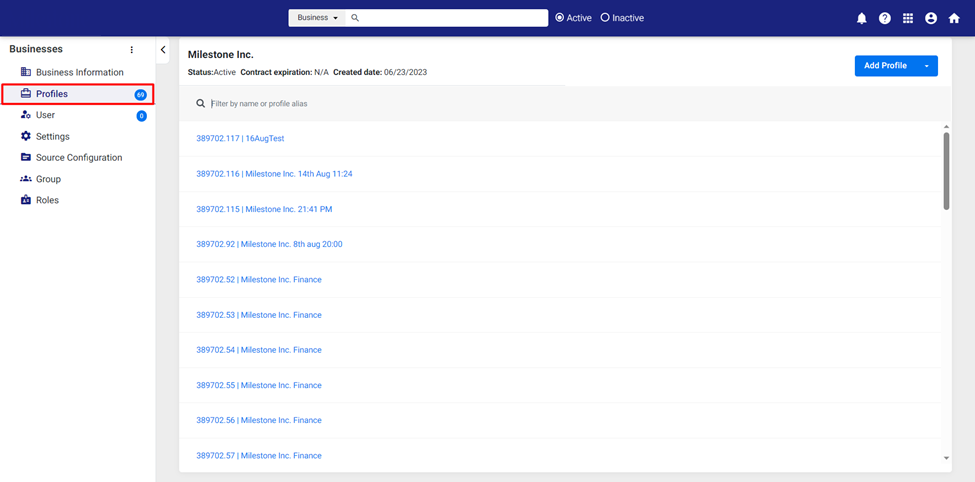
Step 1: From the settings menu of the business click on ‘Profiles’ in the left navigation panel.
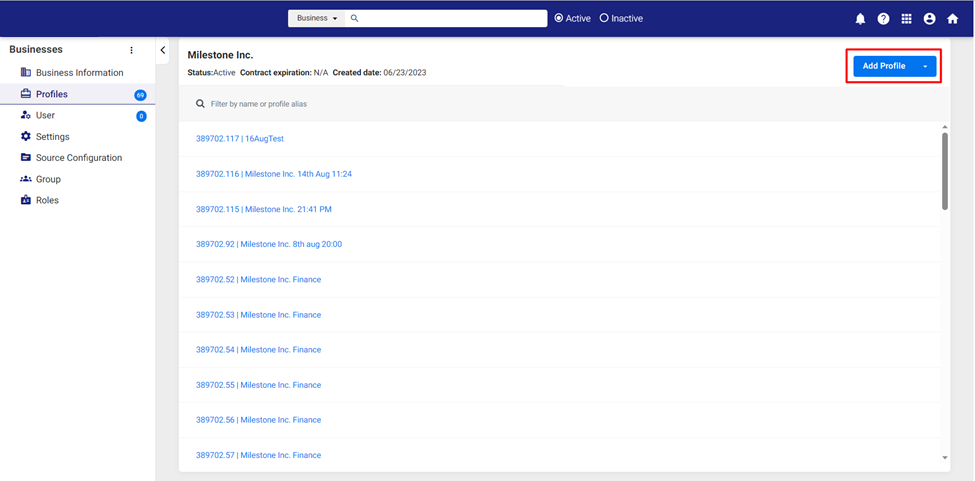
Step 2: In the Profiles section click on ‘Add Profile’ to the top right.
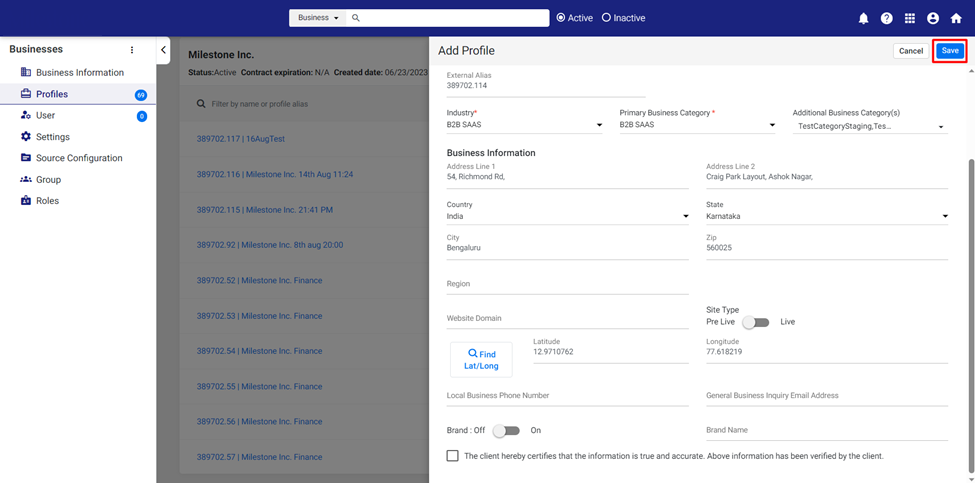
Step 3: Enter the details of your business profile and click on ‘Save’ to the top right.
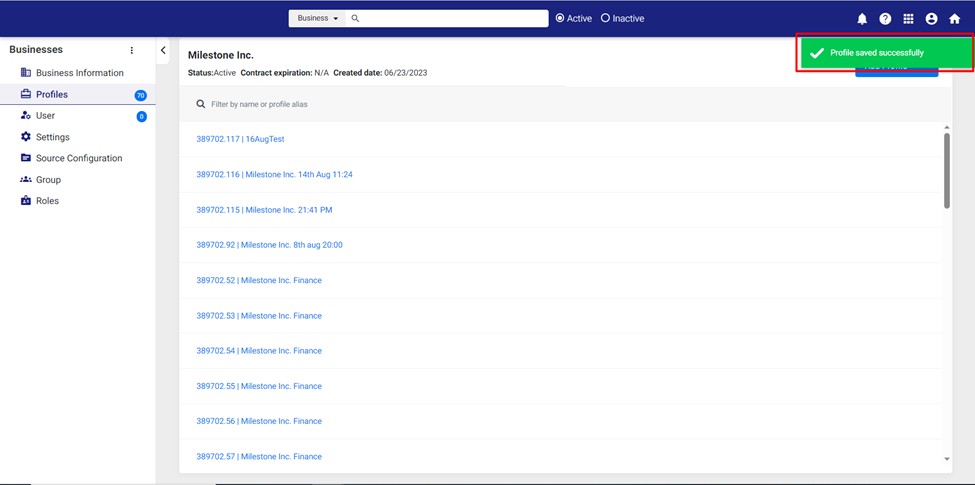
You will be notified once the profile is saved successfully.
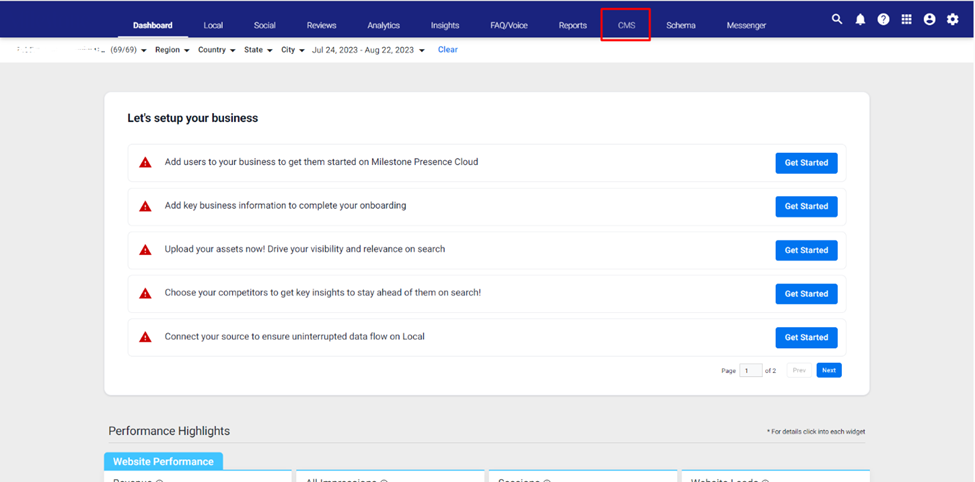
Step 4: From the dashboard click on CMS in the top navigation panel.
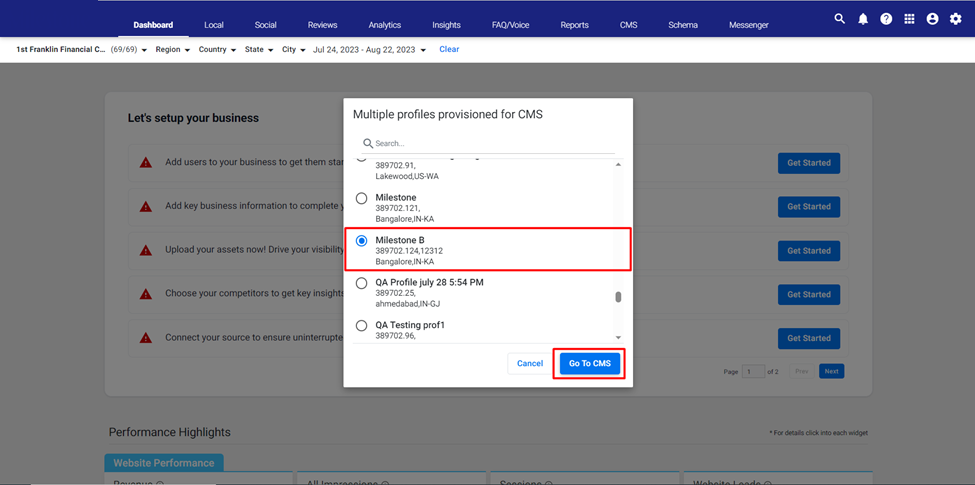
Step 5: Select the profile you just created.
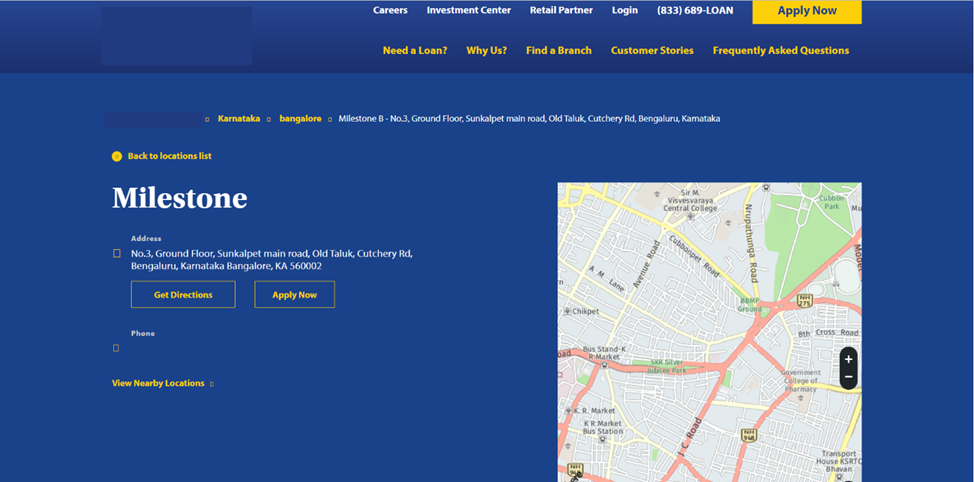
Step 6: A location page has been created for the profile along with Maps, as the business address was updated in the platform.
Was this article helpful?
That’s Great!
Thank you for your feedback
Sorry! We couldn't be helpful
Thank you for your feedback
Feedback sent
We appreciate your effort and will try to fix the article