Once you've created a campaign in Milestone Content Studio, managing it efficiently is key to keeping your content strategy on track. The My Campaigns feature allows you to seamlessly add new content, edit existing pieces, and delete content or entire campaigns when needed.
This article will walk you through the essential steps to keep your campaigns organized and up to date, ensuring your content remains relevant and aligned with your goals. Let’s explore how you can take full control of your campaigns!
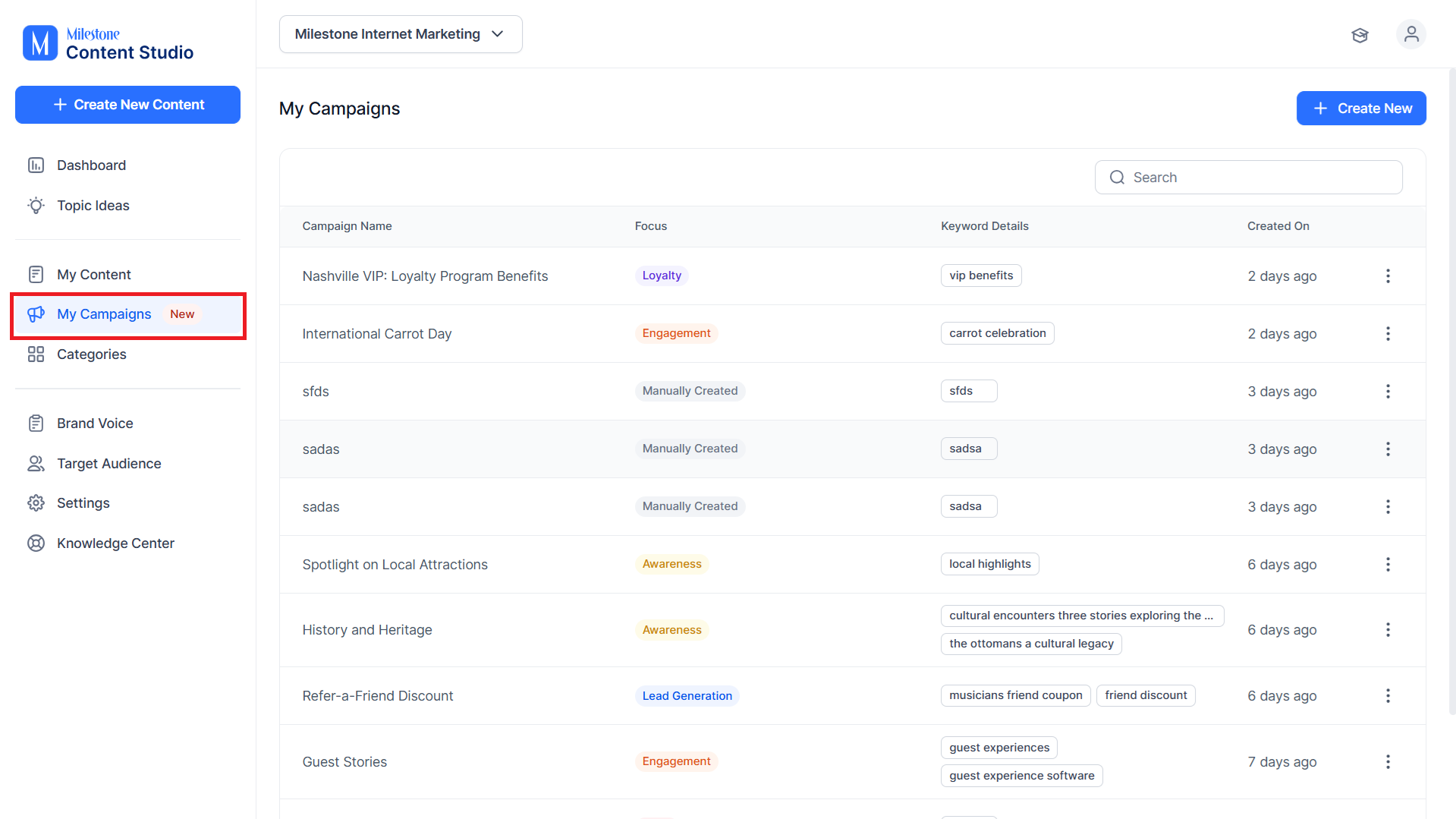
Step 1: Click on ‘My Campaigns’ in the left navigation panel to view all your existing campaigns.
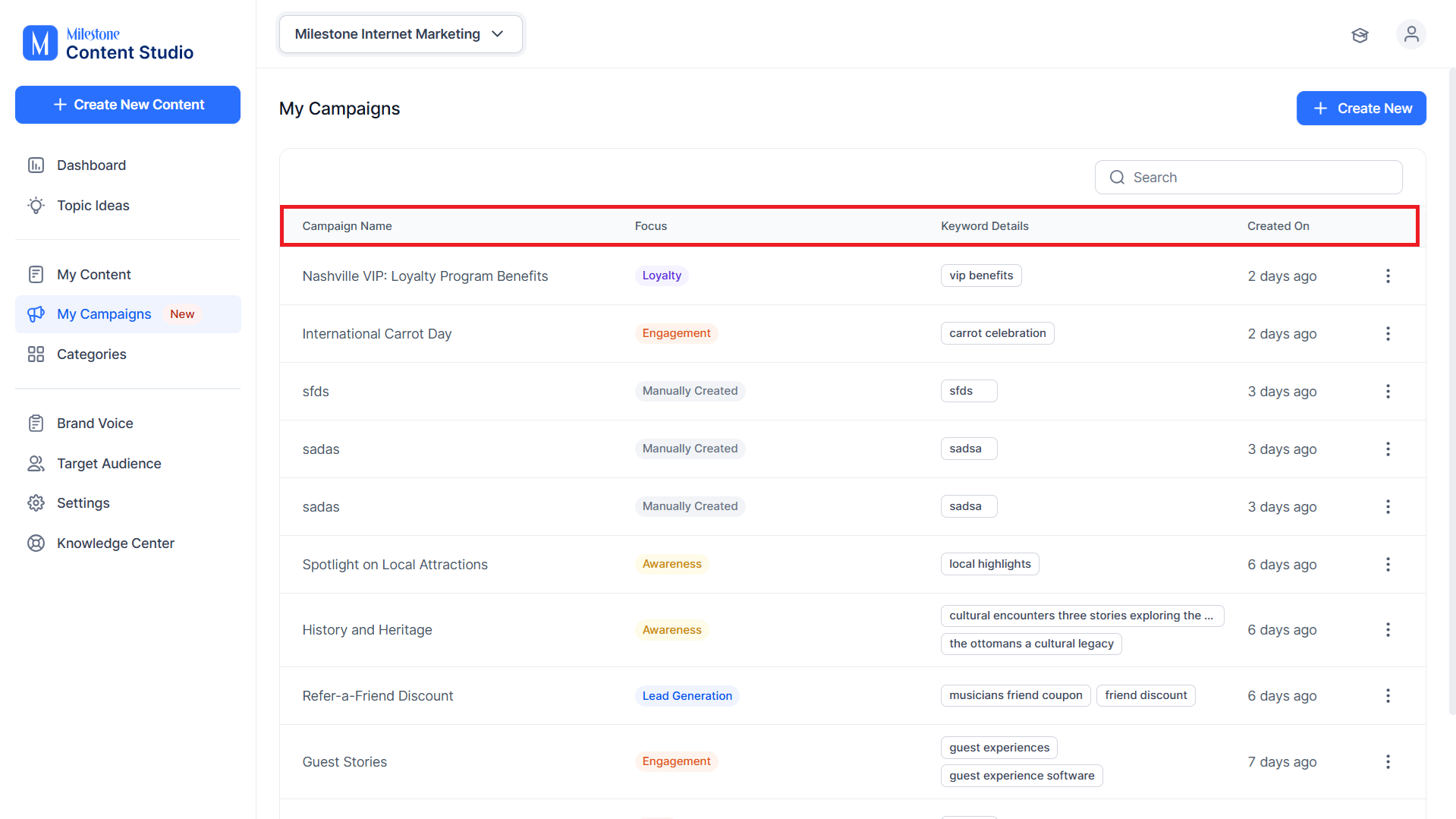
Step 2: In this section, you can view
- Campaign Name: The name of the campaign.
- Focus: The main goals of the campaign.
- Keyword Details: The keywords the campaign is targeting.
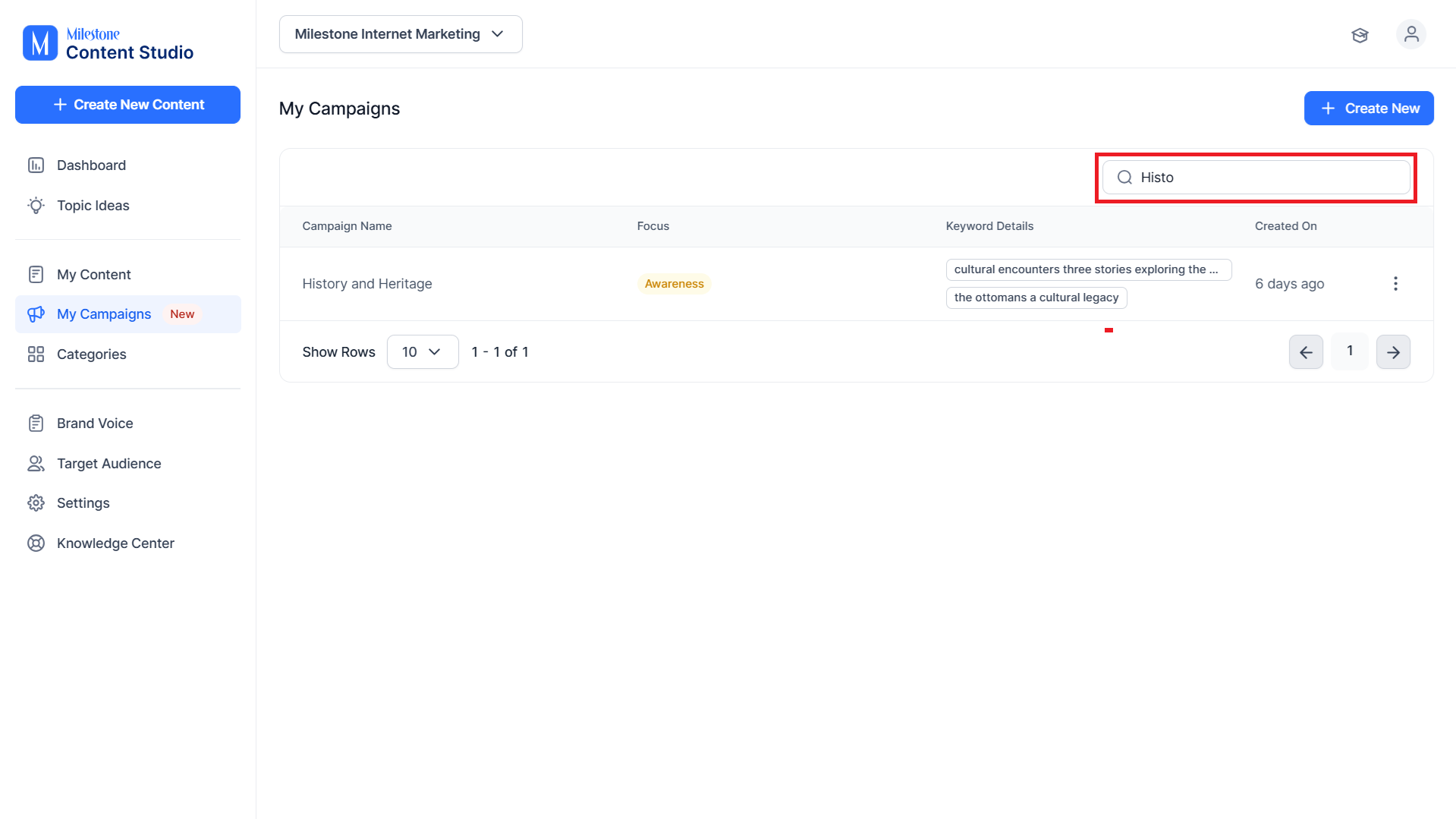
Step 3: Use the search to the top right to find specific campaigns.
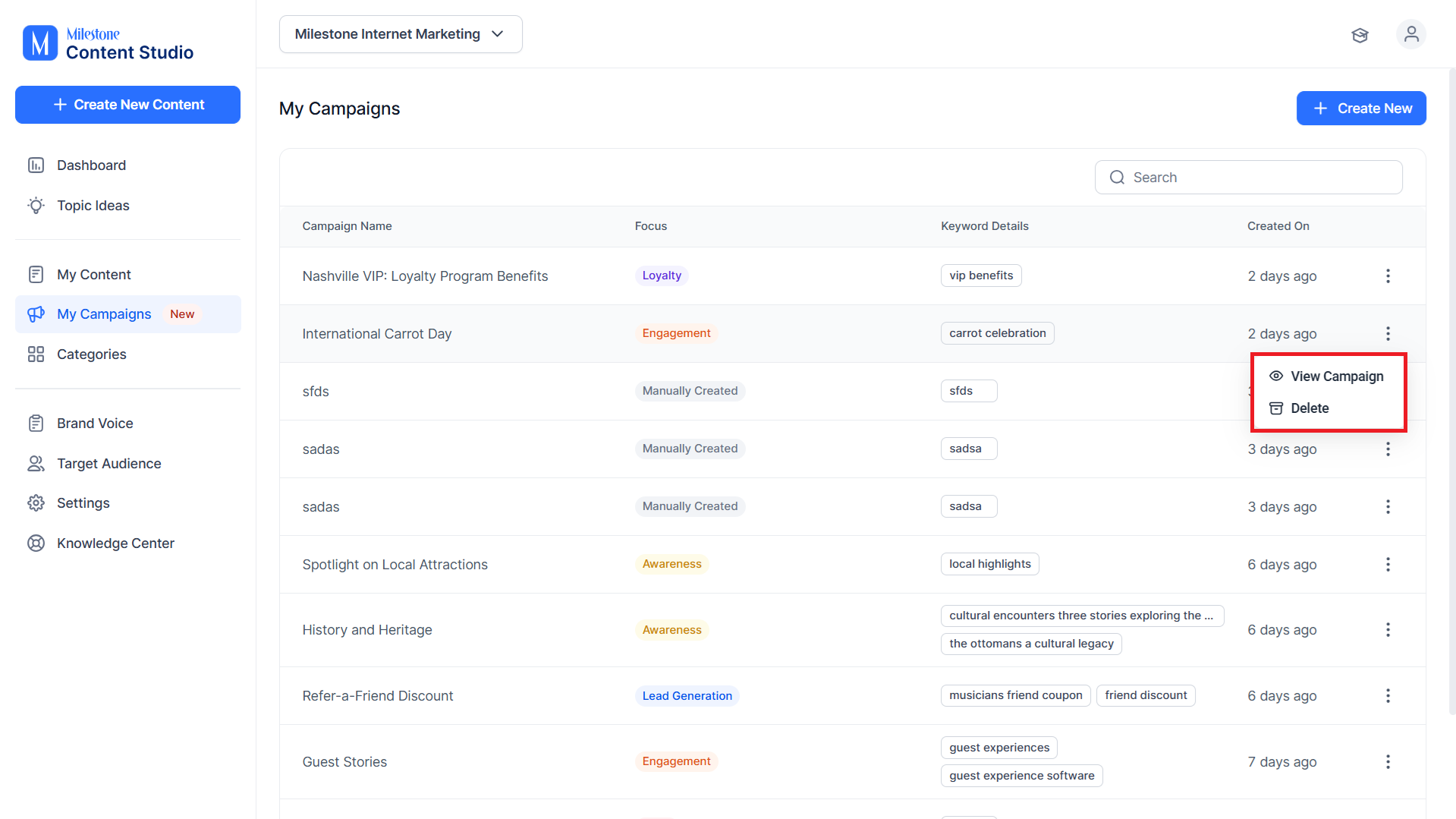
Step 4: The three-dot menu corresponding to a campaign allows you to view a campaign or delete it.
Step 5: If you click on a campaign or ‘View Campaign’ you will be re-directed to the campaign folder. Here you can view all the content created for the campaign.
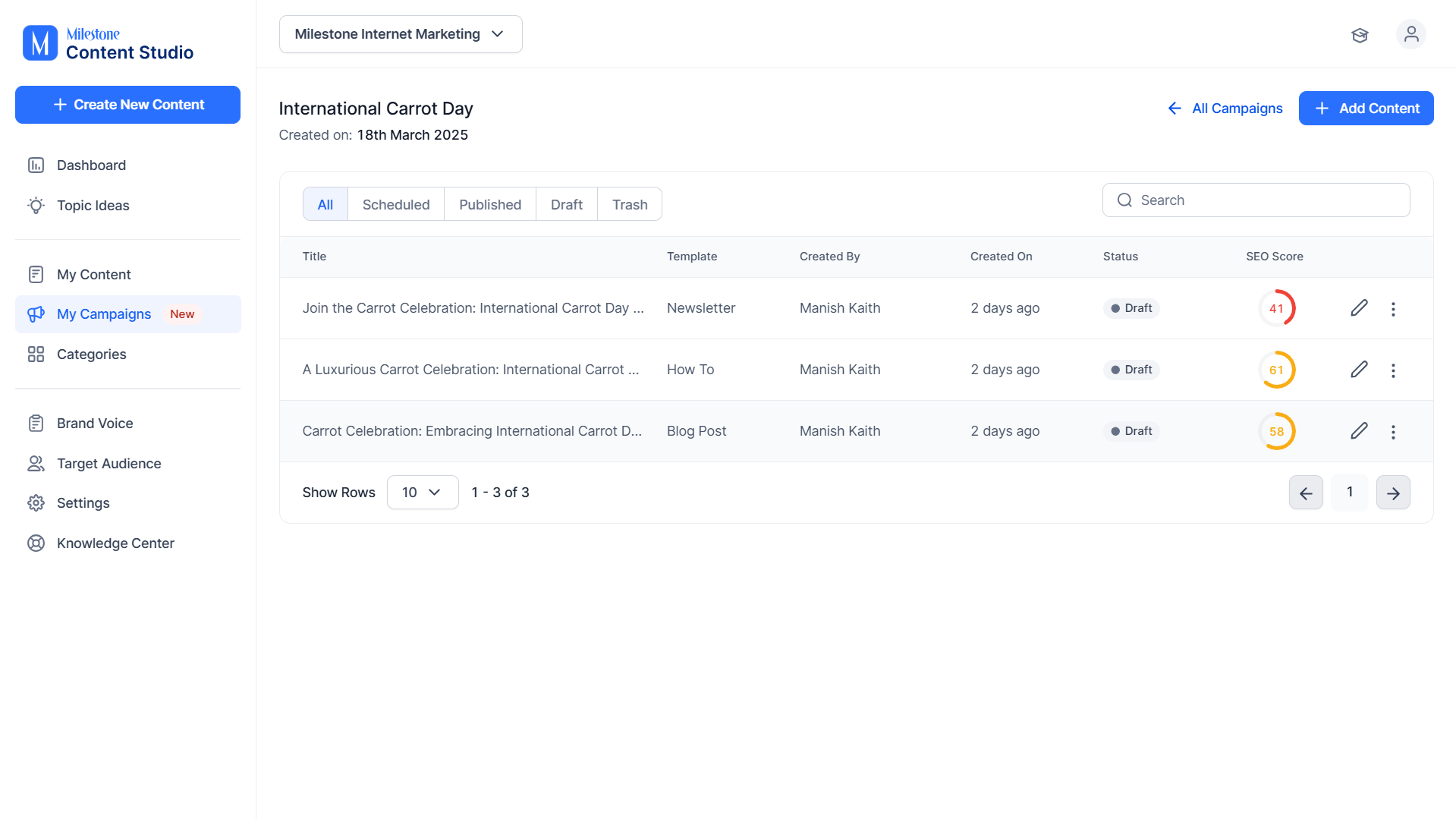
Step 6: Click on the ‘Edit’ icon to edit individual pieces of content.
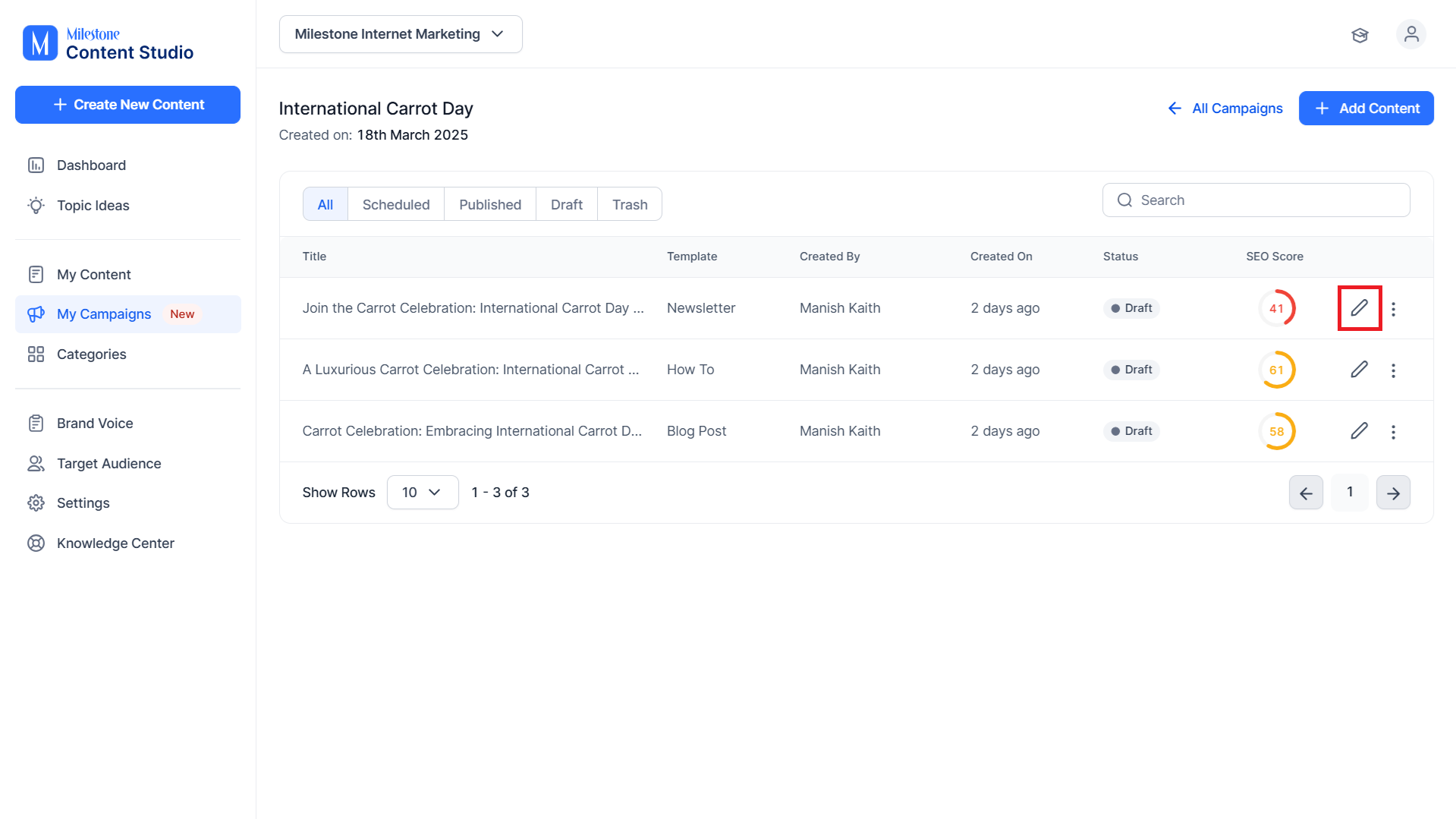
Step 7: Click on the three-dot menu to delete a piece of content.
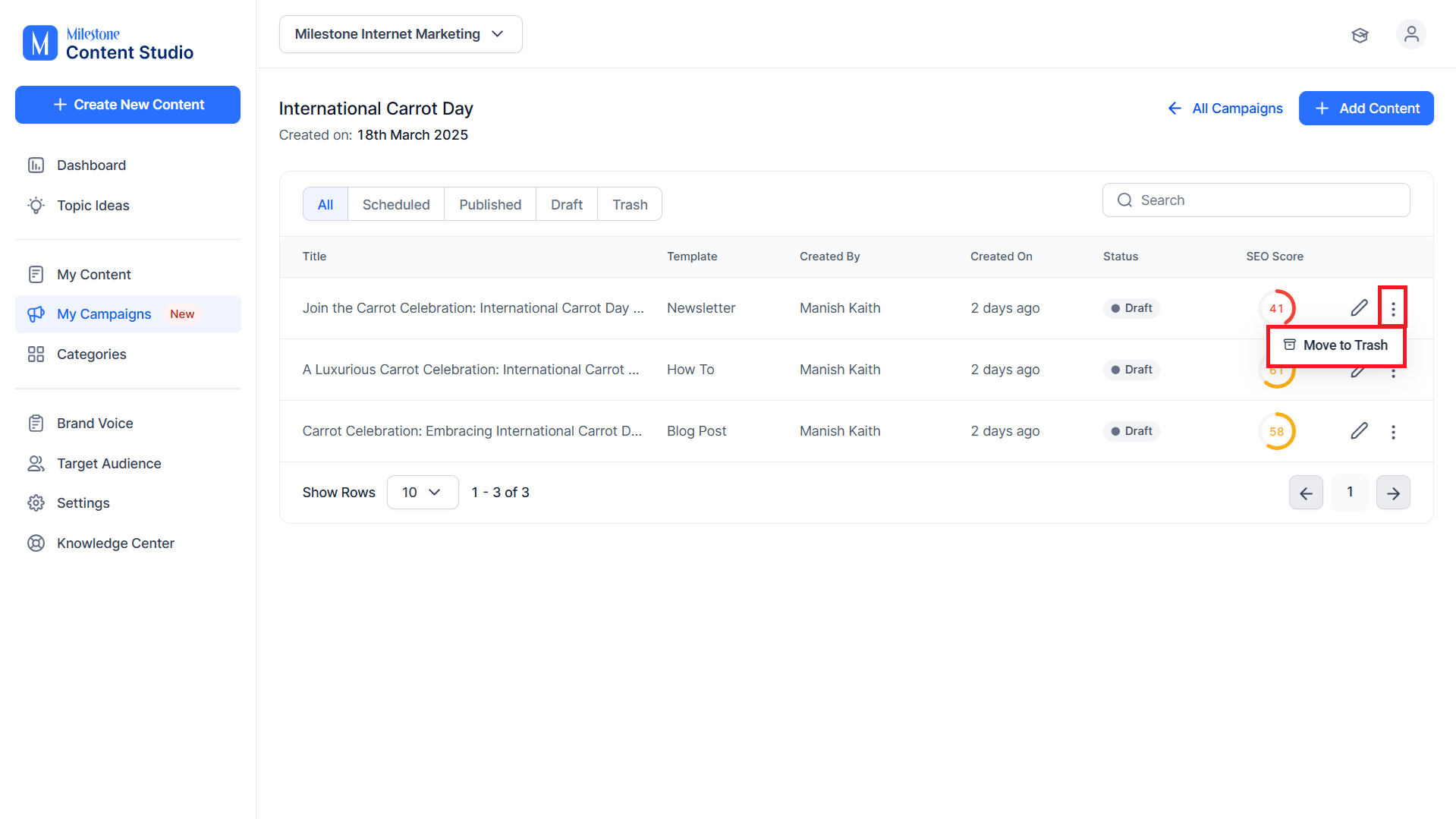
Step 8: Click on ‘Add Content’ to add more content via templates to a campaign.
Was this article helpful?
That’s Great!
Thank you for your feedback
Sorry! We couldn't be helpful
Thank you for your feedback
Feedback sent
We appreciate your effort and will try to fix the article