Follow the steps to connect Google Search Console to MPC (Milestone Presence Cloud) Insights for a business profile.
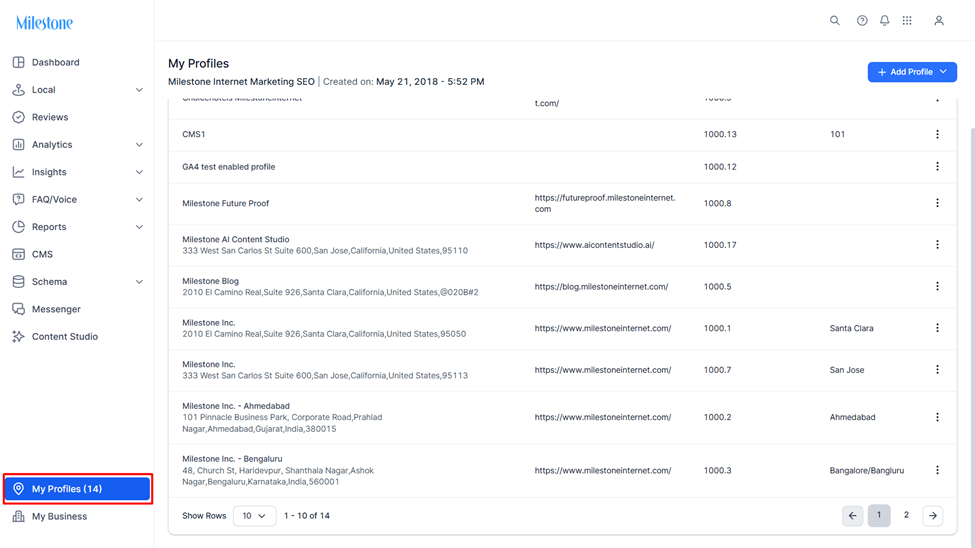
Step 1: Click on ‘My Profiles’ at the bottom left of the Milestone dashboard.
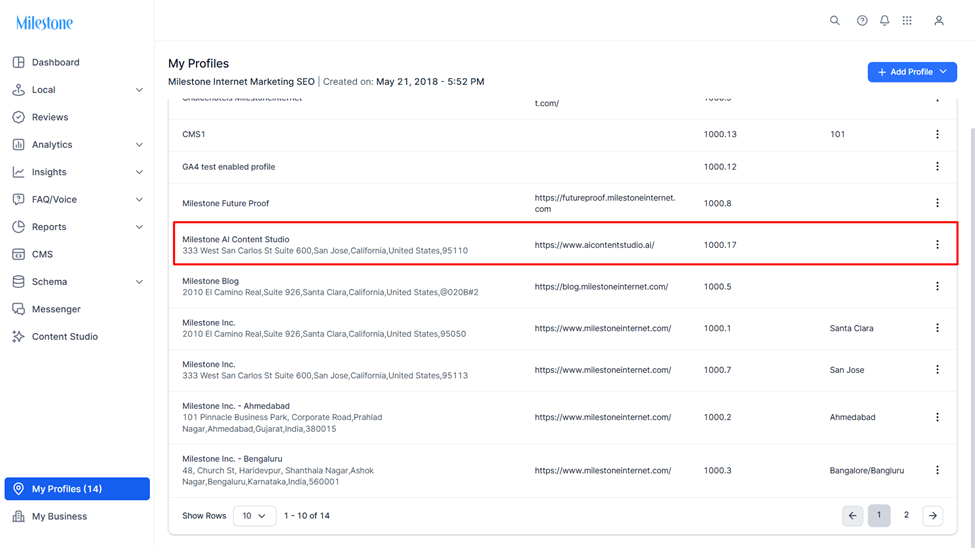
Step 2: Click on the profile you want to connect to Google Search Console.
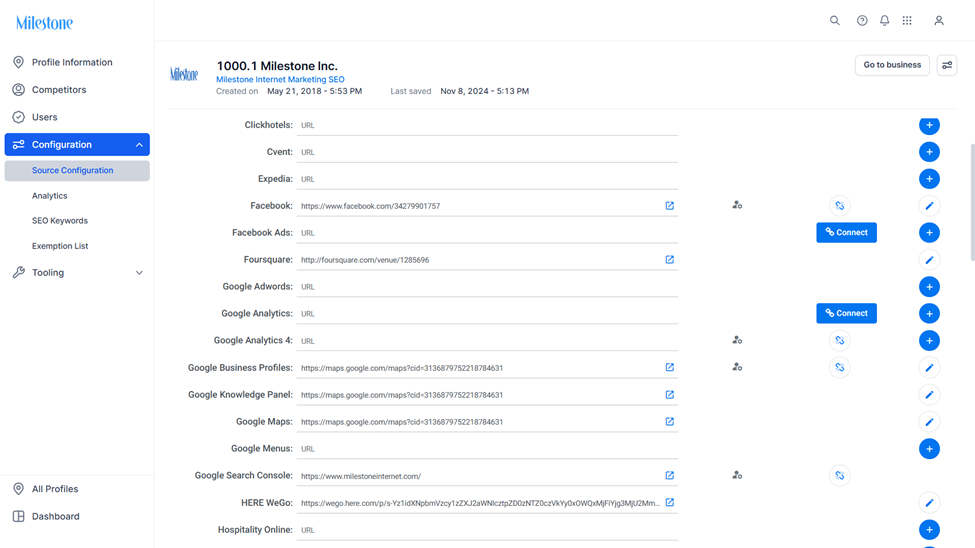
Step 3: Under ‘Configuration’ click on ‘Source Configuration’.
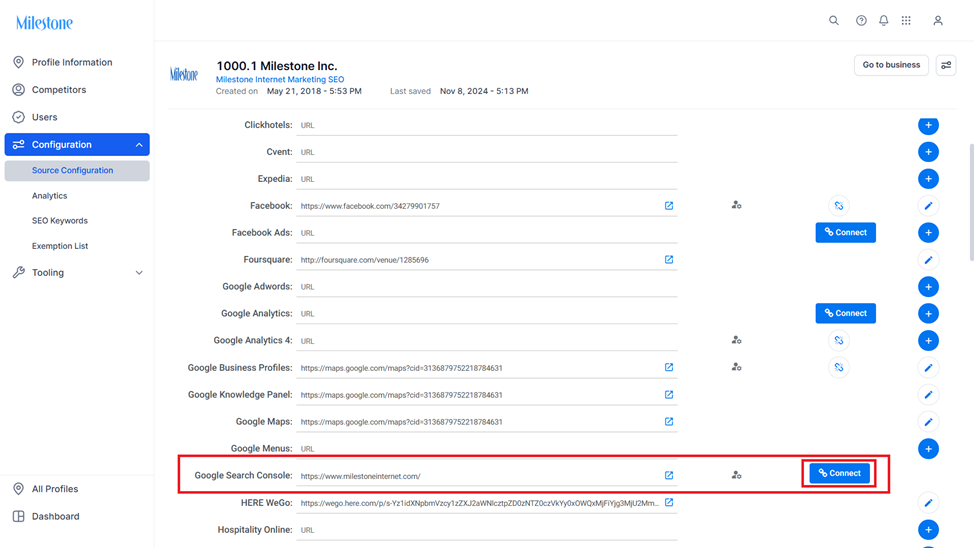
Step 4: Add the link you want to connect to Google Search Console and click on ‘Connect’.
There is one addition in MPC Insights configurations please do set up sources i.e., Apple, Google My Business, Bing Maps, Foursquare, Yelp, Facebook, and URLs for them (Manually or through Scan all Button) so that we can have the correct data flowing for those widgets.
Was this article helpful?
That’s Great!
Thank you for your feedback
Sorry! We couldn't be helpful
Thank you for your feedback
Feedback sent
We appreciate your effort and will try to fix the article