You can manage the keywords you would like to track on Milestone Insights.
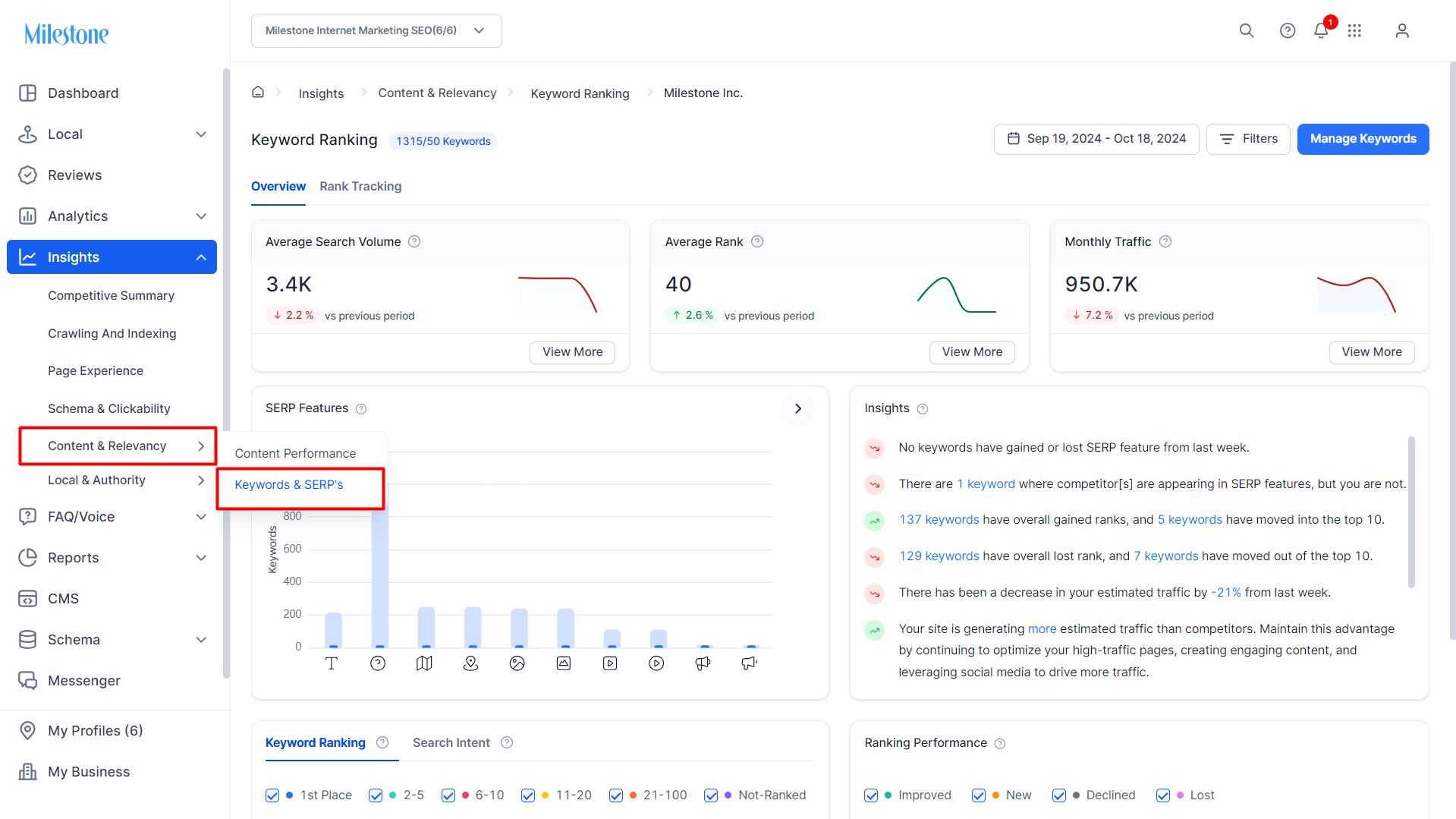
Step 1: Navigate to the ‘Keywords & SERPs’ section of Milestone Insights.
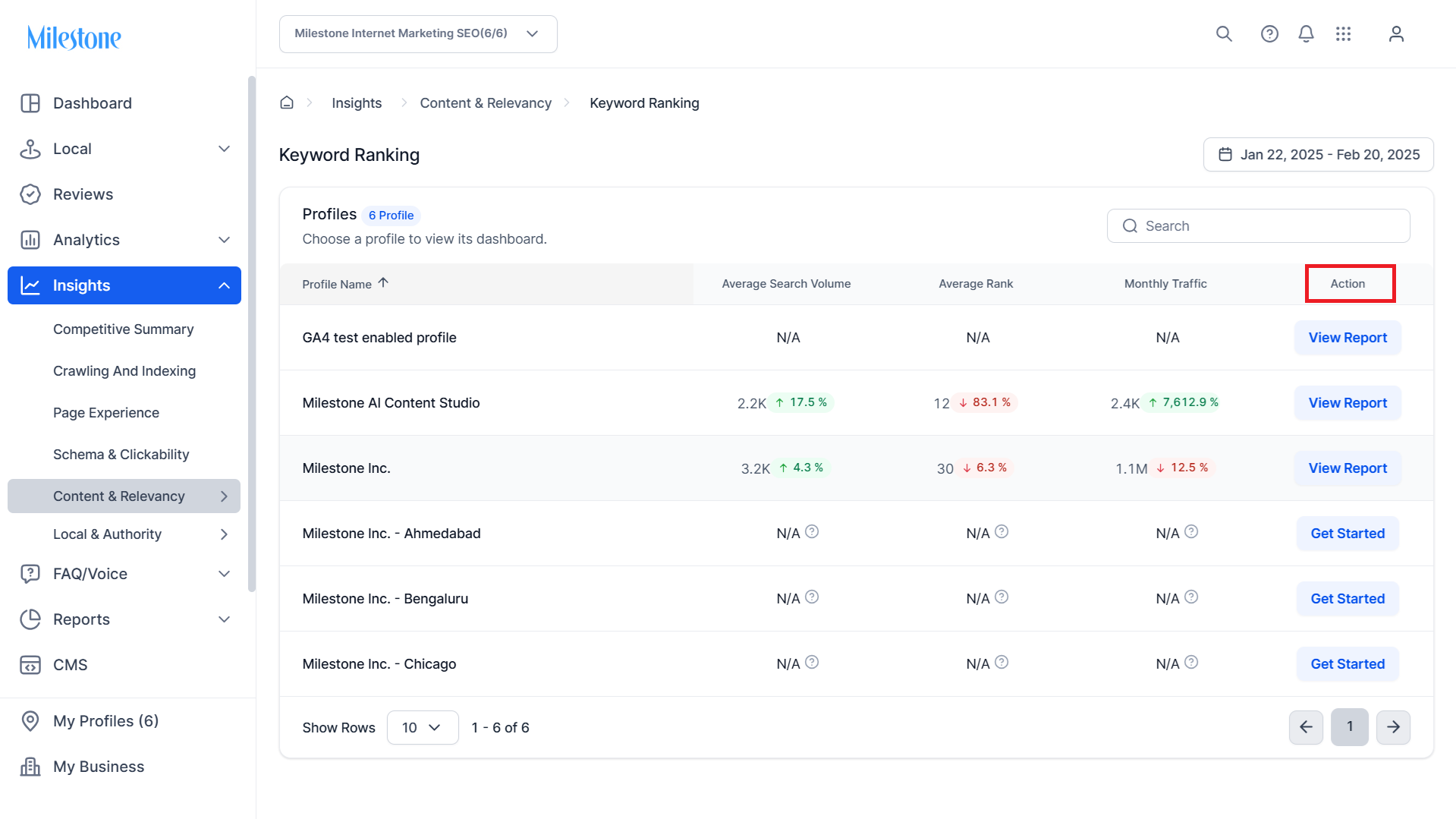
Step 2: From the 'Profiles' section select the profile you want to add keywords for from the 'Actions' column.
Step 3: You can choose to add keywords for a profile via two methods 'Bulk Upload Keywords' or 'Add Manually'.
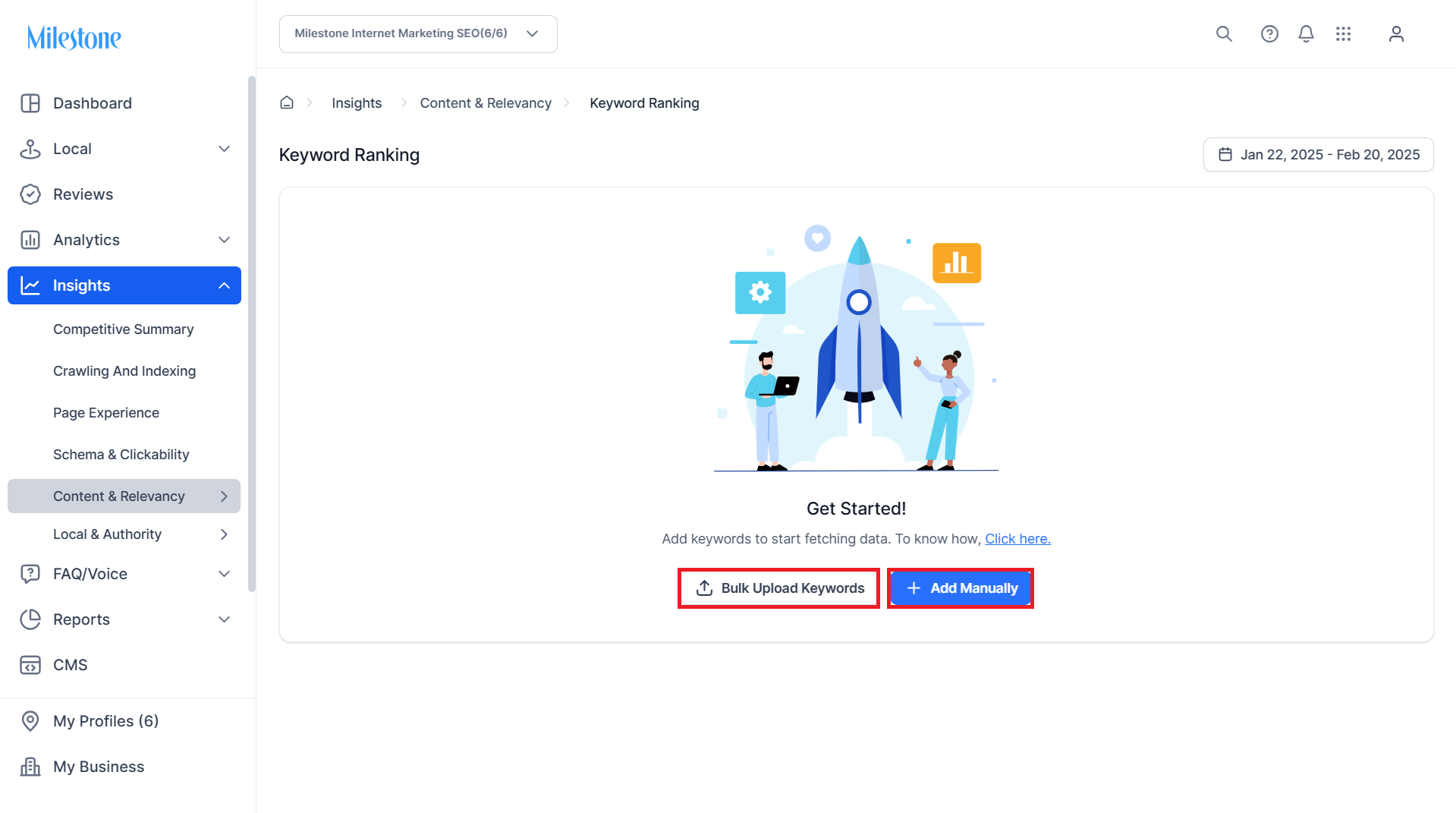
Add Keywords Manually
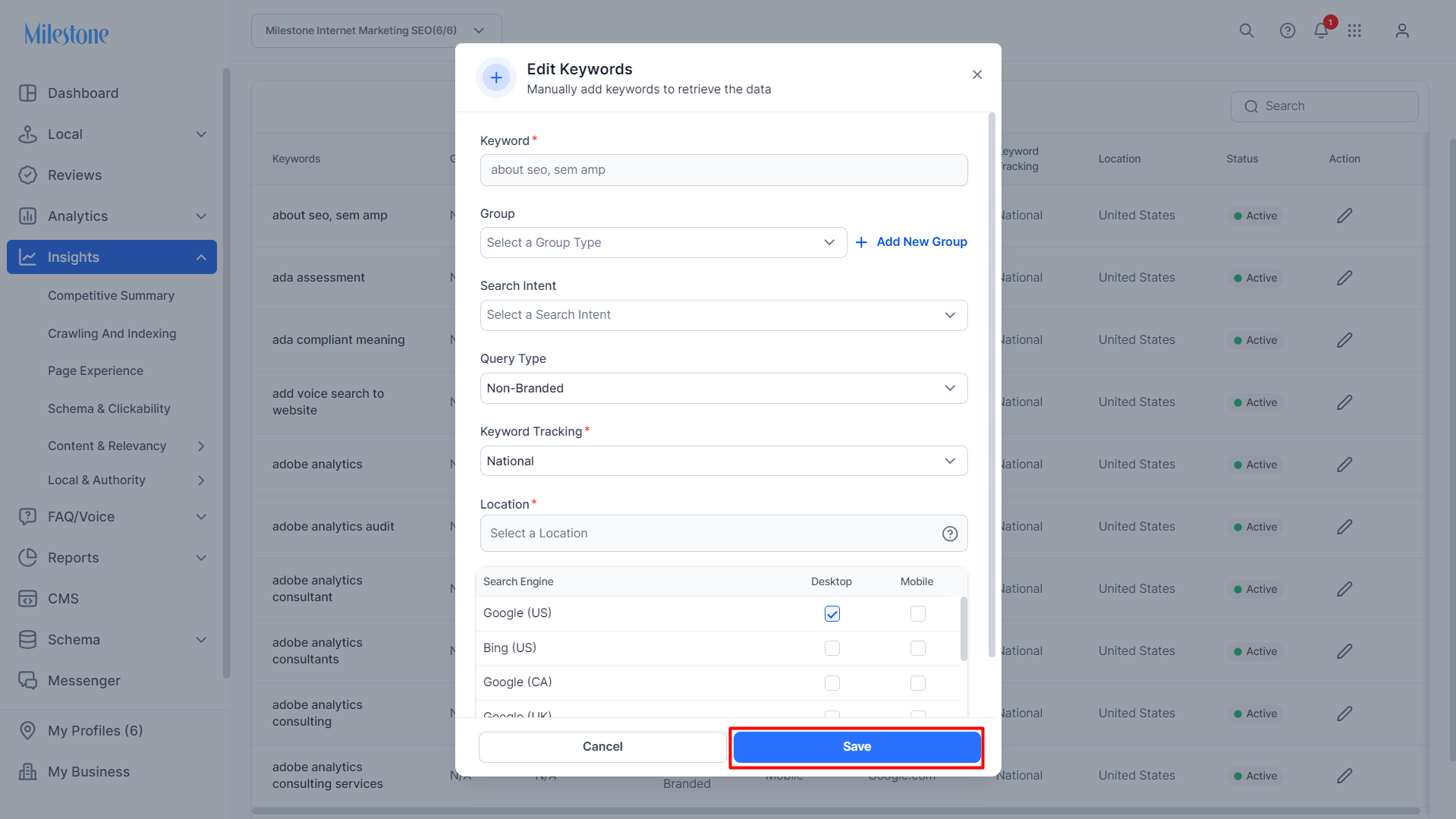
Click on ‘Add Keywords Manually’ to add individual keywords to Milestone Insights. Here will need to provide the following details:
- Keyword: The keyword you want to track.
- Group: The group you want to add this keyword to.
- Search Intent: The search intent you want to monitor.
- Query Type: The query type you want to monitor for the keyword. (Branded or non-branded).
- Keyword Tracking: Whether the keyword should be tracked for national traffic or local traffic.
- Location: If the keyword data is for local, you will need to add a location.
- Search Engine and Device Types: The search engine you want to track the data for and the device types.
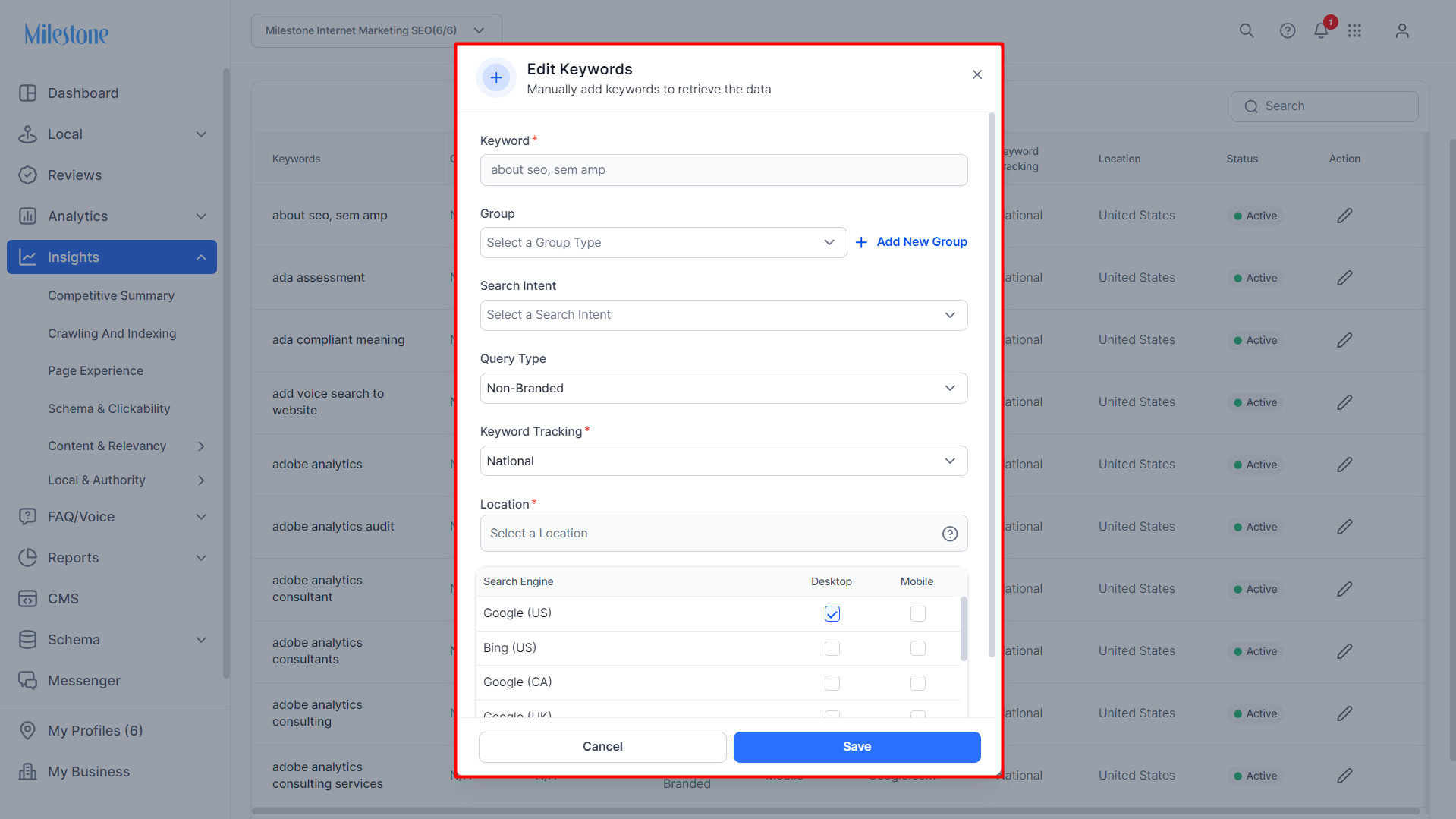
Once you have added all these details click on ‘Save’.
Bulk Upload
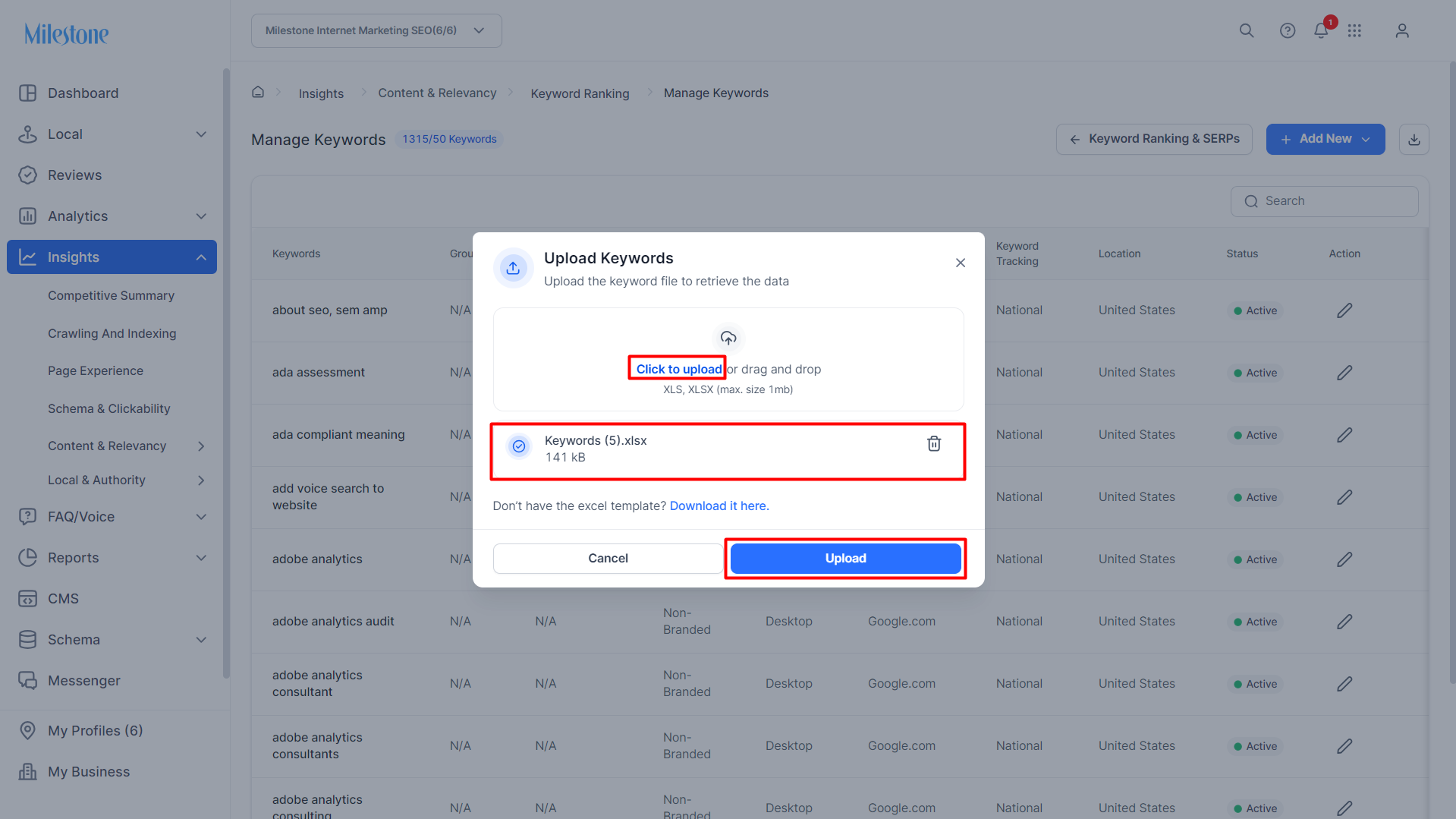
You can also bulk upload keywords to Milestone Insights via a spreadsheet.
Click on ‘Bulk Upload Keywords’ to start upload keywords in bulk.
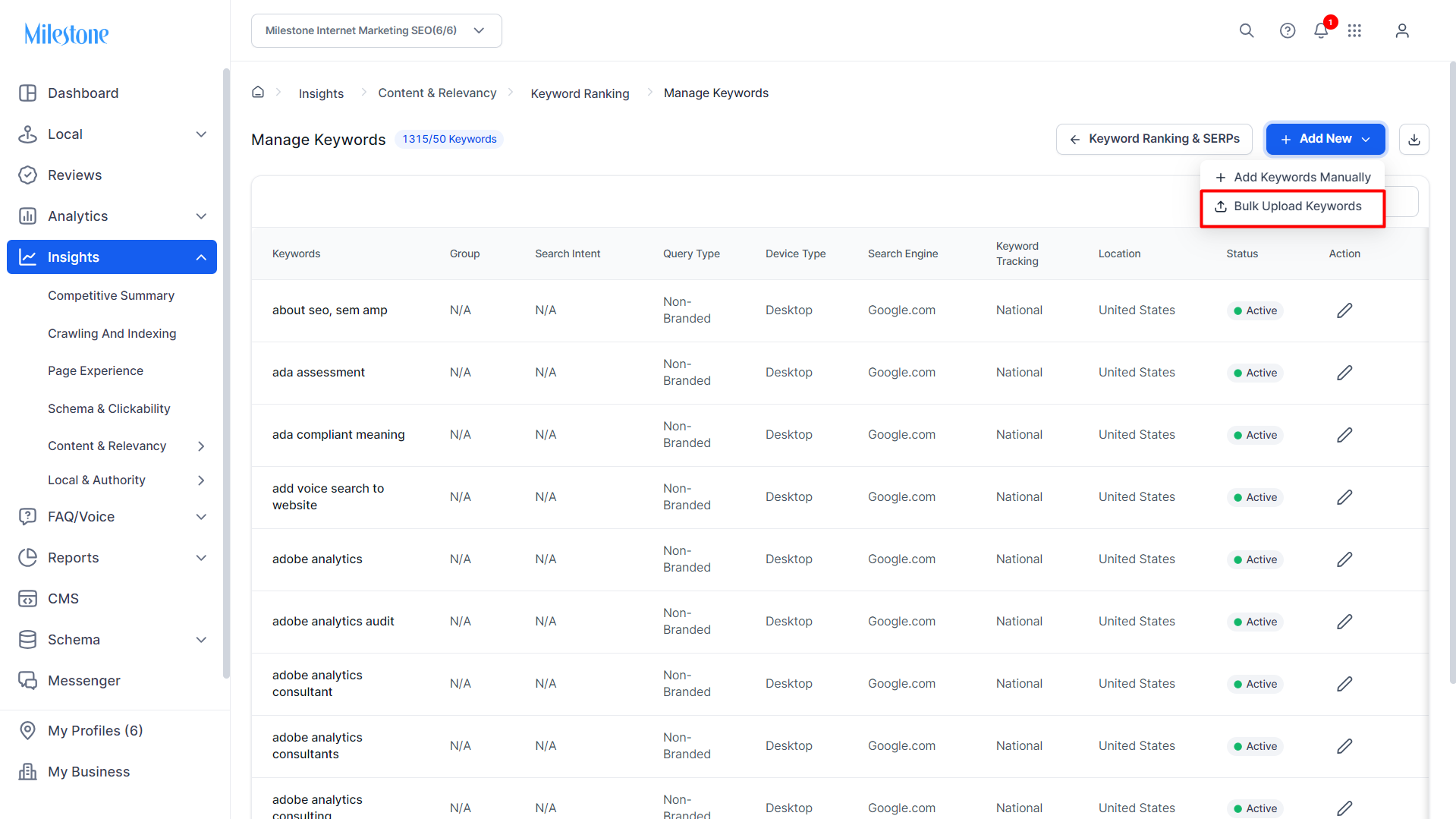
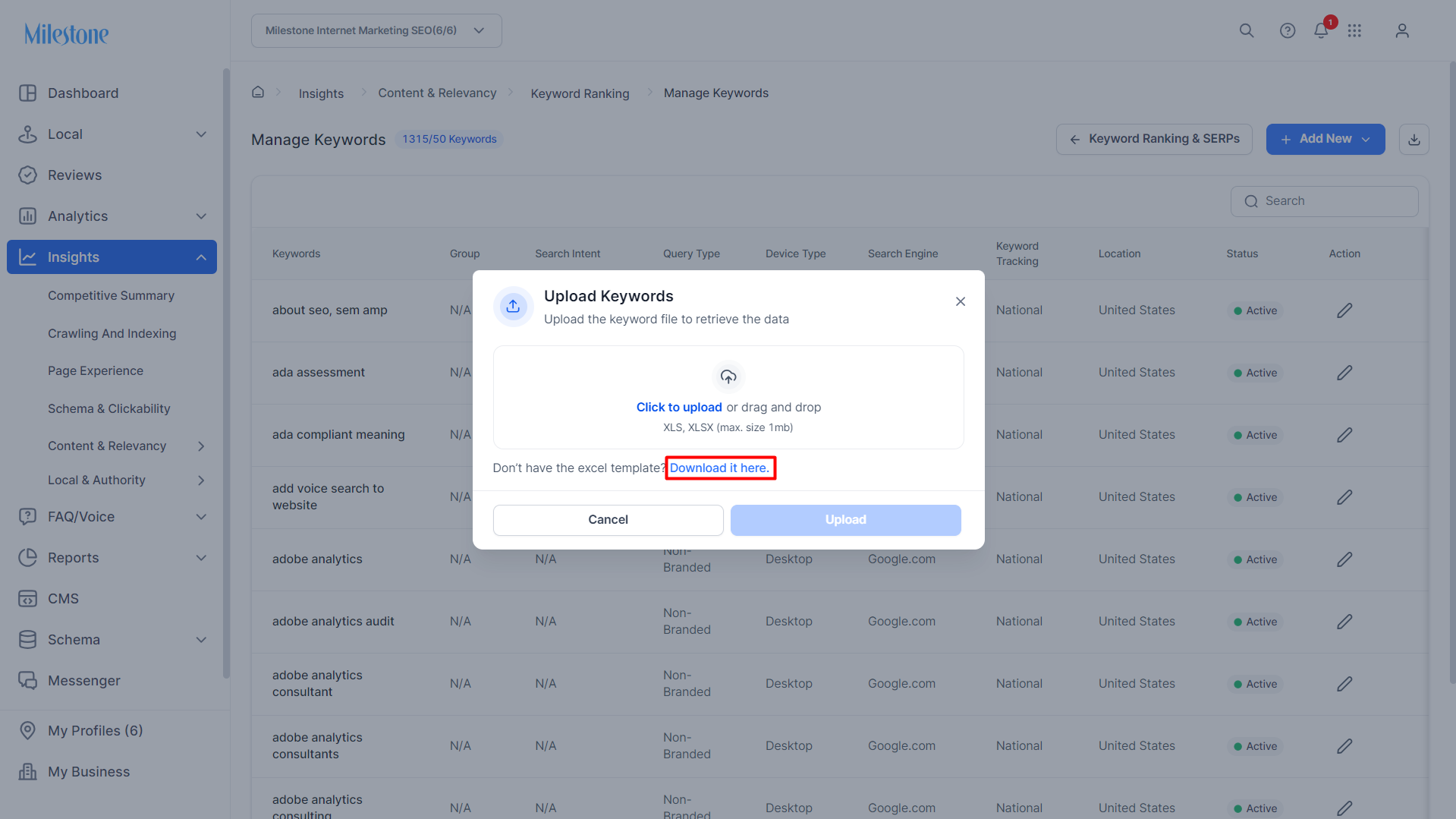
Download the spreadsheet template.
Fill in the details within the columns provided.
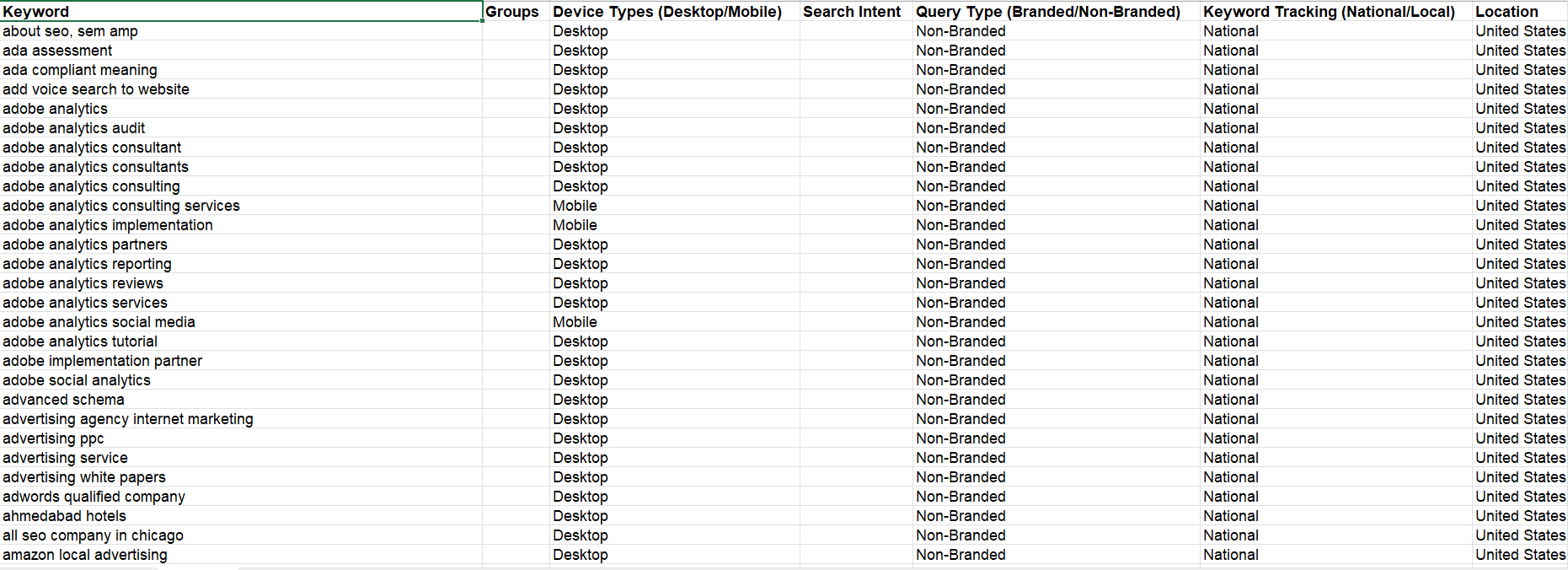
Save the spreadsheet and upload it to Milestone Insights.
Was this article helpful?
That’s Great!
Thank you for your feedback
Sorry! We couldn't be helpful
Thank you for your feedback
Feedback sent
We appreciate your effort and will try to fix the article