Overview
Knowing the key changes or updates that have been made to improve your business’s performance on search is required for a business to take strategic steps. With annotations on the trend graphs on the key screens of Schema Manager, your business will know exactly the changes or updates that caused a growth in your search performance.
Step-by-Step Process
You will see annotations for key Schema Manager widgets – Schema Summary, Schema Visibility, and Search Performance (Pages and Rich Results) to show businesses the key updates that have been carried out over a selected date period.
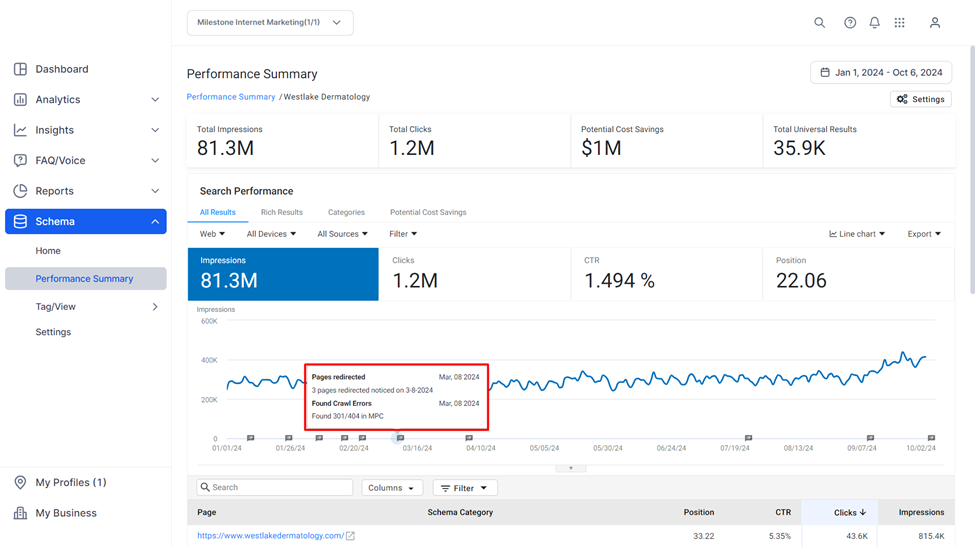
Step 1: Click on the dropdown option below the widget.
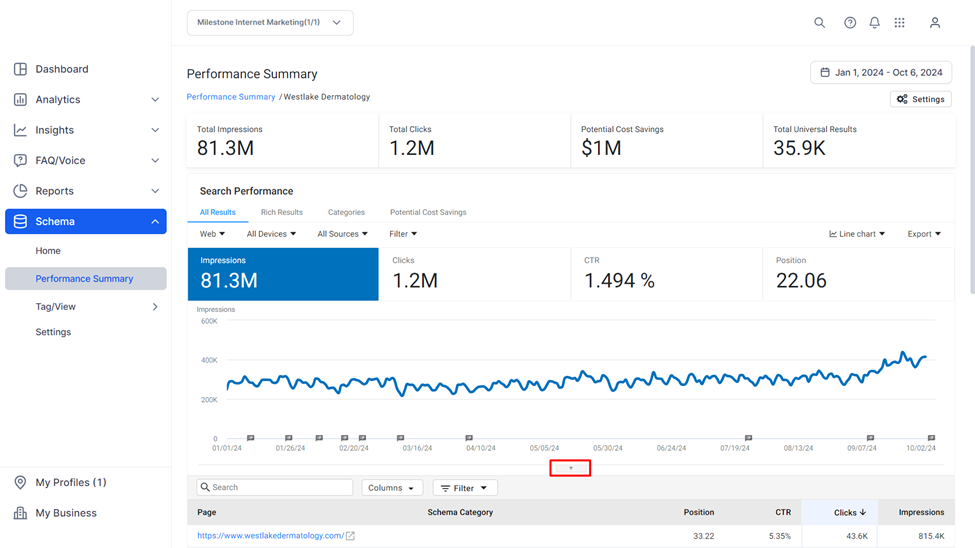
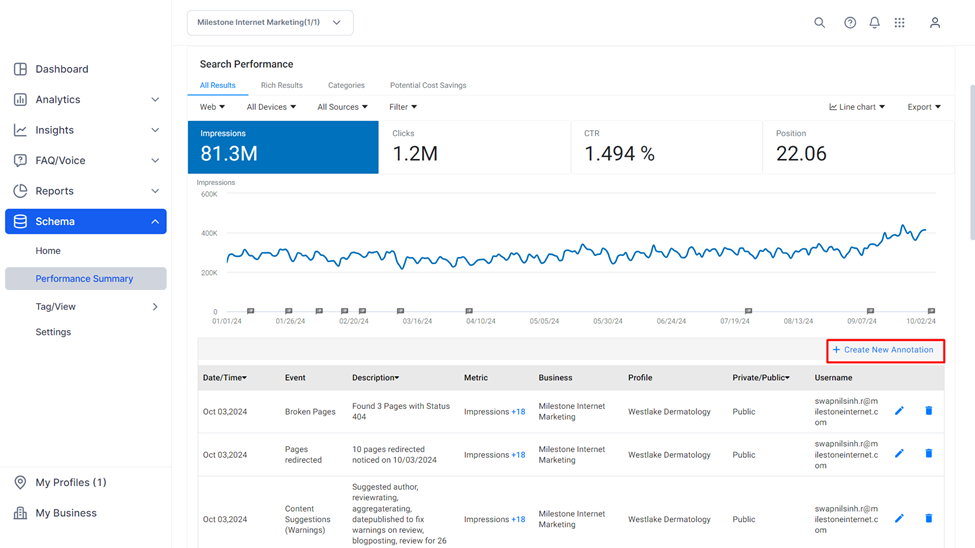
Step 2: Click on 'Create New Annotation' at the top right of this dropdown section.
Step 3: Use the dropdown menus to select;
- Businesses: The businesses on which the annotation will be visible.
- Profiles: The profiles on which the annotation will be visible.
- Modules: The products on which this annotation will appear.
- Widgets: The data widgets to which this annotation should be deployed.
- Metrics: The metrics for which this annotation should appear.
- Select Event: You can select from a pre-defined event in the dropdown or use the 'Add Event' option at the bottom of this dropdown to add a custom event. Once you add an Event Type, a dialogue box will appear next to it, here you can add a small description of the event that occurred.
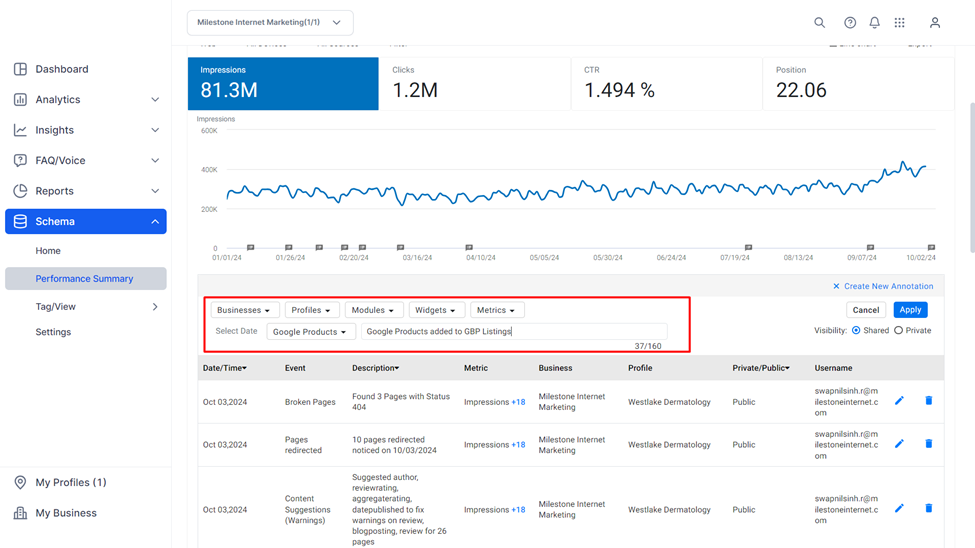
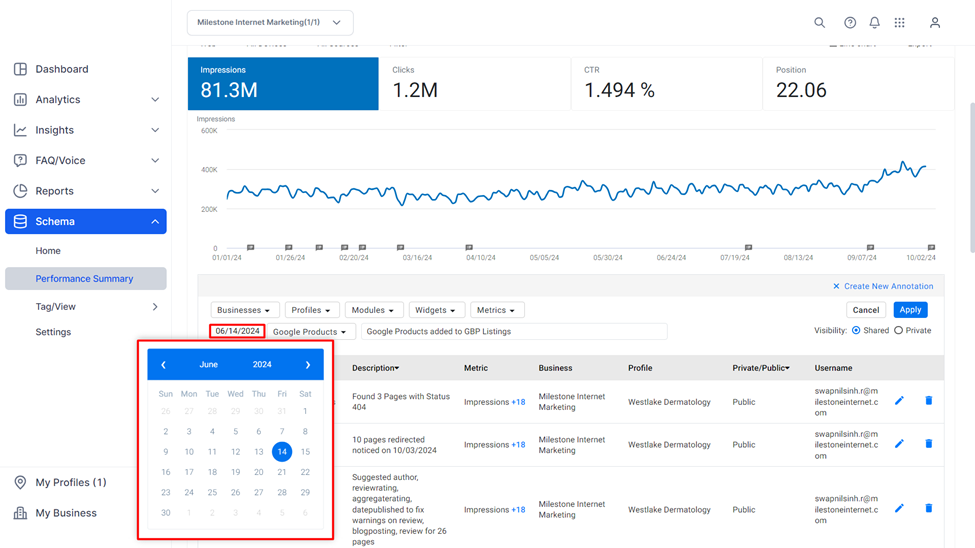
Step 4: Select the date of the event.
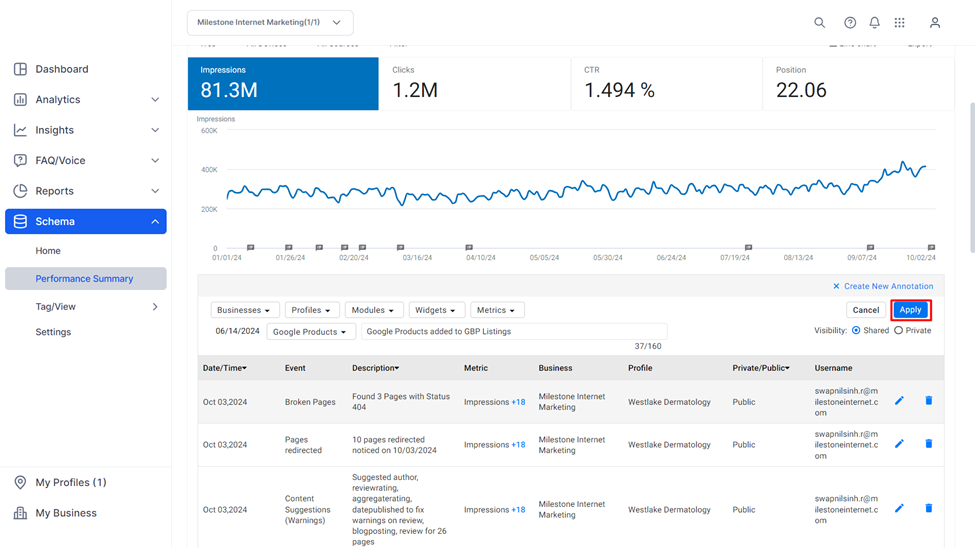
Step 5: Click on 'Apply' once you have applied all the fields to deploy the annotation.
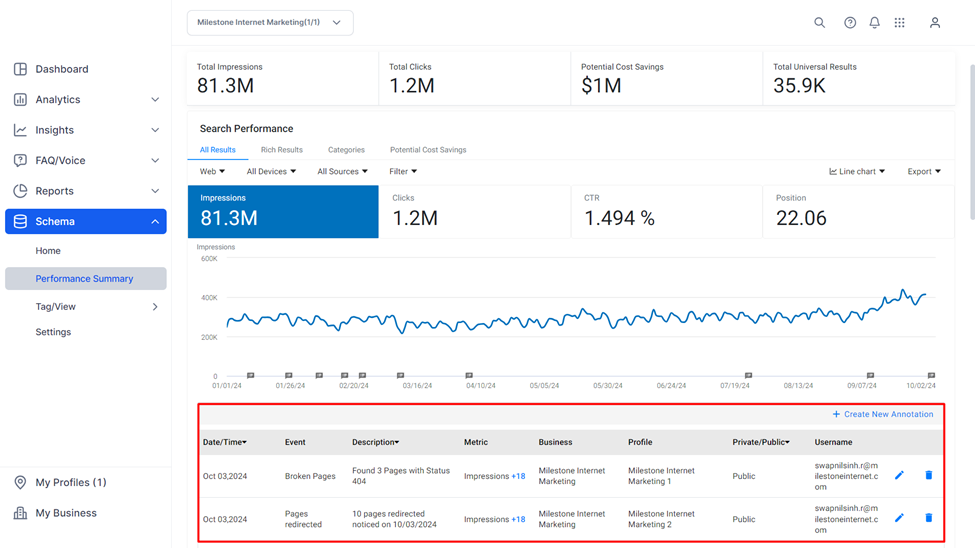
Step 6: The annotation will now appear in the table within the annotation dropdown menu.
Was this article helpful?
That’s Great!
Thank you for your feedback
Sorry! We couldn't be helpful
Thank you for your feedback
Feedback sent
We appreciate your effort and will try to fix the article