Date Selection at the Dashboard
Select dates for your data and compare the data using the Compare feature in the Dashboard calendar.
Step 1: Click on the date selector to the top right of the screen.
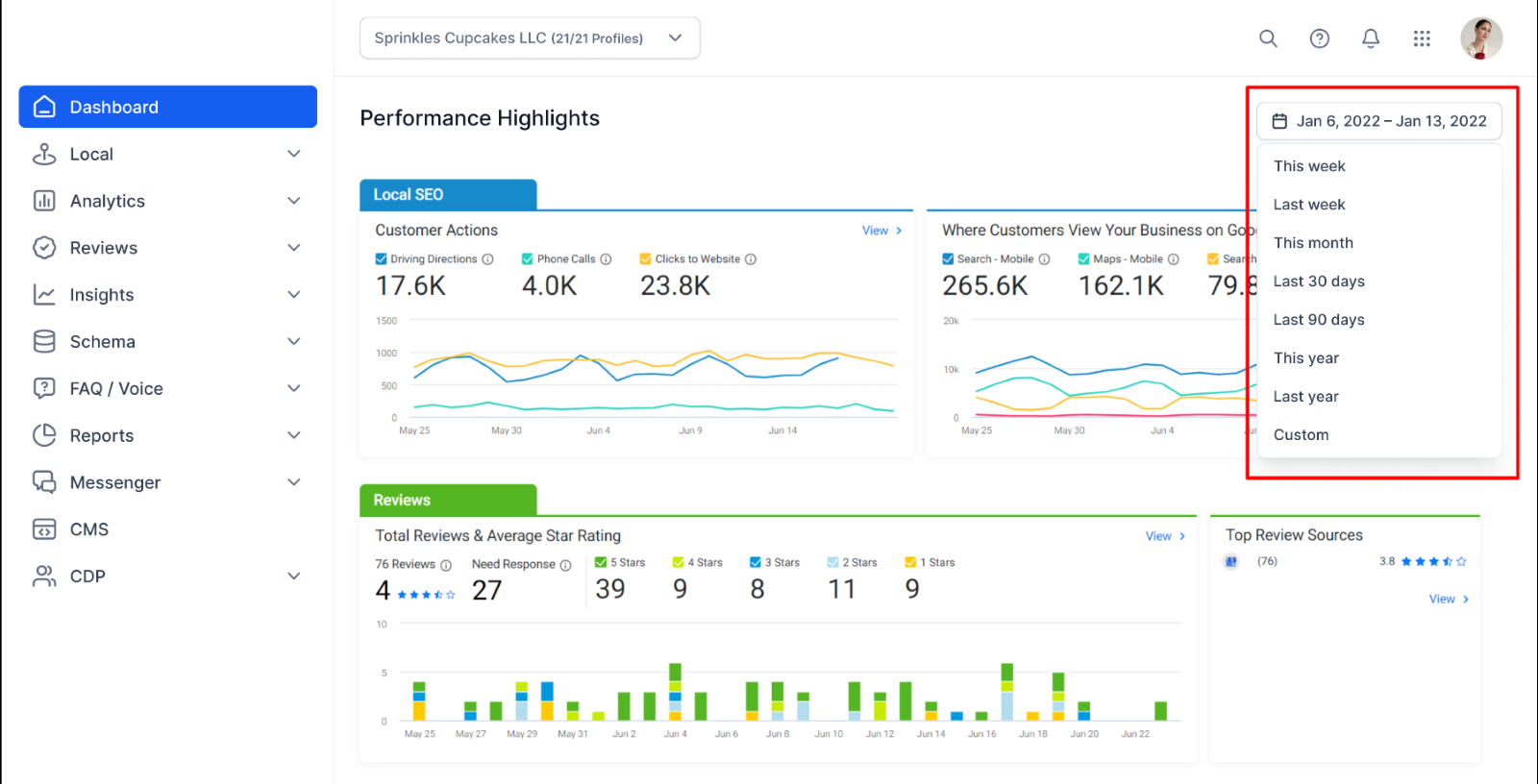
Step 2: Add the start date and end date here.
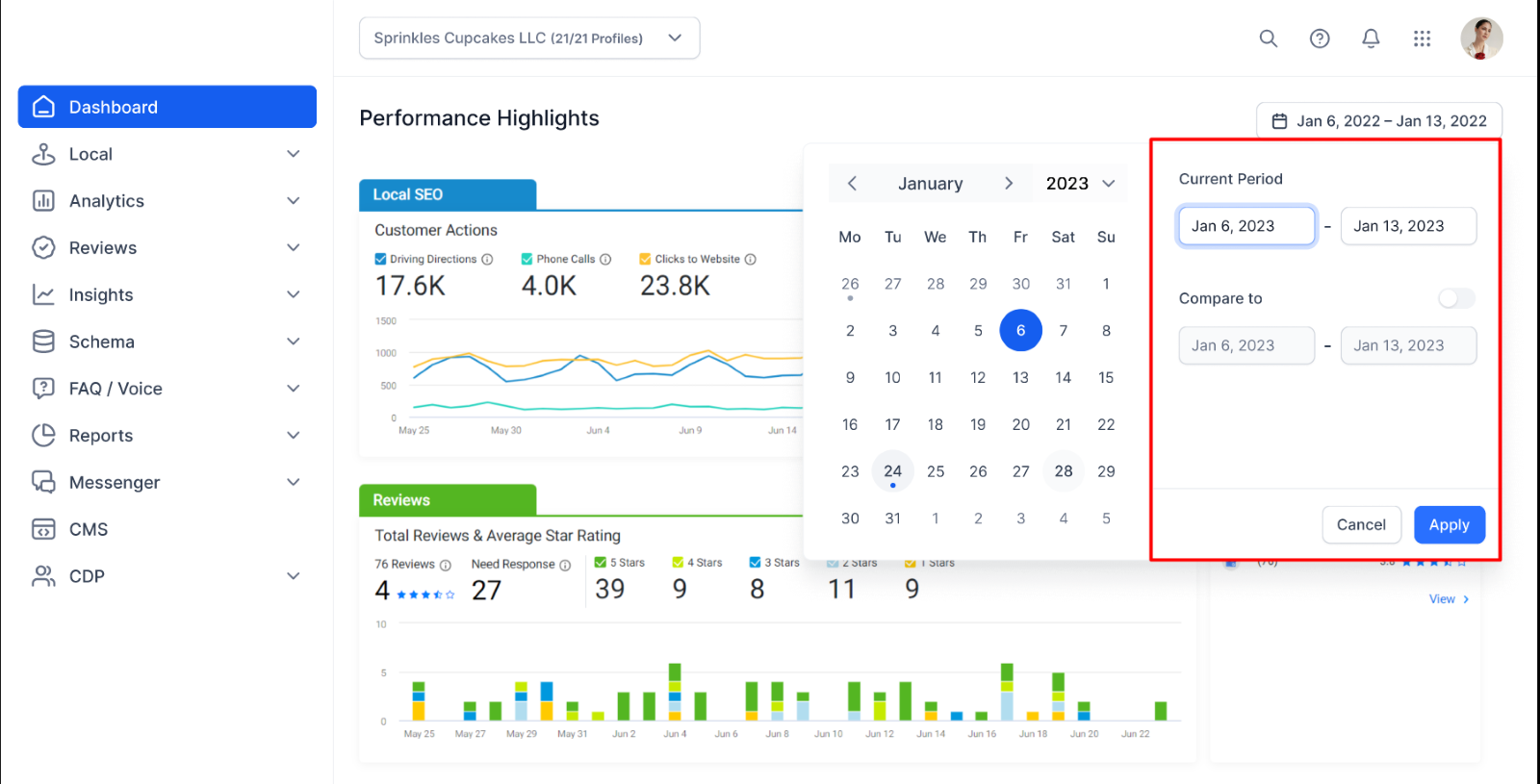
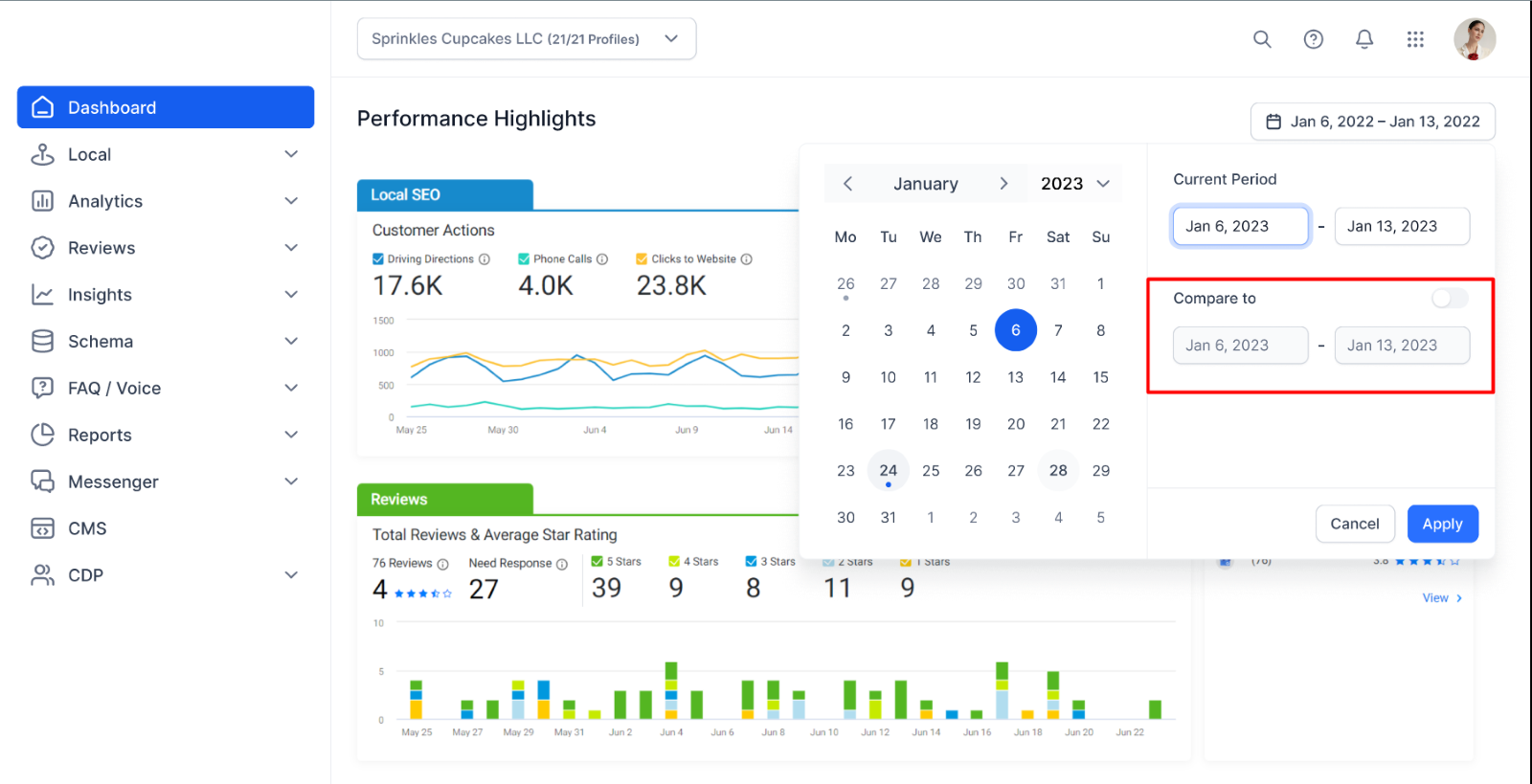
Step 3: To compare date between two time periods add the start date and end date in the ‘Compare To’ section.
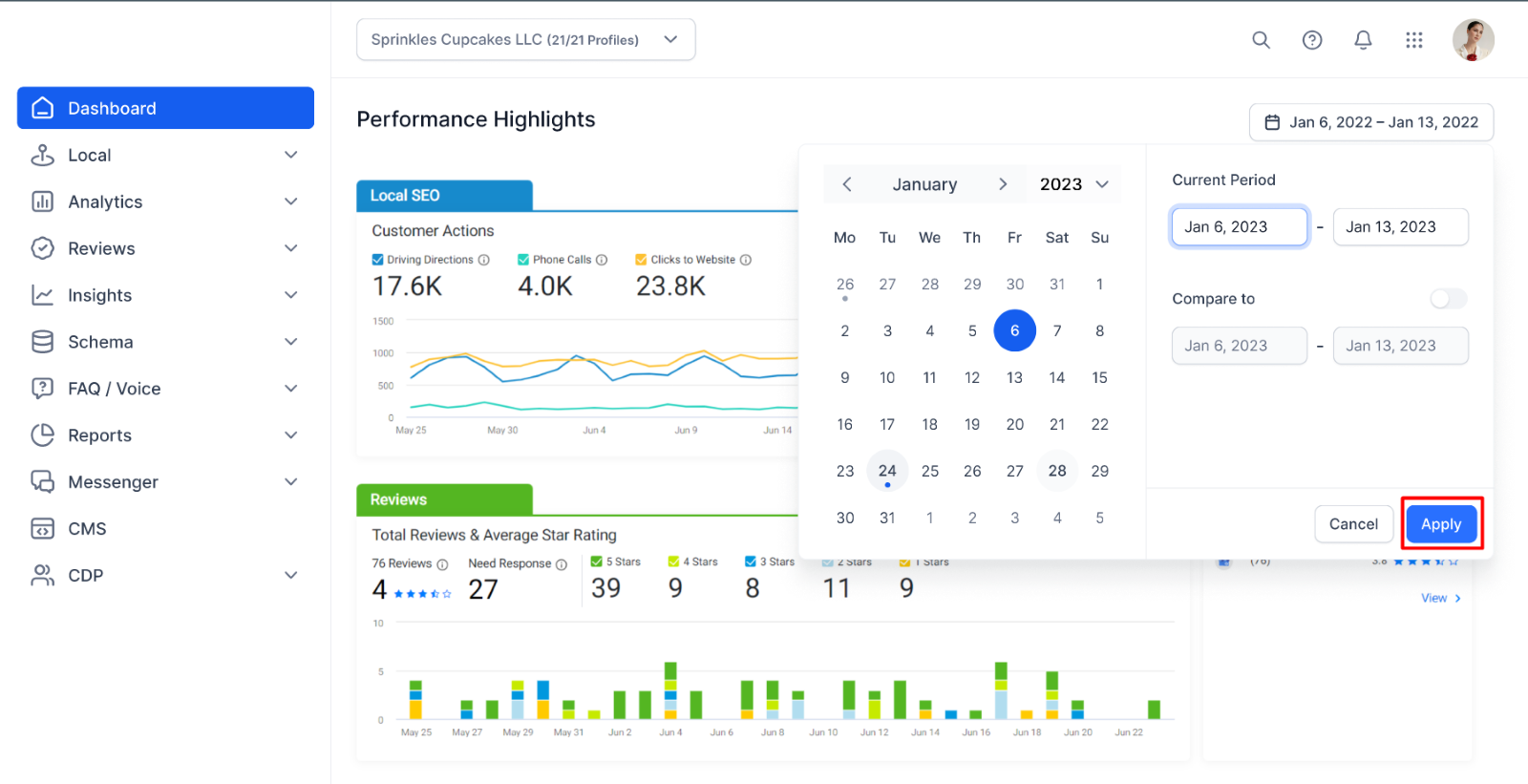
Step 4: Once you have added the dates click on ‘Apply’ to view the data.
Was this article helpful?
That’s Great!
Thank you for your feedback
Sorry! We couldn't be helpful
Thank you for your feedback
Feedback sent
We appreciate your effort and will try to fix the article