Apply schemas in bulk to grouped URLs.
Now, once the discovery process is complete, under the ‘Schema Audit’ Tab, the list of URLs will be visible. URLs with a specific number indicate that the URLs have been grouped.
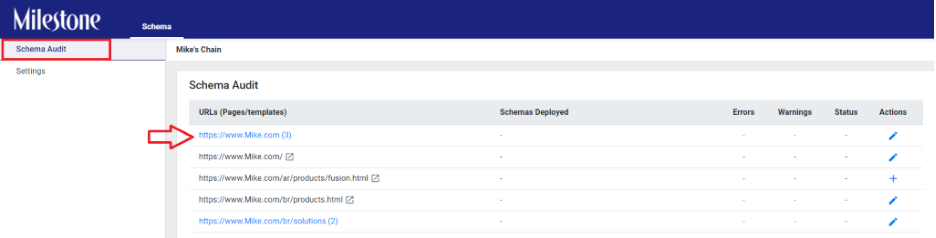
To incorporate schema tags, click on the add  button, and you will be directed to the web page.
On your website screen, all you need to do is point, highlight and click on the website content. The Schema Editor will appear, allowing you to select the type of schema you wish to add to the page using the Schema Recommendation Engine, based on the content context of the website.
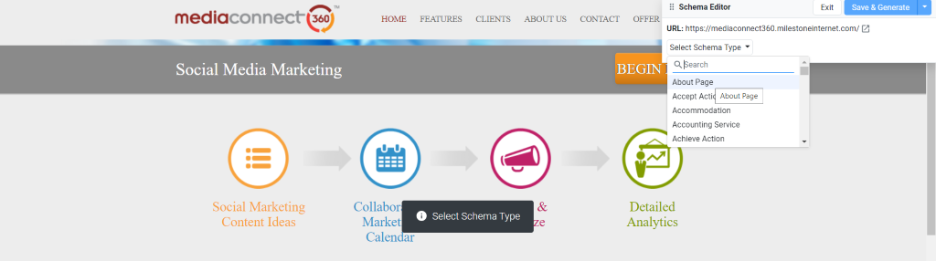
Additionally, to enhance entity recognition and provide search engine bots with a better context of the website content, you have the option to select schema types and properties that strengthen the relationship of the entities using the Schema Editor.
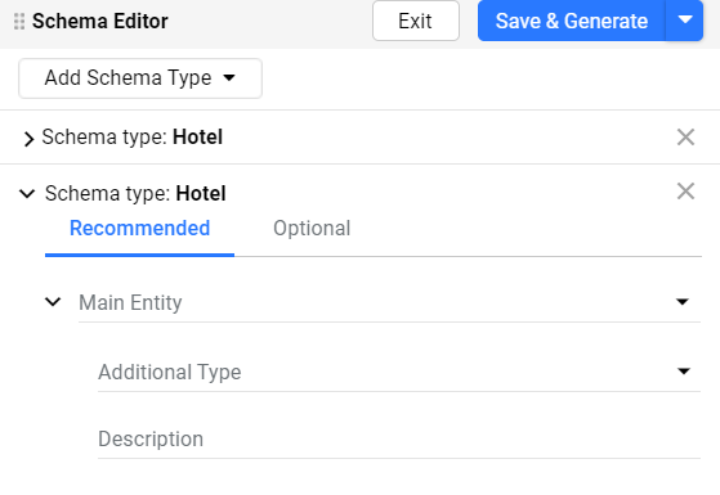
After you have added the schema types along with their properties and attributes, click on ‘Save & Generate’.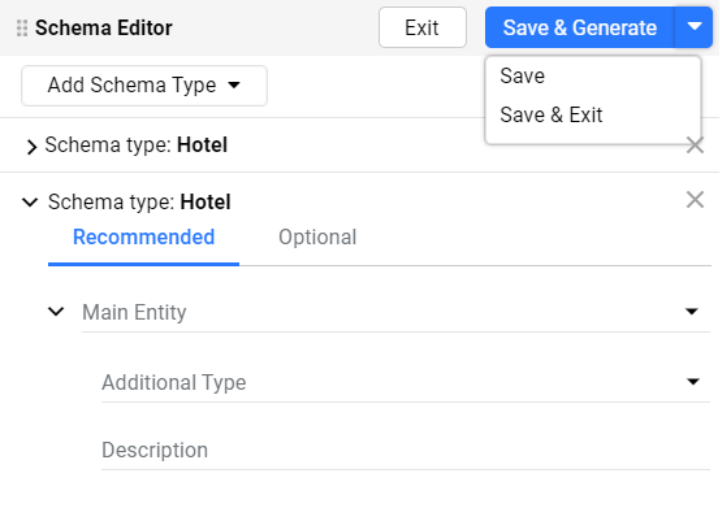
As soon as you click on ‘Save & Generate’, the tool will validate your schemas, and if there are any schema errors, you will see this page.
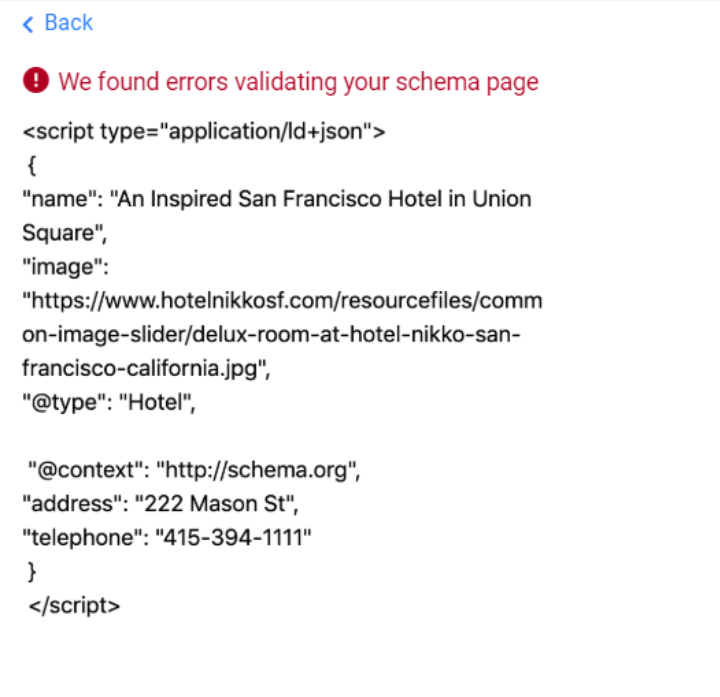
Click on ‘Back’ to revisit and address the schema errors.
If no schema errors are present, the ‘Publish’ button will become visible. Click on ‘Publish to all Pages’ to bulk publish schemas to similar pages.

Apply schemas in bulk to grouped URLs.
Now, after the discovery process is completed, the list of URLs will appear under the ‘Schema Audit’ Tab. URLs with a specific number indicate that those URLs have been grouped.
To add schema tags, click on the add button, which will redirect you to the web page.
On your website display, simply point, highlight, and click on the website content. The Schema Editor will show up, allowing you to choose the type of schema you want to add to the page using the Schema Recommendation Engine, tailored to the content context of the website.
Moreover, to improve entity recognition and give search engine bots a clearer context of the website content, you can select schema types and properties that strengthen the connection between the entities using the Schema Editor.
Once you have added the schema types along with their properties and attributes, click on ‘Save & Generate’.
After clicking on ‘Save & Generate’, the tool will validate your schemas, and if there are any errors, this page will be displayed.
Click on ‘Back’ to return and correct the schema errors.
If there are no schema errors, the ‘Publish’ button will appear. Click on ‘Publish to all Pages’ to bulk publish schemas to similar pages.
TABLE OF CONTENTS
- No headings available. Use Paragraph Format to add one.
Was this article helpful?
That’s Great!
Thank you for your feedback
Sorry! We couldn't be helpful
Thank you for your feedback
Feedback sent
We appreciate your effort and will try to fix the article