

Knowledge base
Multiple Profiles
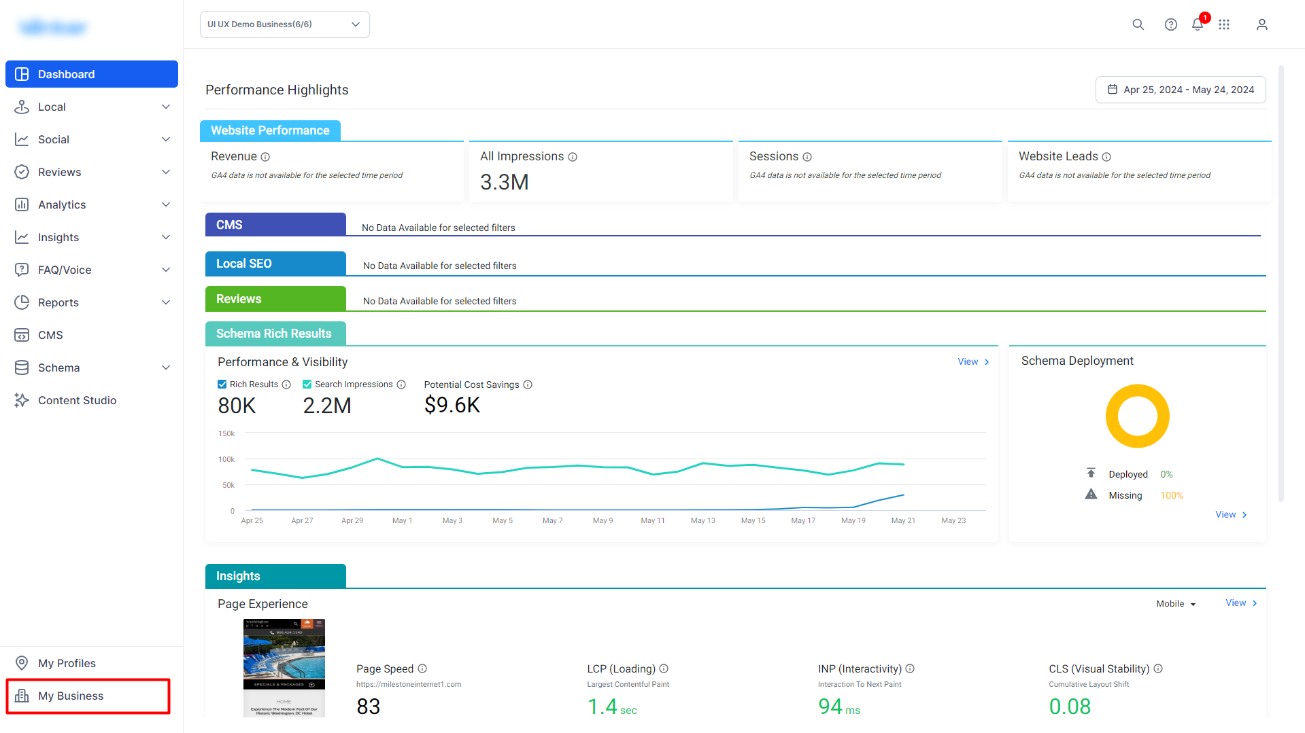
Step 1: Navigate to 'My Business' at the bottom of the left navigation panel.
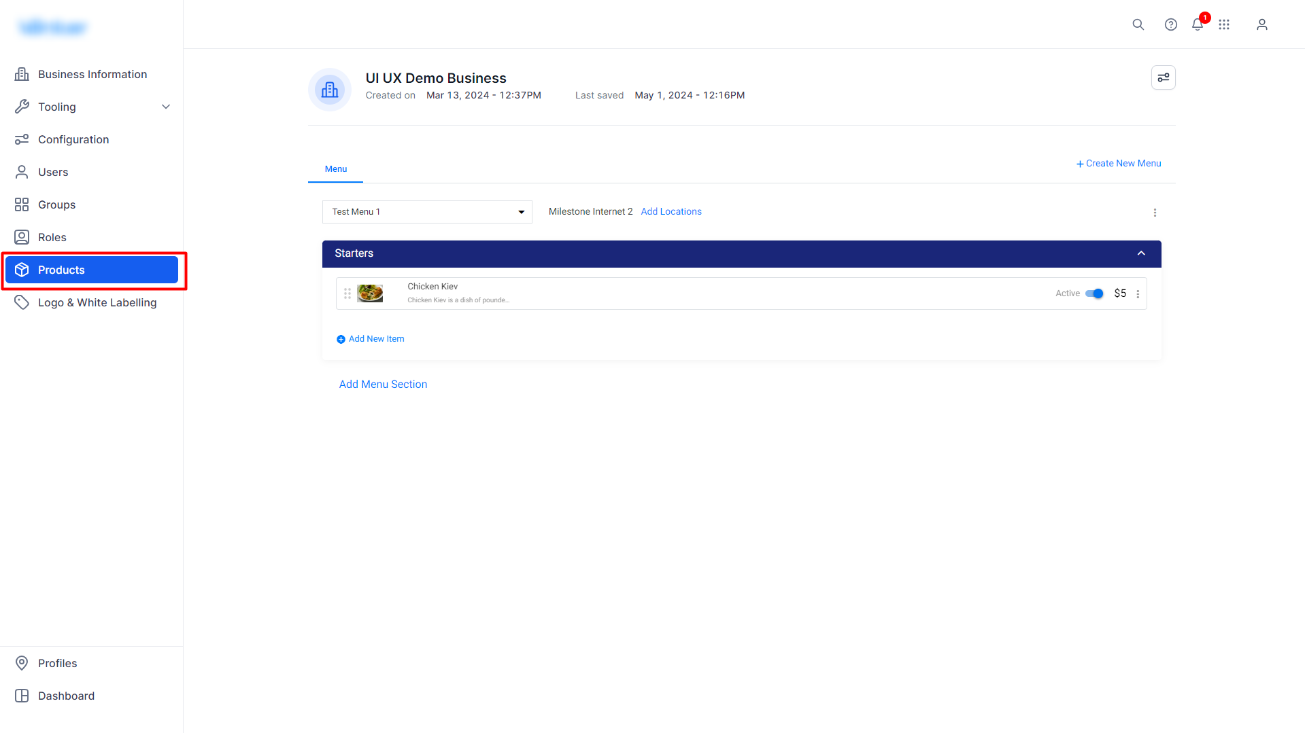
Step 2: Click on ‘Products’ in the left navigation panel.
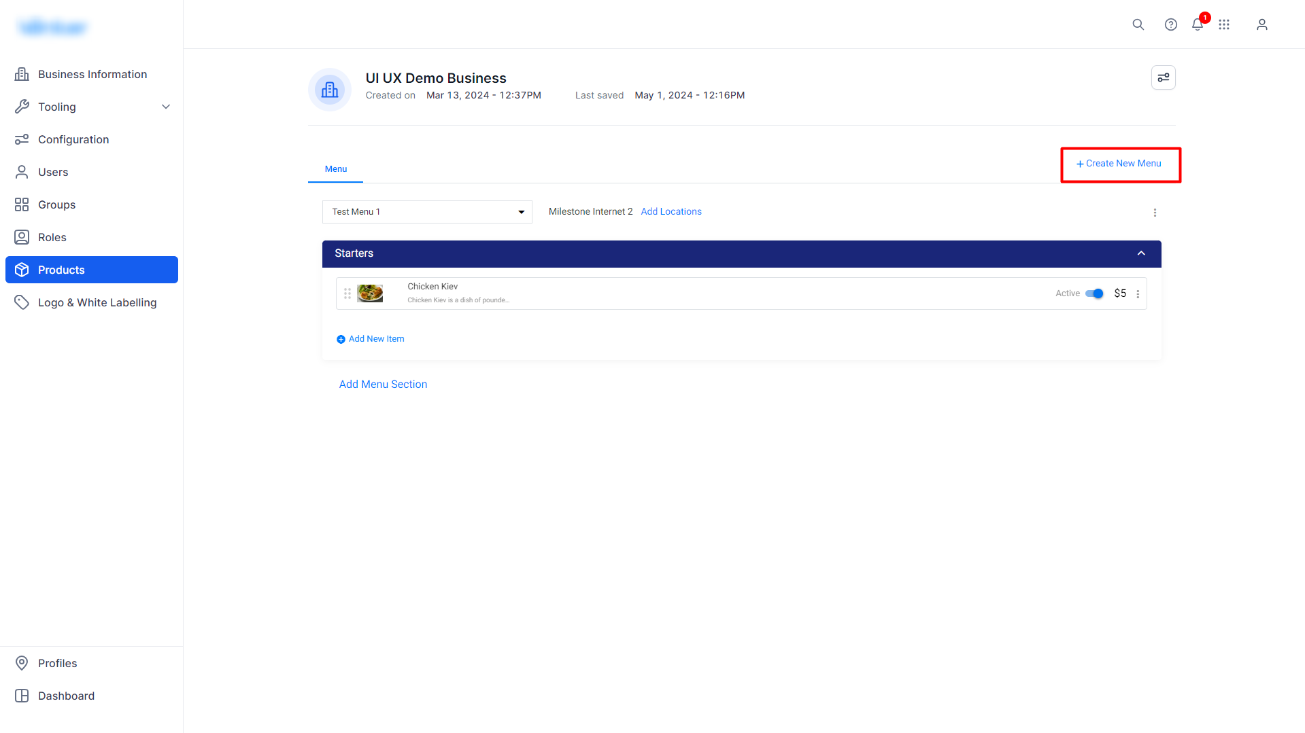
Step 3: Click on ‘Create New Menu’ to the right of the screen.
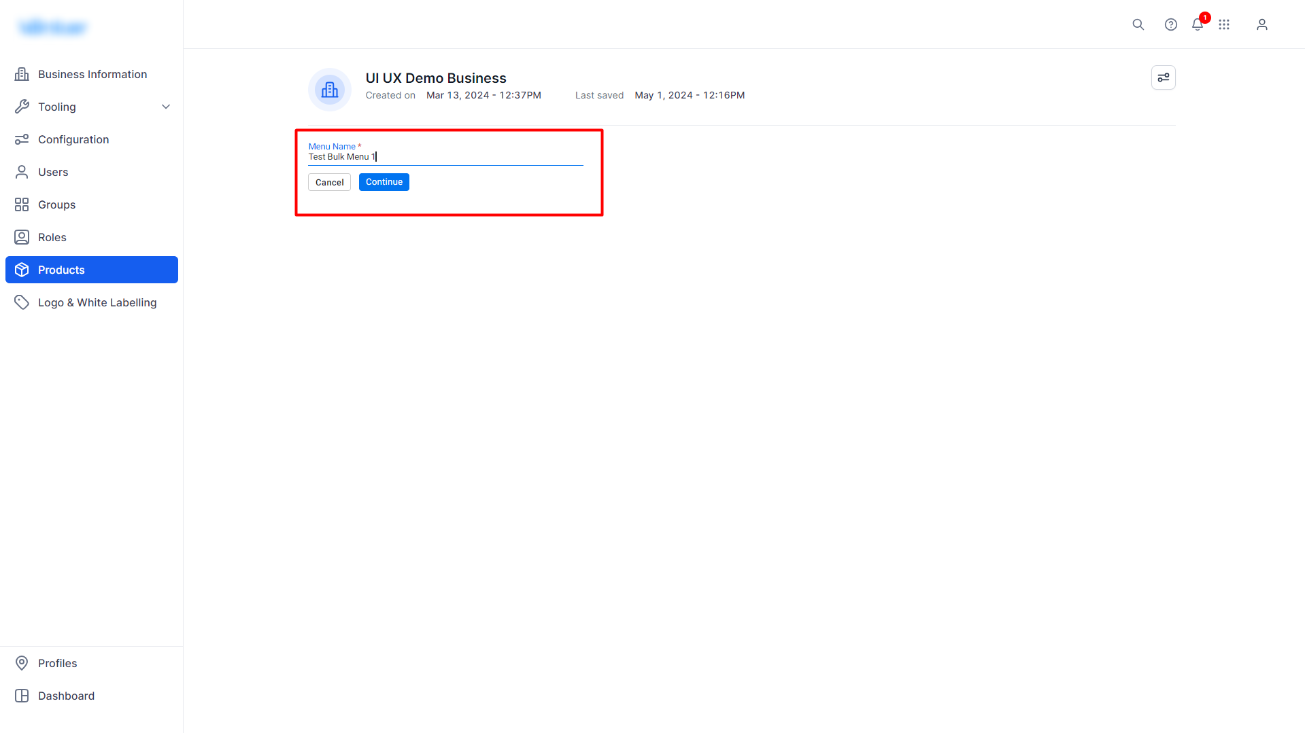
Step 4: Provide a name for the menu and click on ‘Continue’.
Step 5: Add the first menu section to your menu. Here you can add custom menu sections like appetizers, main course, desserts, beverages, etc.
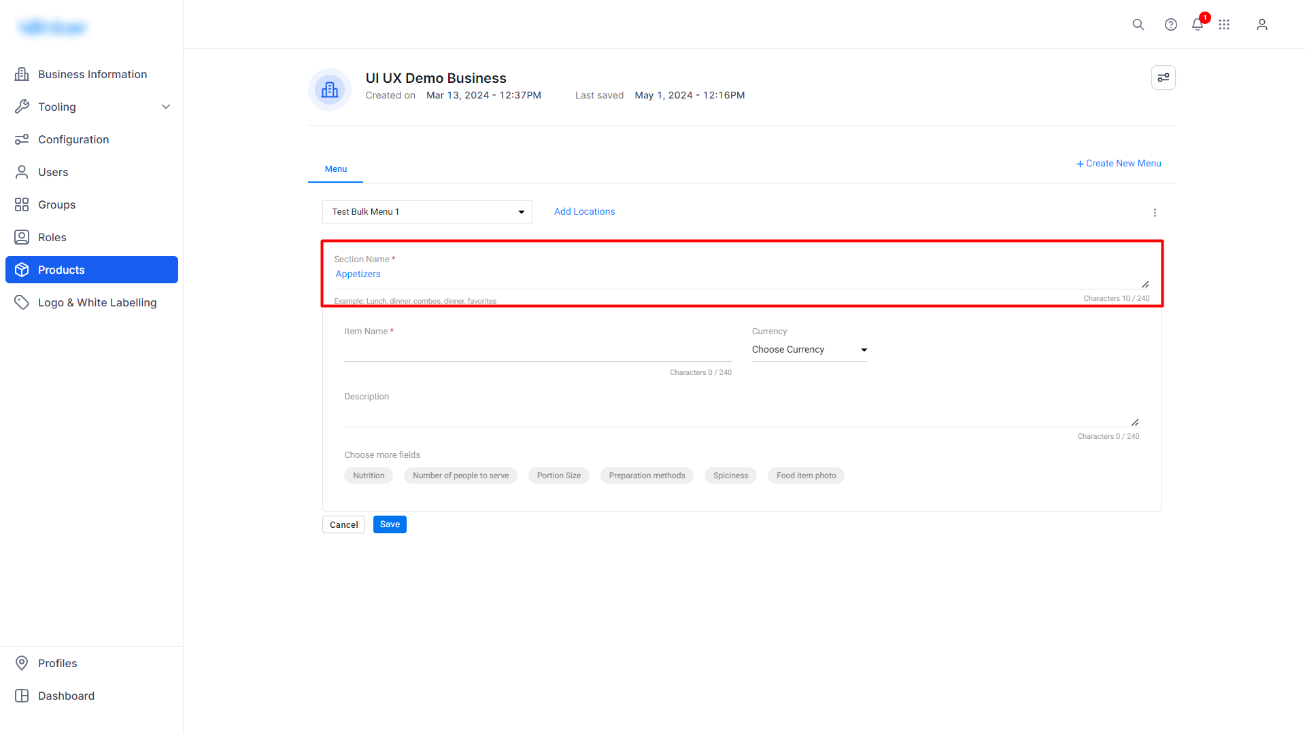
Step 6: Provide the name of the menu item along with its currency and price. You can also add a short description of the menu item.
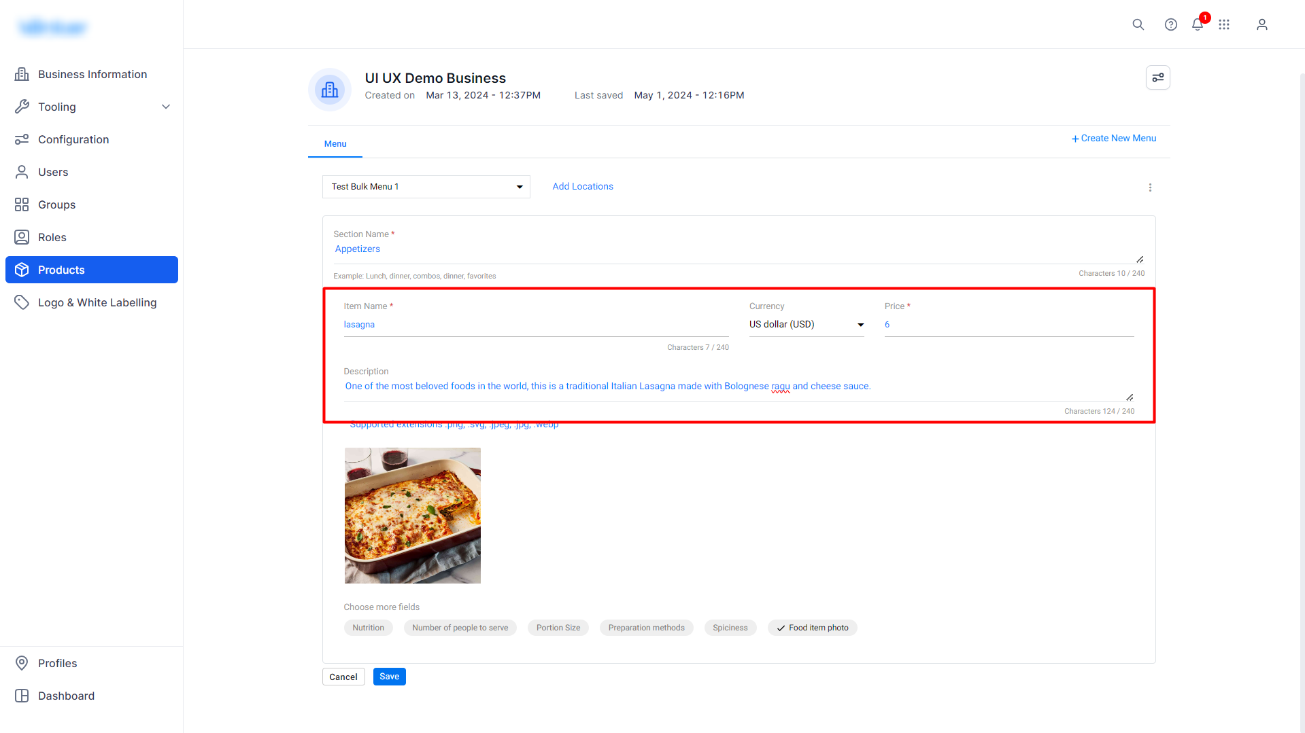
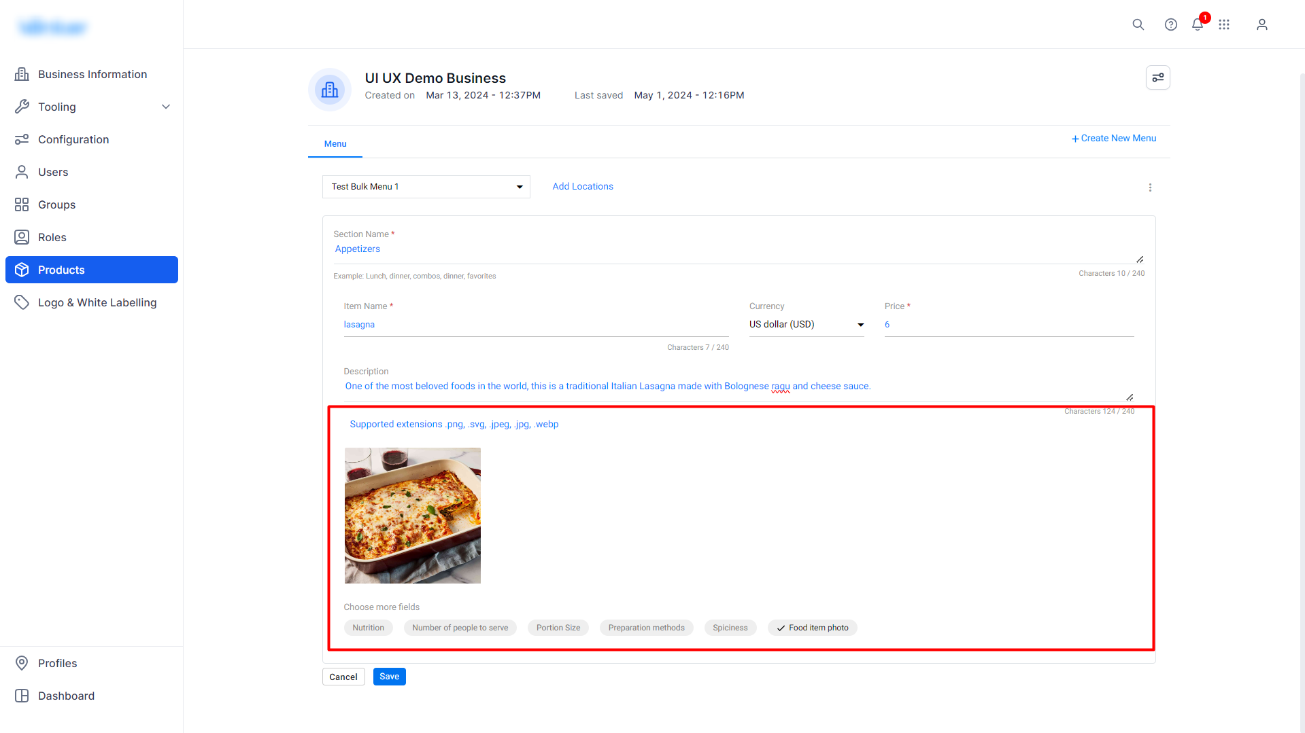
Step 7: You can choose additional fields as well, this helps provide search engines with greater detail about your menu items, along with images, that can improve their visibility for relevant searches.
Step 8: Once you have provided the required information for the menu item click on ‘Save’.
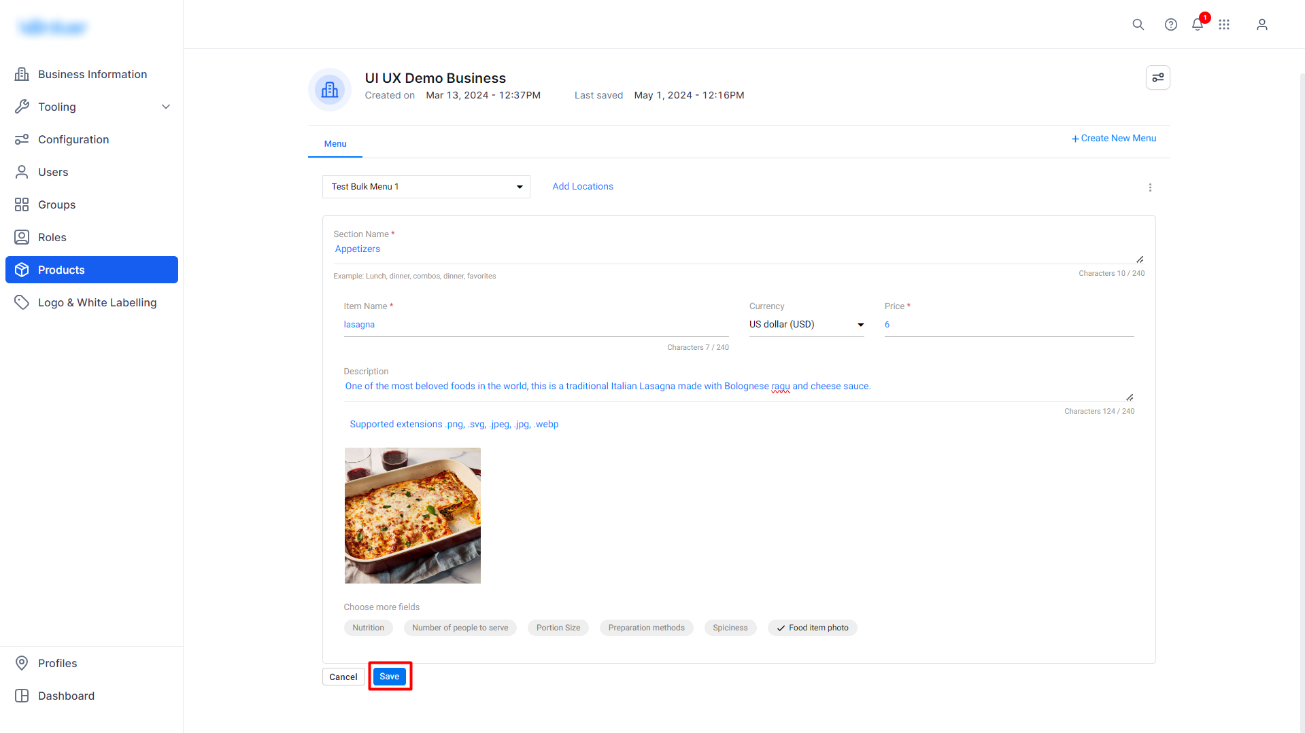
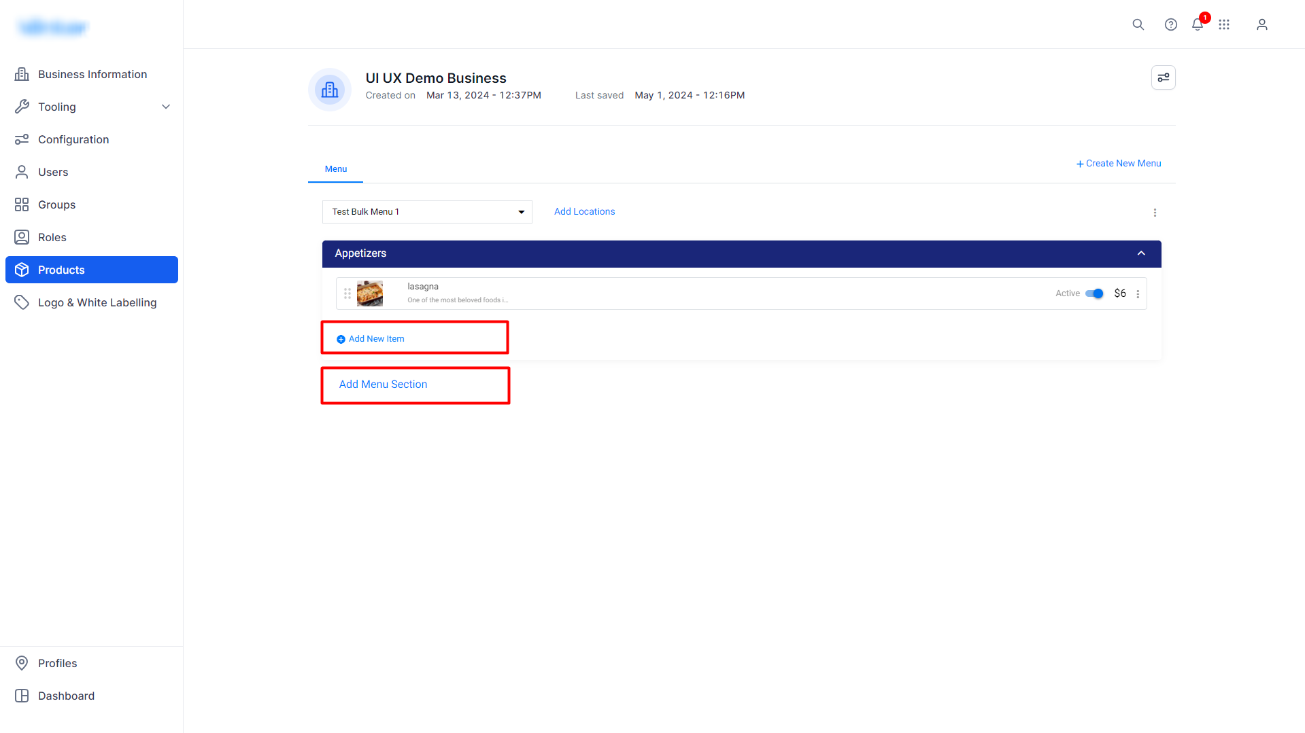
Step 9: You can add new menu items or additional sections to a menu using the ‘Add New Item’ button and the ‘Add Menu Section’ button respectively.
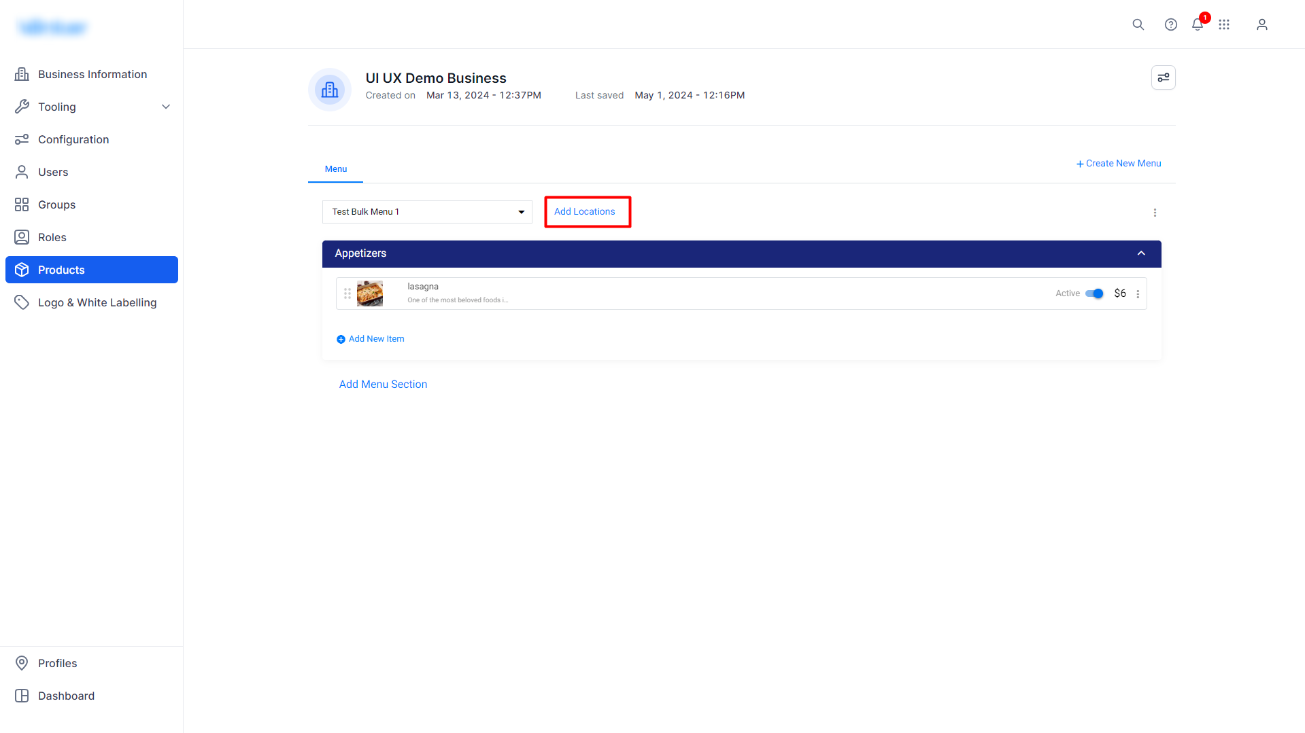
Step 10: Manage the location to which this menu is published by clicking on ‘Add Locations’ to the top of the menu.
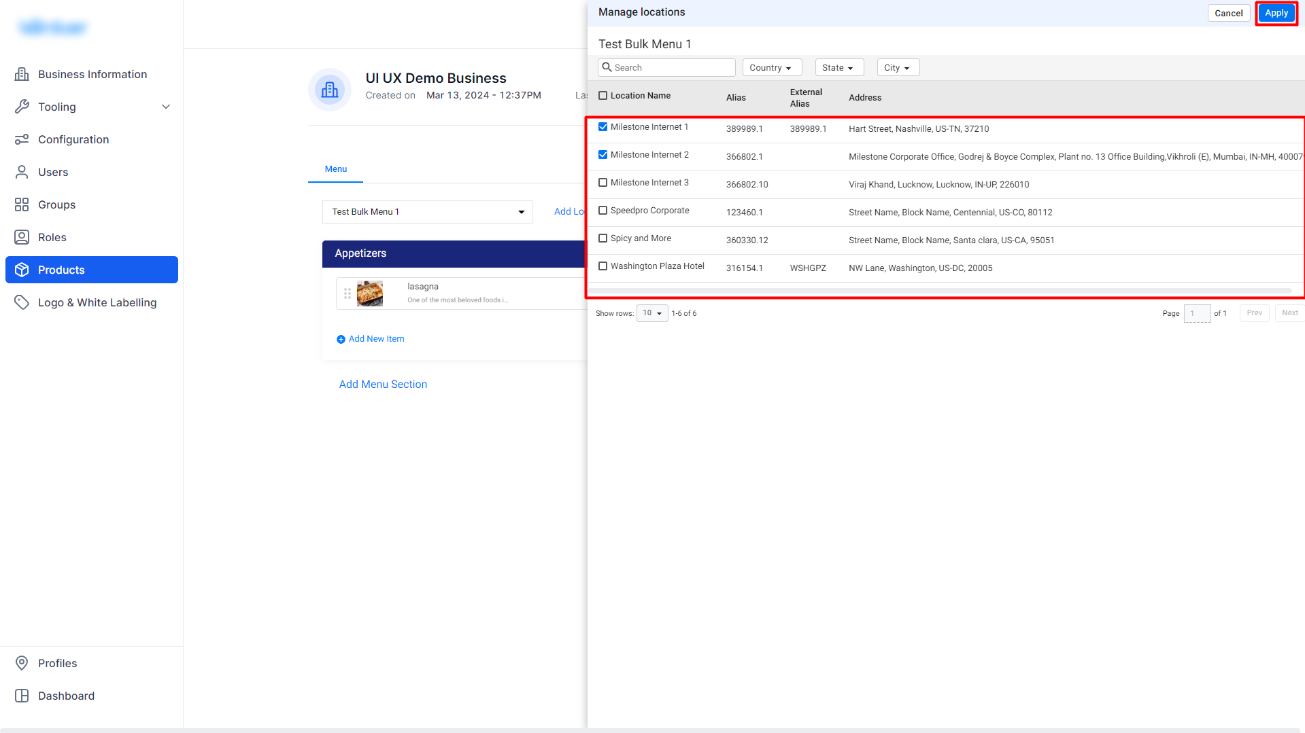
Step 11: Select or deselect business locations from the ‘Manage Locations’ tab.
Was this article helpful?
That’s Great!
Thank you for your feedback
Sorry! We couldn't be helpful
Thank you for your feedback
Feedback sent
We appreciate your effort and will try to fix the article