

Knowledge base
Customer Support Guide
Welcome to Milestone Support
At Milestone, our customers come first. Whether you have a quick question, need a change made to your website, or run into something urgent, our Customer Support team is here to help — quickly, clearly, and with a plan you can count on.
This guide covers everything you need to know about working with Milestone Support: what we support, how to reach us, the self-service tools available to you, what happens after you submit a request, how we prioritize issues, and what response times to expect.
Scope of Support
Our Support team keeps your website and Milestone services running well. This section explains what we handle as part of support, and what is handled separately.
Type of Request | What to Expect | Support Hours |
Product or service issues: any fault, malfunction, or bug in a Milestone product or service. | Handled by Support within the response and resolution times in this guide. | Not deducted from your purchased support hours. |
Content and minor updates: changes to existing content that do not alter your site's structure, such as text, images, minor SEO updates, and adjustments within current modules. | Handled by Support within the response and resolution times in this guide. | Uses your purchased support hours. |
New functionality or structural changes: new pages beyond your current sitemap, new modules or features, and third-party integrations that need backend setup. | Handled as an enhancement or change request. We confirm the requirements with you and share a timeline estimate. There is no fixed response time; delivery depends on the size of the work. | Uses your purchased support hours. |
Simple how-to questions: quick answers about using your website or the platform. | Self-service. Get an instant answer from the chatbot and Knowledge Base, 24/7, with no ticket needed. | Not deducted from your purchased support hours. |
Not sure which category your request falls under? Submit it anyway, and our team will review it and point you to the best next step.
How to Reach Us
We've built our support experience around a few simple, reliable ways to reach us. However you choose to get in touch, your request is tracked from start to finish and followed through to resolution.
Customer Portal | Phone | |
Recommended Instant chatbot help, self-service answers, and ticket submission — anytime, day or night. | Send your request to customercare@milestoneinternet.com and we'll create a ticket for you. | For urgent matters, call +1 (866) 615-2516. Please submit a ticket with full details first. |
Customer Portal (Recommended)
The Customer Portal at support.milestoneinternet.com is the best place to start with any request, including built-in chatbot assistance and a searchable Knowledge Base (see Self-Service).
- Go to support.milestoneinternet.com and sign in. If you're a first-time user, please reach out to your Customer Success Manager for account creation and activation.
- Submit a ticket directly through the Portal — or start with the chatbot if you'd prefer instant guidance first.
- Track status, add comments, and see agent replies from your ticket dashboard at any time.
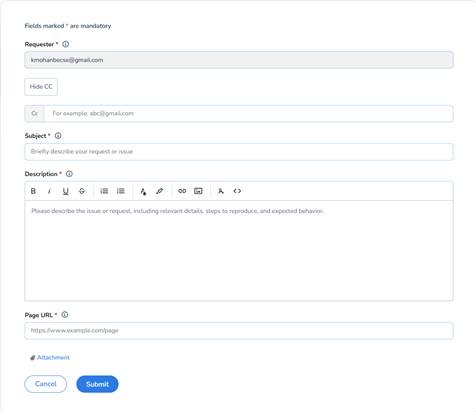
The Submit a Ticket form in the Customer Portal
Watch a short video walkthrough of the Customer Portal
When submitting a ticket through the form, you'll be asked for:
Field | Description |
Subject* | A brief summary of your request or issue. |
Description* | The issue or request in detail — include relevant context, steps to reproduce, and the behavior you expected. |
Page URL* | The web page related to your request, if applicable. |
Attachment | Screenshots or files that help illustrate the issue (optional). |
Prefer email? Send your request to customercare@milestoneinternet.com and we'll create a ticket on your behalf. Please include the following so we can get moving right away:
Field | Description |
Company Name* | Your company name. |
Website URL* | The website related to your request. |
Description* | A clear description of what you need help with. |
Priority | If you know it (Low / Medium / High / Urgent). |
Callback Number | If you'd like us to reach you by phone. |
Attachments | Screenshots or files that help illustrate the issue (optional). |
* Required. You'll receive a confirmation email once your ticket is created, and all further updates will be sent to the email address you used to write in.
Support Hours & Coverage
The Customer Portal is open 24/7, so you can submit and track requests at any time, including outside our support hours. Our human agents are available Monday to Friday, 6 AM to 6 PM PST. Requests received outside these hours are picked up when the team is next available.
For urgent matters you can also call +1 (866) 615-2516. Outside agent hours, our after-hours support partner answers the call and passes your details to our team.
Self-Service
Sometimes the fastest help is the help you can get yourself. The Customer Portal offers two self-service tools you can use any time, day or night:
Chatbot
Our chatbot is available directly in the Customer Portal to answer common questions and offer instant guidance or fixes. If it can't fully resolve your issue, it automatically creates a support ticket for an agent to follow up.
Knowledge Base
Our Knowledge Base offers detailed how-to articles and self-service troubleshooting steps for common topics, so you can often find your answer without waiting on a reply. Browse it anytime at support.milestoneinternet.com/en/support/solutions.
What Happens After You Submit a Request
Every request — whether it comes in through the Portal or email — becomes a ticket and follows the same transparent process:
- Acknowledged: You'll receive confirmation that your ticket has been received, along with a ticket ID for reference.
- Triaged & Assigned: Our Support team reviews the details and routes your ticket to the right specialist based on category and priority.
- In Progress: The assigned agent works your request and will reach out — by email or through the Portal — if we need more information from you.
- Resolved: Once the fix or answer is in place, we'll update you with what was done and close the ticket.
- Reopen if Needed: If something isn't quite right, you can reply to the ticket or reopen it from the Portal, and we'll pick it back up.
Understanding Priority Levels
Not every request is equally urgent, so we use a priority system to make sure critical issues get critical attention. When you submit a ticket, our team assigns a priority based on the impact to your business — you're also welcome to indicate the urgency you're experiencing when you write in.
Priority | Name | What It Means |
P0 | Urgent | Core functionality is compromised and you're unable to serve your customers. Examples: website is down, booking page unavailable, security incident. |
P1 | High | Core functionality is interrupted or badly degraded, with a serious impact on your ability to serve customers. Examples: website is slow, duplicate events on your calendar, a significant drop in traffic. |
P2 | Medium | A non-core function is broken or hard to use, with an operational — but not customer-facing — impact. A workaround is available. Examples: content updates, page speed issues, minor UI issues. |
P3 | Low | Non-urgent requests, such as change requests or enhancement ideas. |
Response & Resolution Times
Standard Support SLA
Once your ticket is triaged, it's handled according to the response and resolution targets below.
Priority | Description | First Response | Target Resolution |
P0 | Urgent | 30 minutes | 4 hours |
P1 | High | 1 hour | 2 business days |
P2 | Medium | 2 hours | 3 business days |
P3 | Low | 4 hours | 5 business days |
Product enhancements or out-of-scope support tickets may take longer than the SLA above. In such cases, we'll inform you well ahead of time.
Tips for a Faster Resolution
- Include your Company Name and Website URL in every request.
- Describe what you expected to happen and what actually happened.
- Attach screenshots, screen recordings, or links wherever possible.
- Let us know the priority/urgency from your point of view.
- Reply directly on the existing ticket rather than opening a new one for the same issue — it keeps your history in one place and avoids delays.
Your Customer Success Manager
In addition to Support, your Customer Success Manager (CSM) is your dedicated point of contact for account-level questions, strategy, and escalations. Your CSM can also help route or expedite a ticket if you're not getting the traction you need.
First time accessing our support platform? Your CSM can help with account creation and activation so you're able to log in to the Customer Portal.
Was this article helpful?
That’s Great!
Thank you for your feedback
Sorry! We couldn't be helpful
Thank you for your feedback
Feedback sent
We appreciate your effort and will try to fix the article