When you add a section to your page, it contains multiple sub-components. Page Studio makes it easy for you to add, edit, and delete these sub-components in just a few clicks. Here's how it works.
Adding a Sub-Component
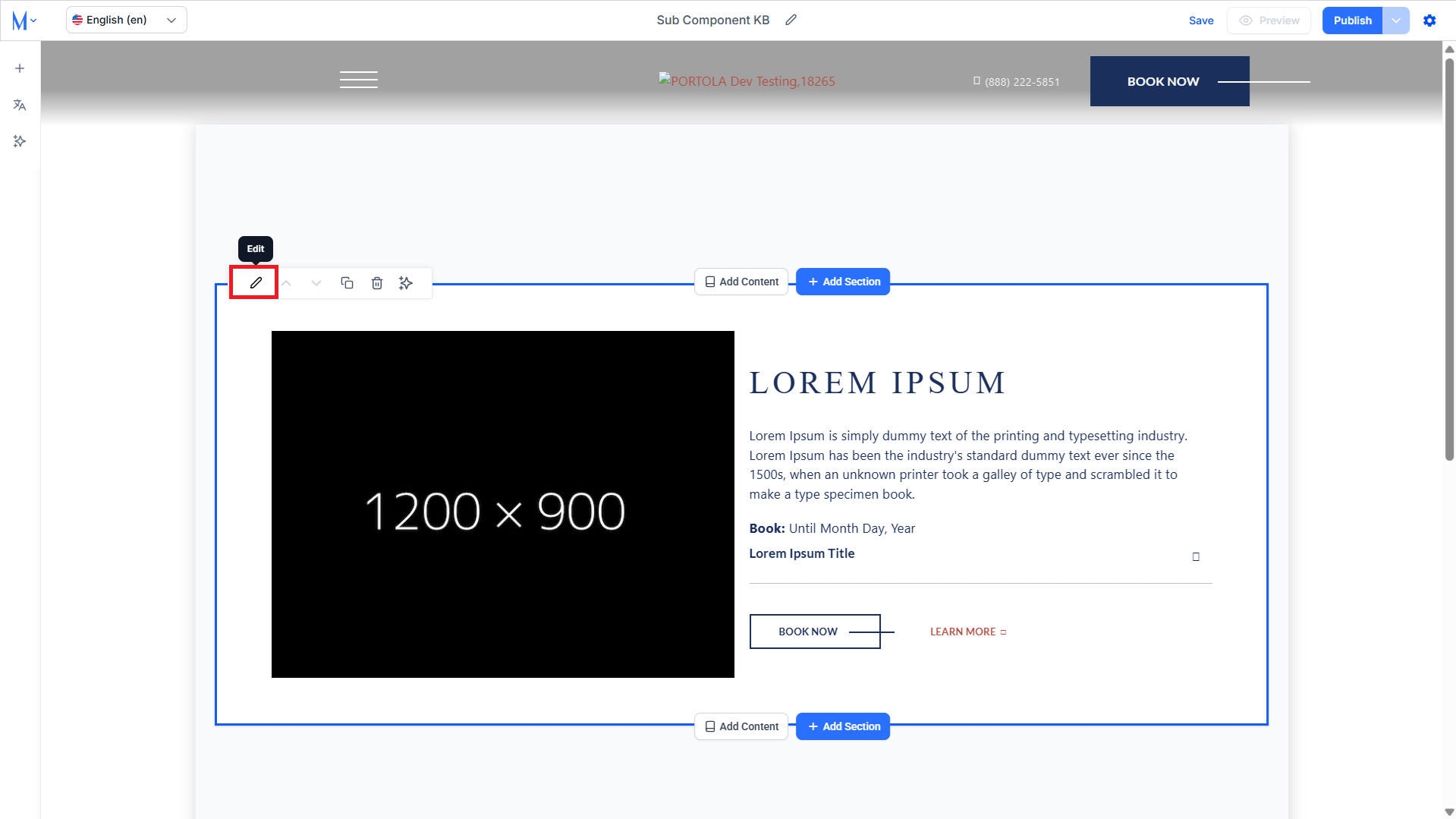
Step 1: Click on the edit icon for the page section.
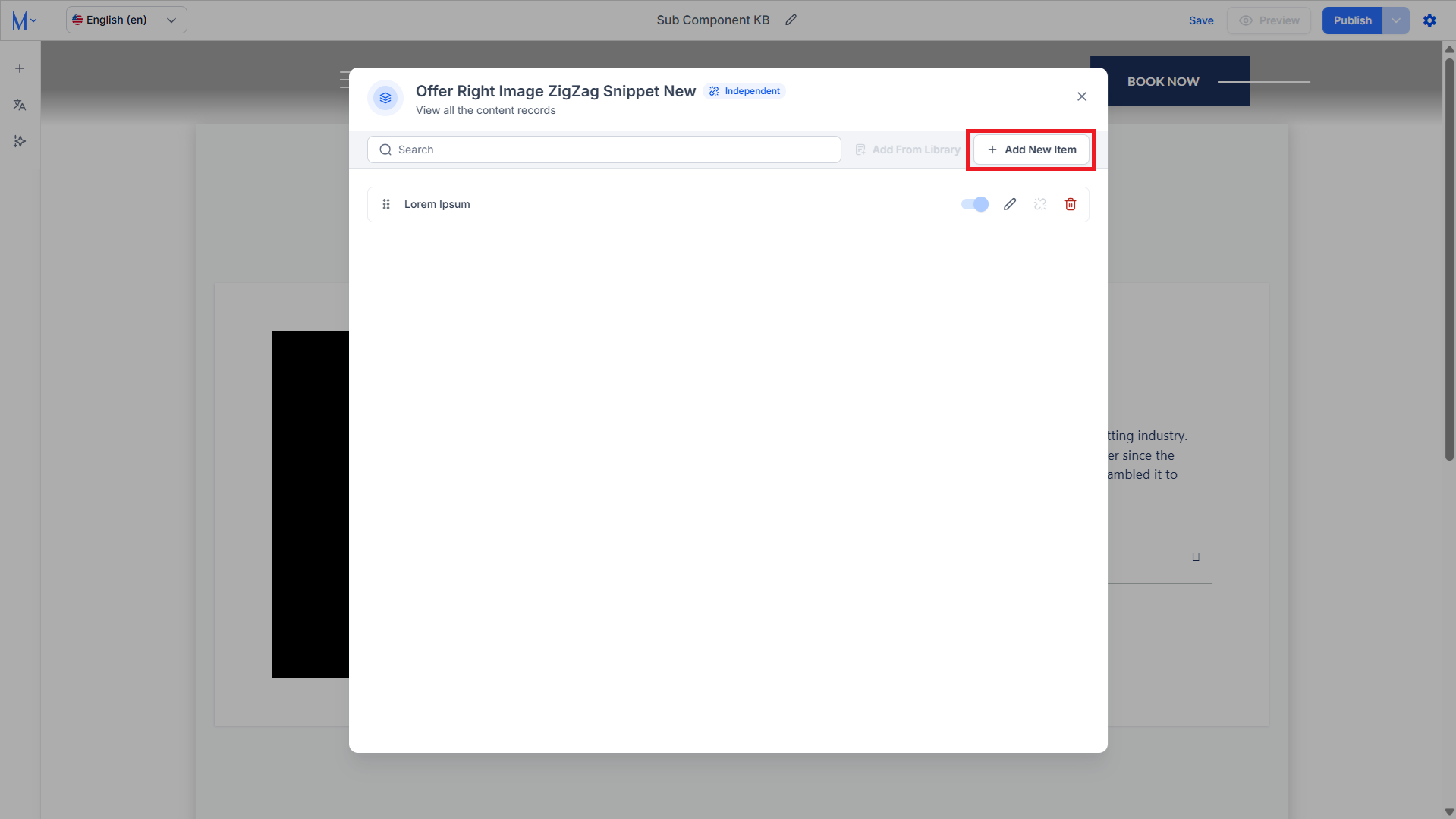
Step 2: Click on ‘Add New Item’ to add a new sub-component to this page section.
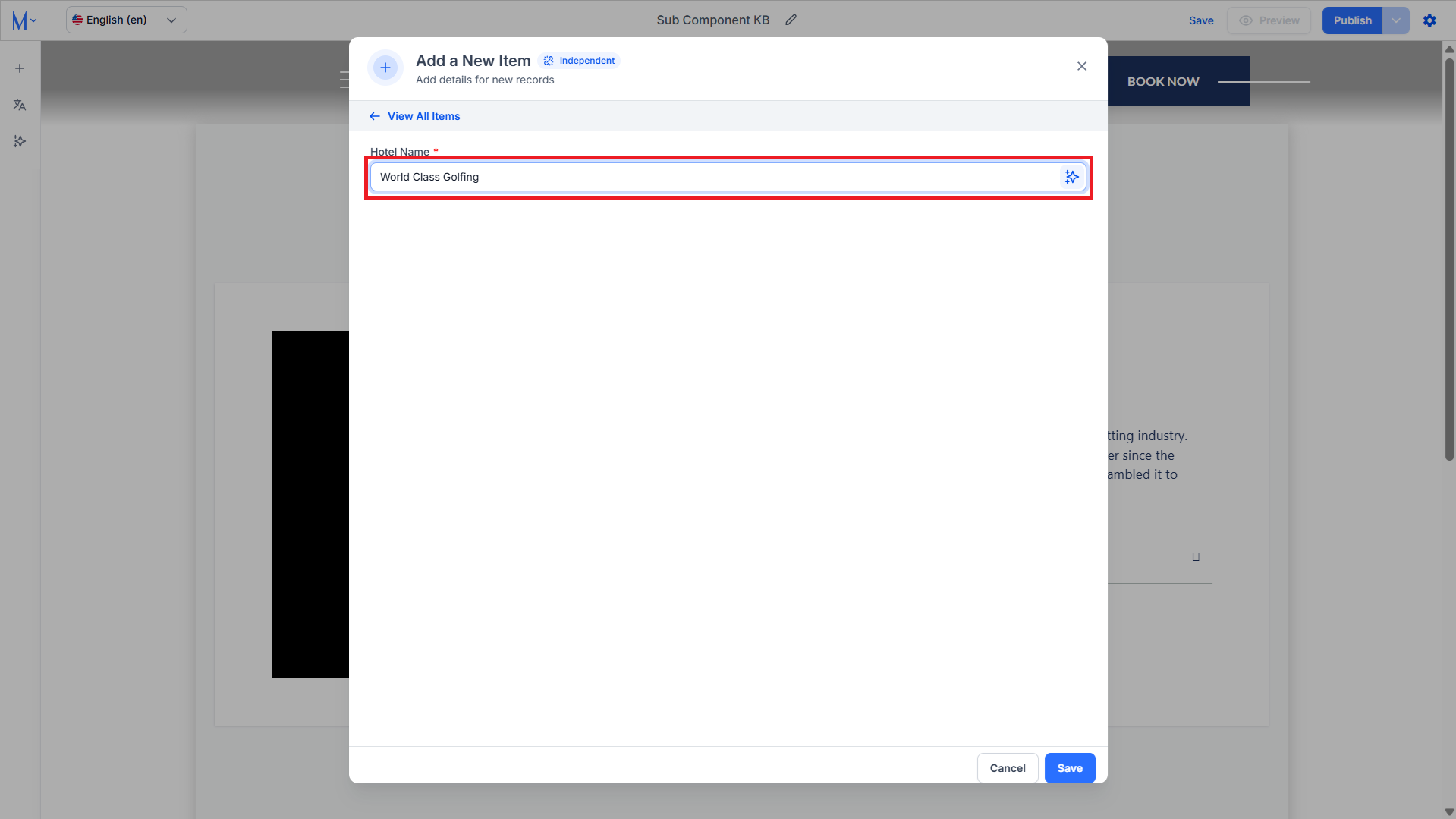
Step 3: Add a heading for the sub-component and click on ‘Save’.
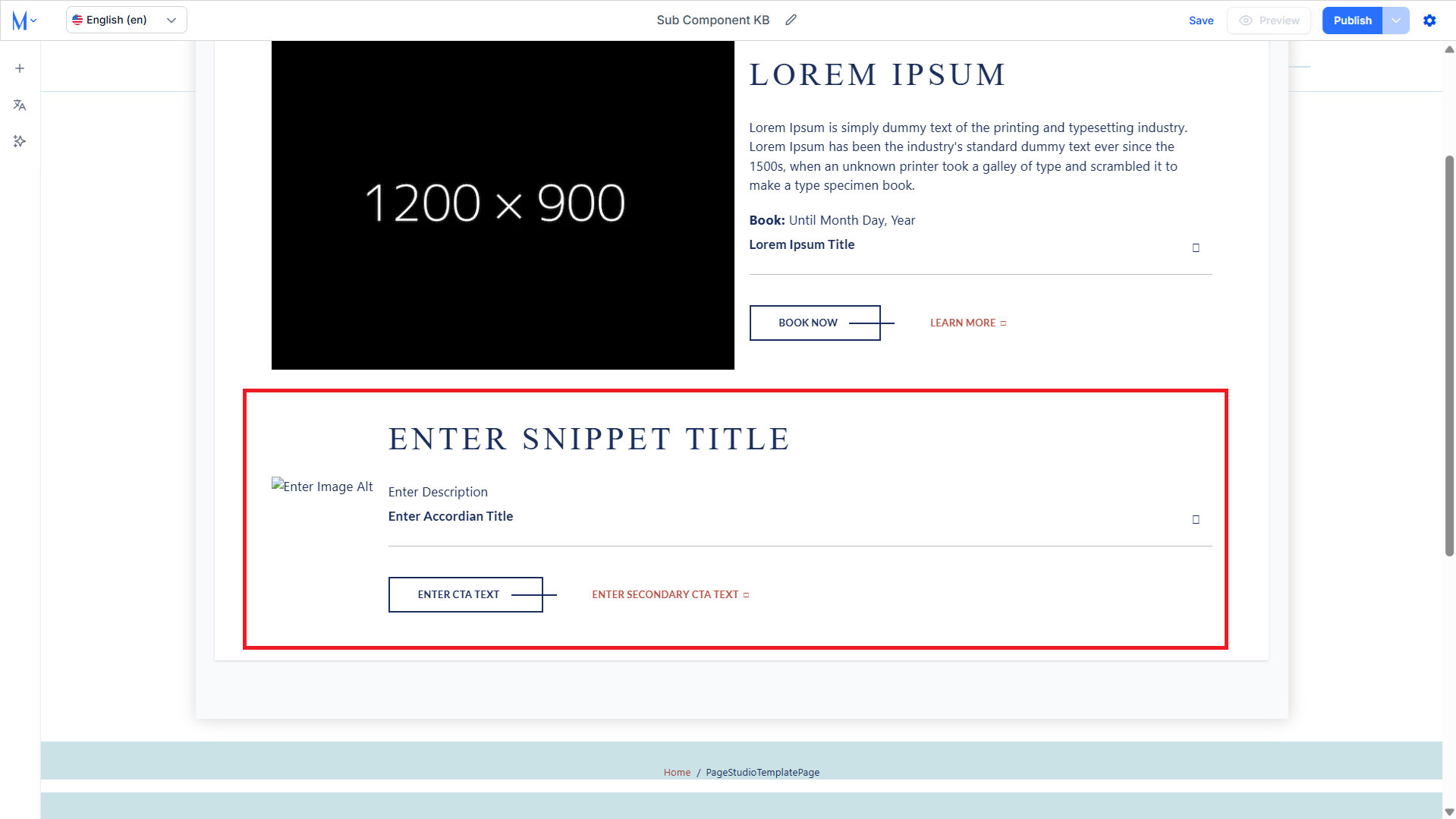
A sub-component with placeholder text will be created.
Editing a Sub-Component
Step 1: Click on the ‘Edit’ icon corresponding to the sub-component with a page section.
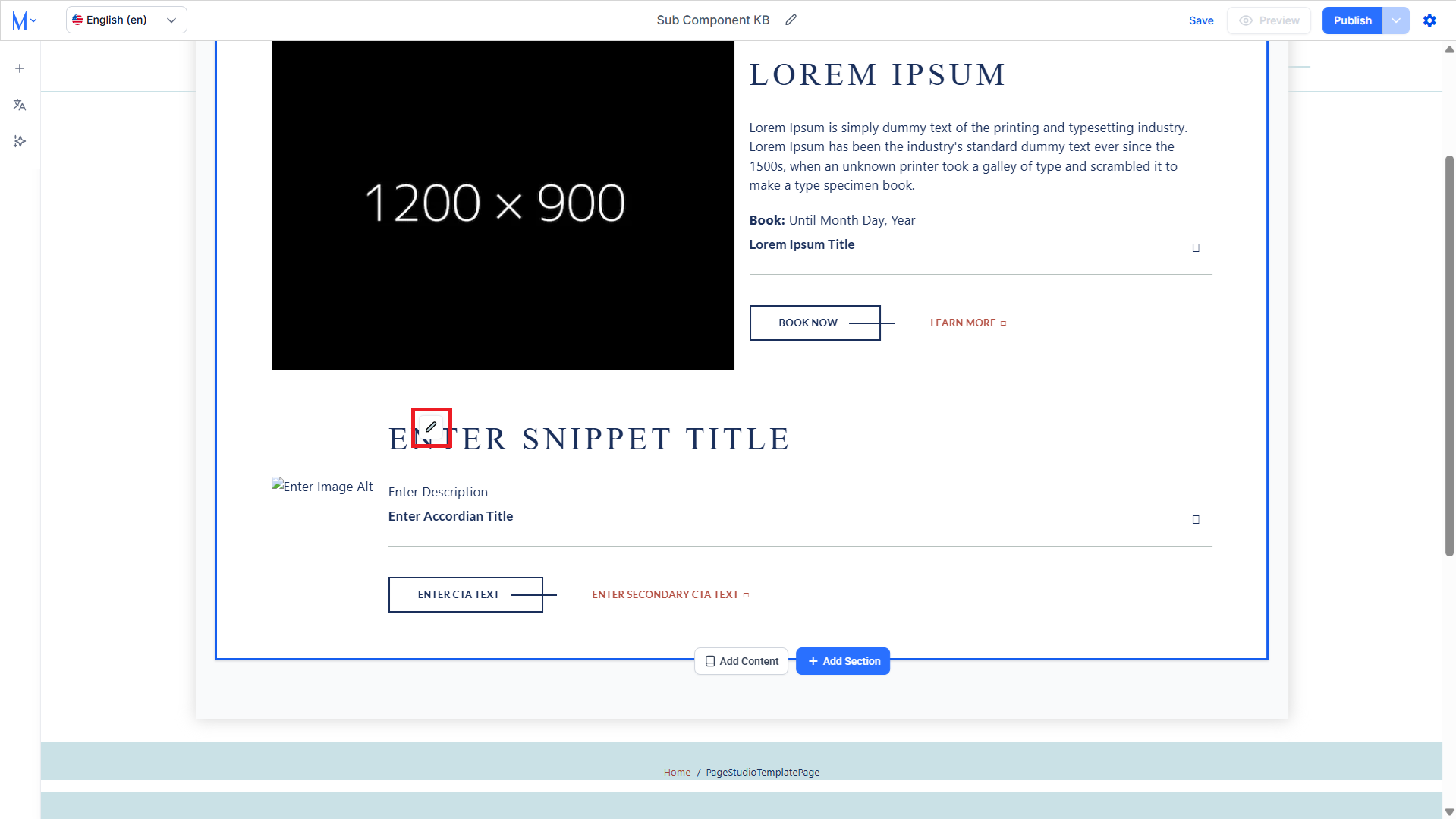
Step 2: Add the details for the sub-component.
- Snippet Title: The headline for the content block. This should be short, engaging, and describe the theme or highlight of the section. It’s often used as a section header on the live site.
- Description: The main body text that provides an overview or detailed information about the offering. Use clear, concise language to describe the resort’s features, benefits, or experiences—optimized for readability and engagement.
- Images: This section allows you to upload or select an image that visually supports the content. Choose high-quality, relevant images to enhance the visual appeal of the snippet.
- Image Alt: A short, descriptive phrase that conveys the content of the image for accessibility and SEO purposes. Avoid keyword stuffing; focus on clarity (e.g., “Golf course with two golf buggies”).
- Accordion Title: The label for the collapsible accordion section. It should be specific and clearly indicate the content revealed when the accordion expands (e.g., “Championship Course”).
- Accordion Description: This is the content that appears when the accordion is expanded. It should provide additional details or context related to the title, such as features, benefits, or what to expect.
- CTA Text: The main call-to-action label. This is the button text that encourages users to take a specific next step, such as “Book Now” or “Learn More.”
- CTA Link: The destination URL tied to the primary CTA button. This should direct users to the appropriate booking engine, form, or detail page.
- Secondary CTA Text: An optional, secondary call-to-action label for additional navigation or user action (e.g., “Bookings Open”). Use this when you have another action you want to promote.
- Secondary CTA Link: The hyperlink associated with the secondary CTA button. It should lead to a relevant resource, such as a gallery, information page, or external booking system.
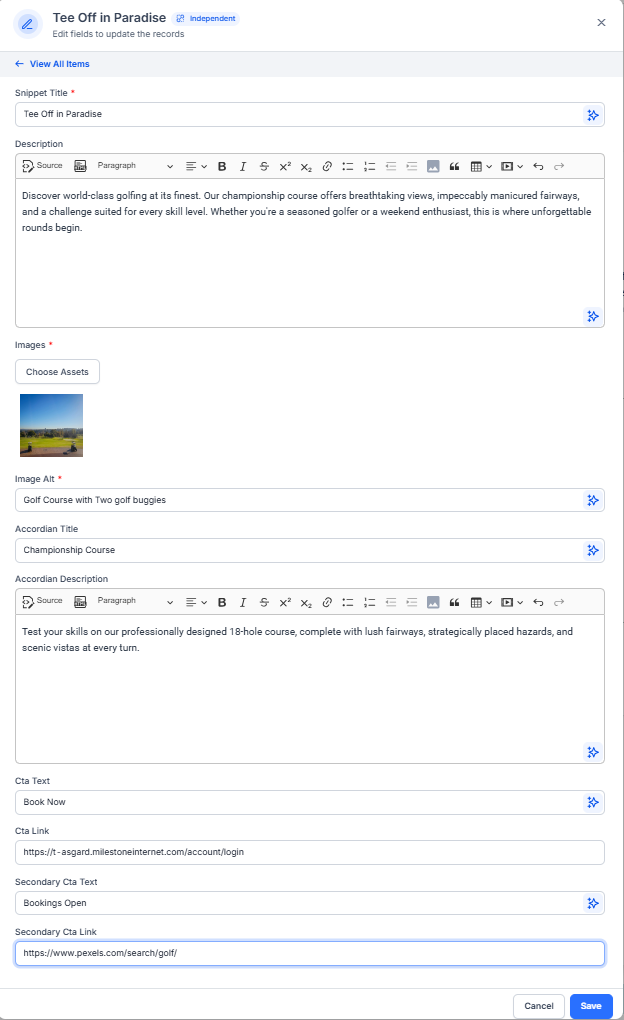
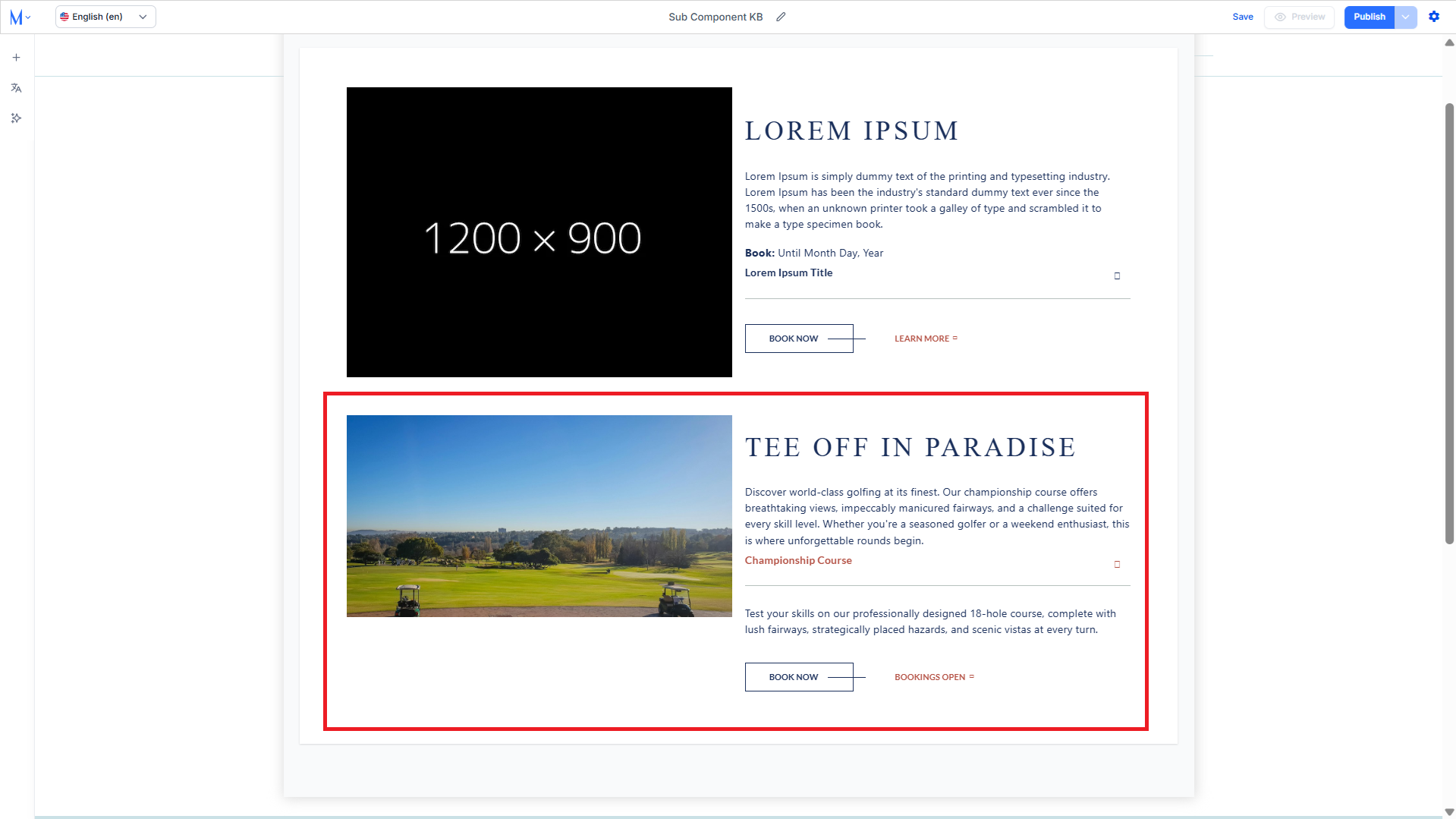
Step 3: Click on ‘Save’ to add it to the section.
Deleting a Sub-Component
Step 1: Click on the ‘Edit’ icon for the page section.
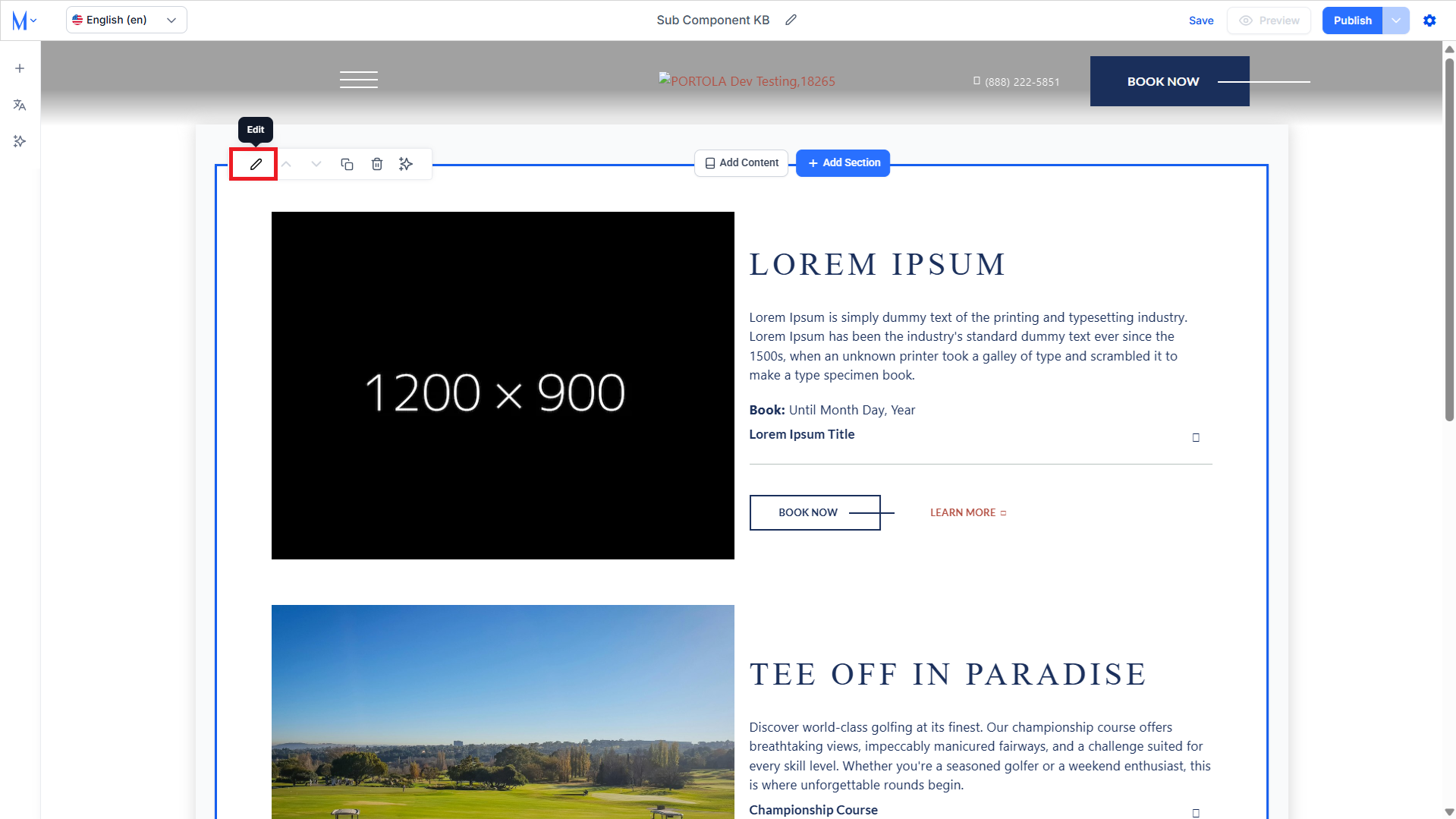
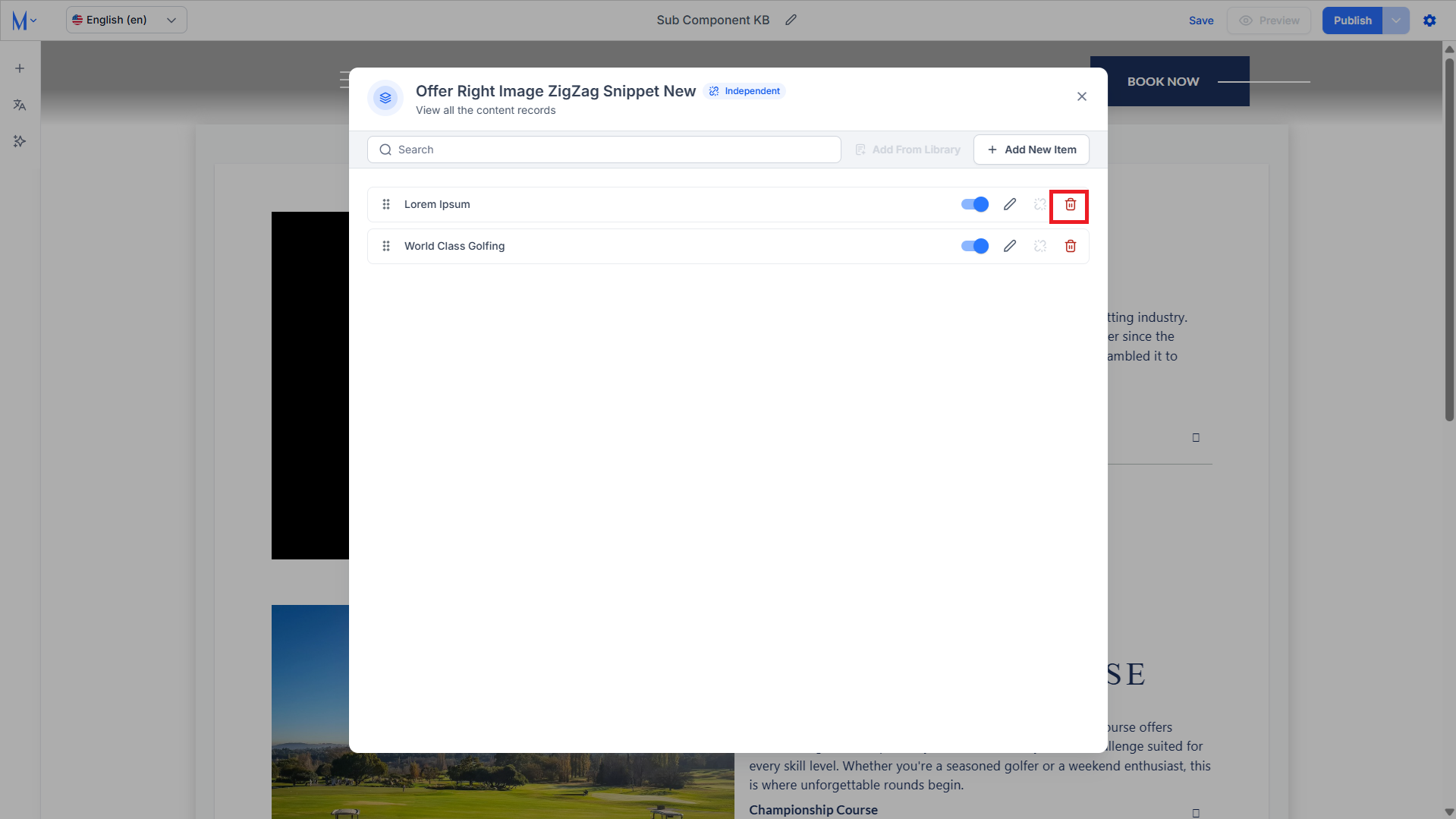
Step 2: Here, you can view the sub-components within the page section. Click on the ‘Delete’ icon corresponding to the sub-component you want to delete.
Was this article helpful?
That’s Great!
Thank you for your feedback
Sorry! We couldn't be helpful
Thank you for your feedback
Feedback sent
We appreciate your effort and will try to fix the article