The Event Calendar component in Page Studio makes it easy for users to showcase relevant events without leaving the platform. With a streamlined integration to the Event Calendar, you can now manage and display upcoming events directly from Page Studio. Whether you're featuring a single event or highlighting a full category, this component allows you to curate event content that’s both timely and targeted, perfect for keeping your pages fresh and engaging. This guide will walk you through how to use the component step by step.
Adding Events Component
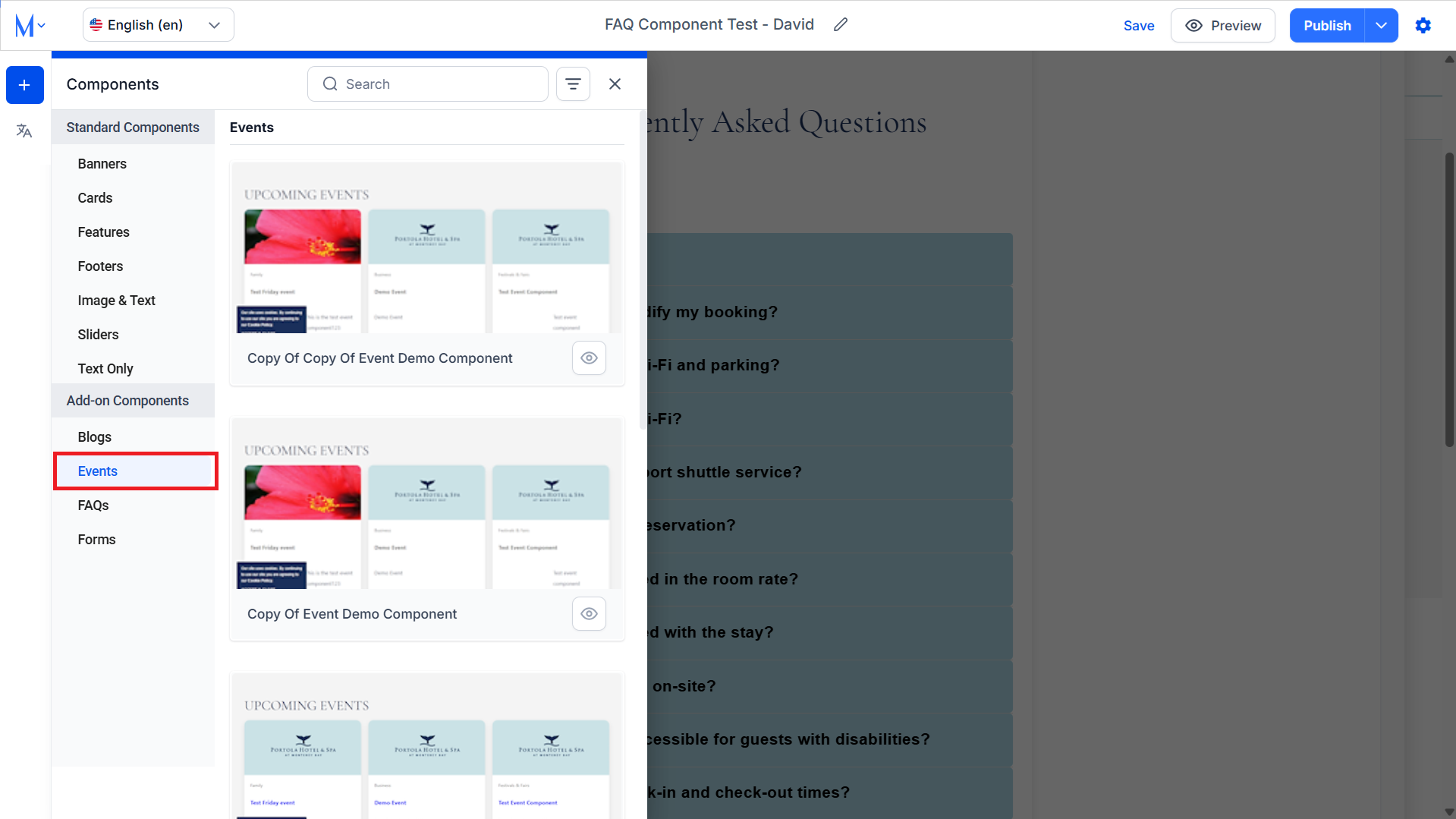
Step 1: In the ‘Components’ section, select ‘Events’ under the ‘Add-on Components’.
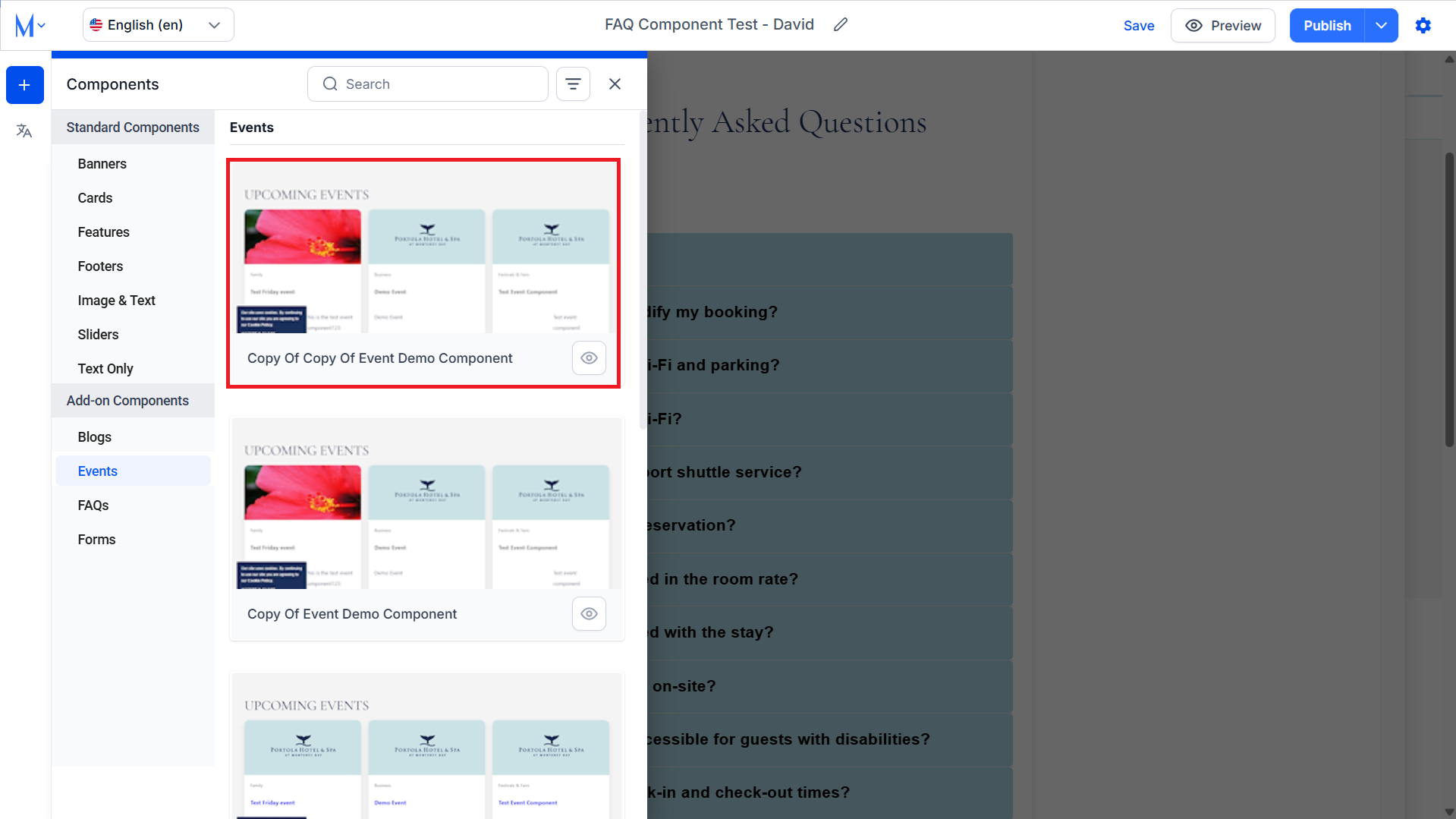
Step 2: Now select the sub-component type.
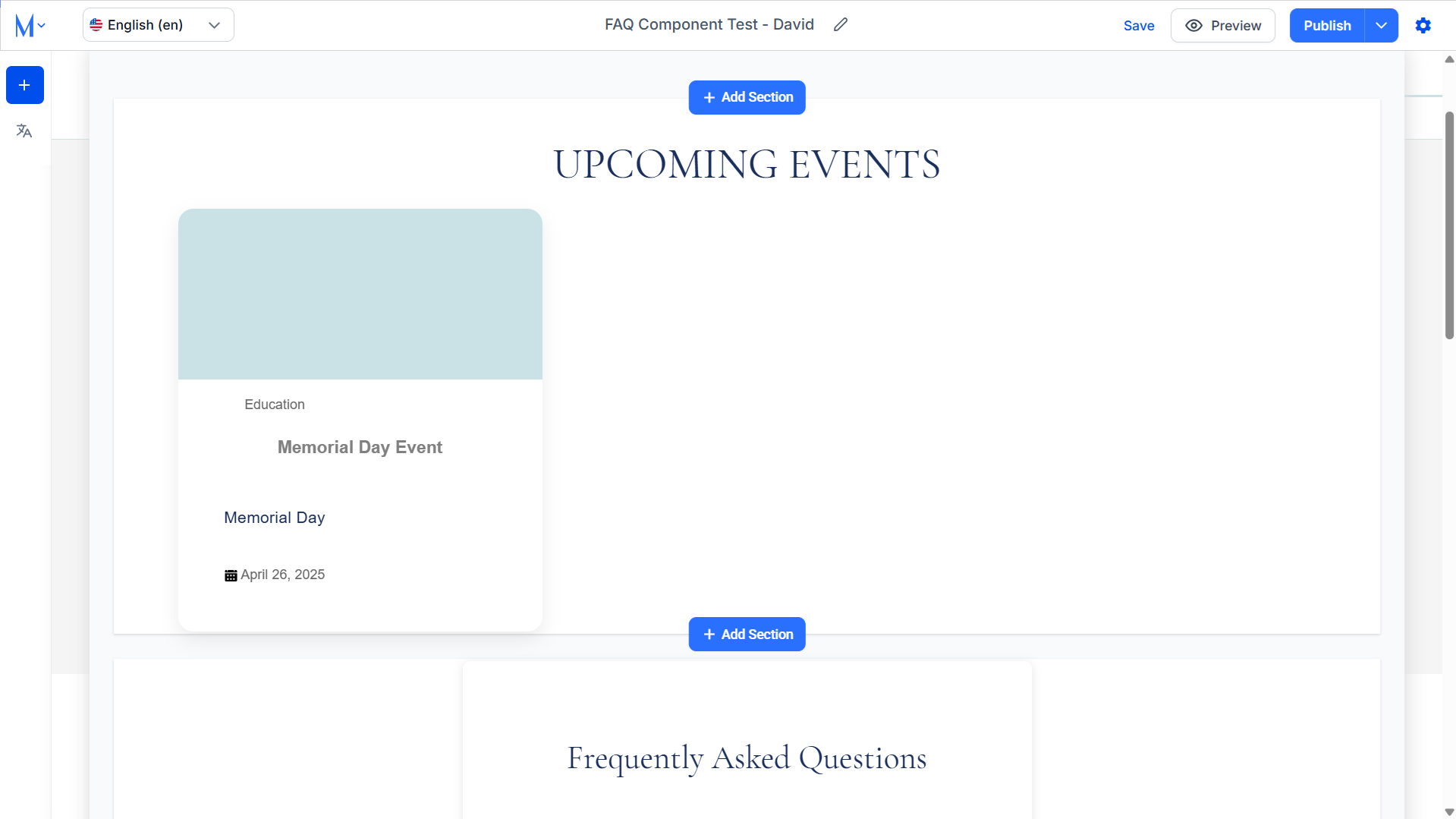
By default, the Event Component will display the upcoming events.
Editing Events Component
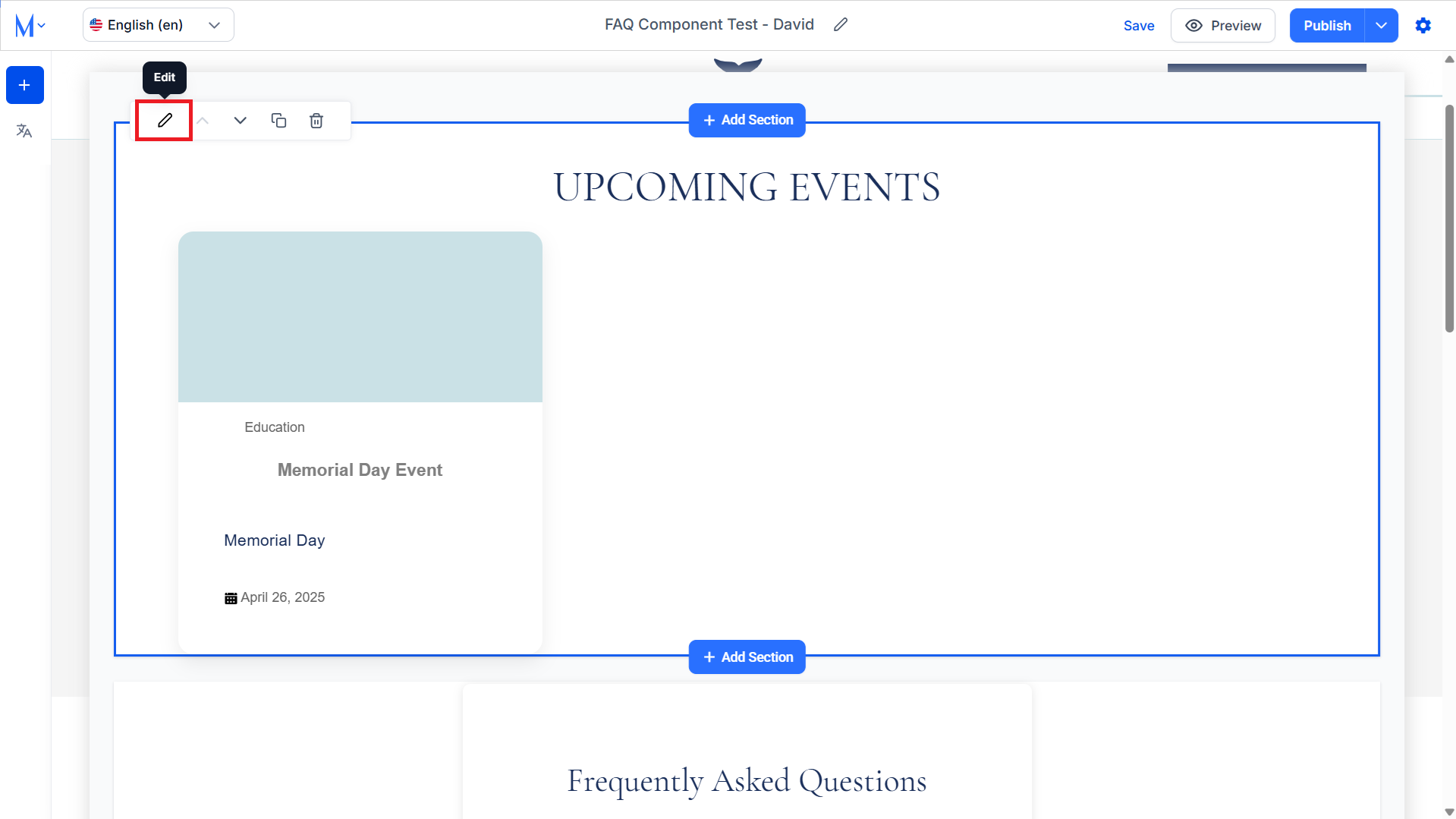
Step 1: Click on the ‘Edit’ icon to start editing the components and changing configurations.
Step 2: Select ‘Events’ in the Component List.
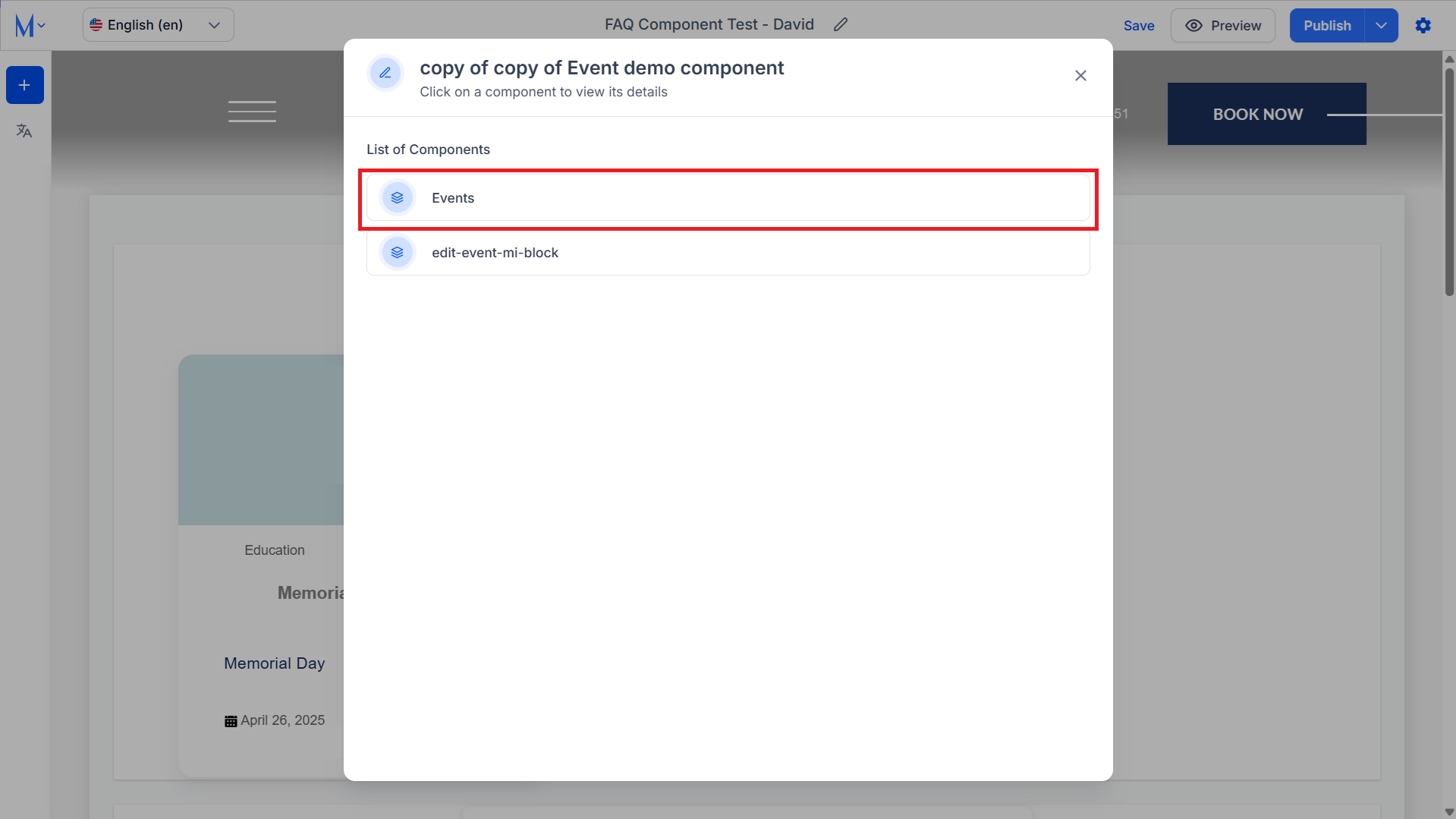
Step 3: From here, you can select the event categories you would like to display, the number of events to display and select if they are featured events.
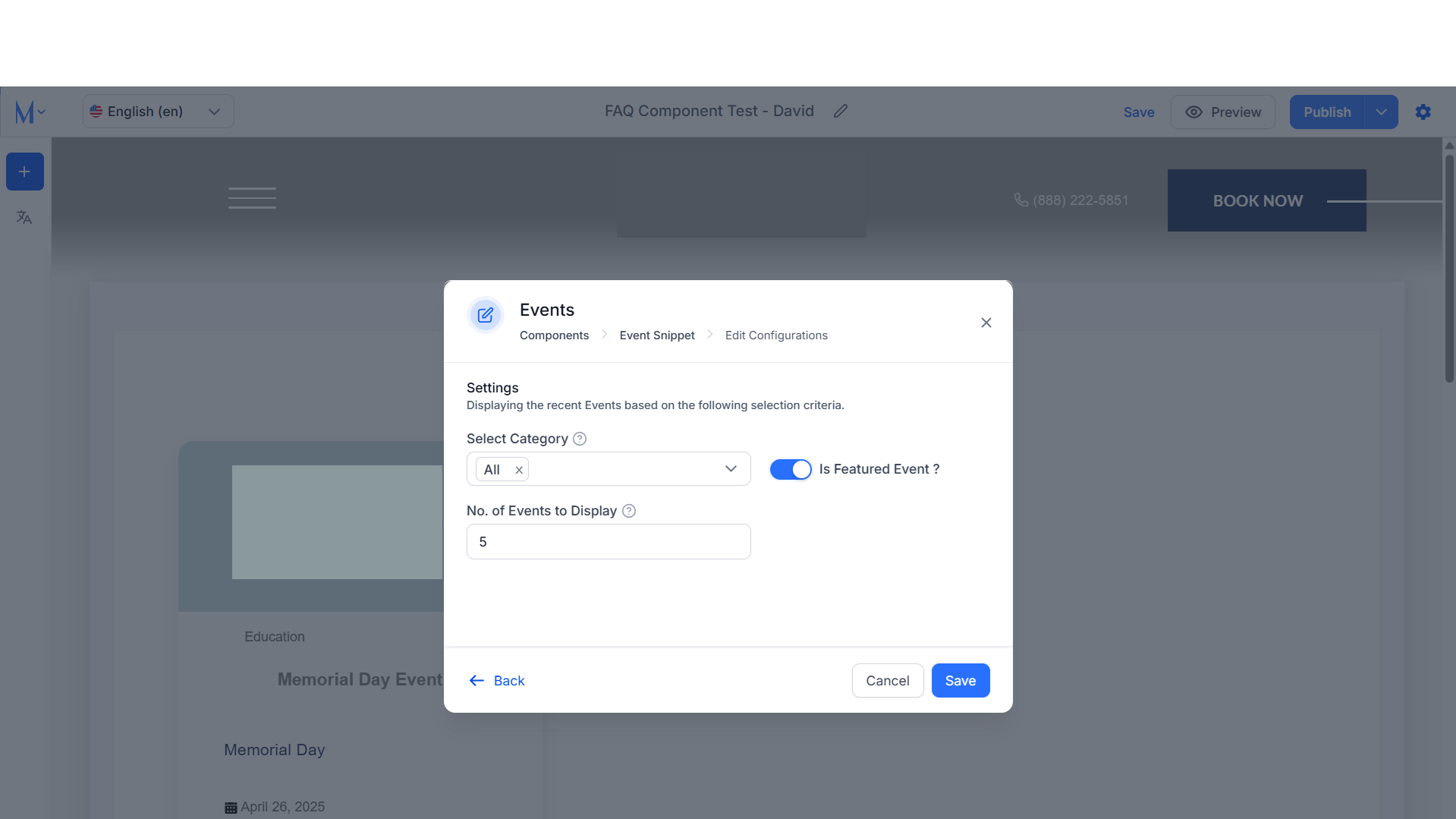
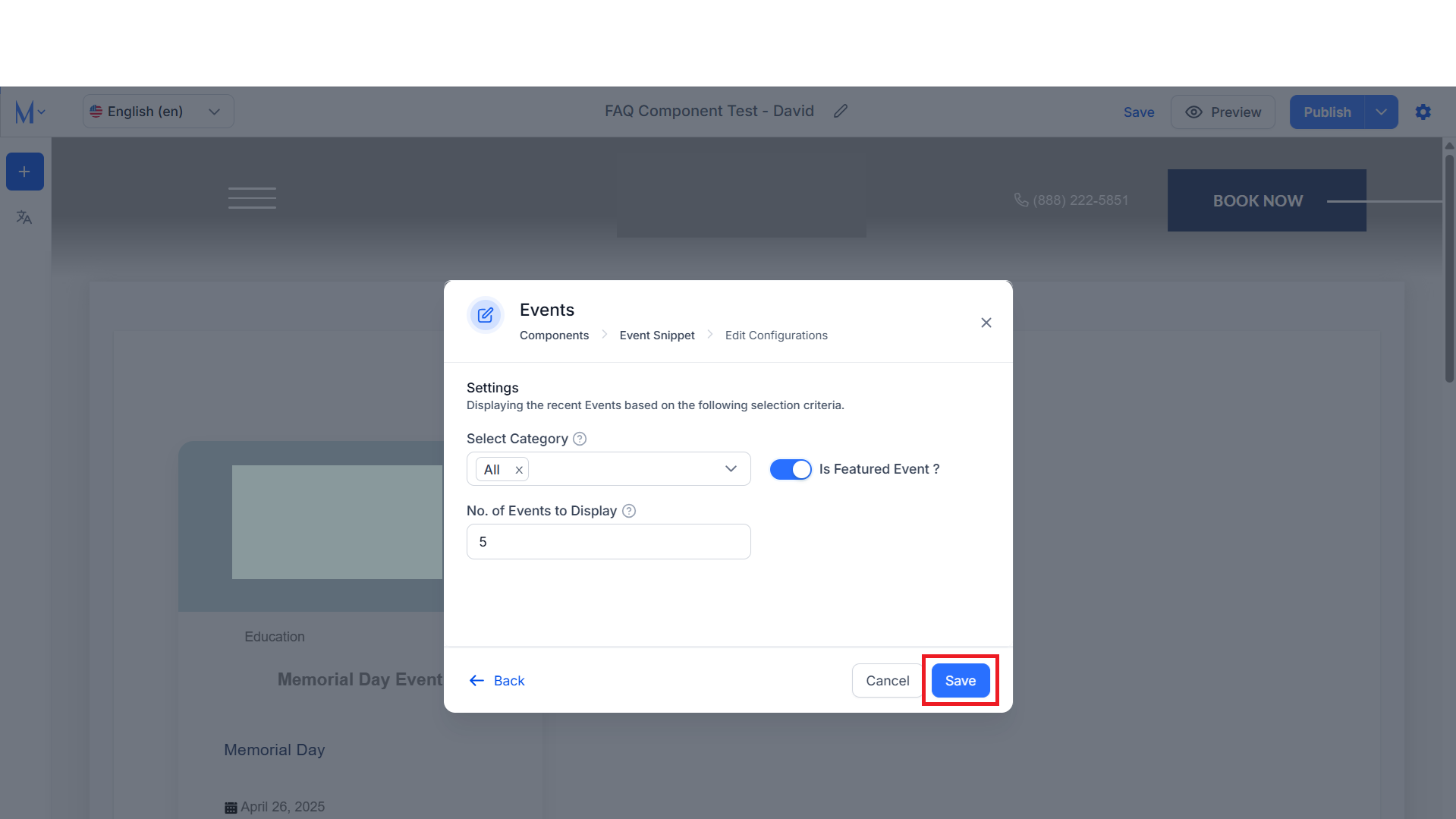
Step 4: Once you have made the changes click on ‘Save’.
Was this article helpful?
That’s Great!
Thank you for your feedback
Sorry! We couldn't be helpful
Thank you for your feedback
Feedback sent
We appreciate your effort and will try to fix the article