1. Header with No Text
Description: A full-width background image at the top of interior pages, typically setting the visual theme for the page.
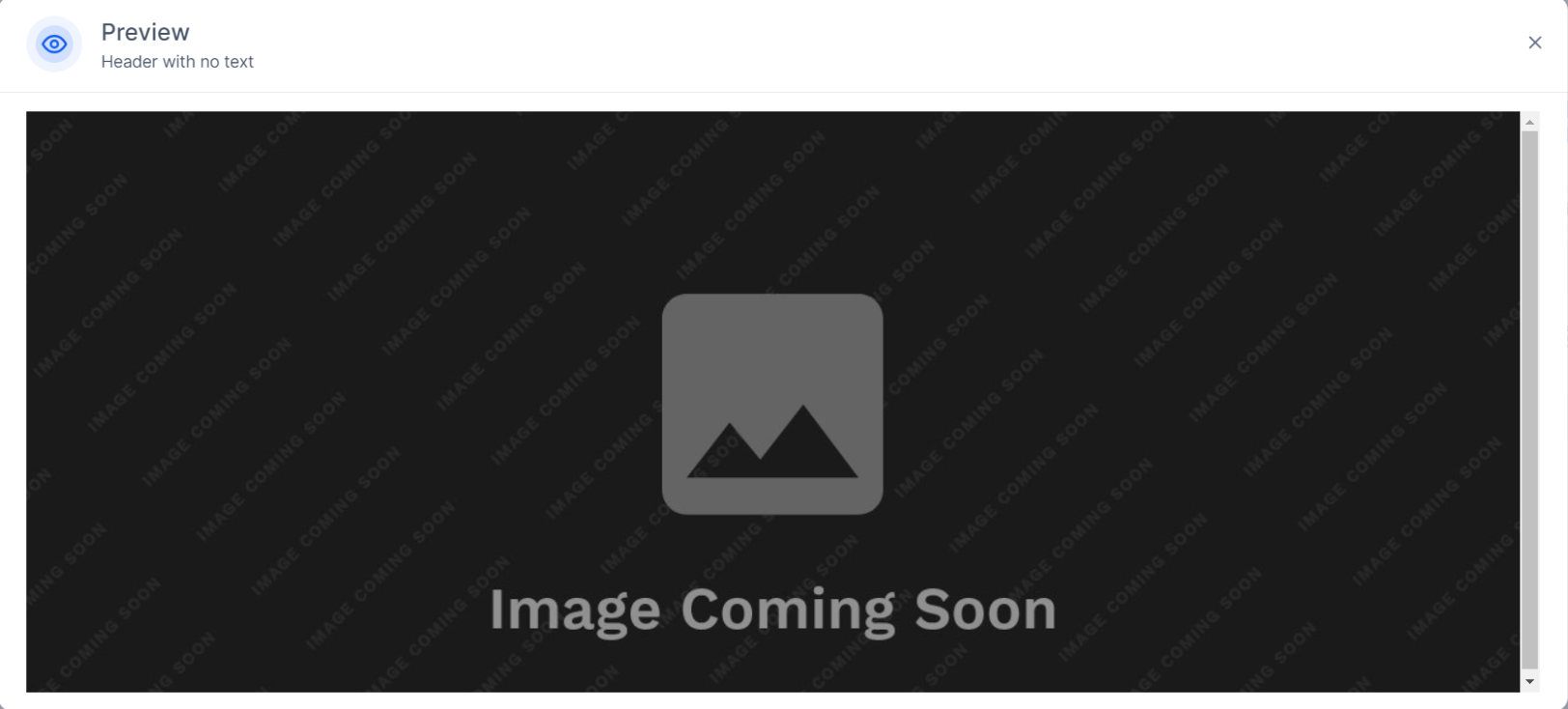
Use case: The Header with No Text component is added at the top of the page, usually above the navigation and directly below the header for a clean aesthetic.
2. Intro text
Description: Positioned anywhere, presenting an introductory summary centered on the page.
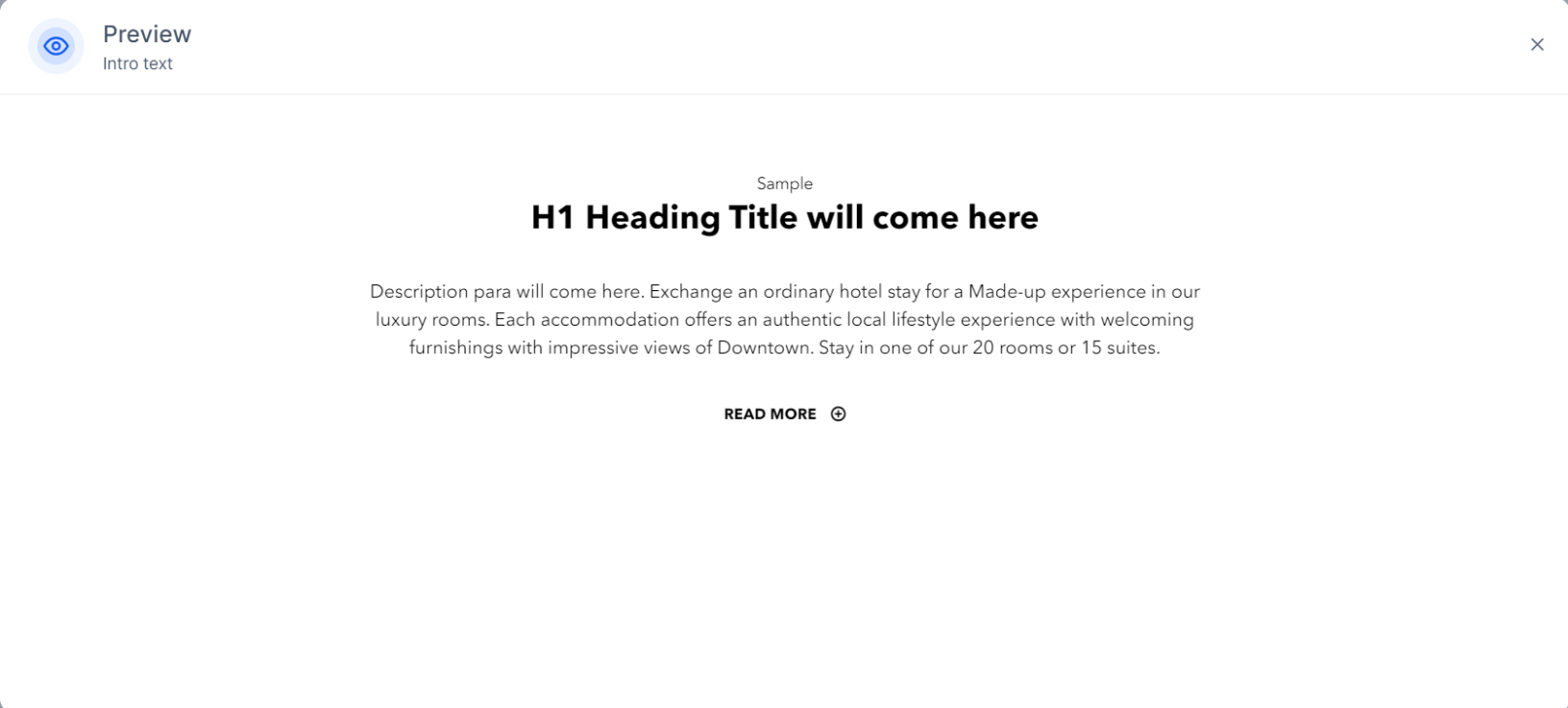
Use Case: Directly below the header; serves as an opening paragraph.
3. Zig Zag Feature Box
Description: An alternating left-right design, each block presenting a feature with a brief description.
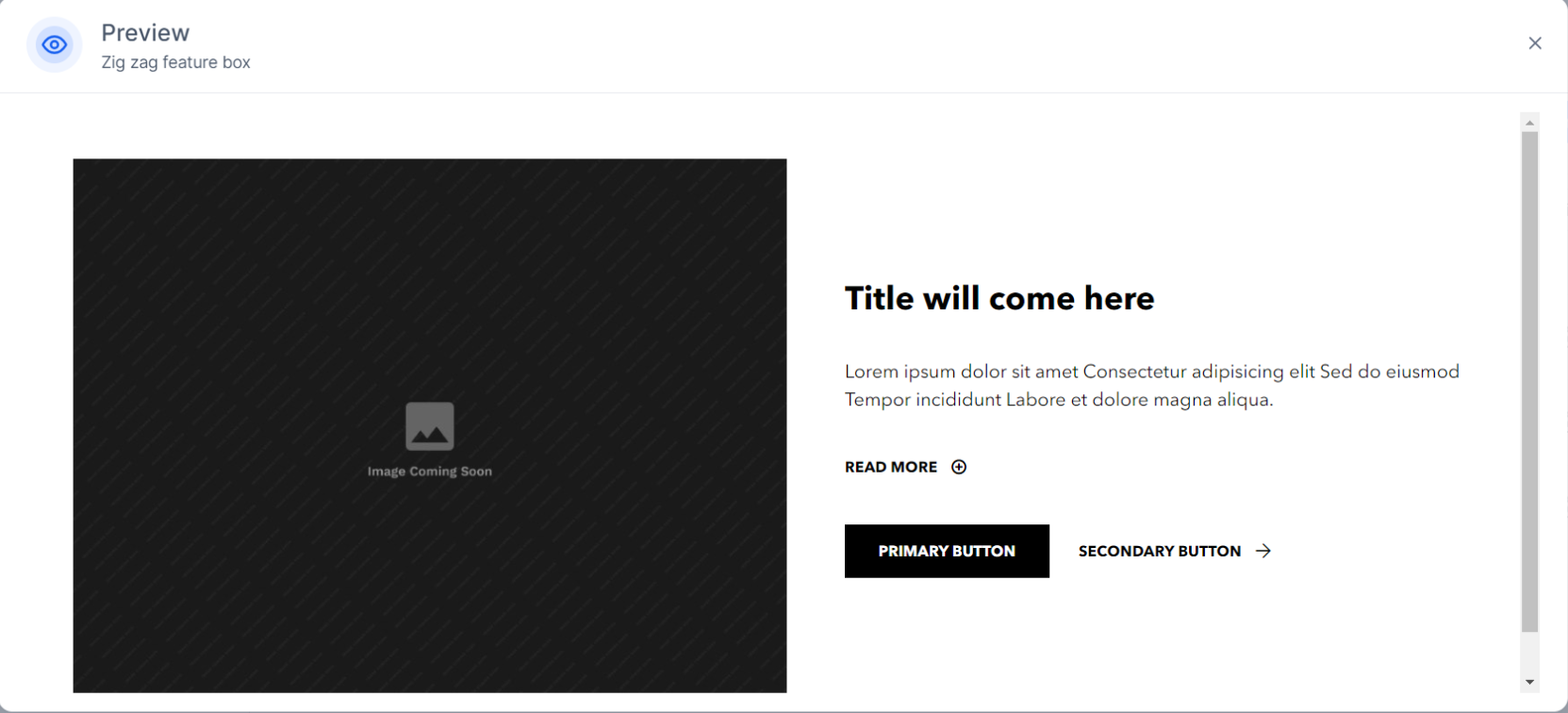
Use Case: Scattered throughout the page, often between sections to create visual flow.
4. Zig Zag Feature Box with Listing
Description: A zig-zag layout containing list-based descriptions, ideal for presenting multiple features or details in sequence.
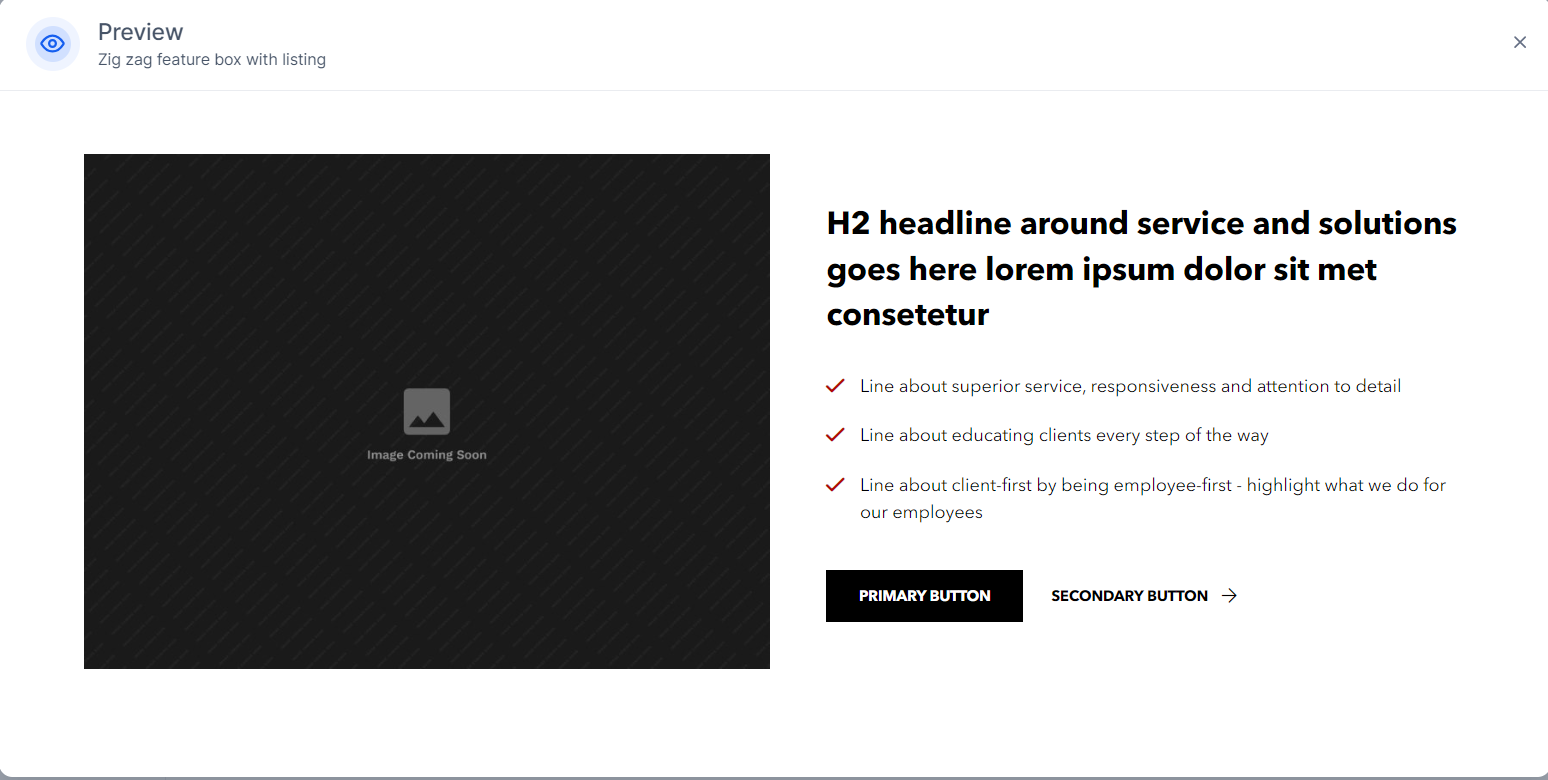
Use Case: Within the main content area, usually a bit lower in the hierarchy.
5. Zig Zag Feature Box with Gallery
Description: Alternating layout featuring a gallery, typically used to present visually rich content with supporting text.
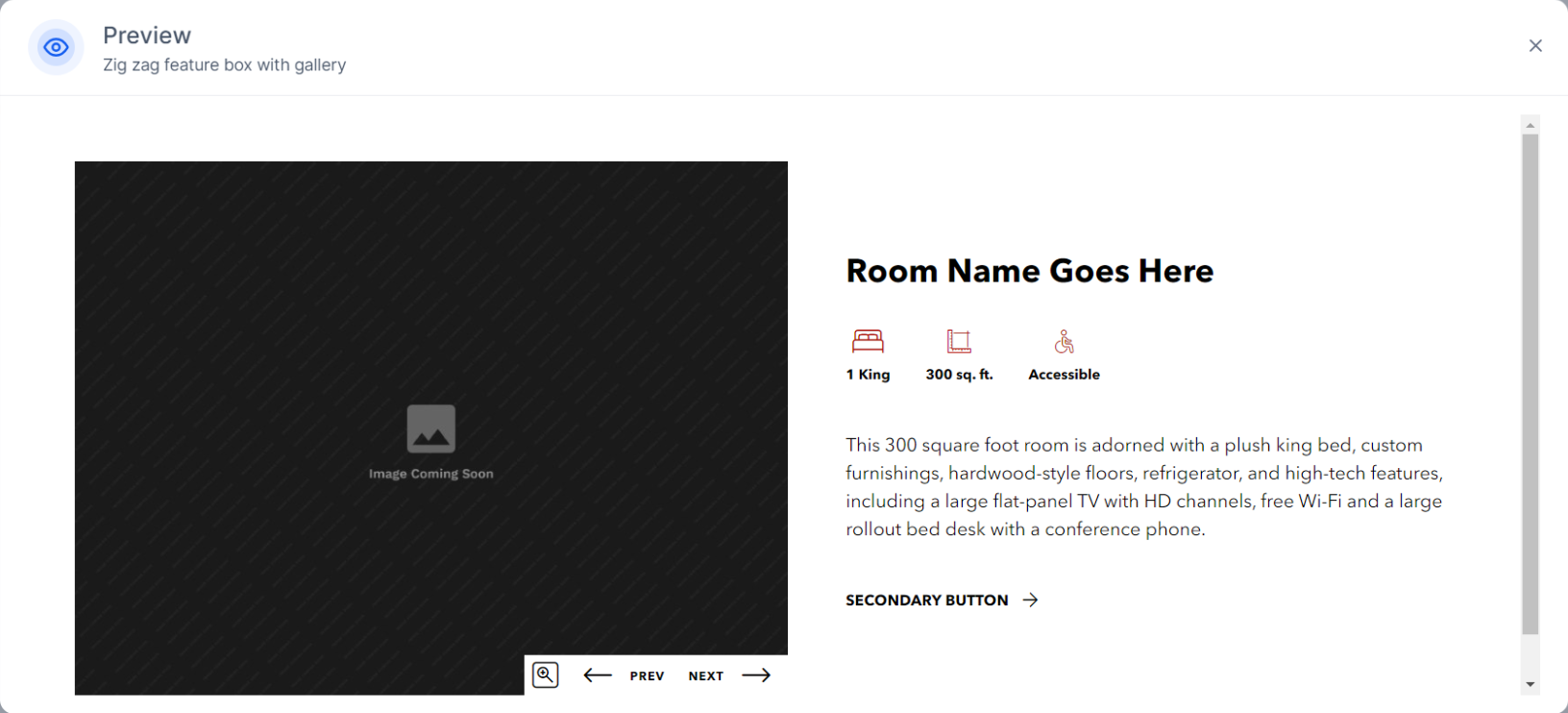
Use Case: Mid to bottom sections, enhancing visual storytelling.
6. Zig Zag Feature Box with Features
Description: An alternating layout with multiple features listed, creating visual flow while presenting content.
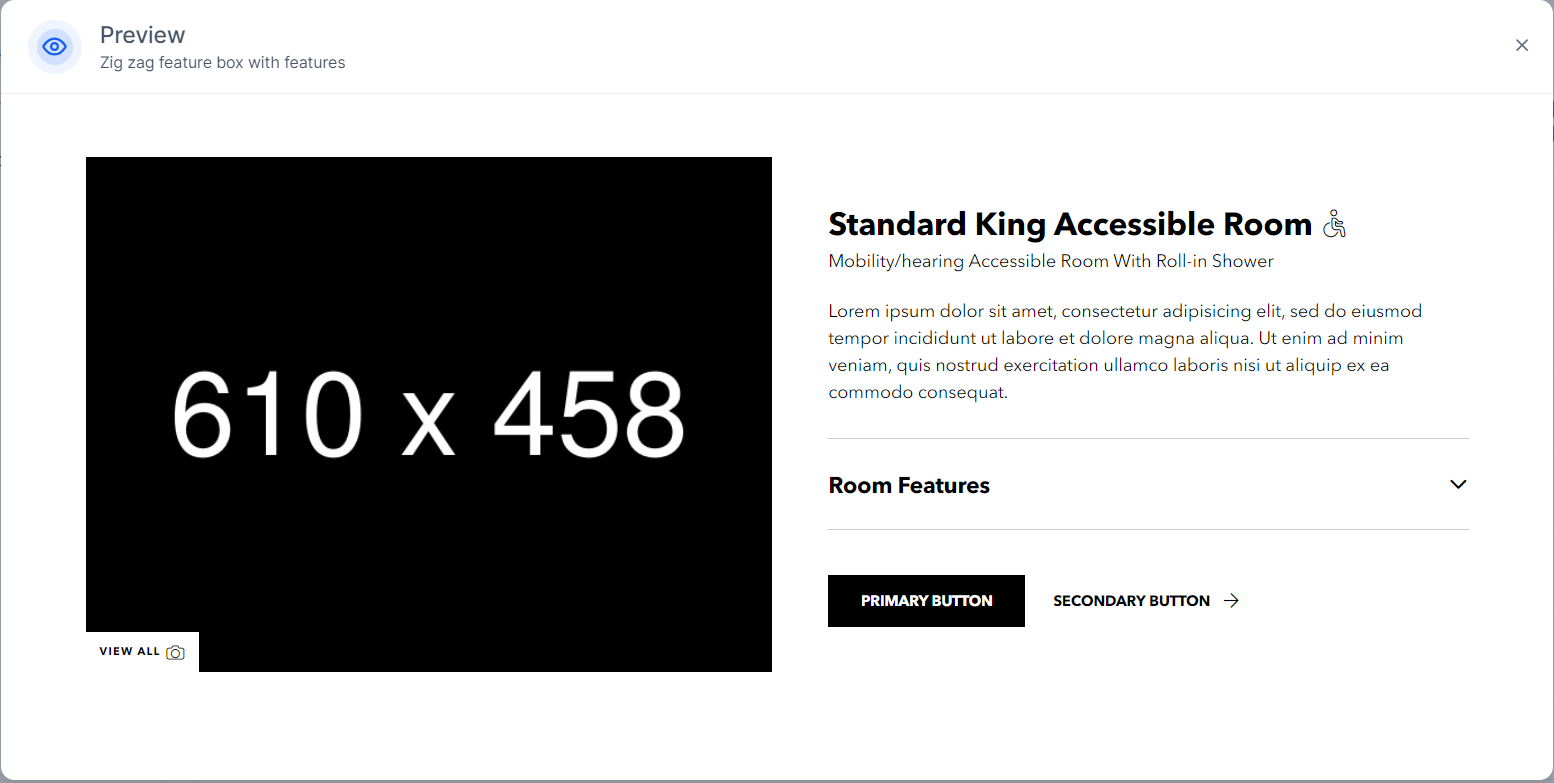
Use Case: Within the main content area for variety.
7. Zig Zag Feature Box with Venue Info
Description: Alternating layout sections specifically providing venue information, useful for event or space details.
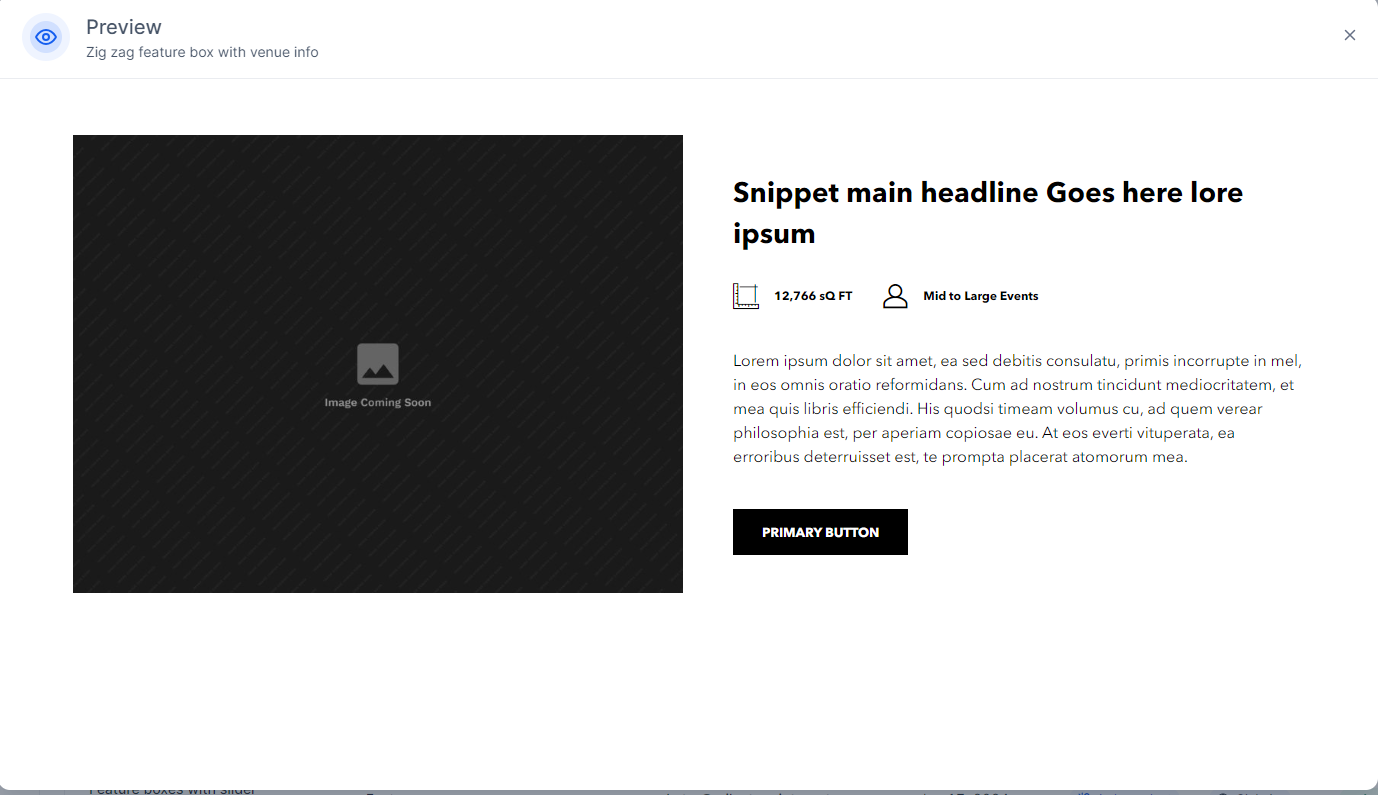
Use Case: Often mid to lower, near event or venue details.
8. 2-Col Feature Boxes
Description: A two-column layout displaying two distinct features side-by-side, typically mid-page to present dual highlights.
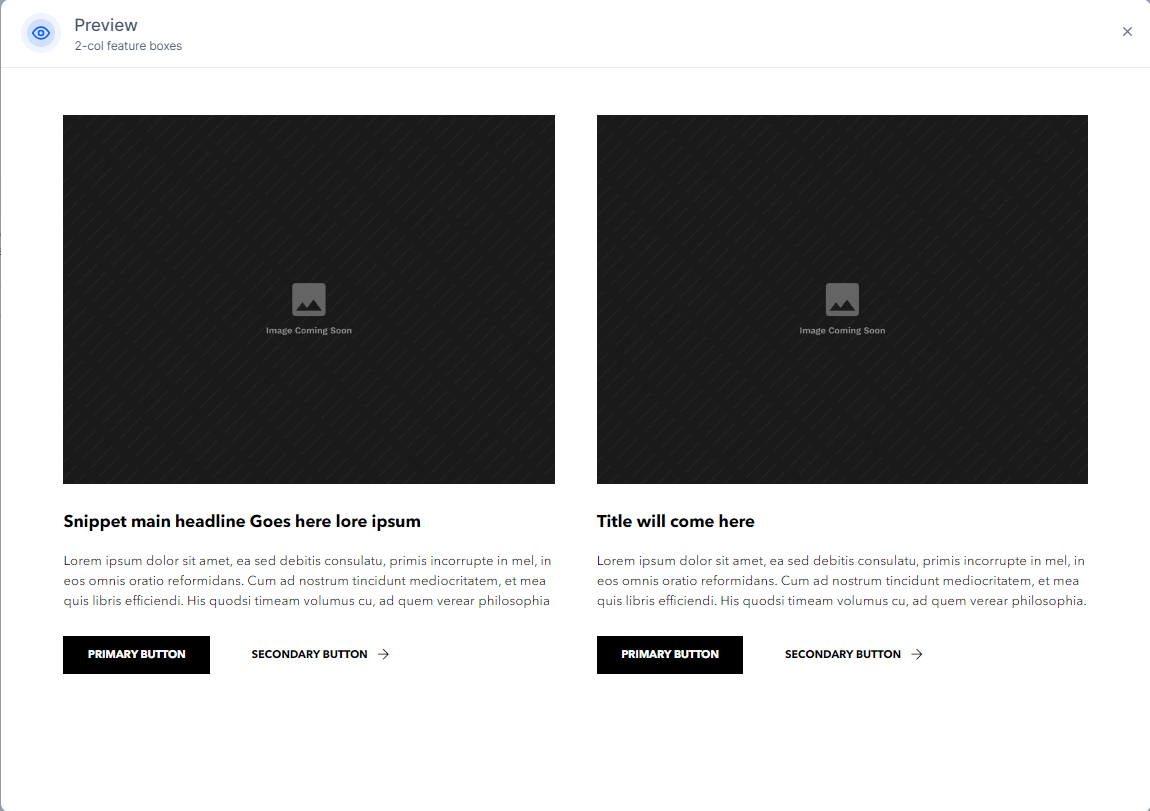
Use Case: Used to display dual features side-by-side, often near the top or midsection.
9. 3-Col Feature Boxes
Description: A three-column layout, often used mid-page, to showcase multiple features or services, providing a broad overview.
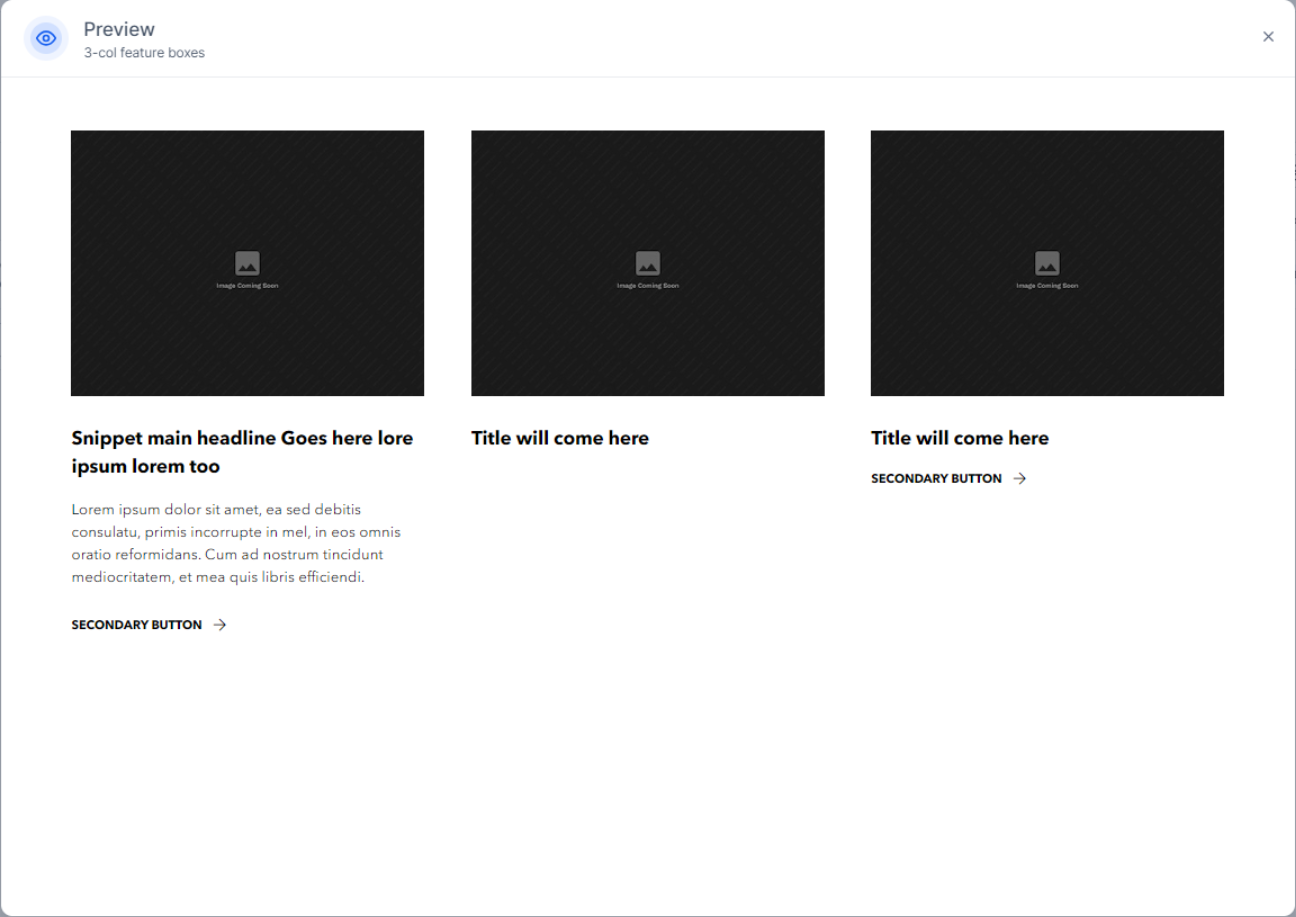
Use Case: Frequently placed in the main content or as a highlights section.
10. Multi-Image Slider with Content
Description: An interactive gallery with multiple images and overlaid content, used to tell a story visually with text descriptions.
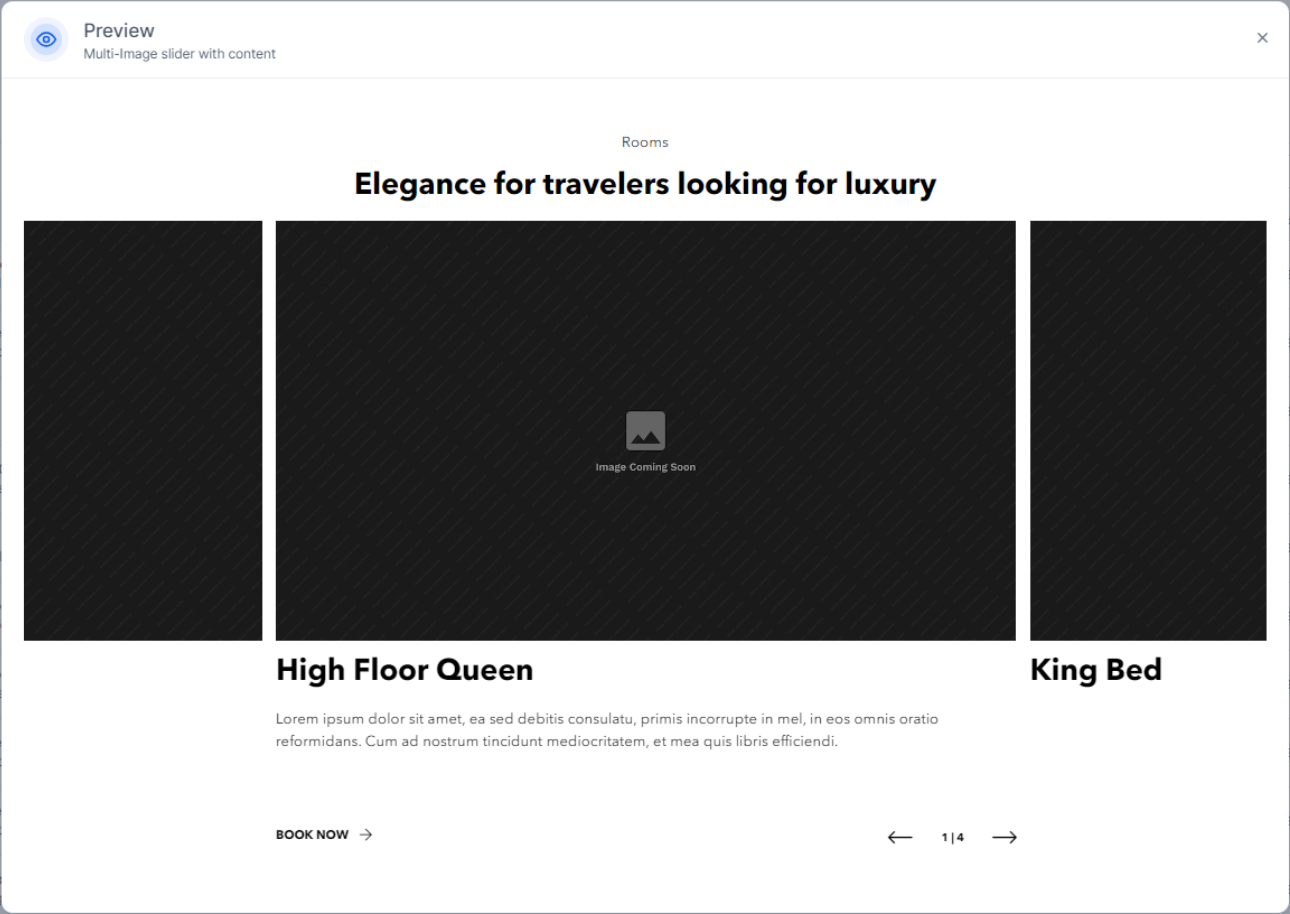
Use Case: Top of the page or within the hero section, giving users a first impression.
11. Multi-Image Slider
Description: A full-width image carousel with no additional text, ideal for showcasing multiple visuals.
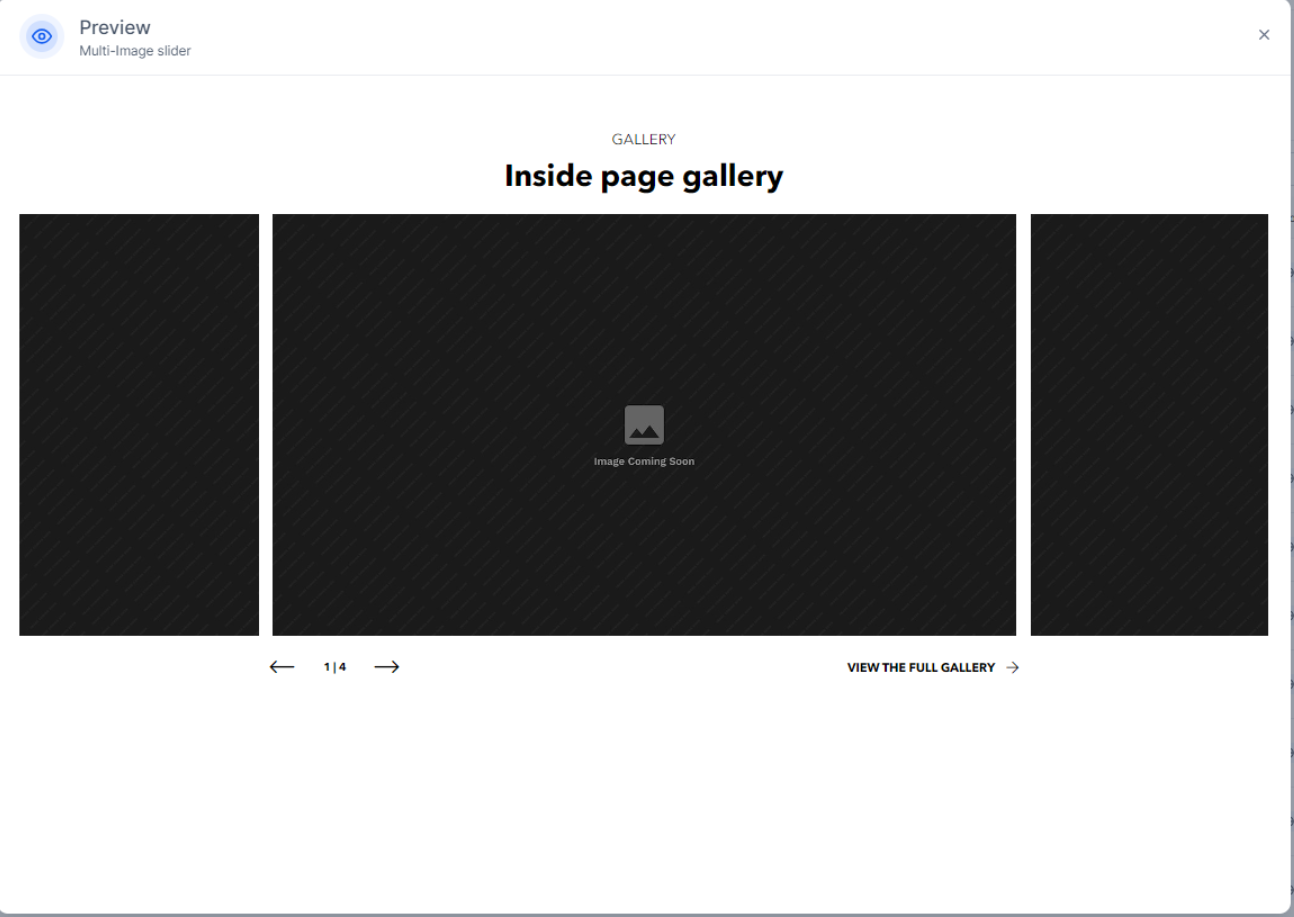
Use Case: Hero section or at key breaks between sections.
12. Call to Action
Description: A prompt or button encouraging users to take a specific action, such as "Book Now" or "Contact Us," strategically placed to drive conversions.
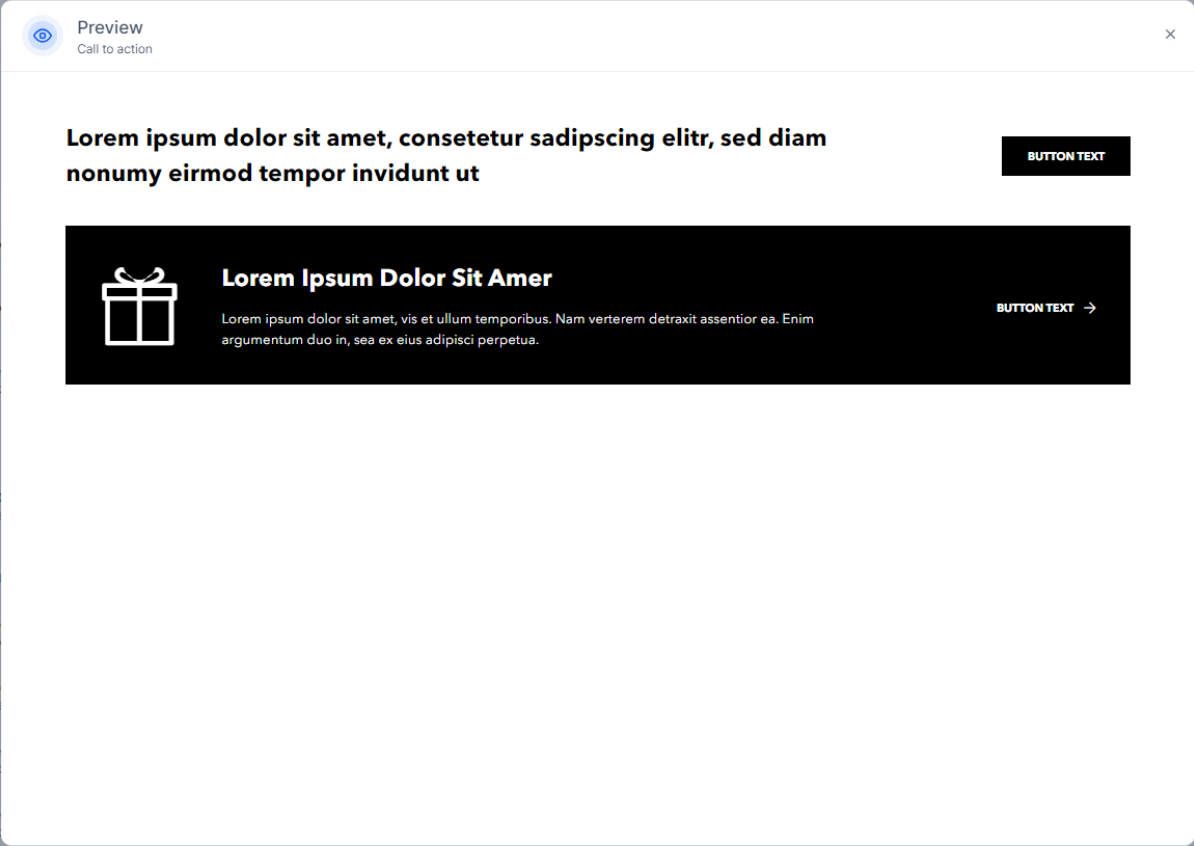
Use Case: Spread throughout, often at the end of sections or at the bottom of the page.
13. Image Box
Description: A simple image section that may appear with or without accompanying text, used to break up content or add visual interest.
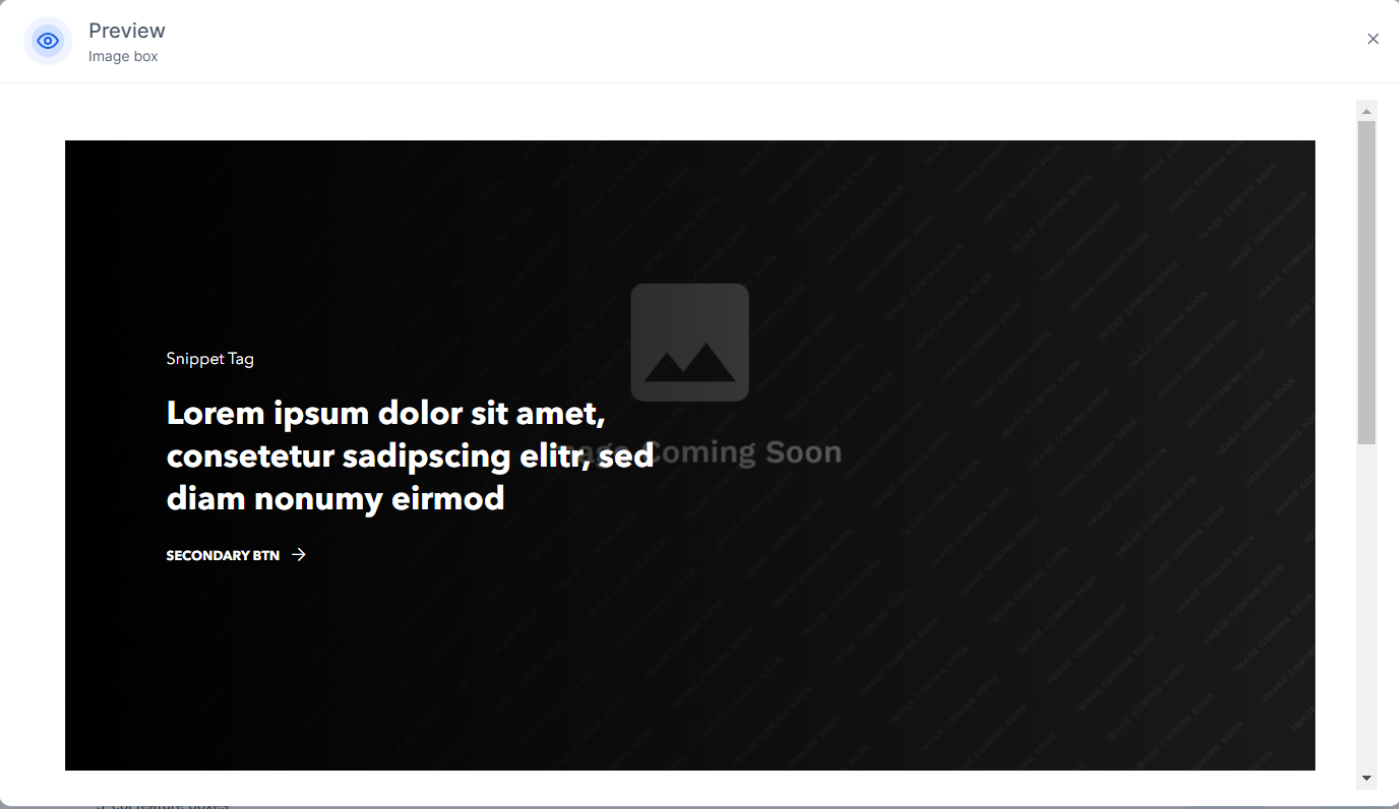
Use Case: Throughout the content, often adjacent to text or in feature sections.
14. Fluid Image Box
Description: A full-width image section with overlay text, creating an immersive effect and enhancing visual storytelling.
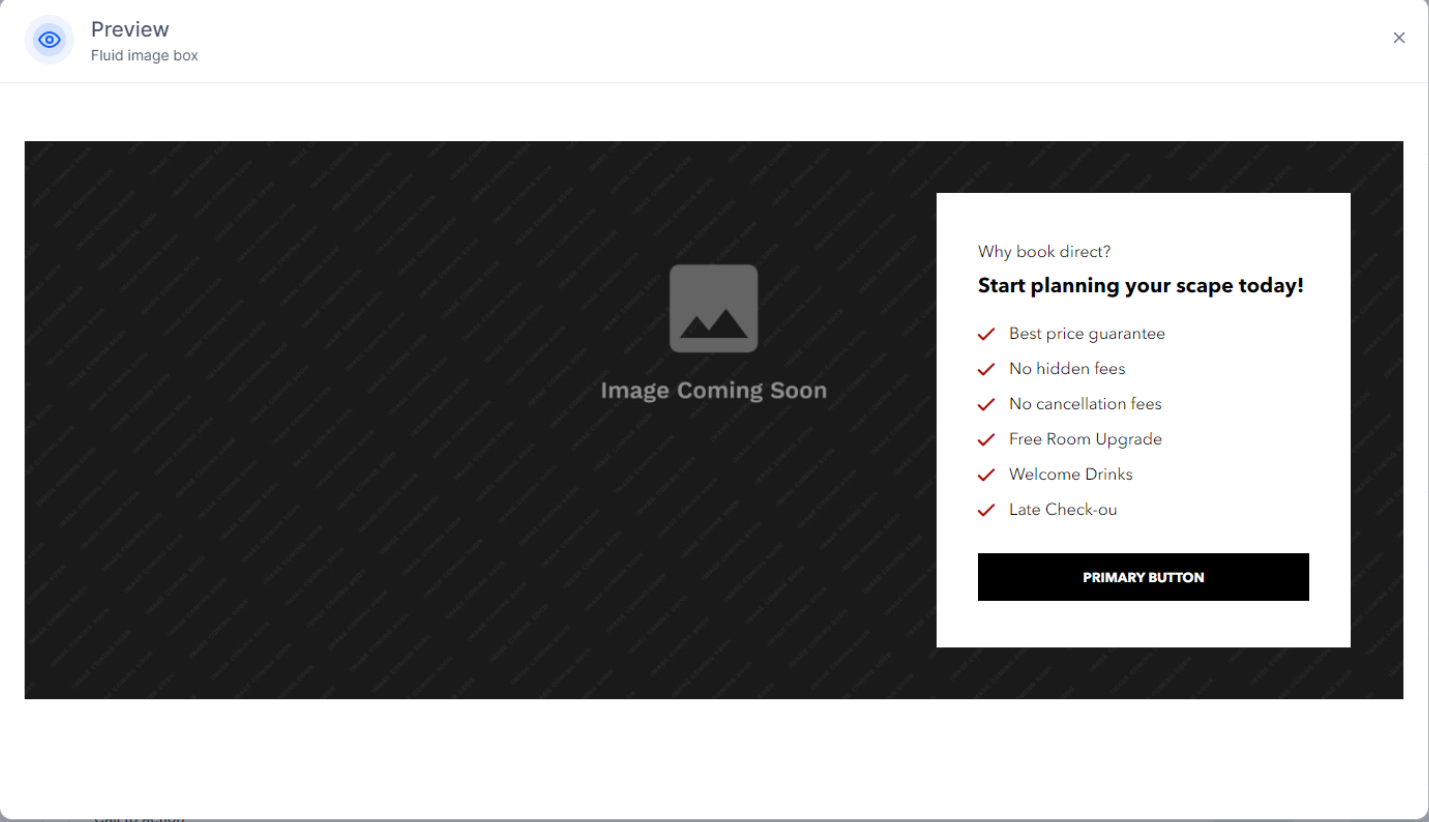
Use Case: Typically in headers or hero sections, creating an immersive entry.
15. Reviews Slider
Description: A carousel displaying user reviews or testimonials, typically placed mid-to-lower on the page to build social proof and credibility.
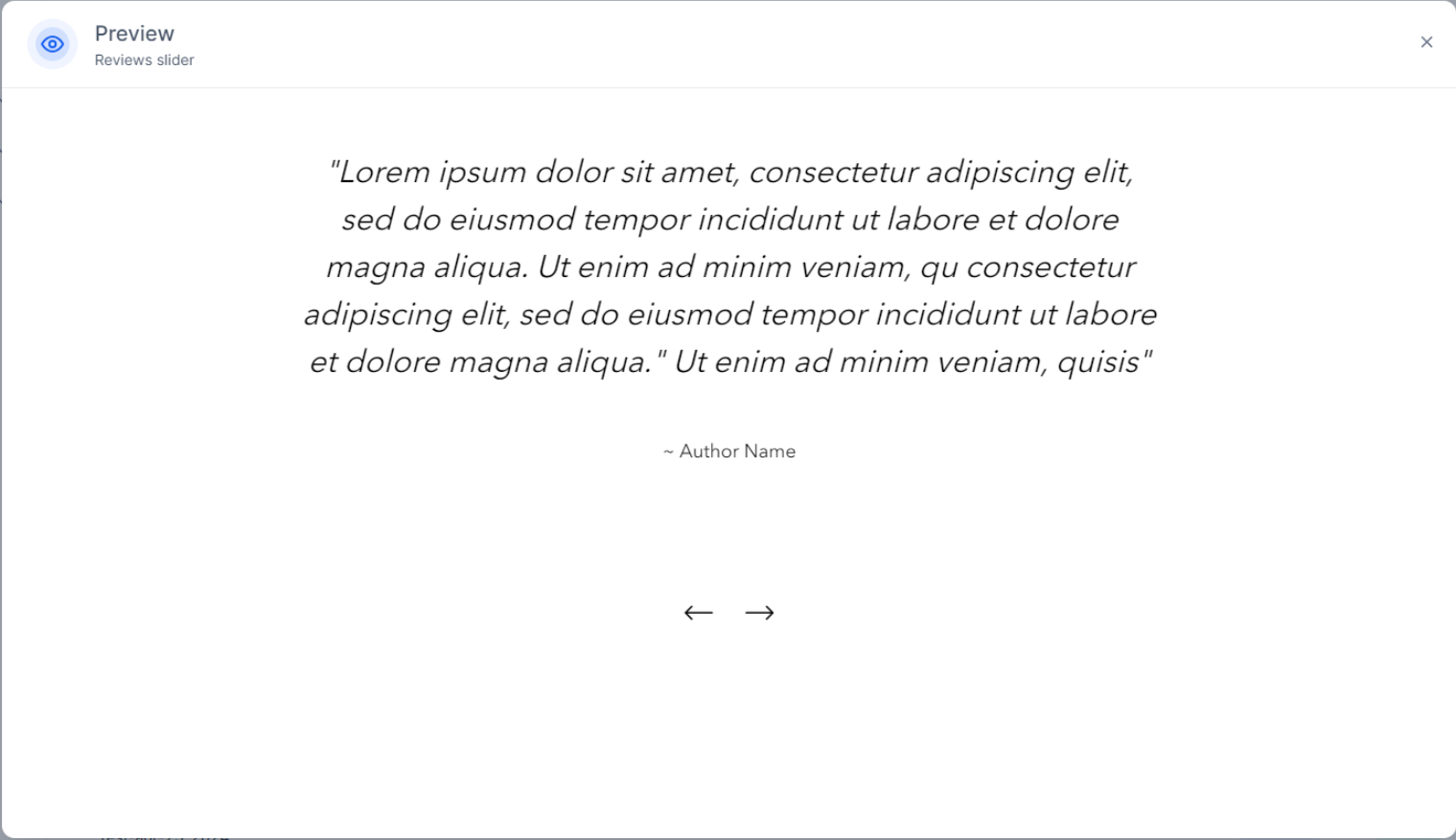
Use Case: Mid to bottom of the page to build credibility.
16. History Timeline
Description: A visual timeline section showing significant milestones, often within an "About Us" section, providing a story of progression.
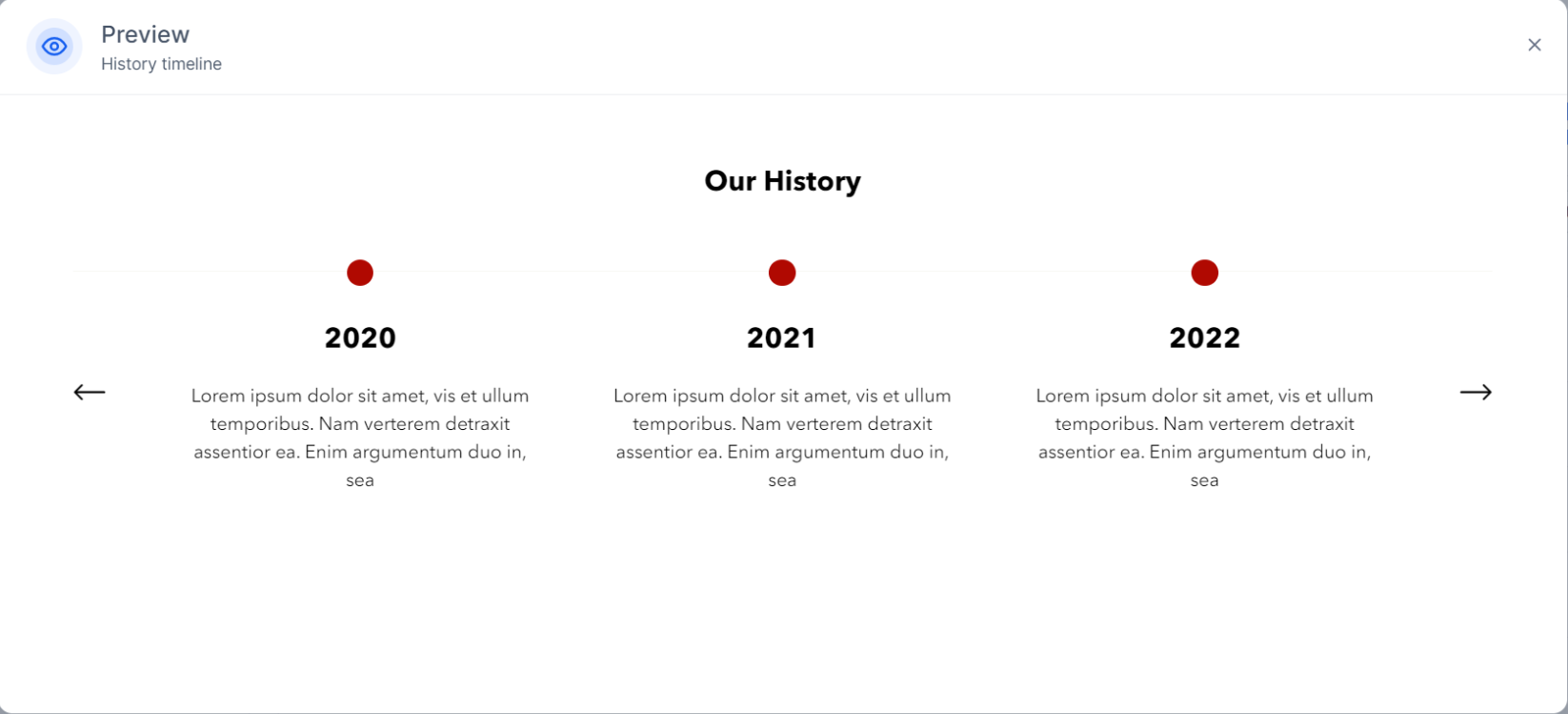
Use Case: Mid to lower sections, often in 'About Us' or history sections.
17. Icon & Text
Description: Icons paired with brief text descriptions, visually breaking up content and highlighting features or benefits.
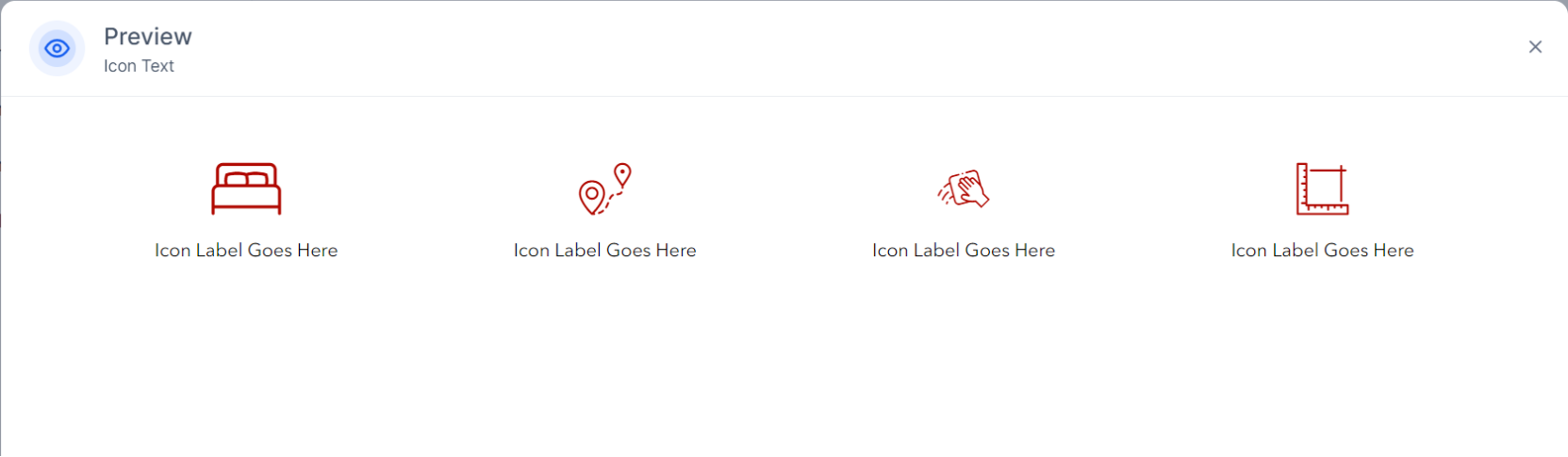
Use Case: Spread across the page to break up content with visual highlights.
18. Horizontal Tabs with Feature Box
Description: Horizontal tabs that allow navigation between sections without refreshing the page, making content accessible and user-friendly.
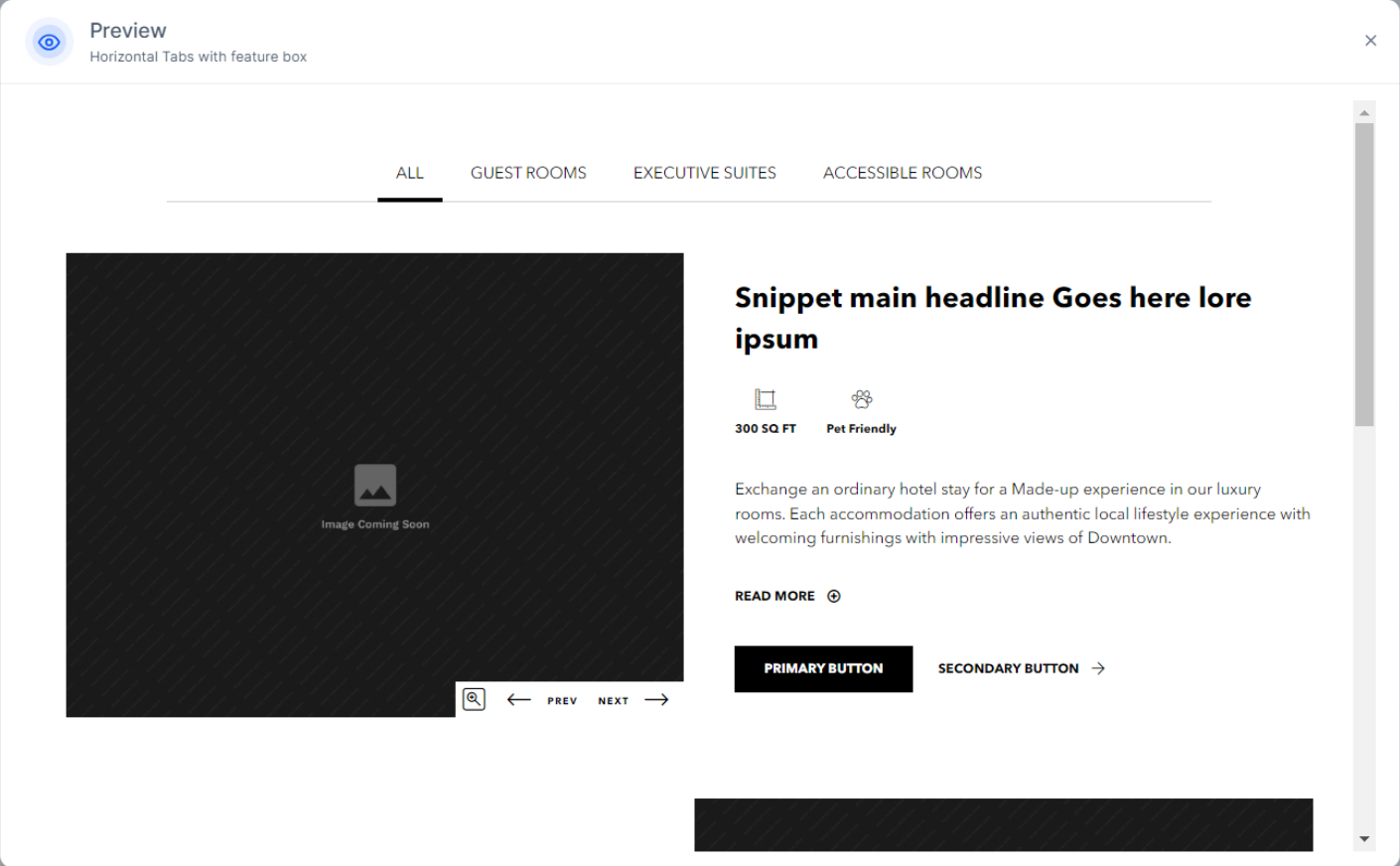
Use Case: Often in the main content area for structured details.
19. UNAP with Map
Description: A footer or contact section displaying contact information (UNAP - URL, Name, Address, Phone) with an embedded map for location reference.
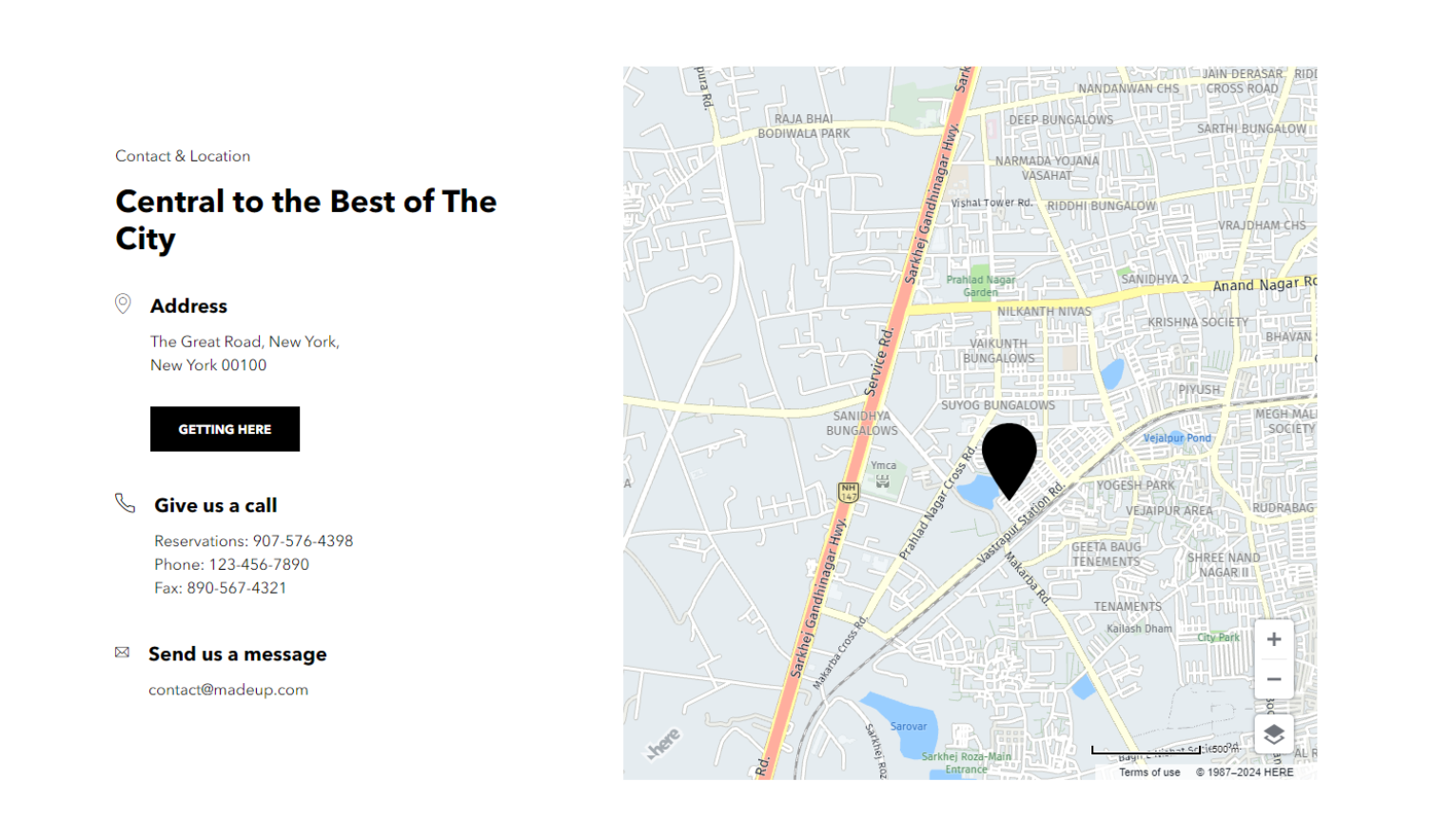
Use Case: Bottom of the page or in the footer, showing location information.
20. UNAP Form
Description: A form section to gather user information, typically for contact purposes, located near contact information or in the footer.
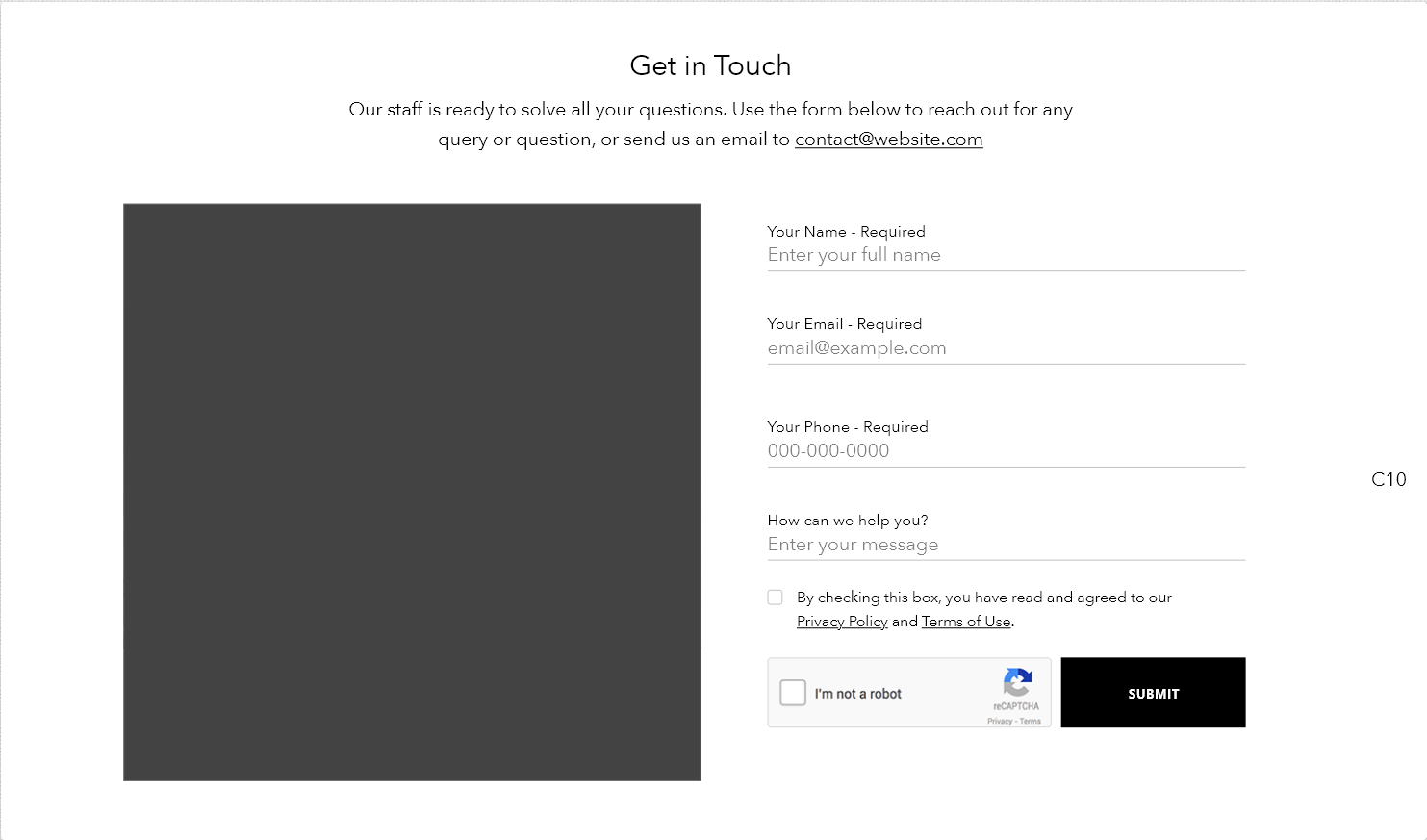
Use Case: Bottom or in dedicated call-to-action sections, especially for lead generation.
21. Vertical Tabs
Description: Vertically aligned tabs that make navigating between topics or features easier without reloading the page.
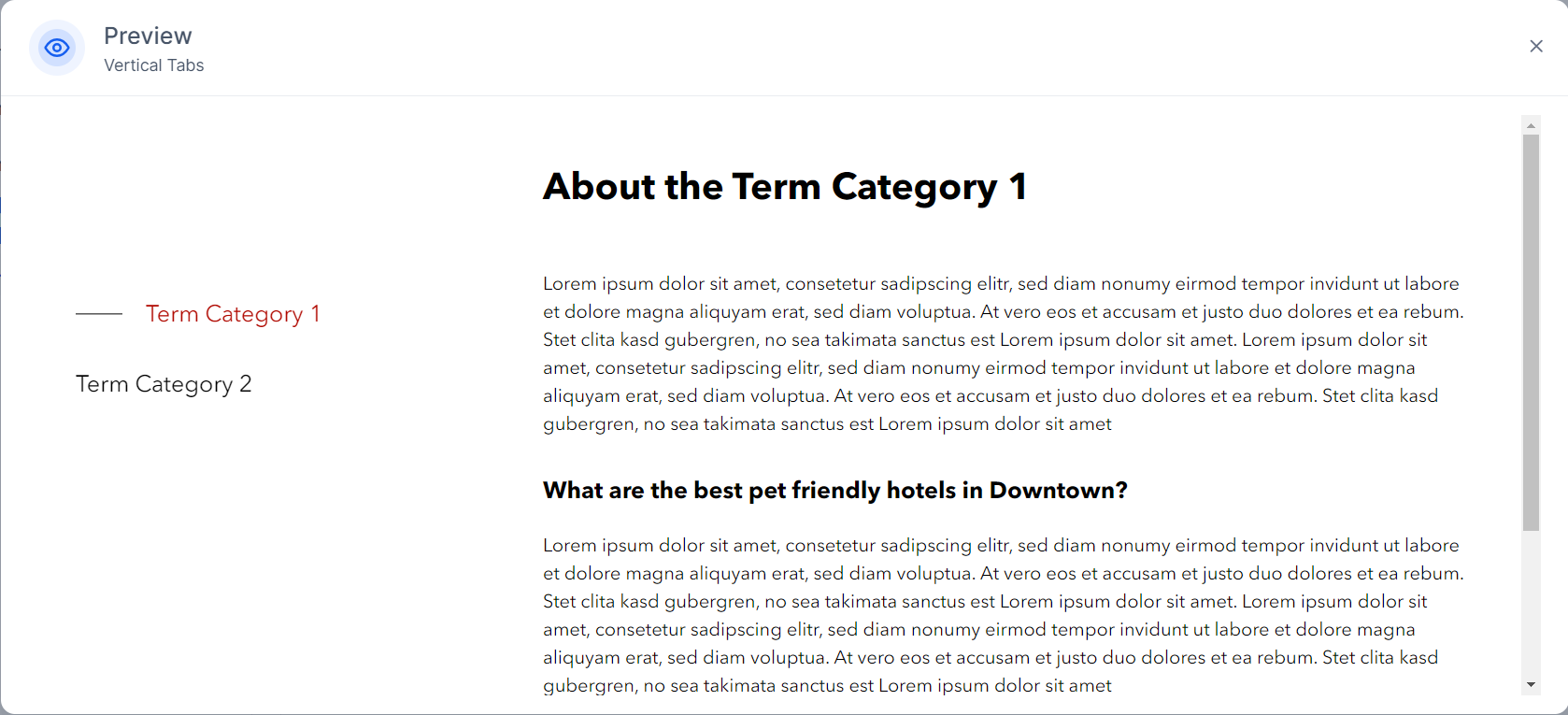
Use Case: Mid-page to allow easy navigation between topics.
22. Accordian 1
Description: A collapsible content section used to show or hide related content, often used in FAQs for easy access.
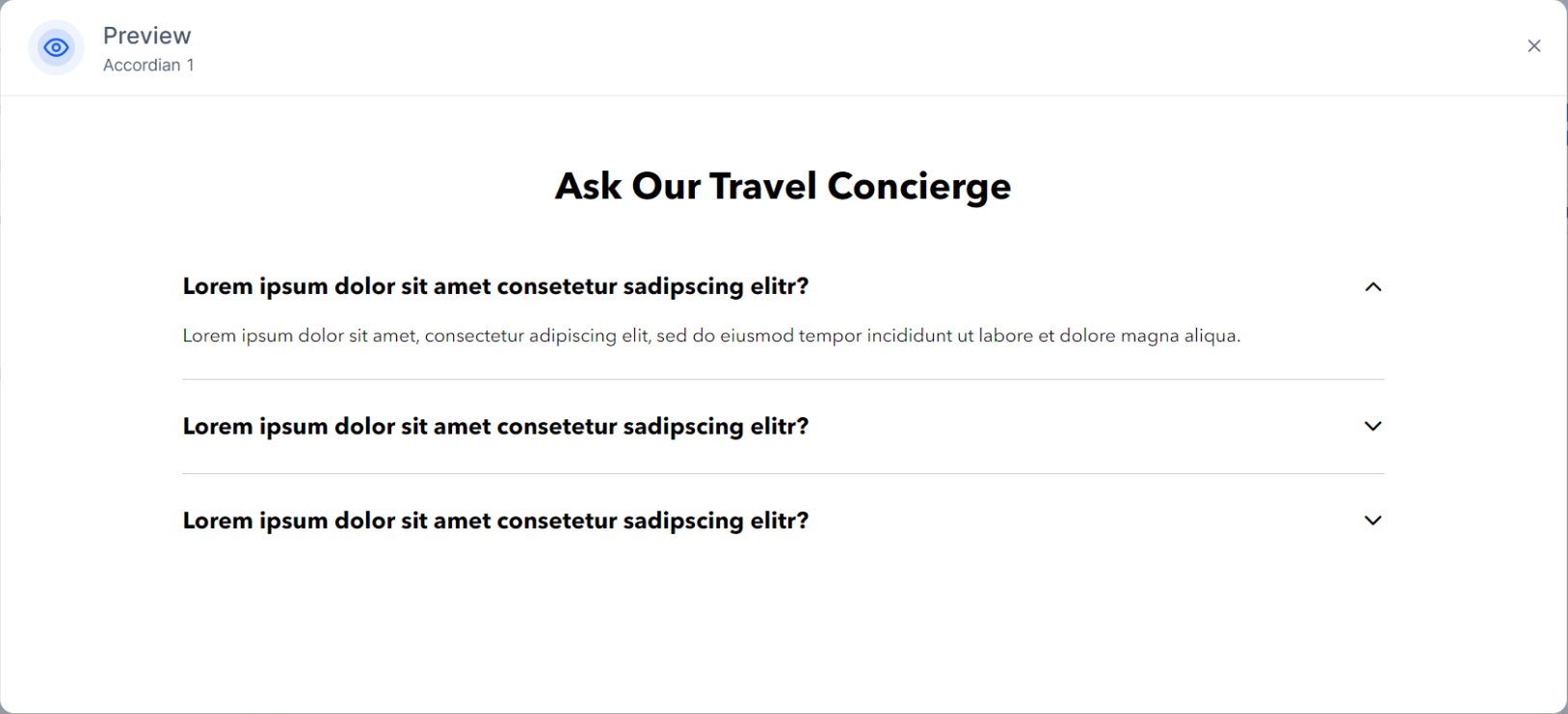
Use Case: Frequently in FAQ or information-dense sections.
23. Accordian 2
Description: Similar to Accordion 1 but with added call-to-action buttons, inviting users to engage further with the content.

Use Case: Frequently in FAQ or information-dense sections where users can use a CTA to perform an action.
24. List Repeaters
Description: Repeated visual and text-based lists, often used to showcase features or options in a uniform format.
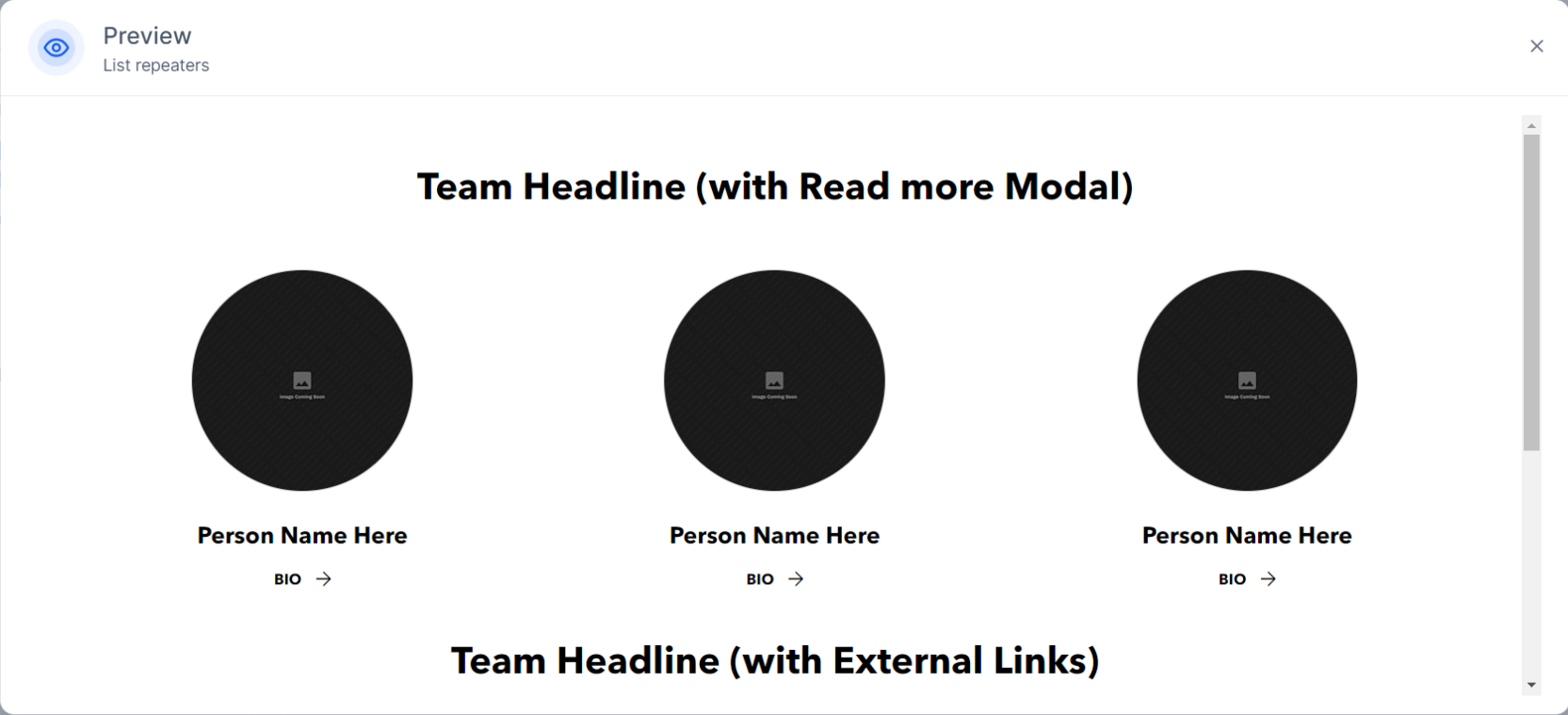
Use Case: Scattered as highlights, often to list features, benefits, or key items.
25. Feature Box with Accordian
Description: An accordion-style section within a feature box, including images and content, allowing expandable details for each feature.
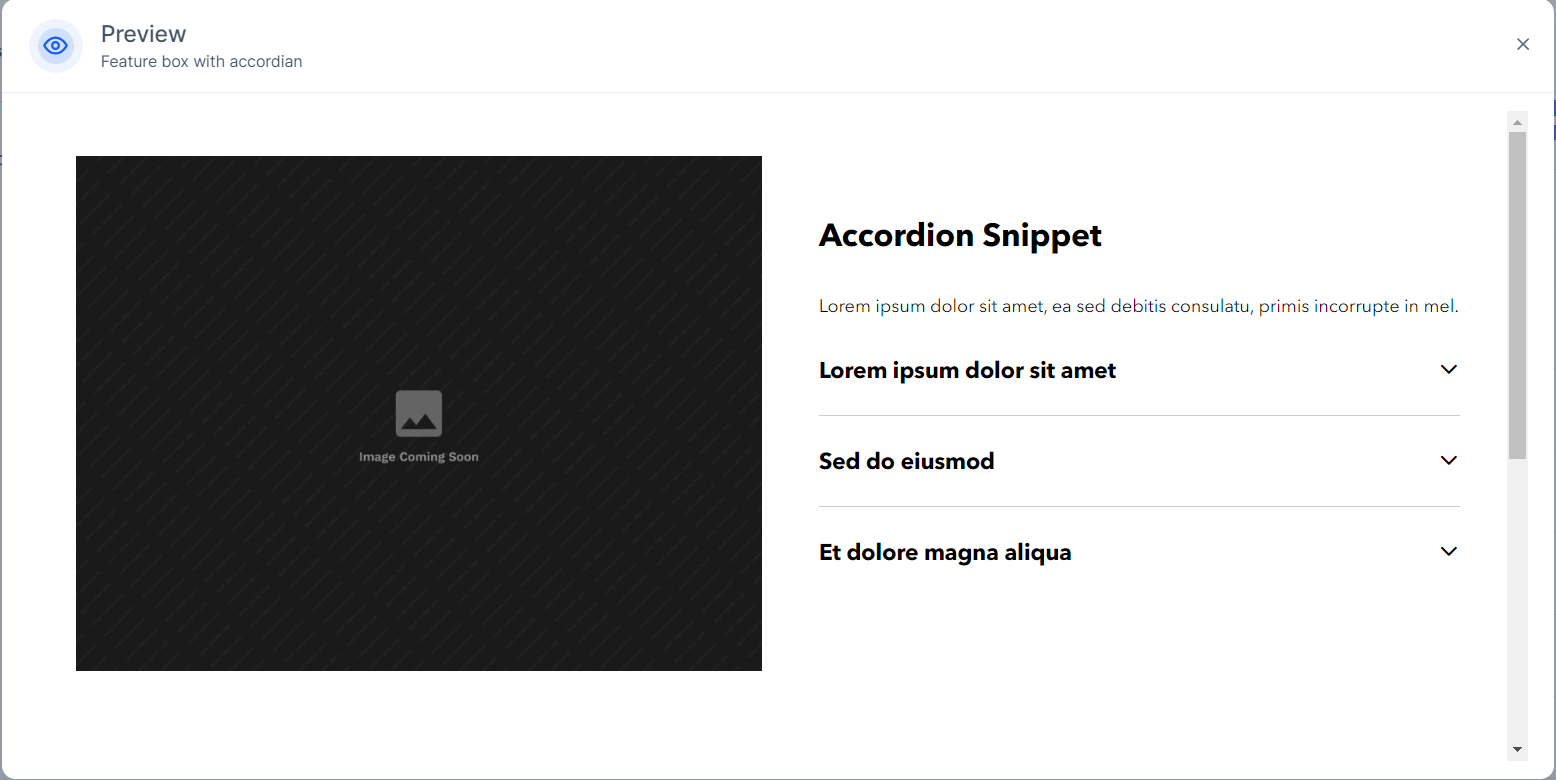
Use Case: Typically for product features or details, often mid-page.
26. Number Highlights
Description: A section emphasizing key numbers or statistics, often used to showcase growth, achievements, or unique selling points.
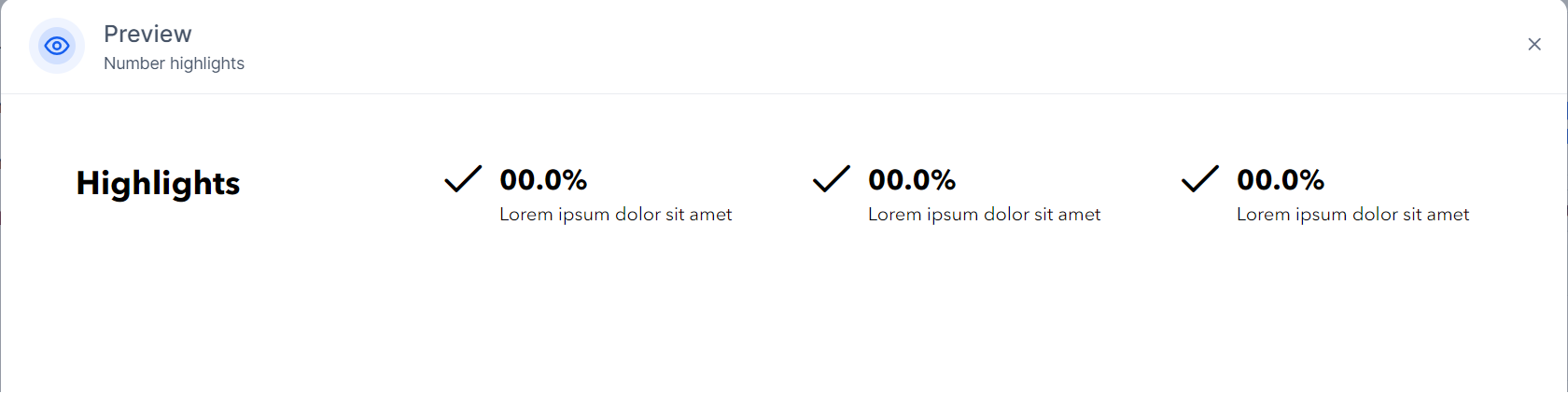
Use Case: Top or mid-sections as attention-grabbers for statistics.
27. Feature Boxes with Slider
Description: Feature boxes displayed within a slider, providing interactive viewing for multiple items or content highlights.
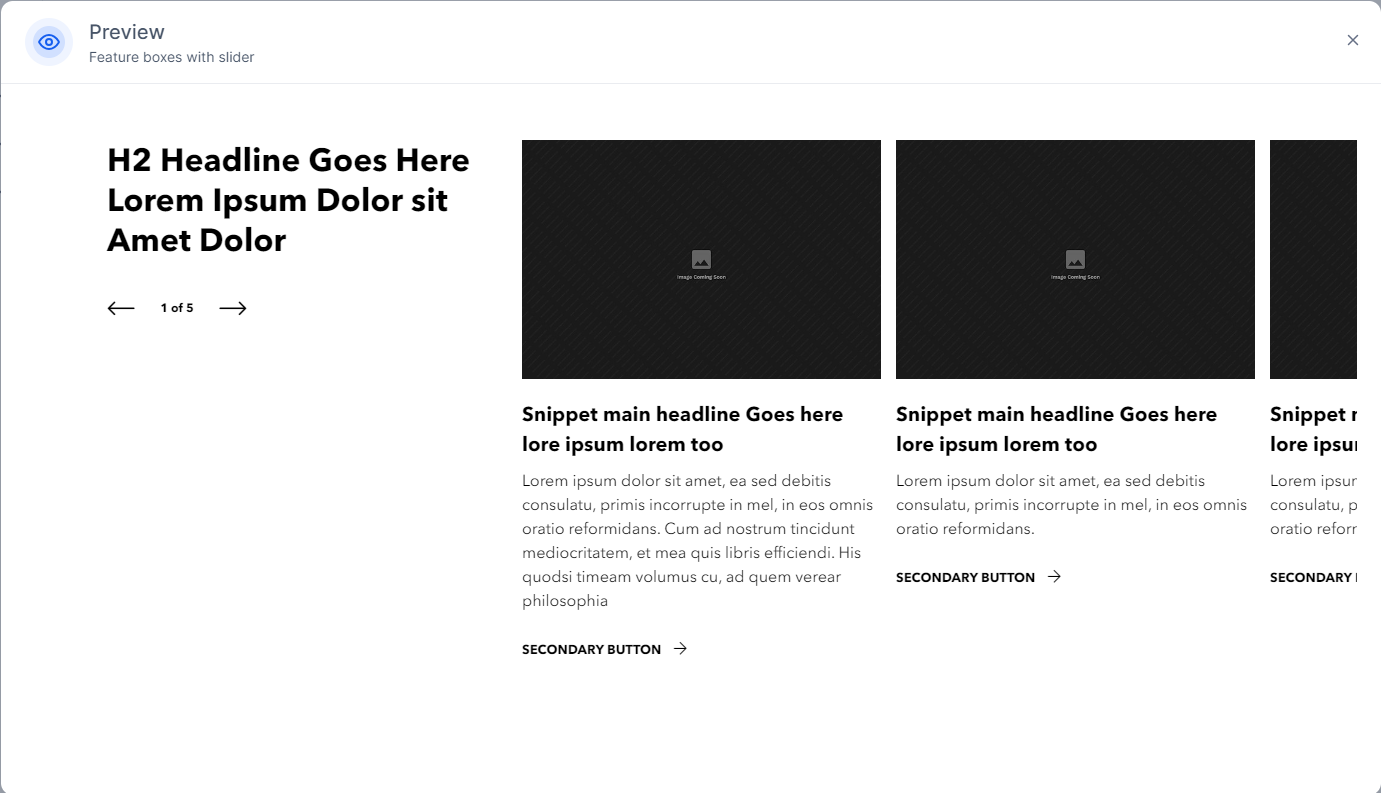
Use Case: Mid to lower sections, especially in a portfolio or showcase area.
28. Header with Text
Description: A prominent header section with text, used as an attention-grabbing opening element.
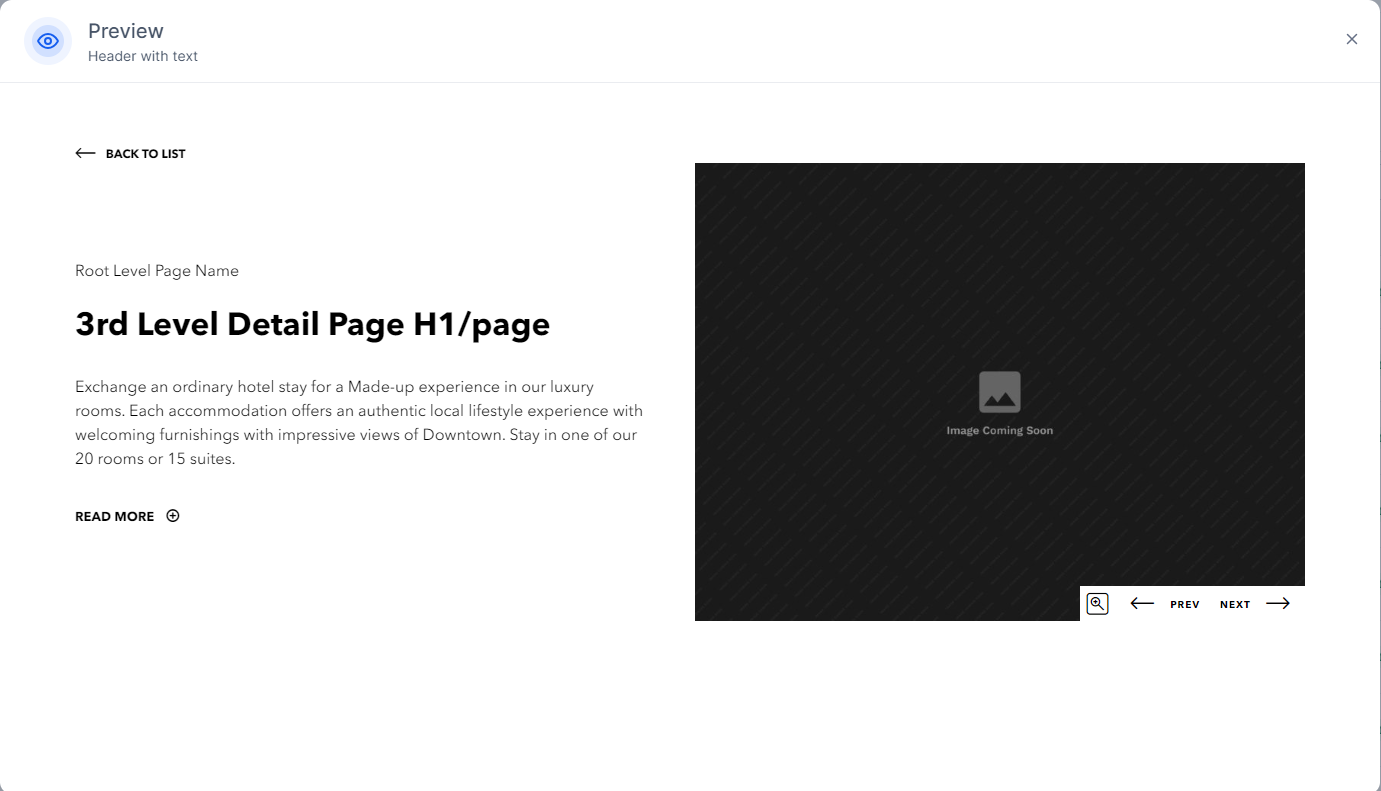
Use Case: Top, serving as a section opener.
29. Header
Description: The top section of the page, often containing the logo, navigation links, and call-to-action buttons for quick access.
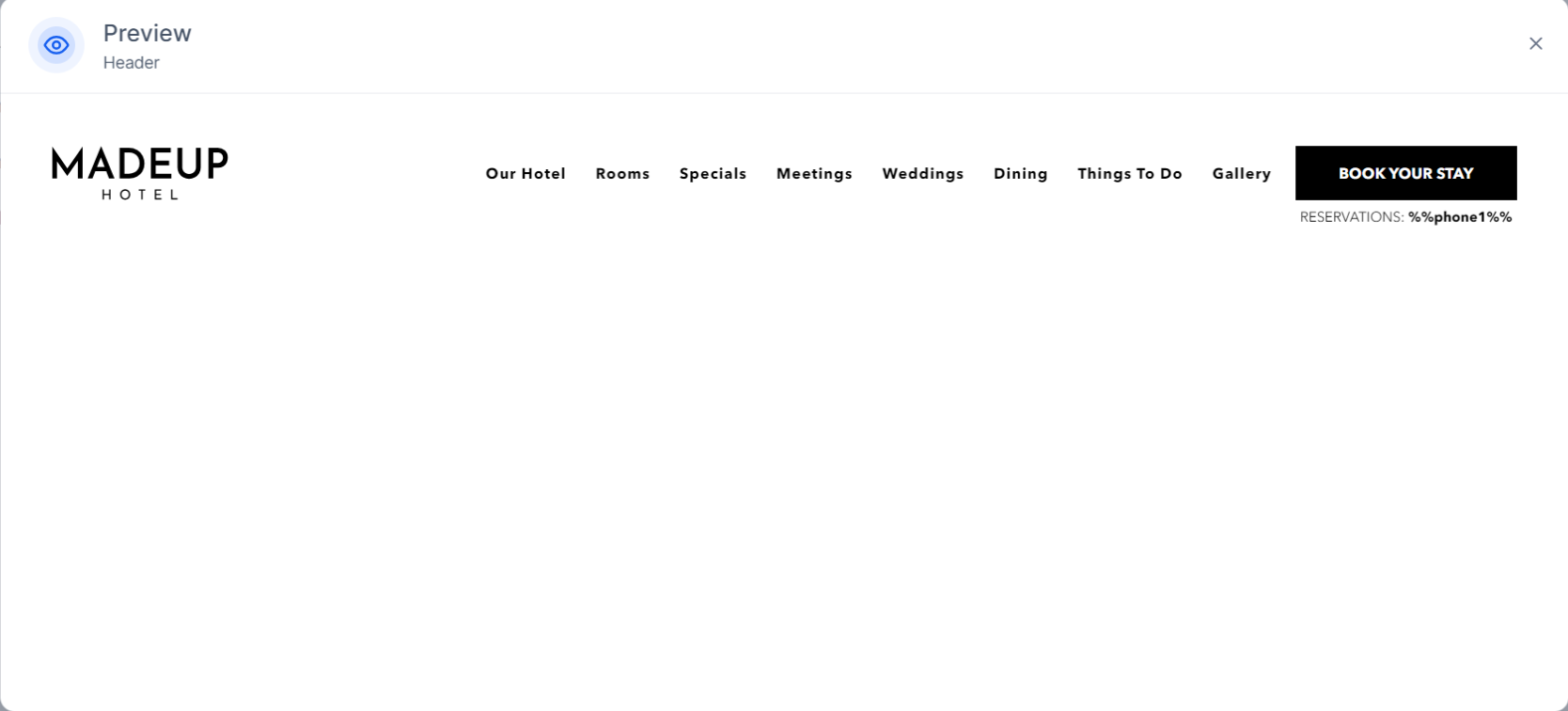
Use Case: Top of the page, central and prominent.
30. Feature Box Large Heading
Description: A feature box with a bold H2 heading and a call-to-action button, emphasizing a key section or content area.
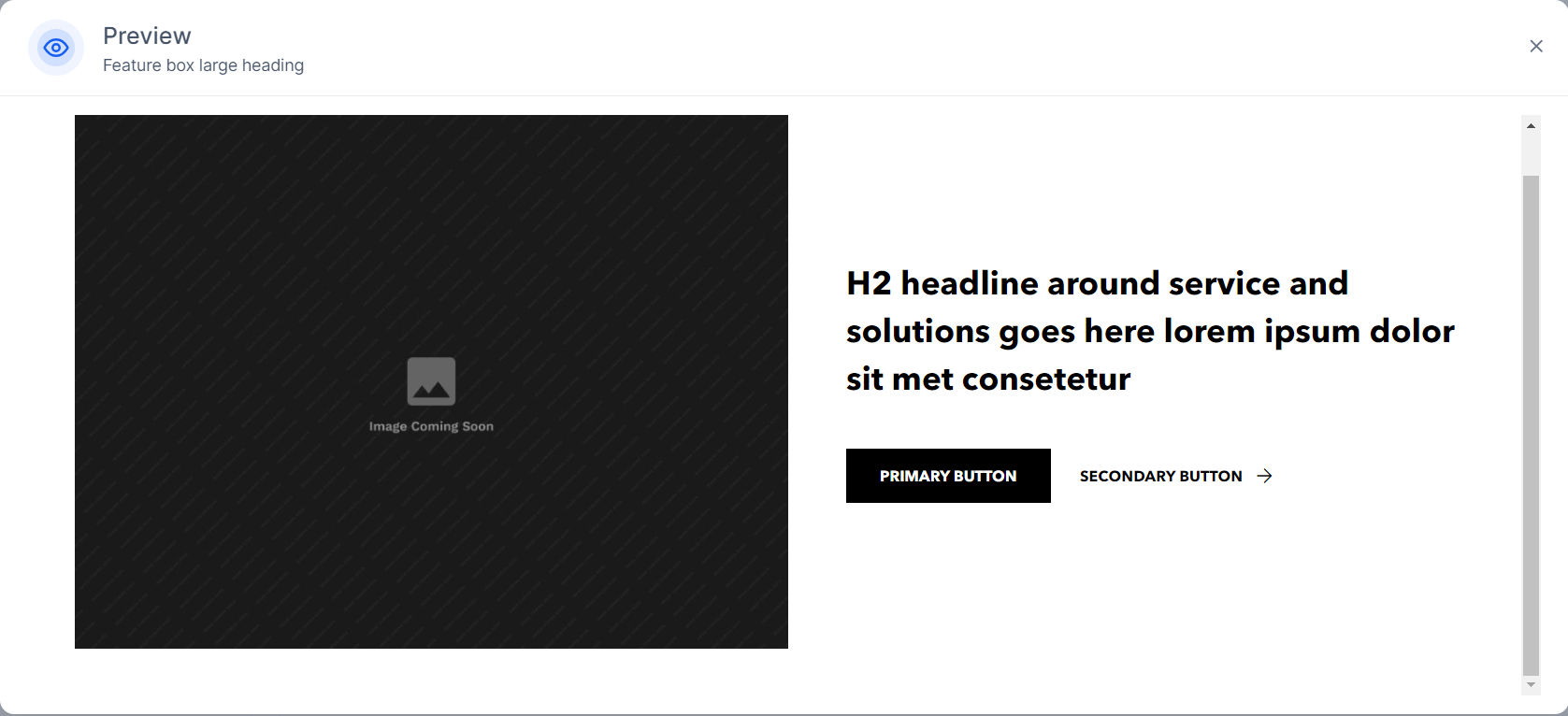
Use Case: Frequently at the start of a section to introduce a major feature.
Was this article helpful?
That’s Great!
Thank you for your feedback
Sorry! We couldn't be helpful
Thank you for your feedback
Feedback sent
We appreciate your effort and will try to fix the article