Follow these steps to configure data sources for Milestone Local, allowing users to maintain a consistent local profile across platforms.
Step 1: Click on the ‘Settings’ Icon at the top right.
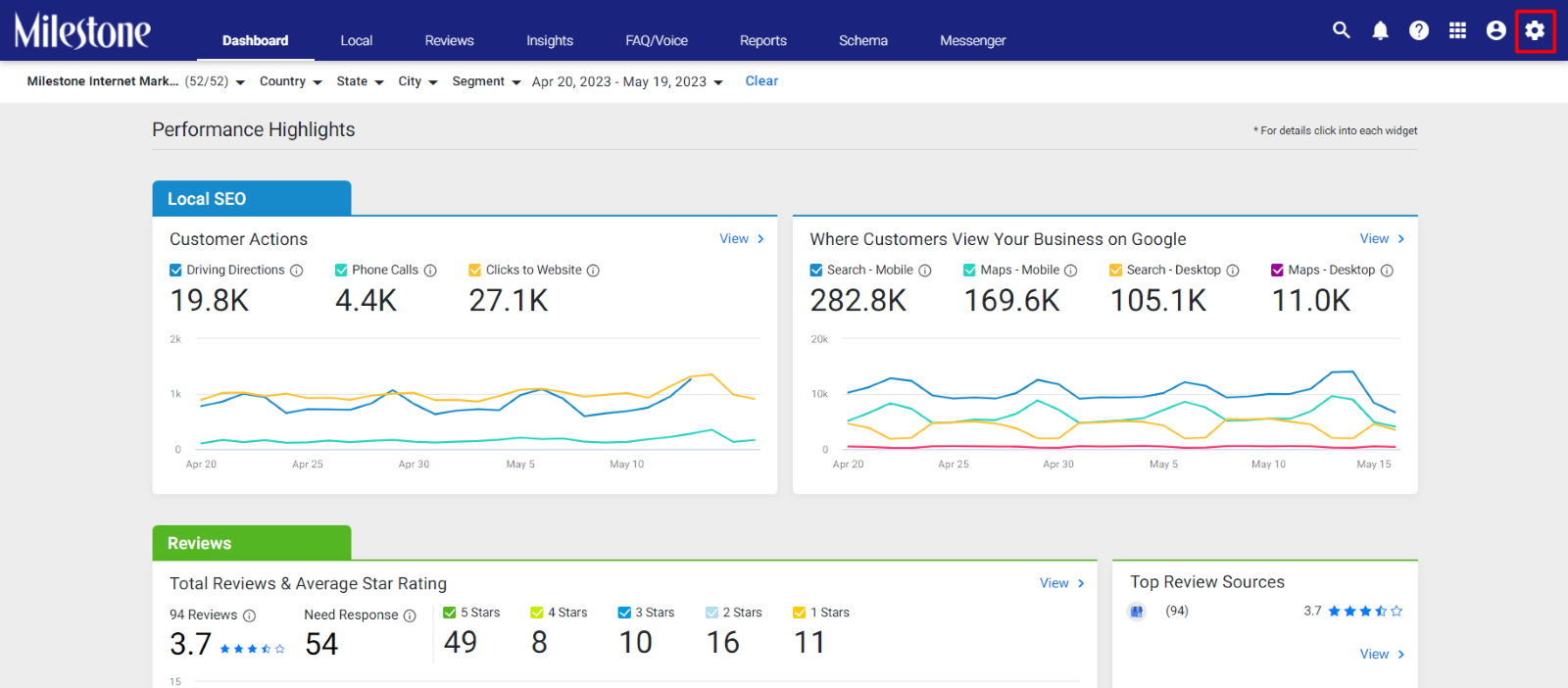
You will require ‘Business Admin’ access to make the following changes.
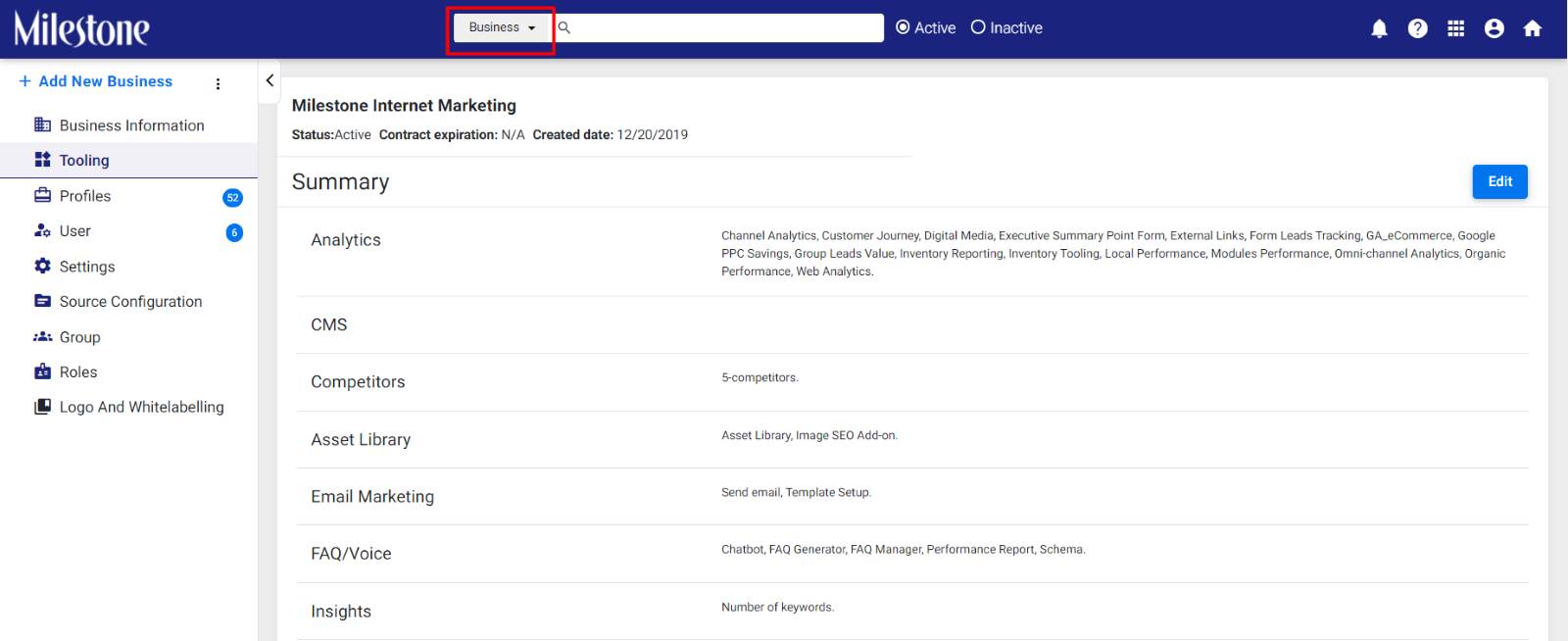
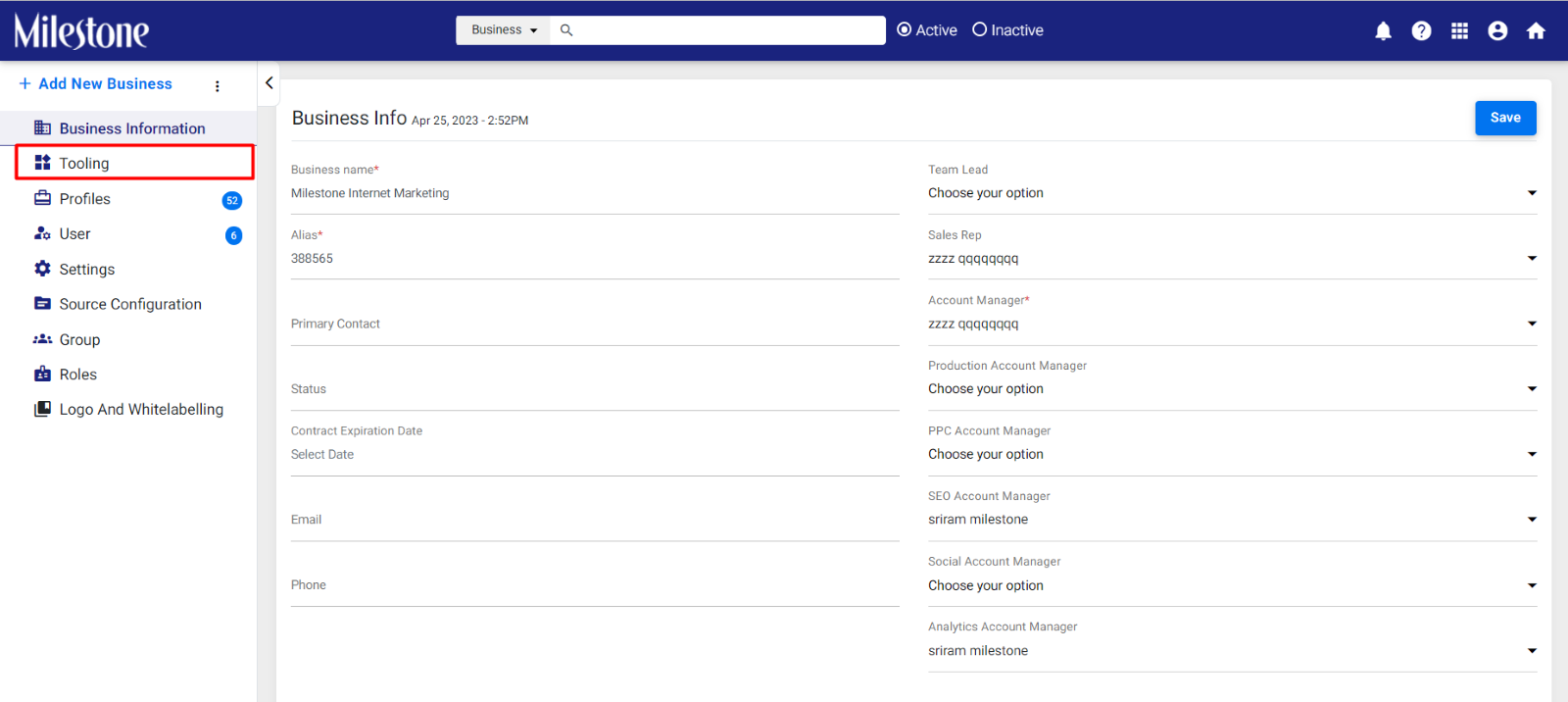
Step 2: Click on ‘Tooling’ in the left navigation panel.
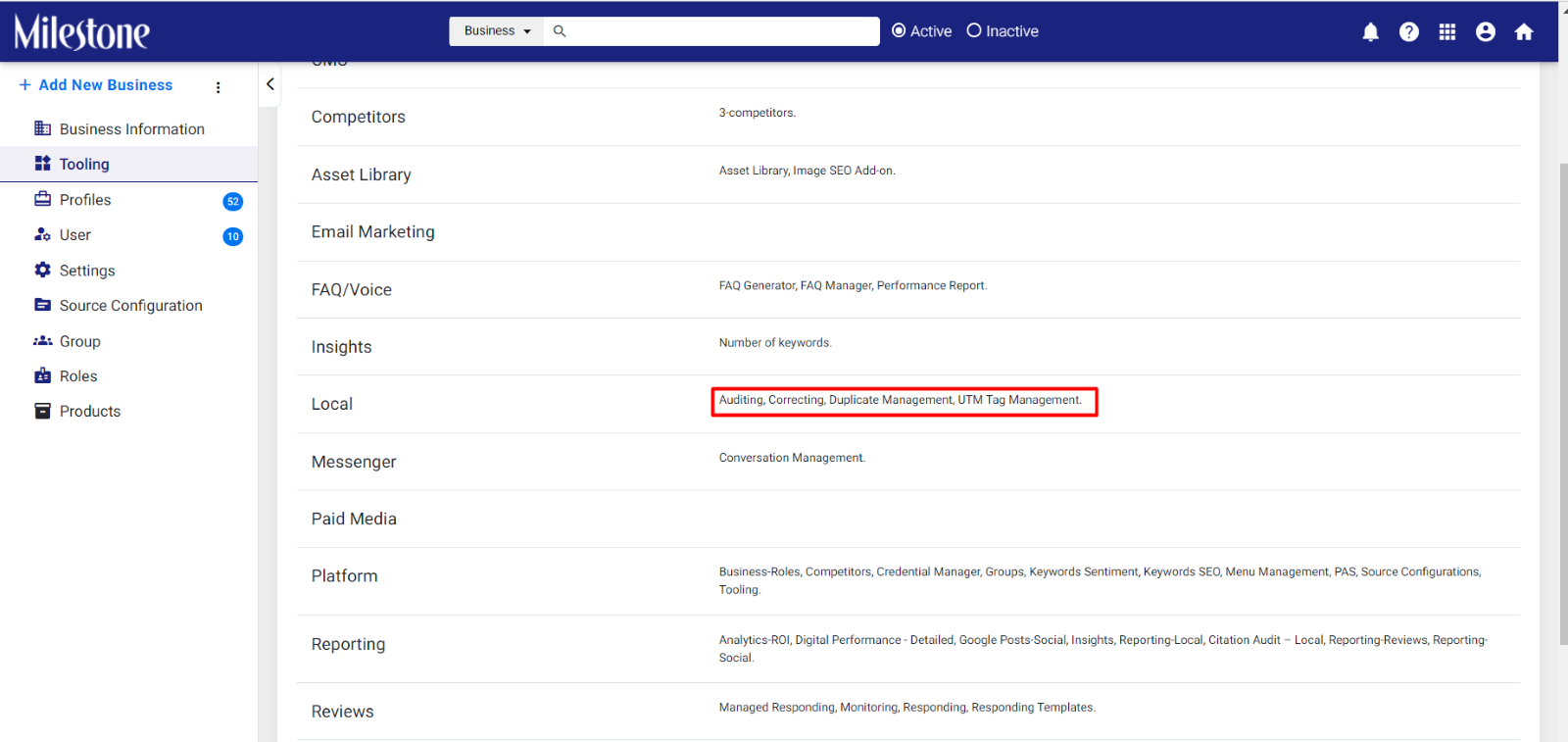
Step 3: Check if the access level provided to Milestone Local.
Data Sources for Business
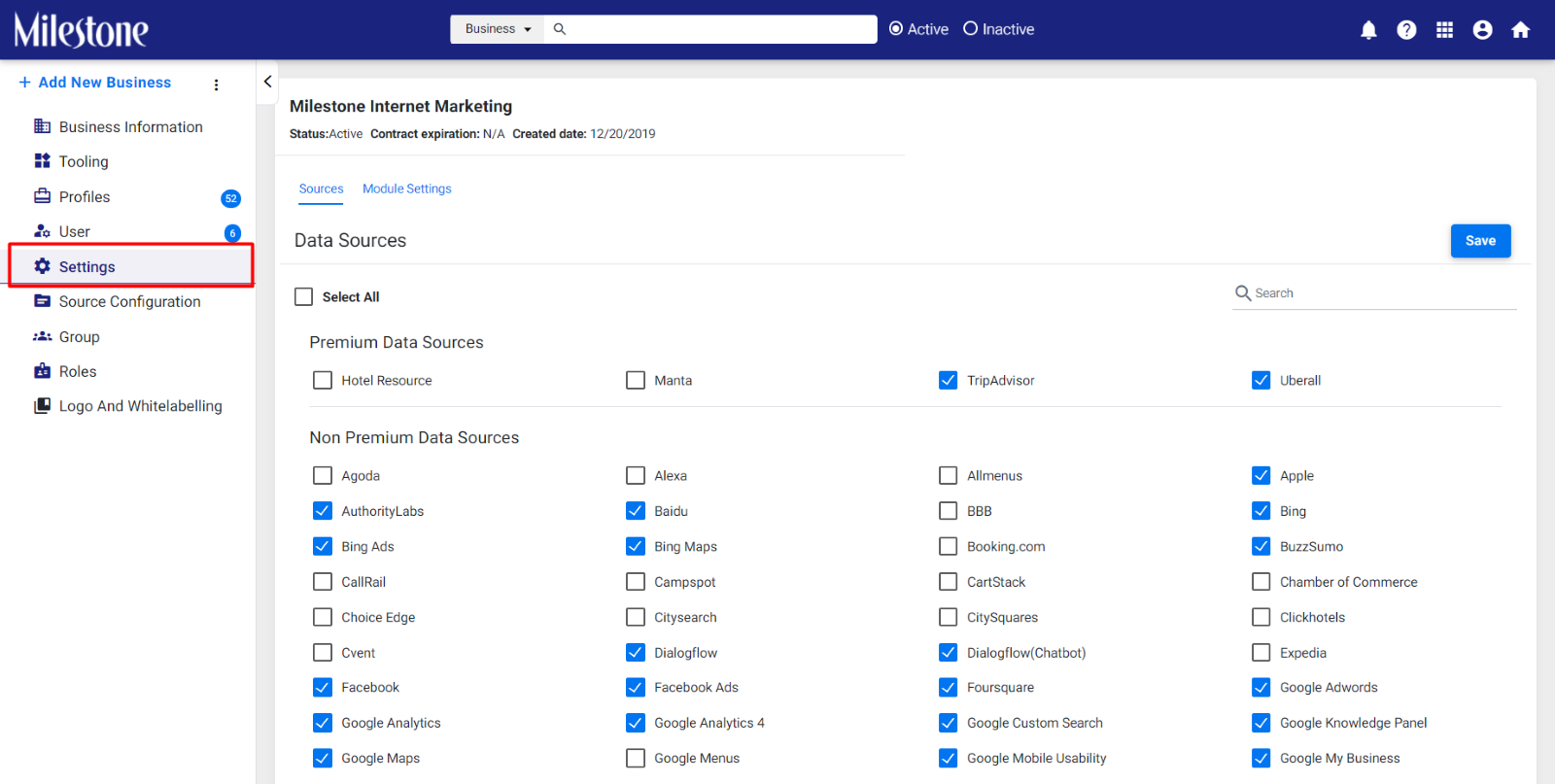
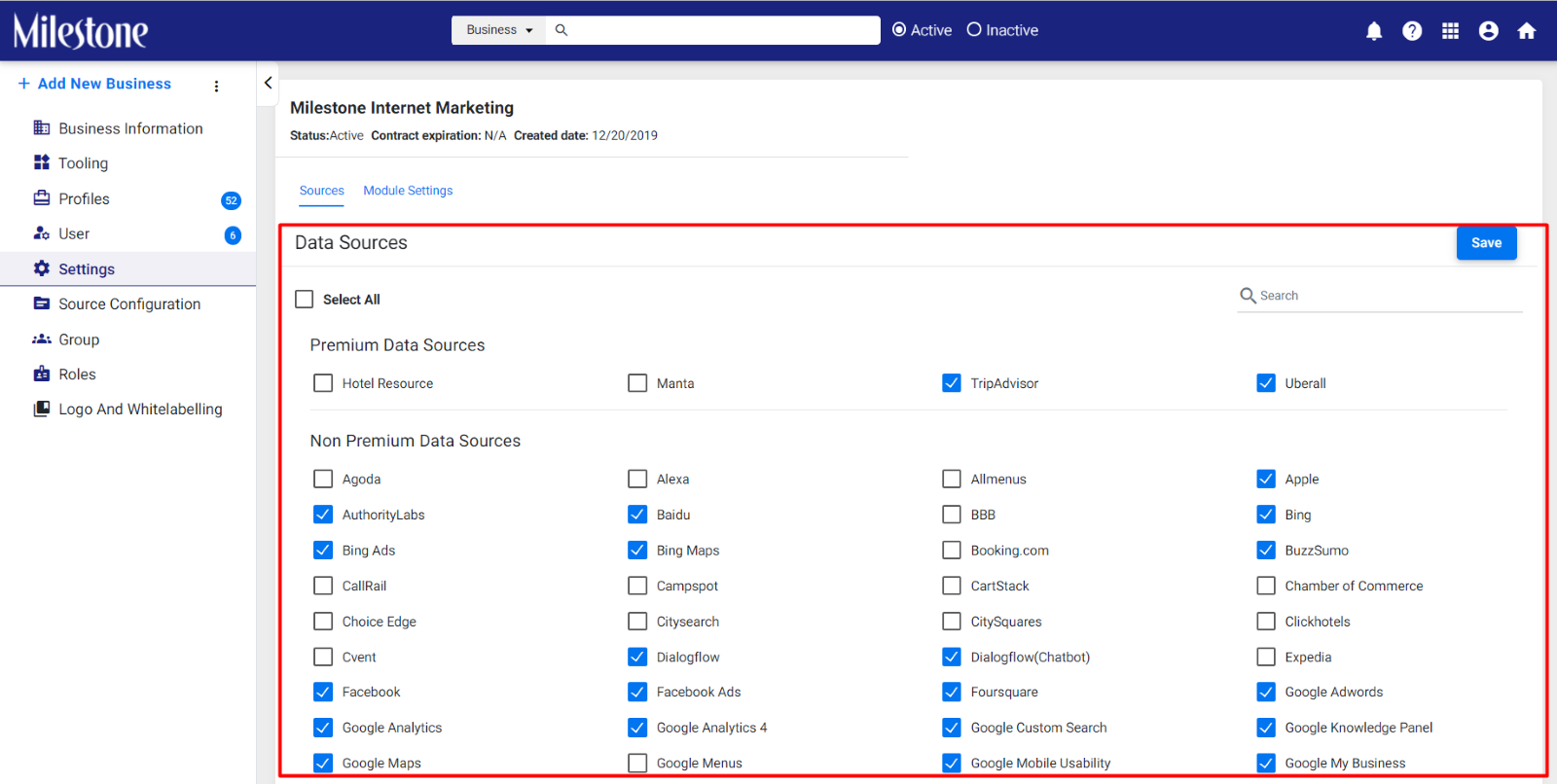
Step 2: Here you can view the Data Sources enabled for a particular business. Enable the data sources you want for Milestone Local.
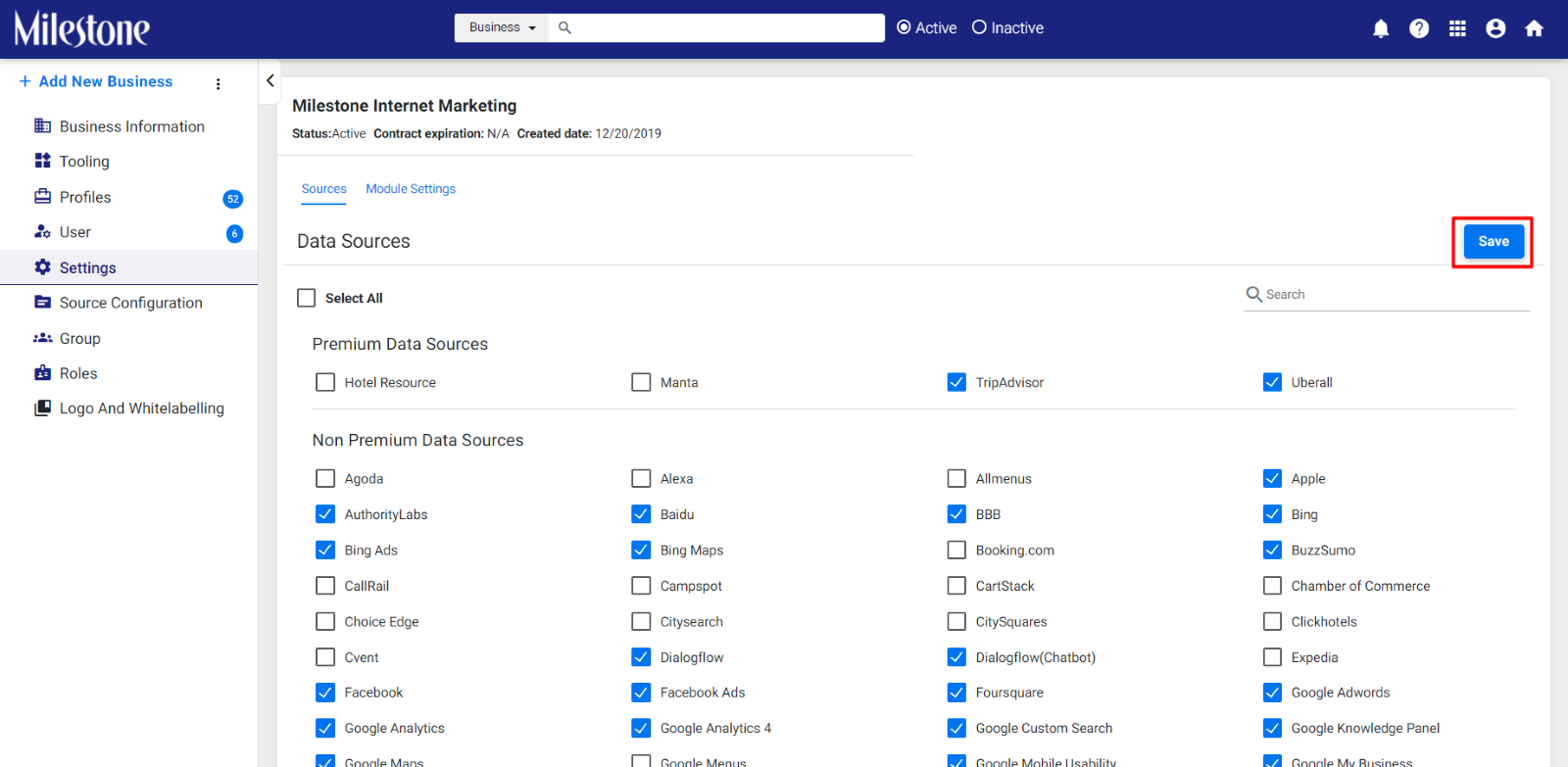
Step 3: Once selected click on ‘Save’.
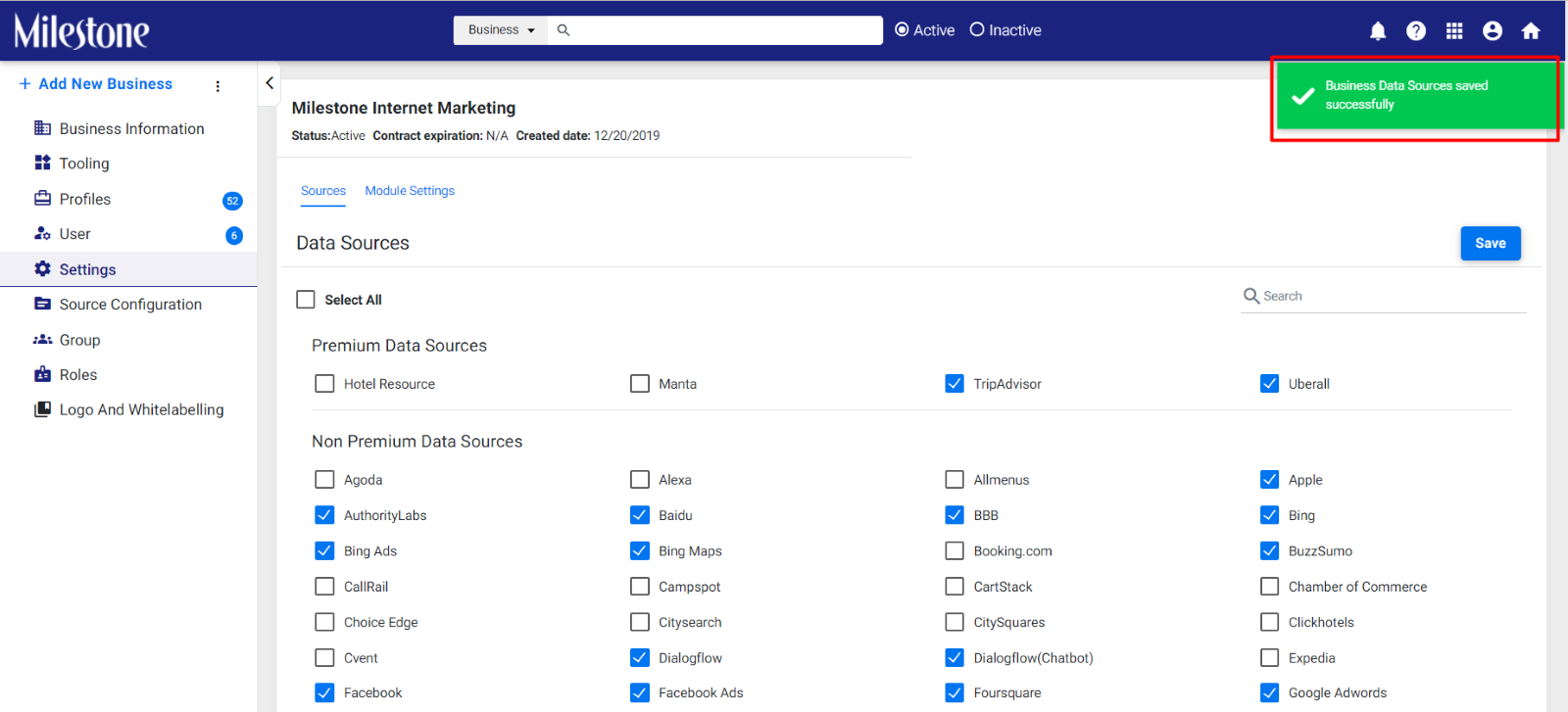
Business Data Sources saved successfully.
Module Settings for Business
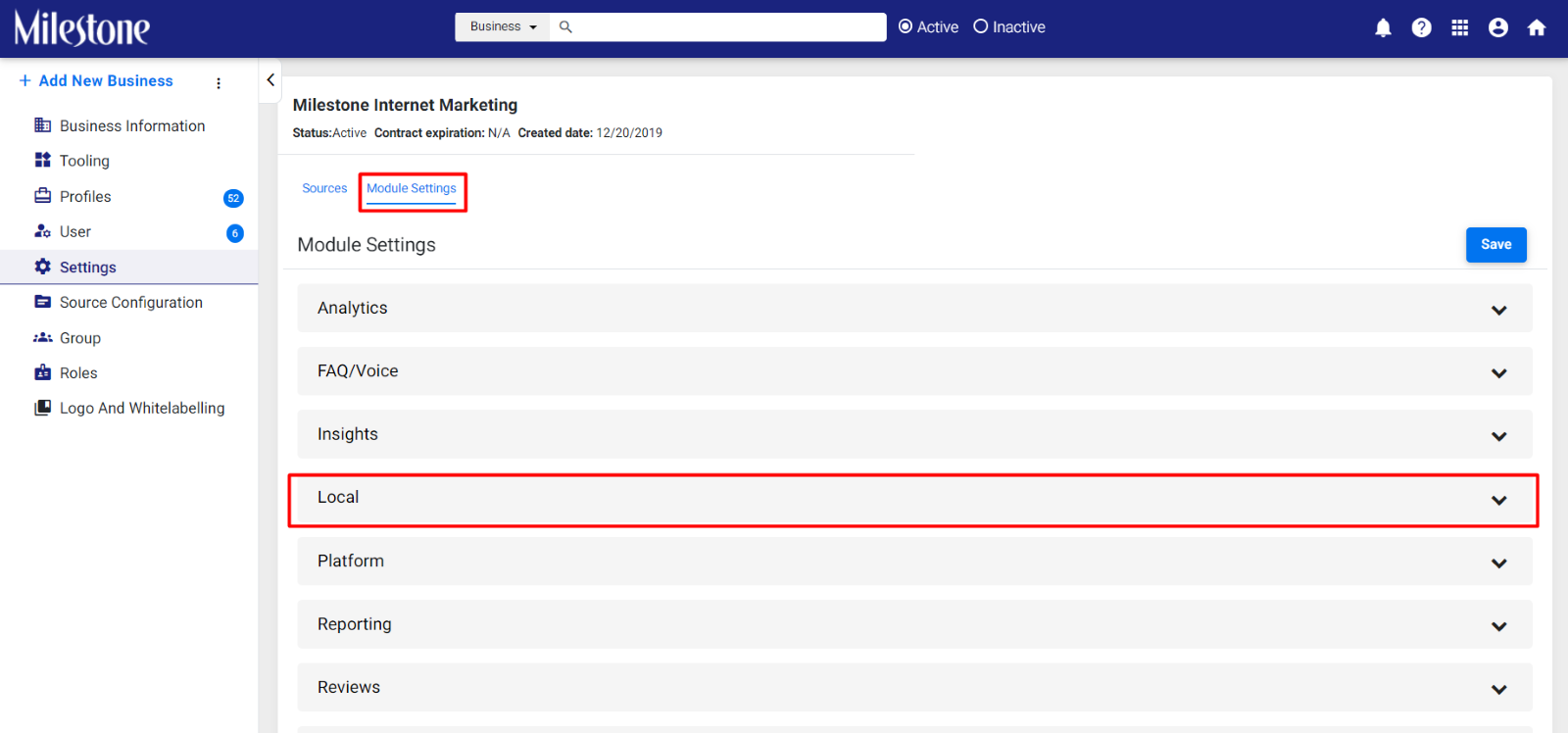
Step 1: From the ‘Module Settings’ tab click on ‘Local’.
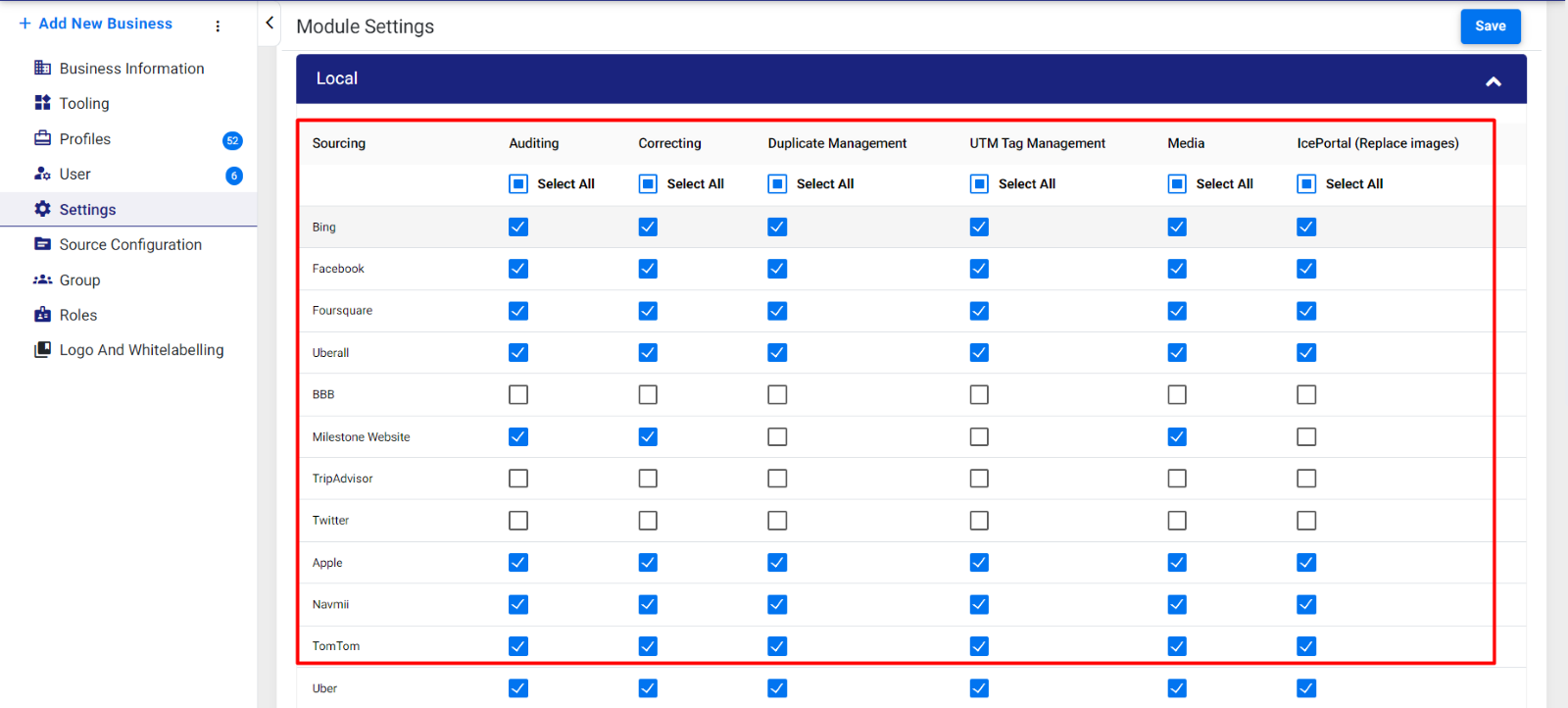
Step 2: Here you can view the data sources enabled and the access level. Set the access level by clicking on the checkboxes corresponding to the data source.
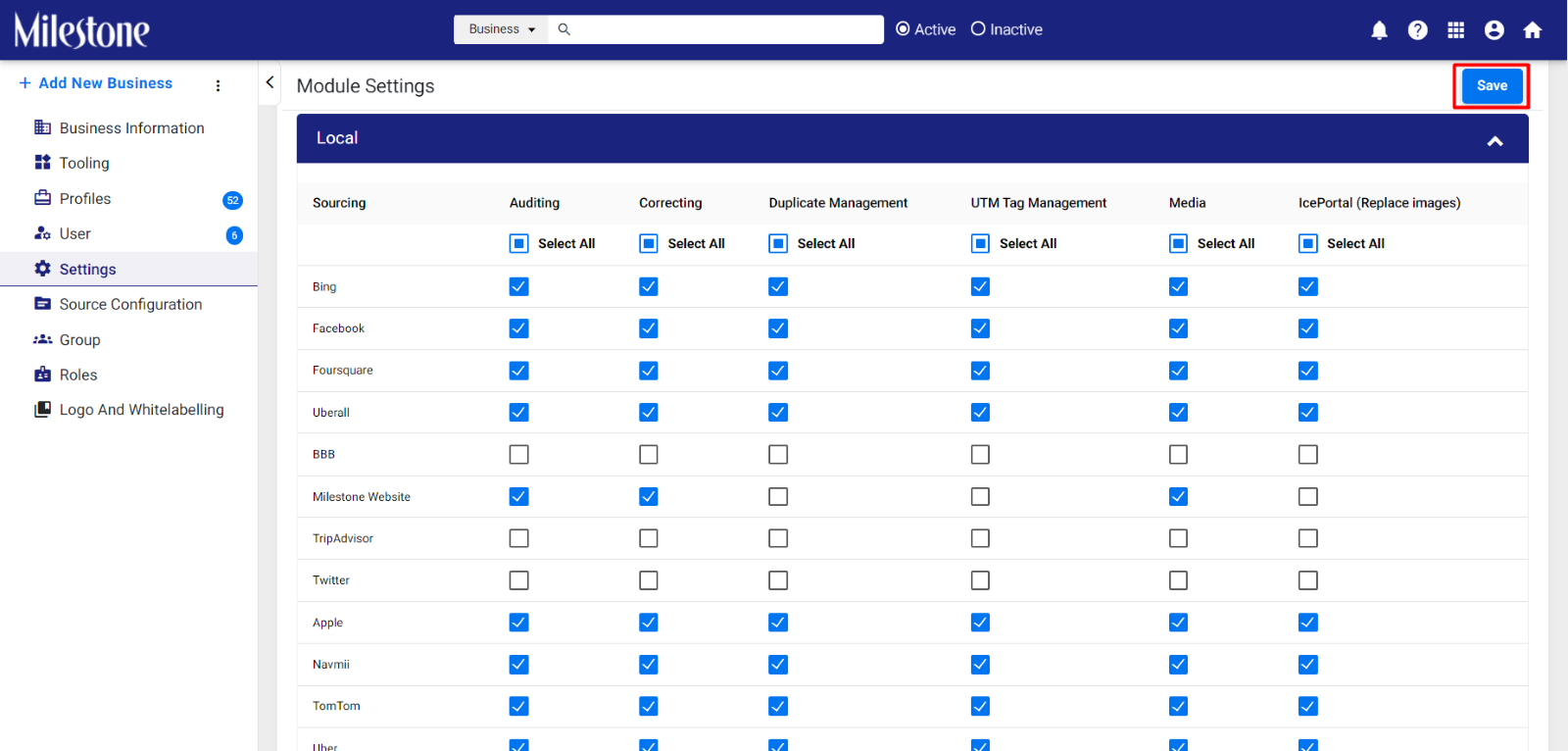
Step 3: Click on ‘Save’ once you have made the changes.
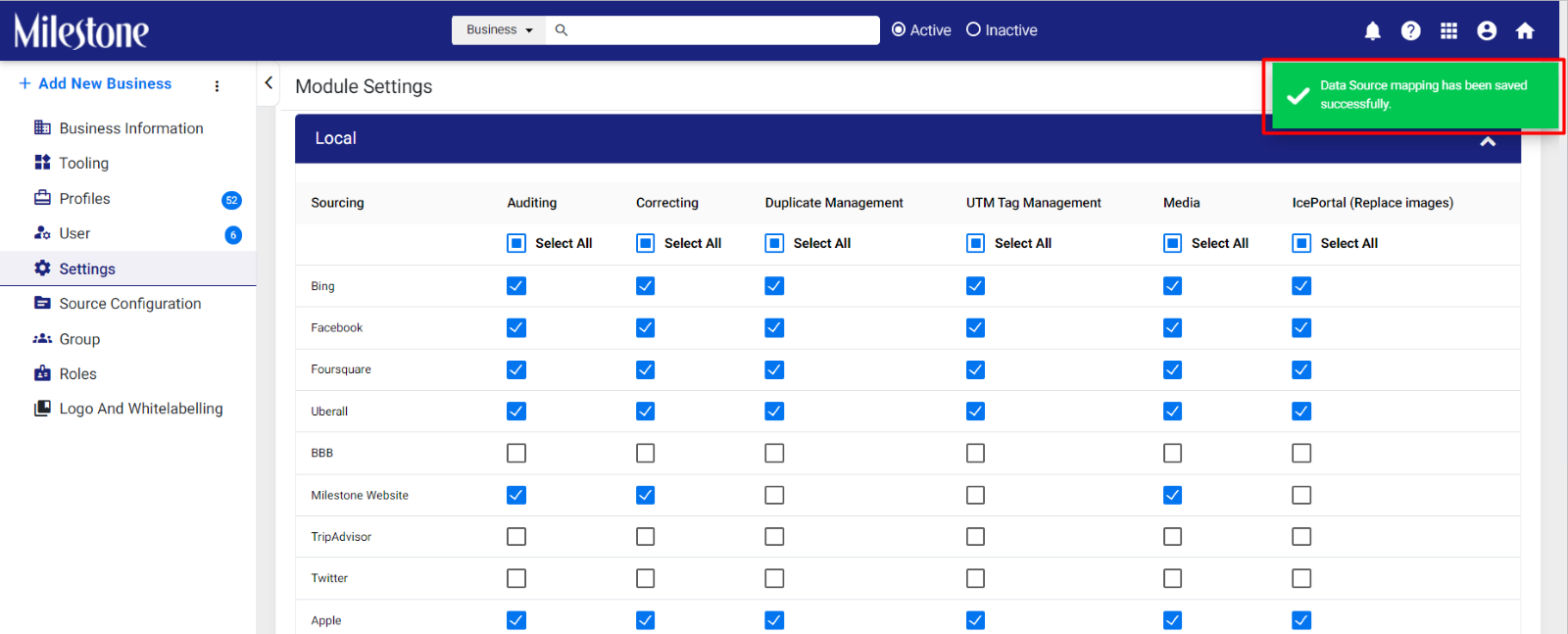
Data Source mapping saved successfully.
Connect Business Locations to Local Data Sources
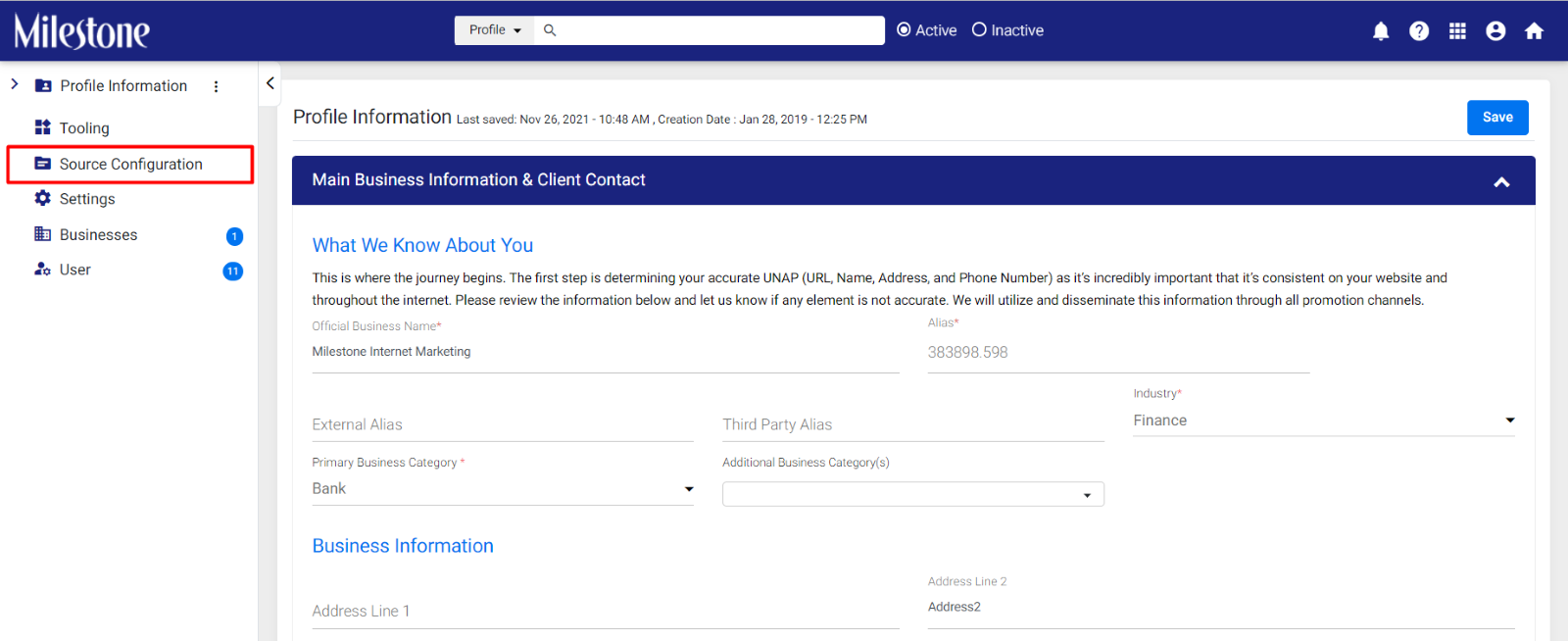
Step 1: To configure Data Sources for individual business locations start by clicking on ‘Source Configuration’ in the left navigation panel within ‘Settings’.
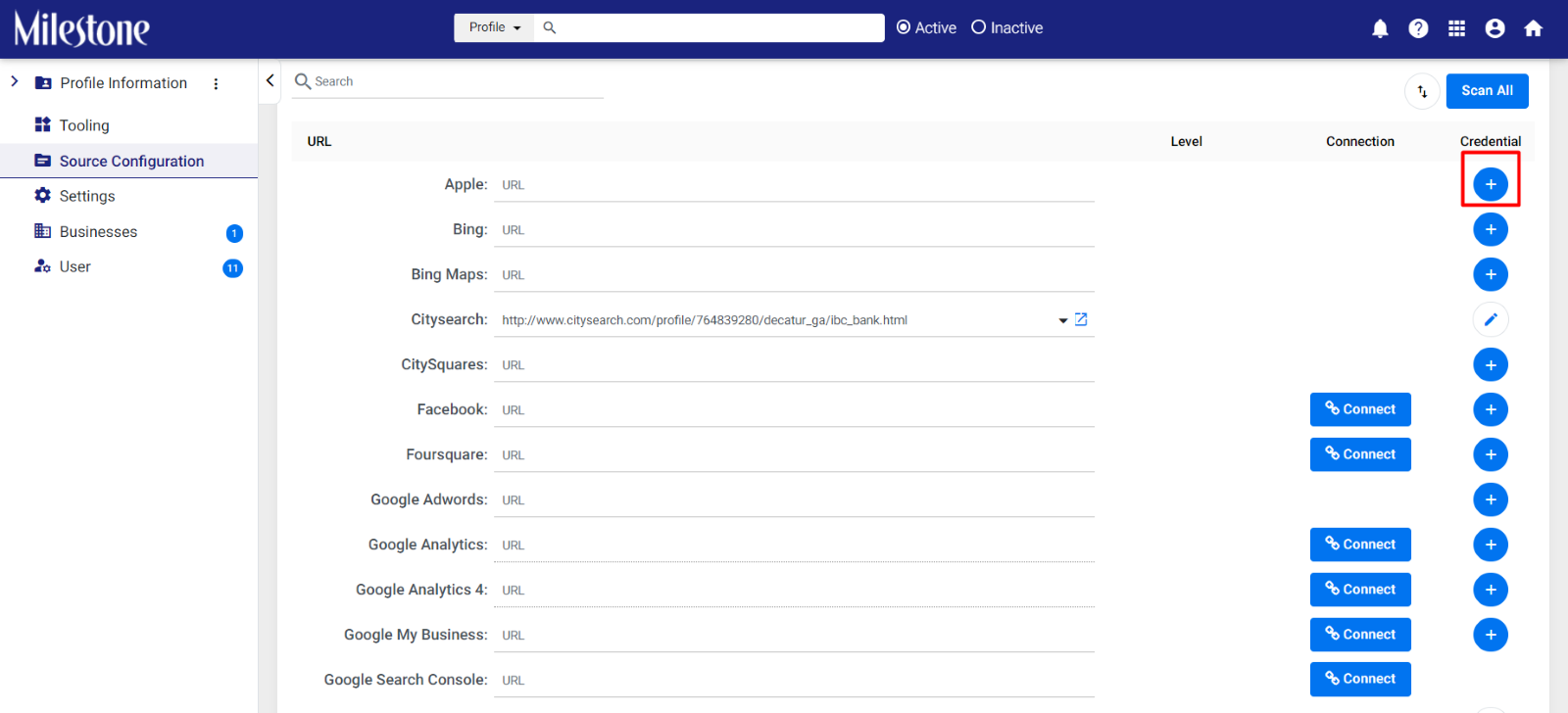
Step 2: Click on the + icon corresponding to the source to add the URL for the business location.
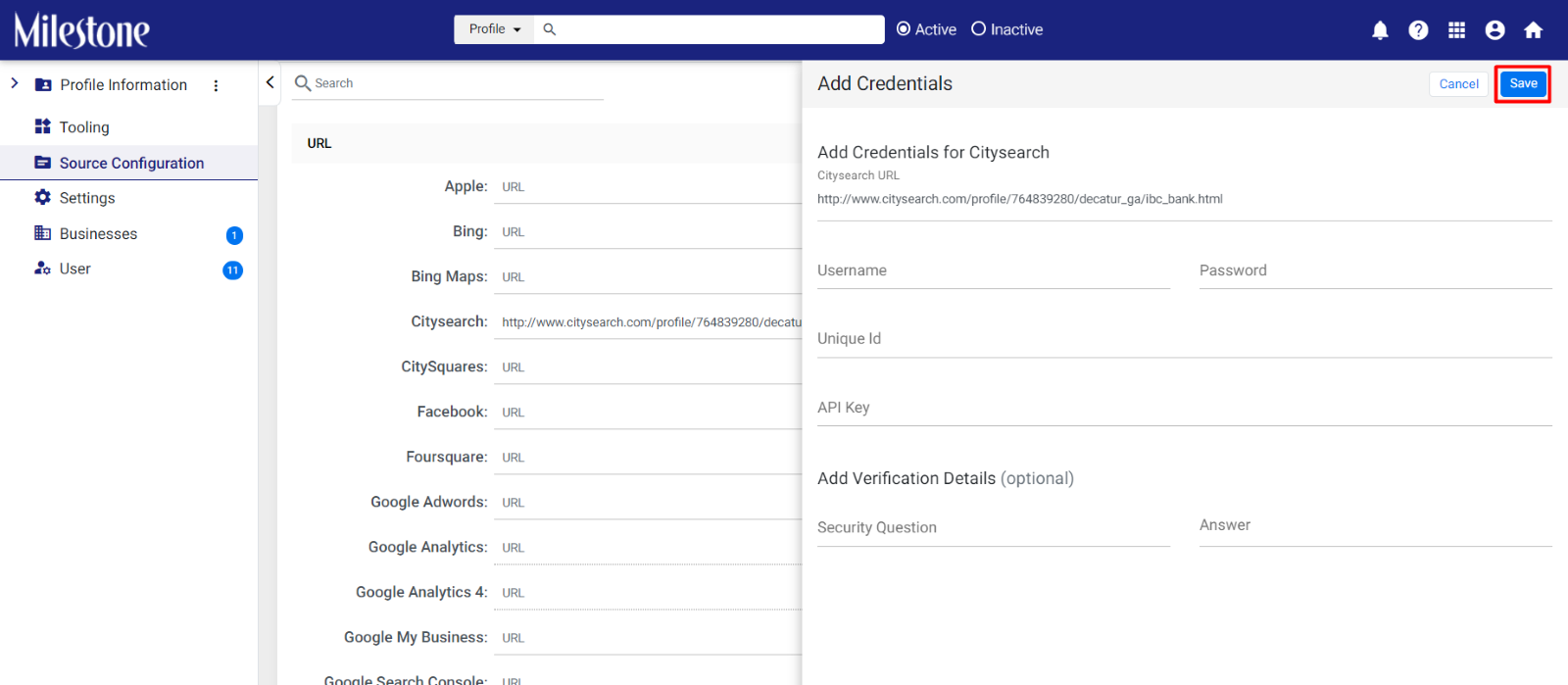
Step 3: Add the URL for the business location and the other credentials required and click on ‘Save’.
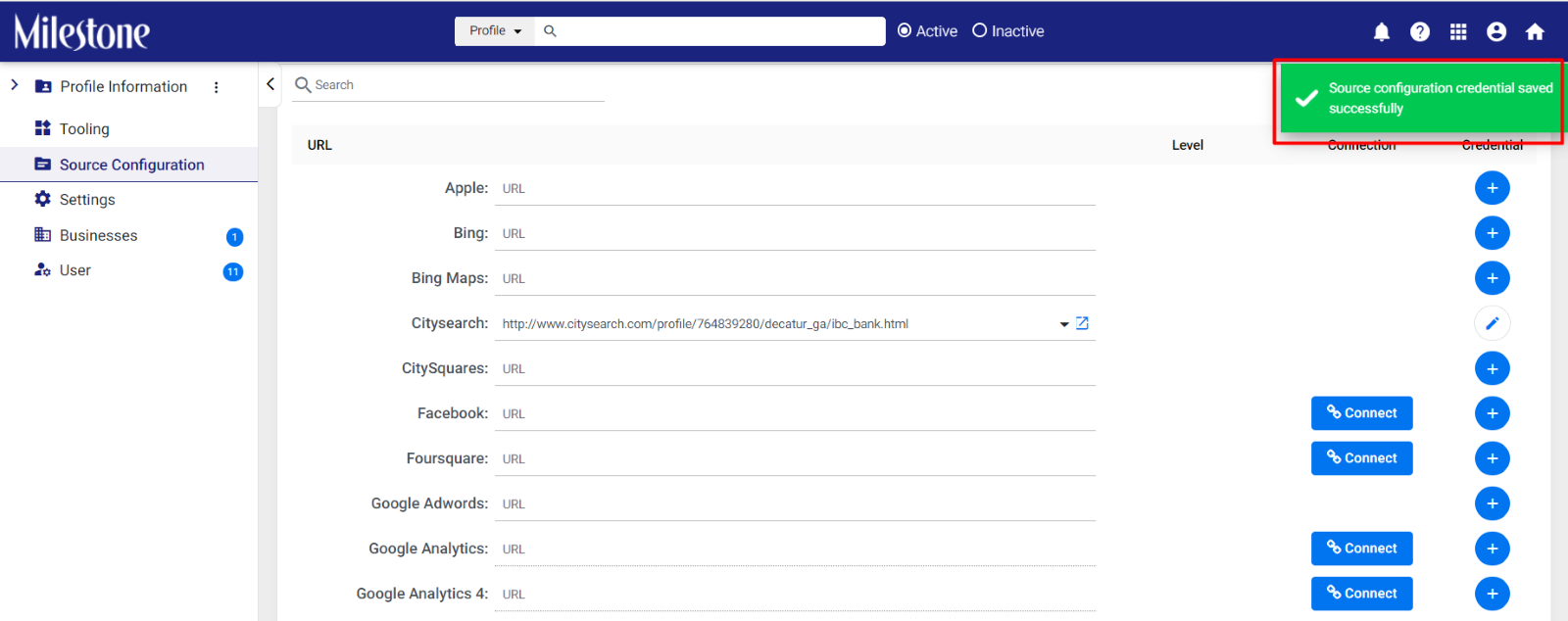
Source configuration saved successfully.
Was this article helpful?
That’s Great!
Thank you for your feedback
Sorry! We couldn't be helpful
Thank you for your feedback
Feedback sent
We appreciate your effort and will try to fix the article