Path: Milestone Local > Locations > Profile Summary
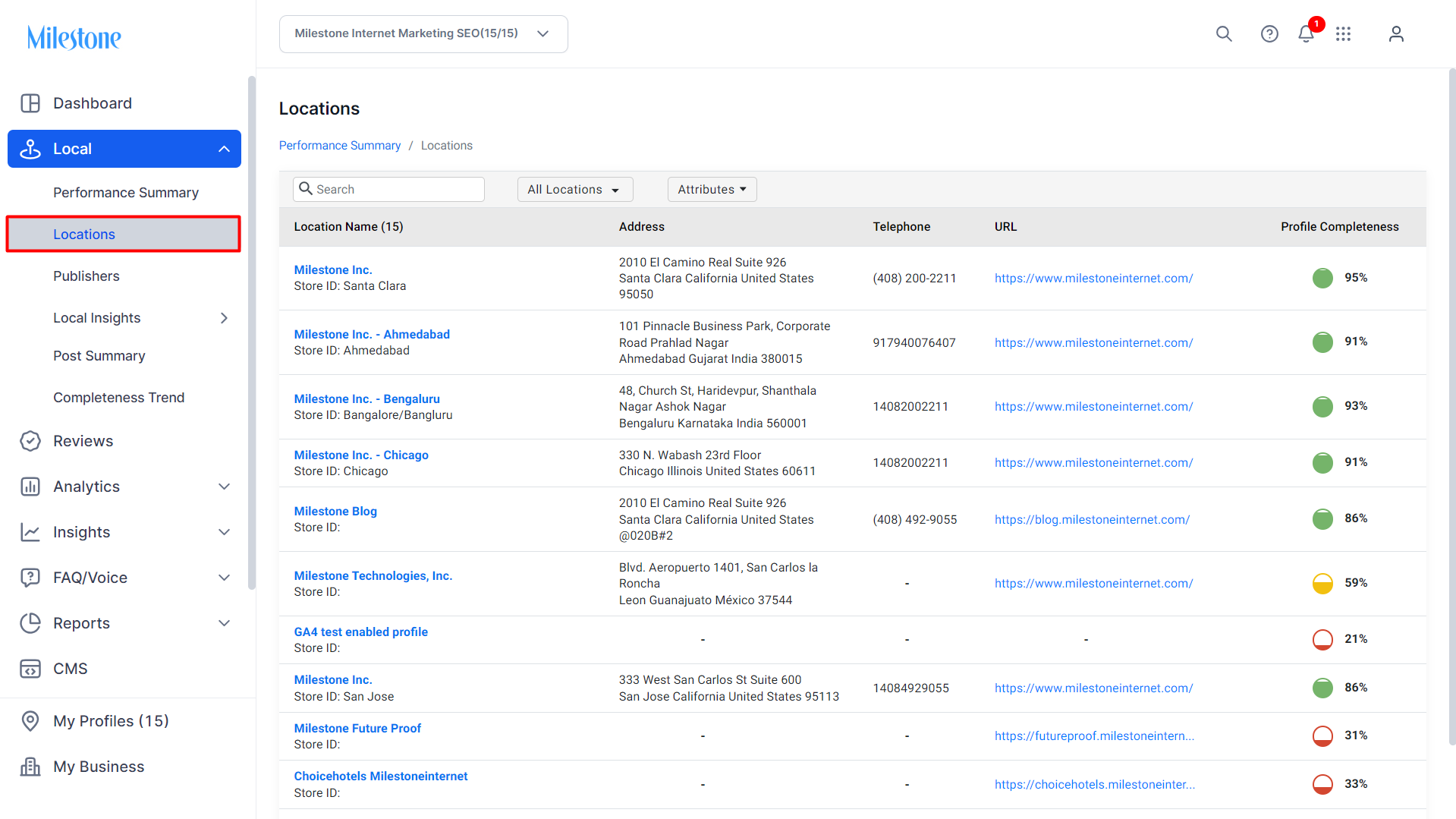
Step 1: Click on 'Locations' in the left navigation panel.
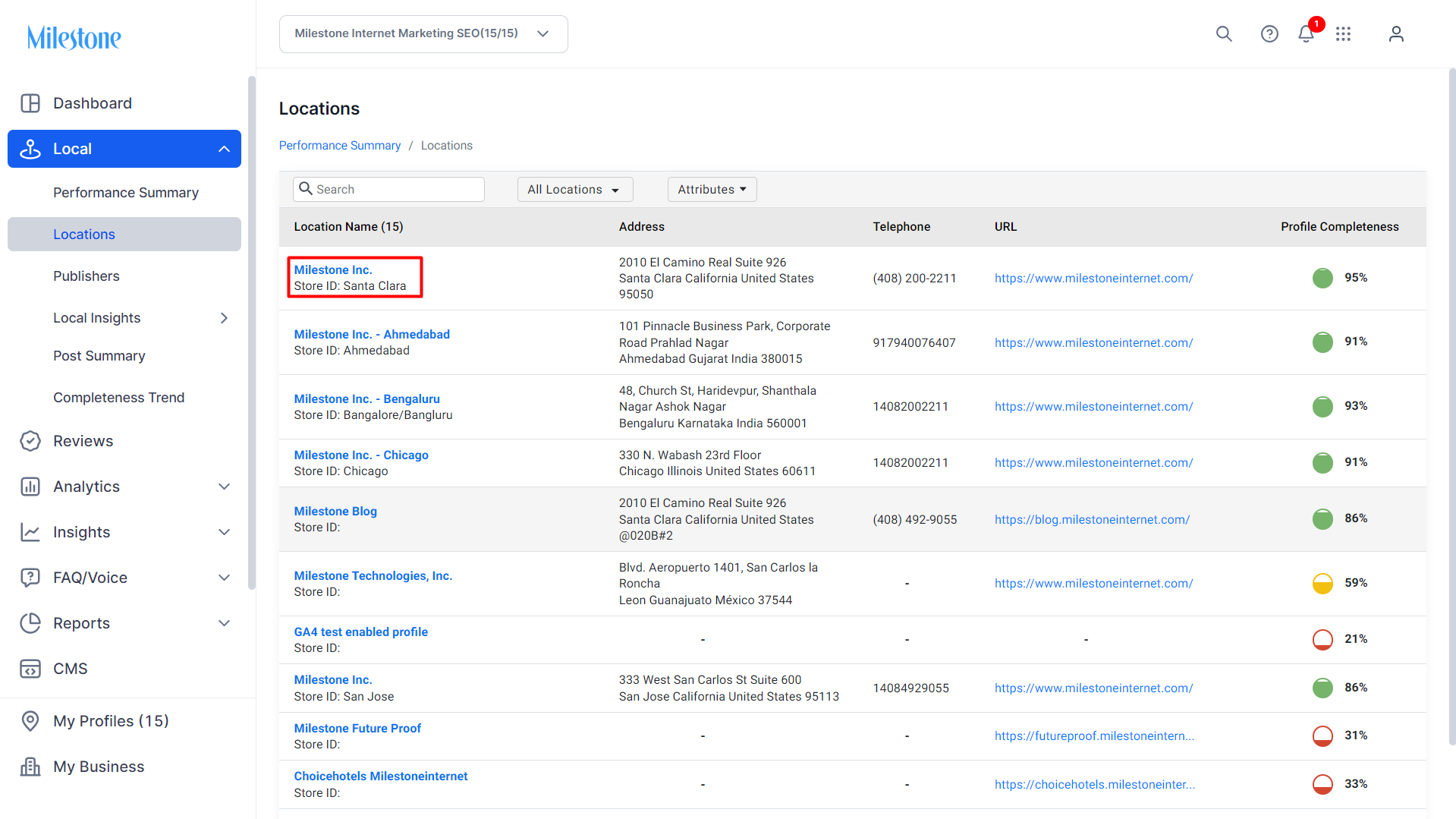
Step 2: Click on the location for which you want to view or create Google Posts.
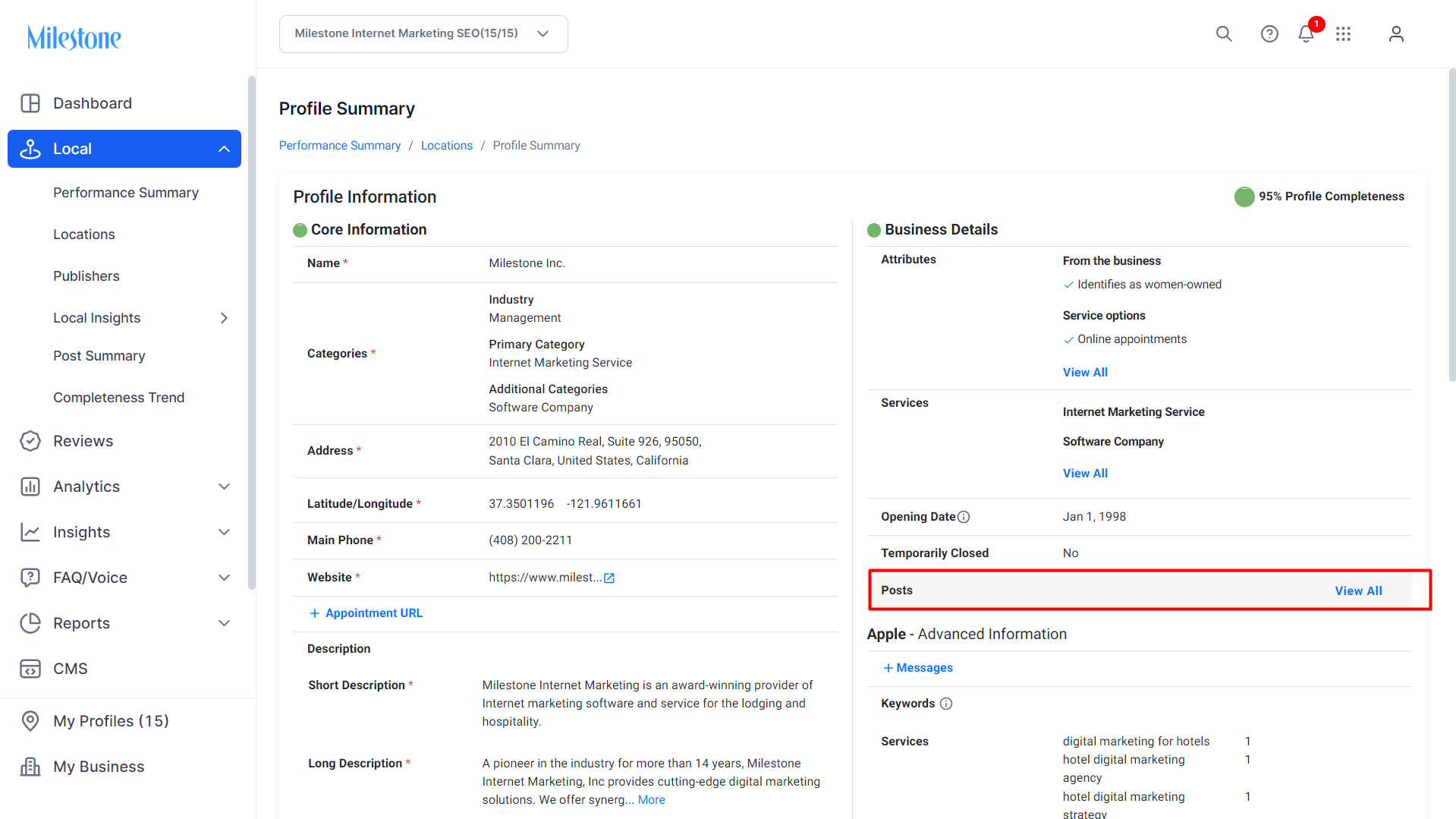
Step 3: Click in 'View All' in the Posts section of the Profile Summary.
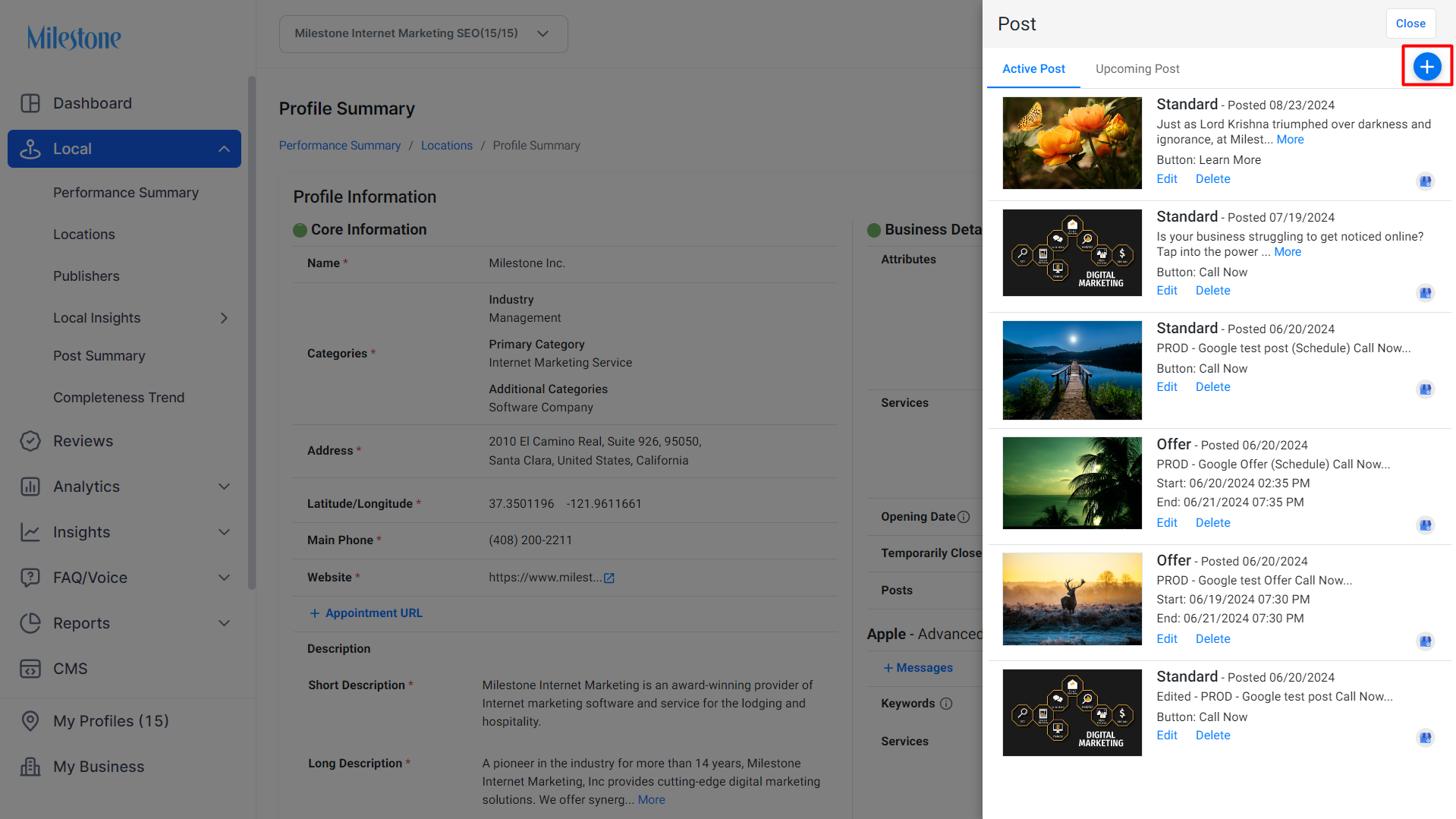
Step 4: The 'Post' section will display all the active posts in the 'Active Post' tab.
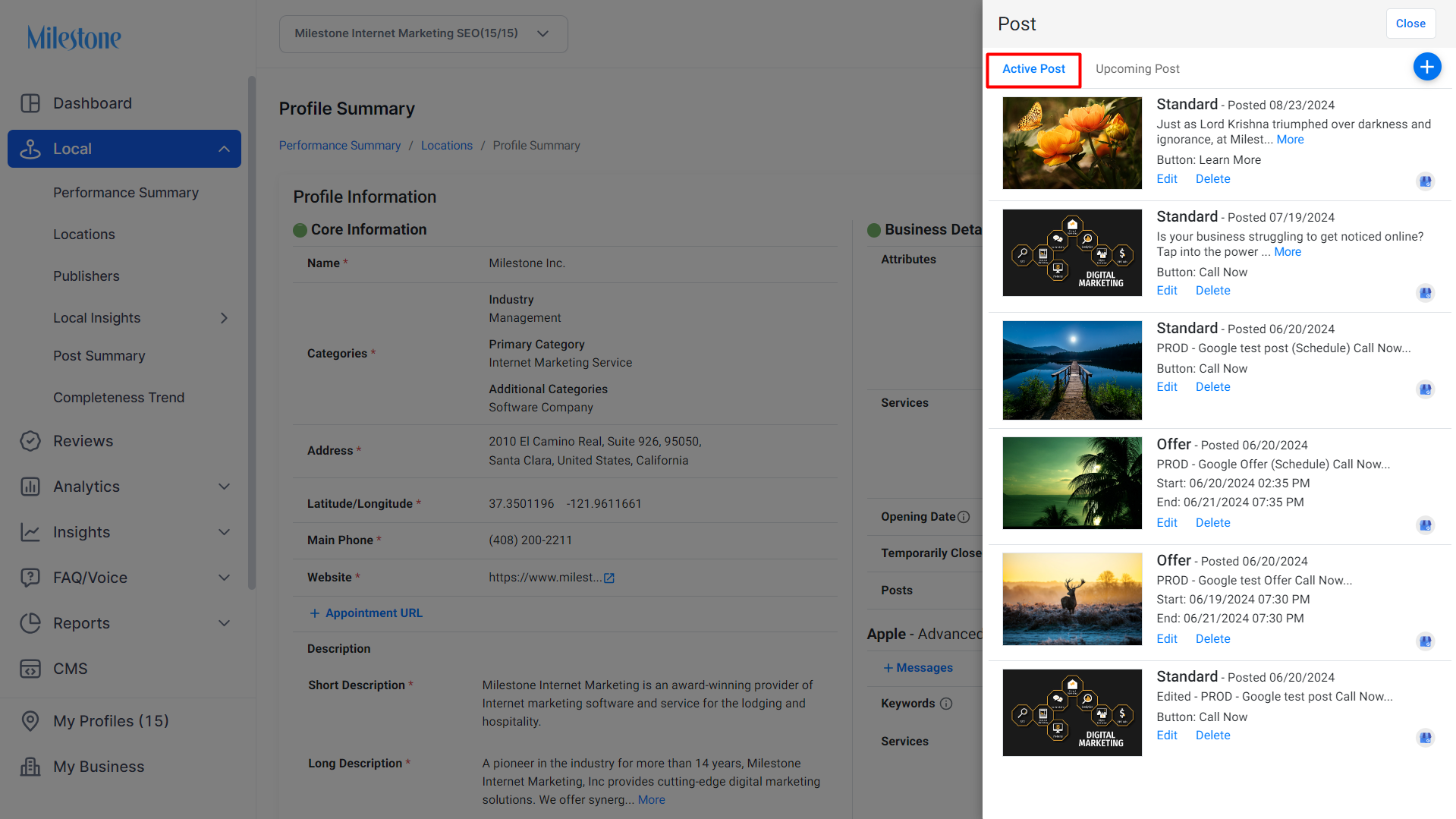
Step 5: Click on the '+' icon to start creating a new post.
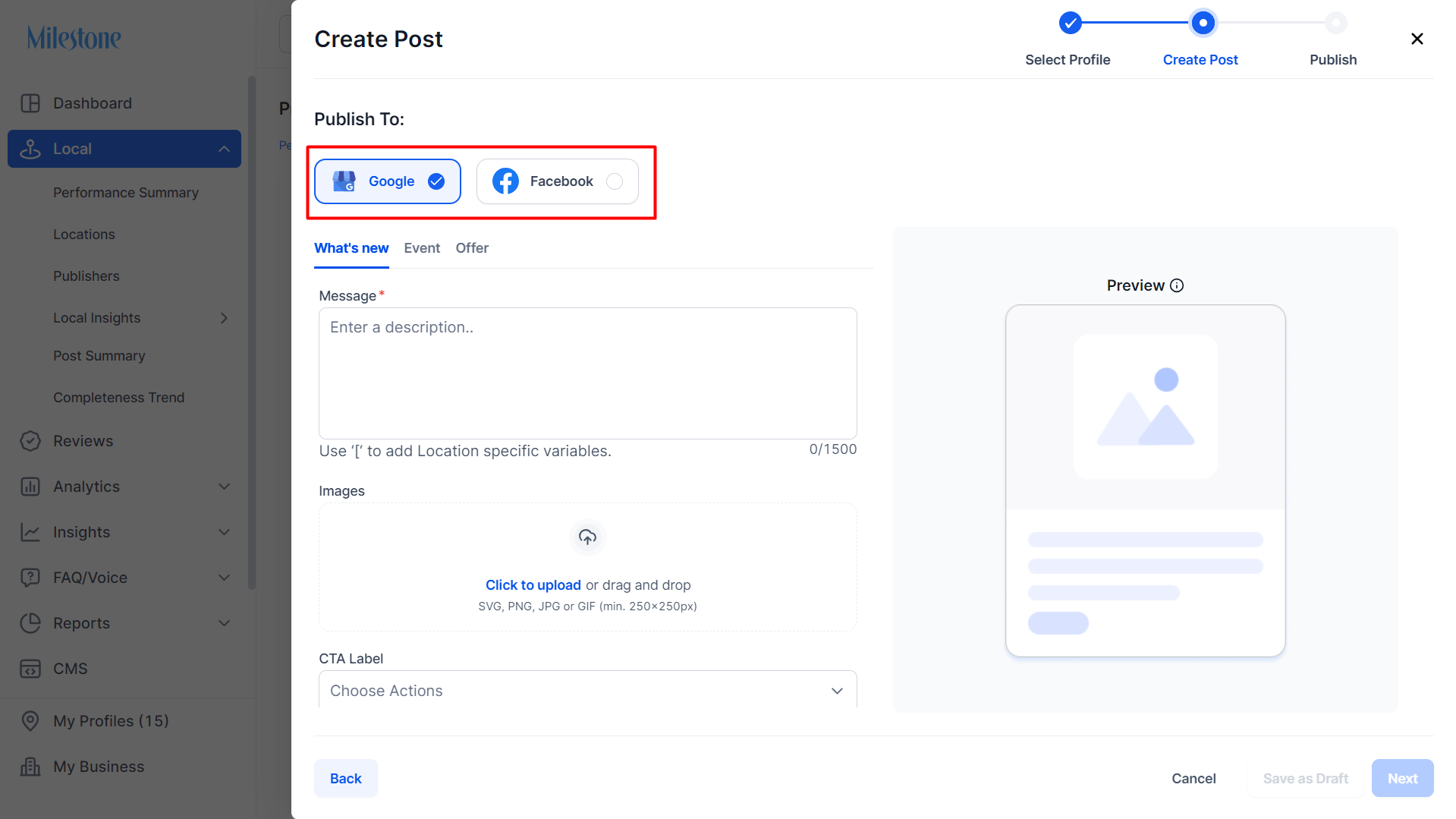
Step 6: Choose a platform to publish the post to.
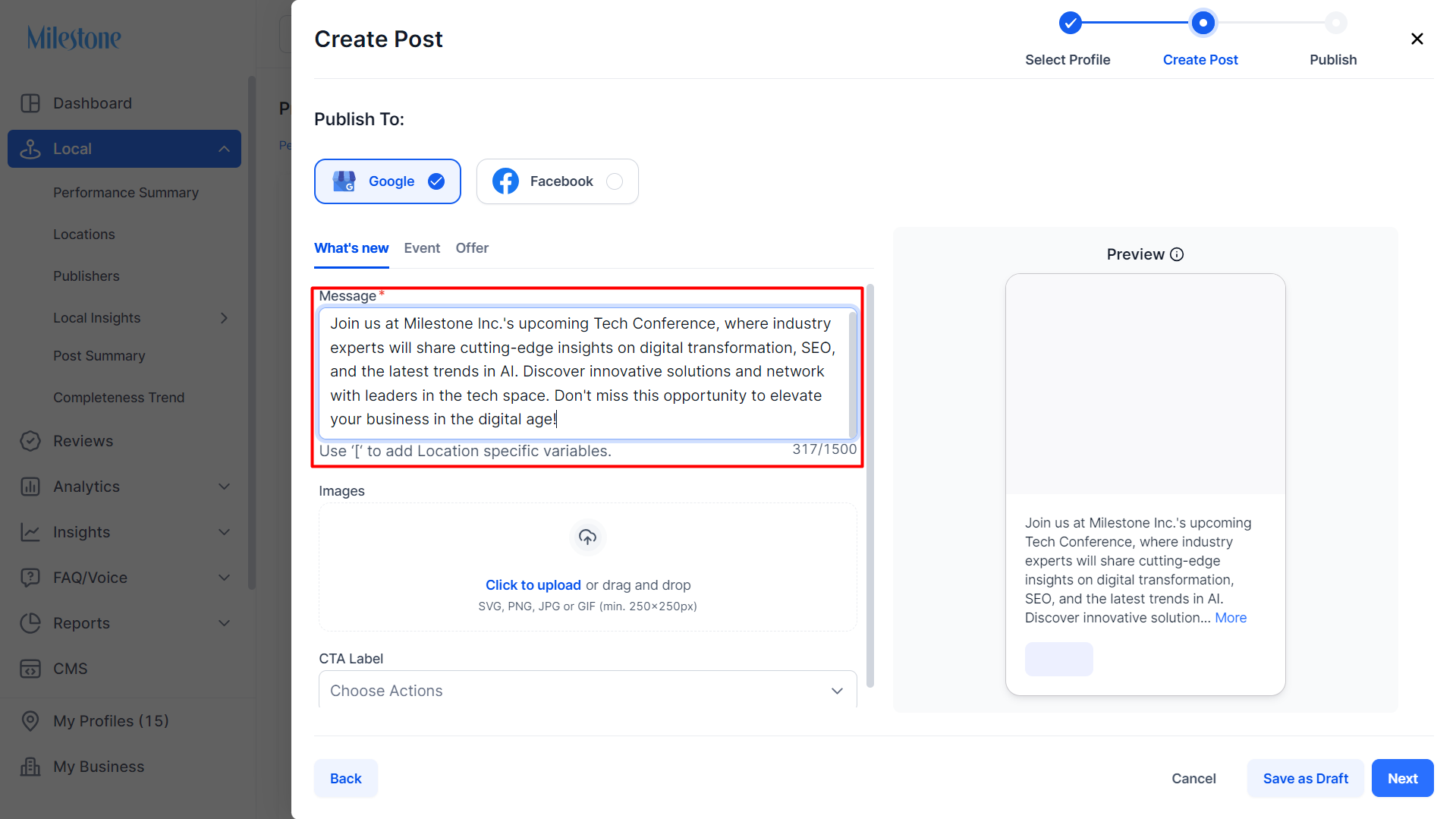
Step 7: Add a message for the post.
Step 8: Add an image.
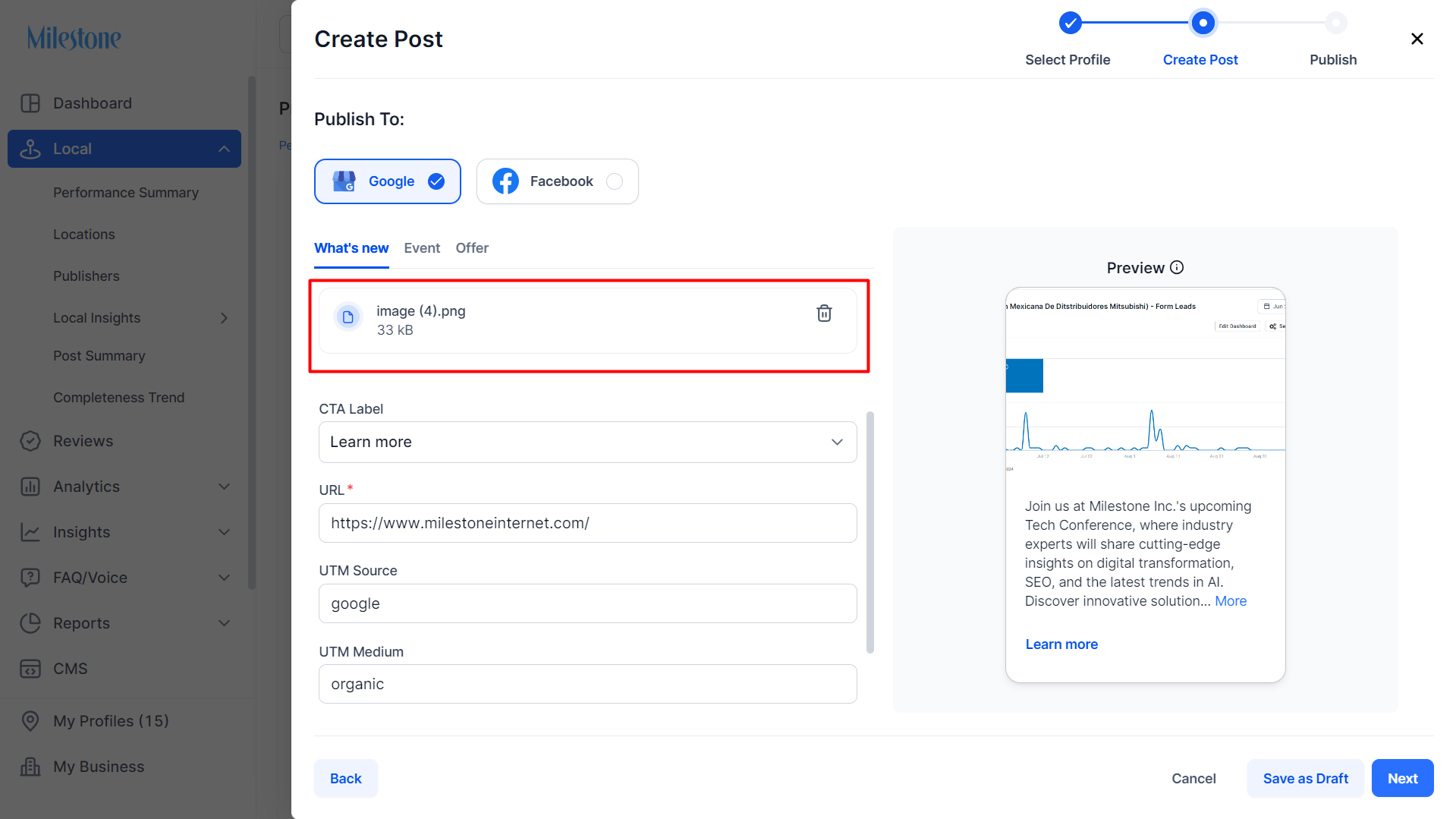
Step 9: Add a CTA, URL for the CTA, UTM Source, UTM Medium.
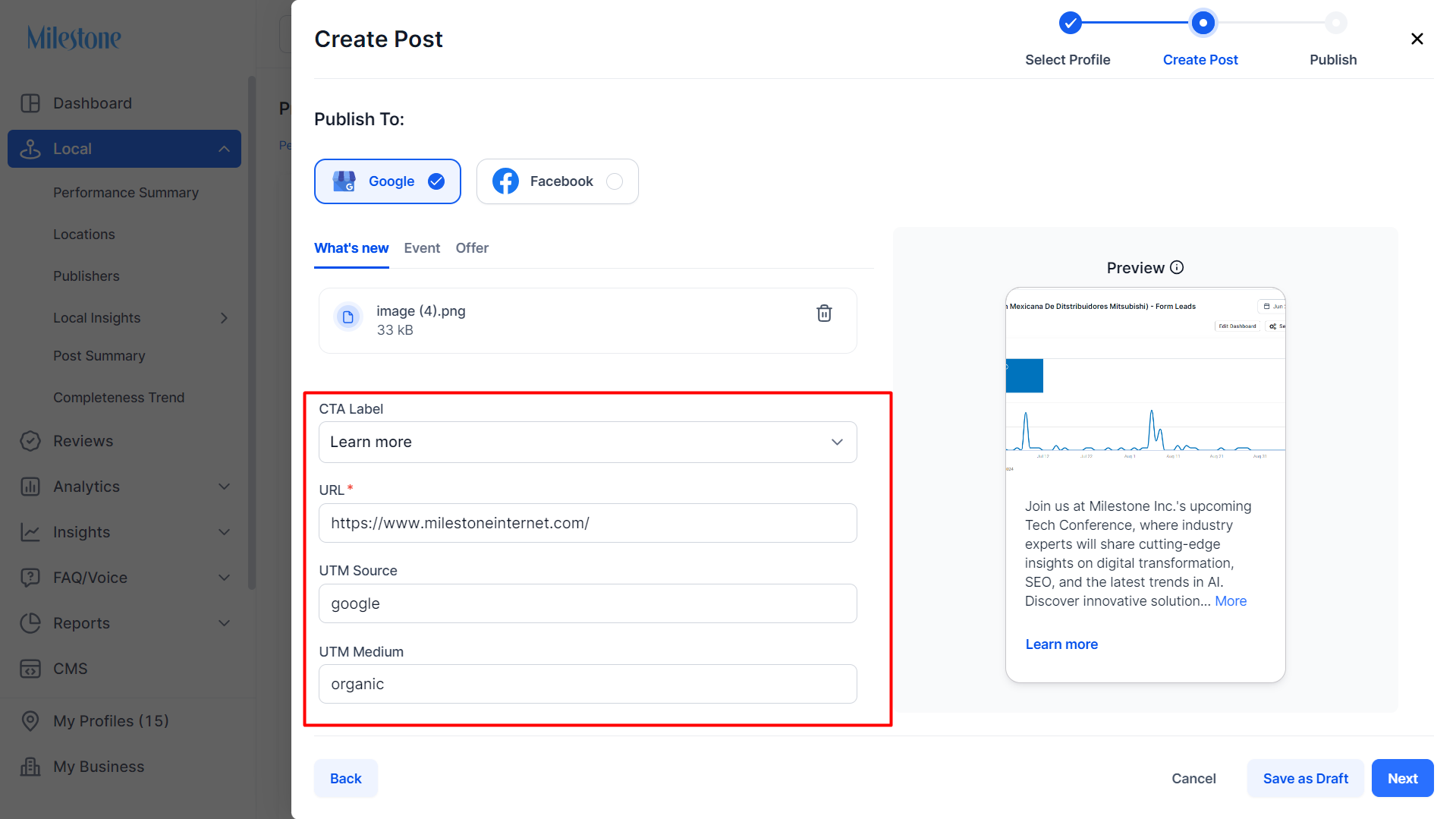
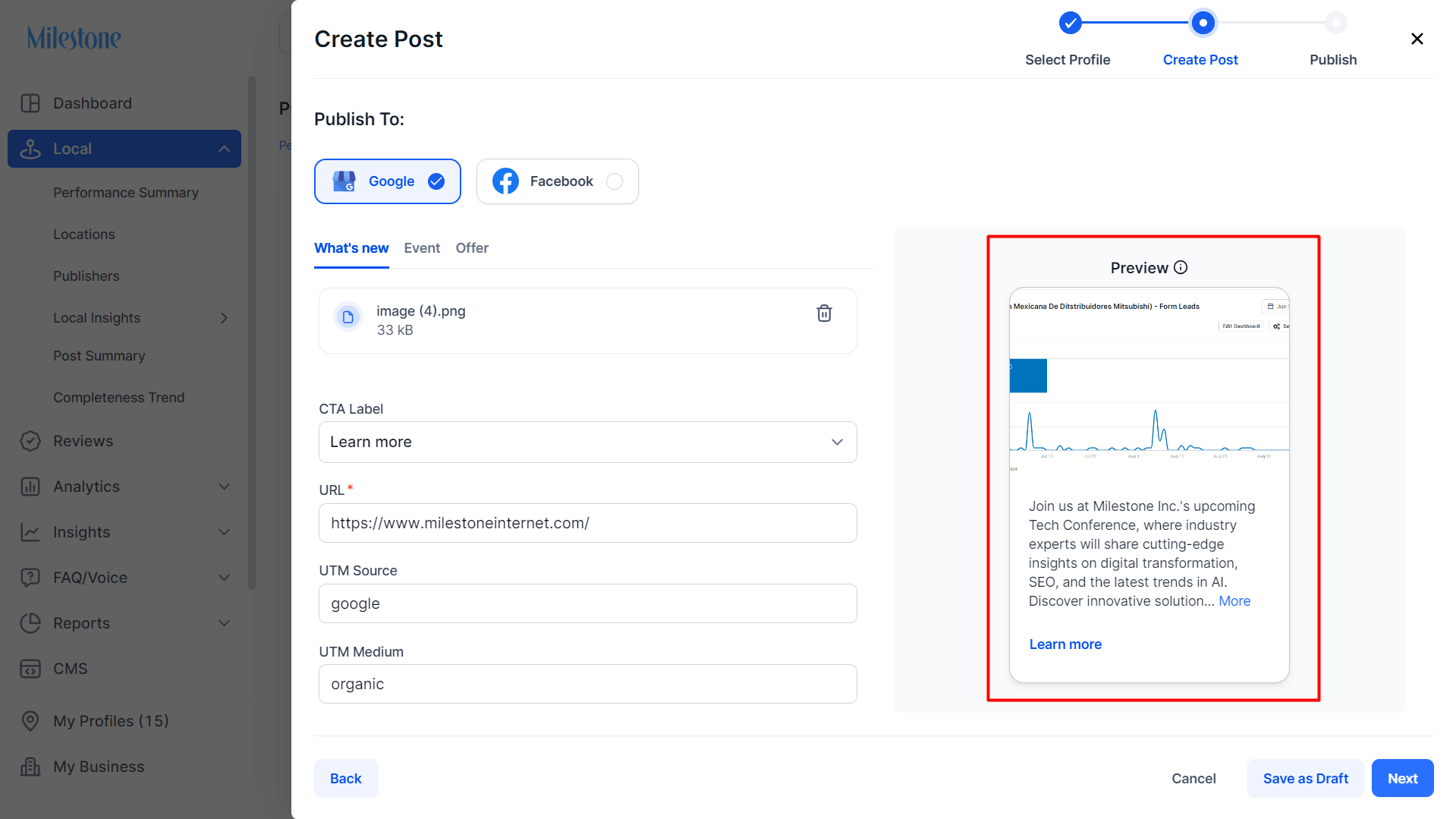
You can preview the post on the right.
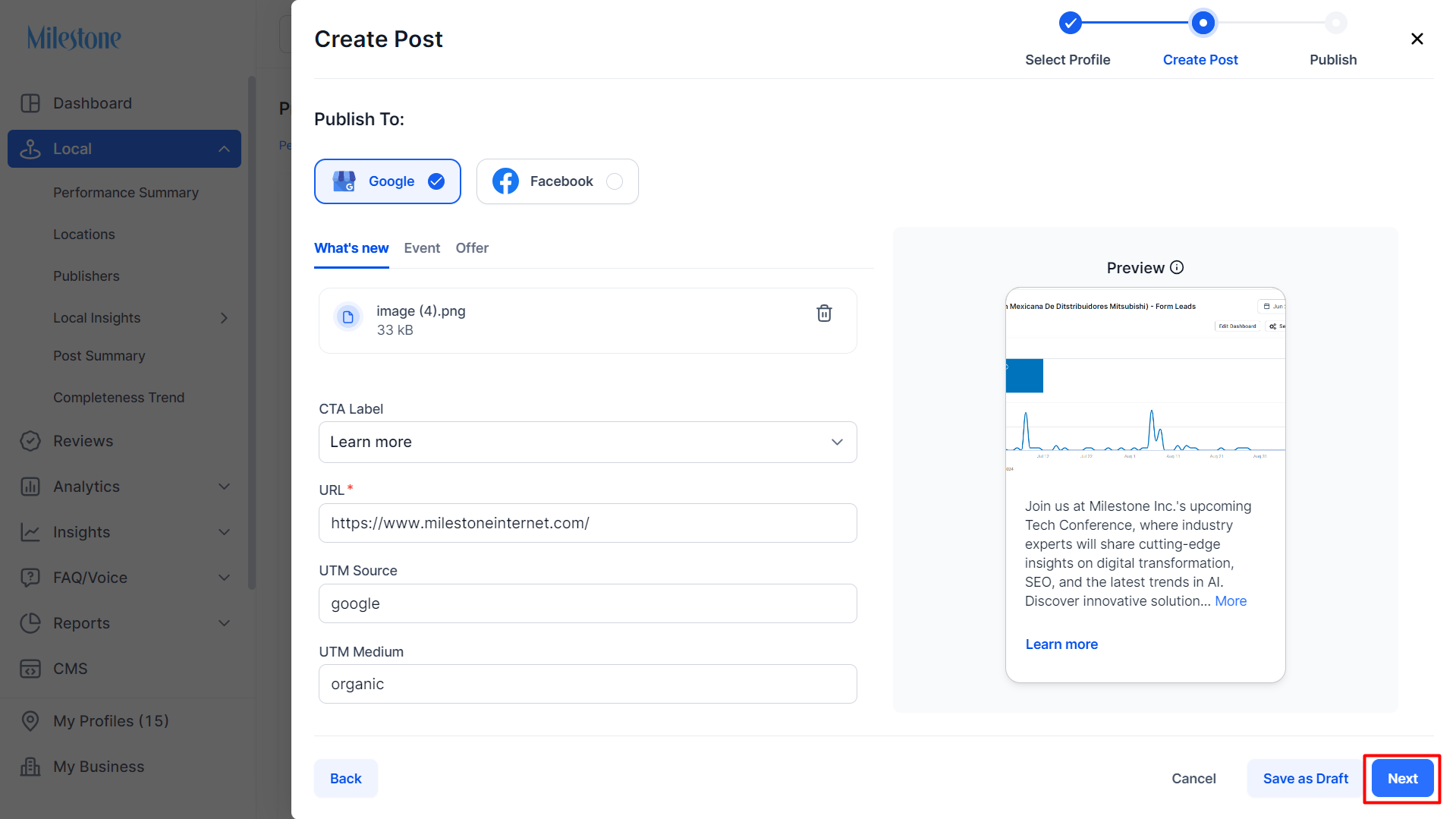
Step 10: Click on 'Next'.
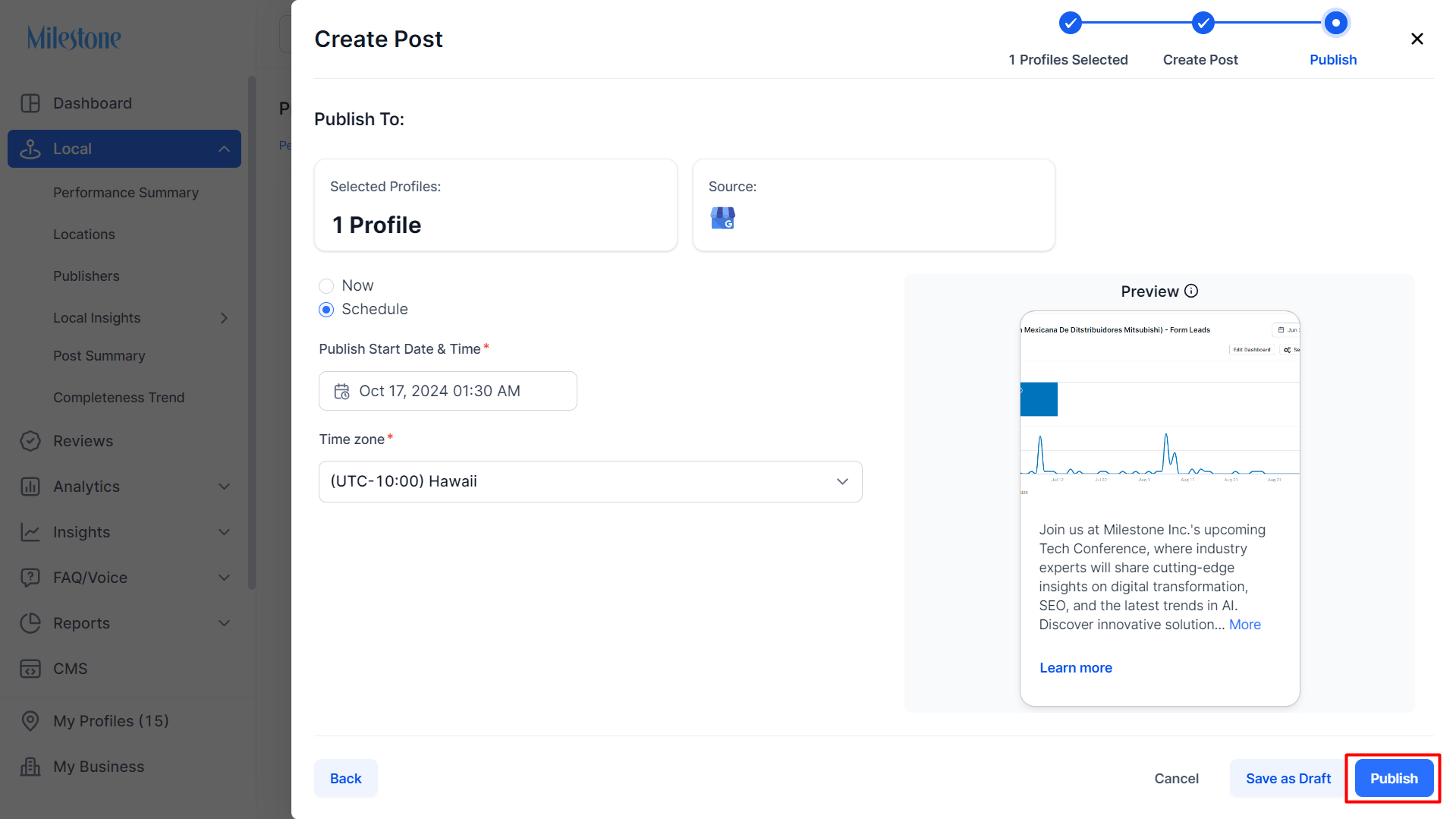
Step 11: You can choose to publish the post 'Now' or 'Schedule' it for a future date.
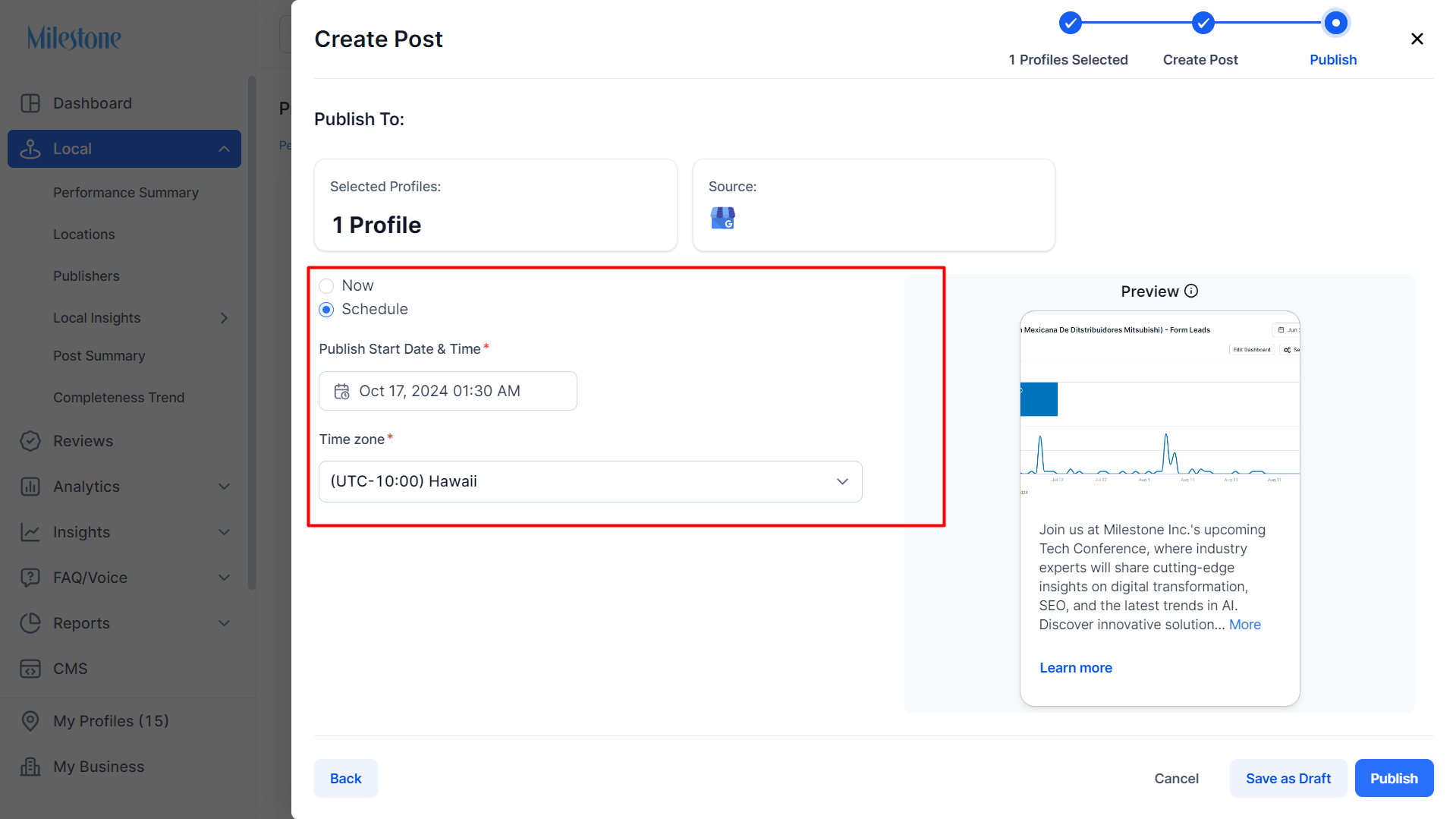
Step 12: Click on 'Publish' to finish.
Was this article helpful?
That’s Great!
Thank you for your feedback
Sorry! We couldn't be helpful
Thank you for your feedback
Feedback sent
We appreciate your effort and will try to fix the article