

Knowledge base
Release Mar 11 2024
Local
Bulk Upload – Autofill of Latitude and Longitude Data
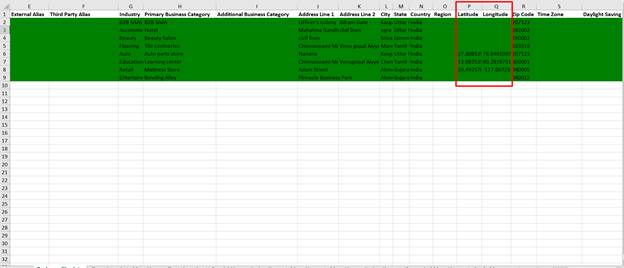
While bulk uploading profiles to Milestone Local the latitude and longitude data for the profiles auto-update if the address lines have been filled in the Local – PAS file.
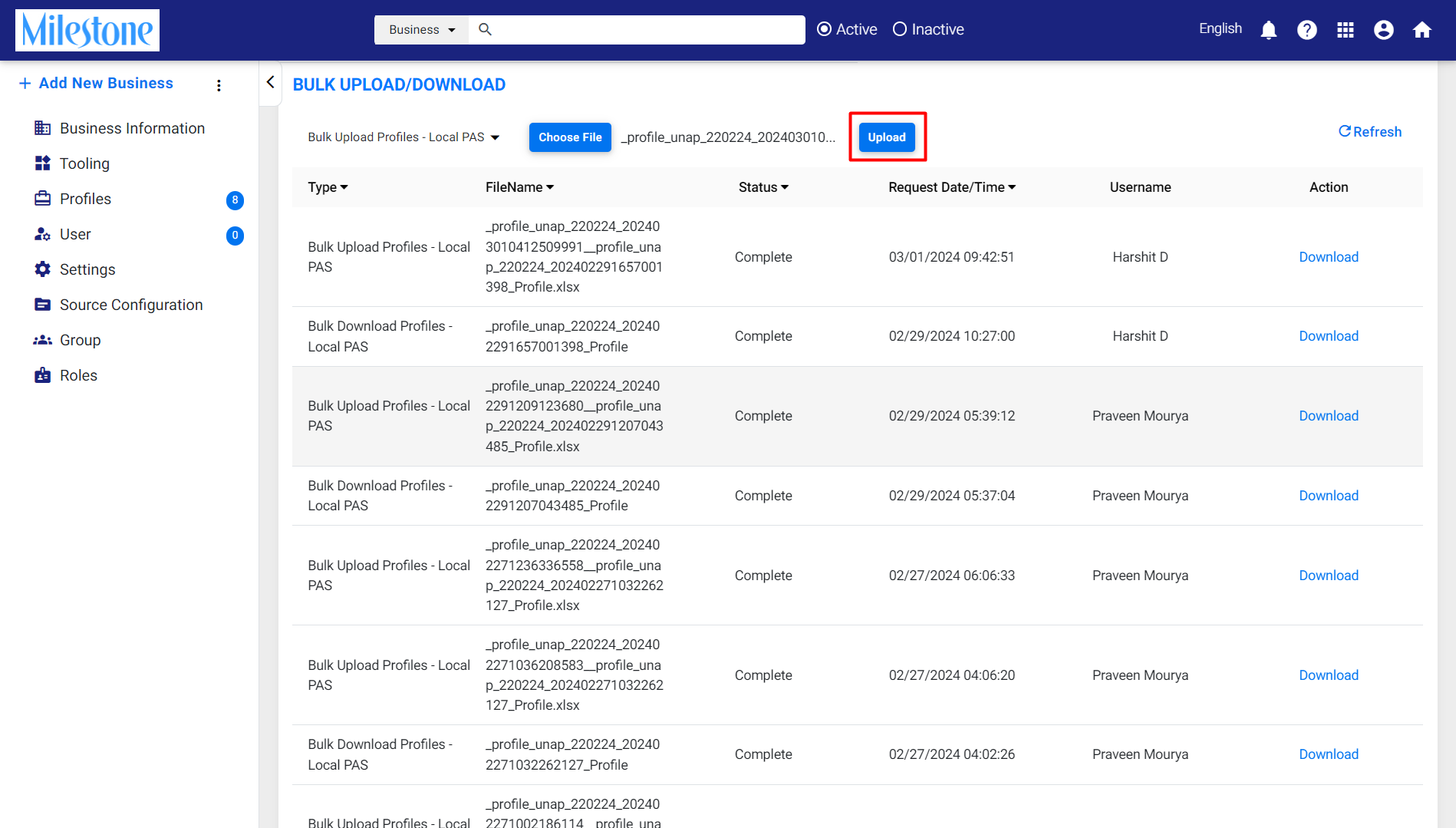
Settings > Three-dot Menu > Bulk Upload/Download >Bulk Upload Local Profiles – PAS
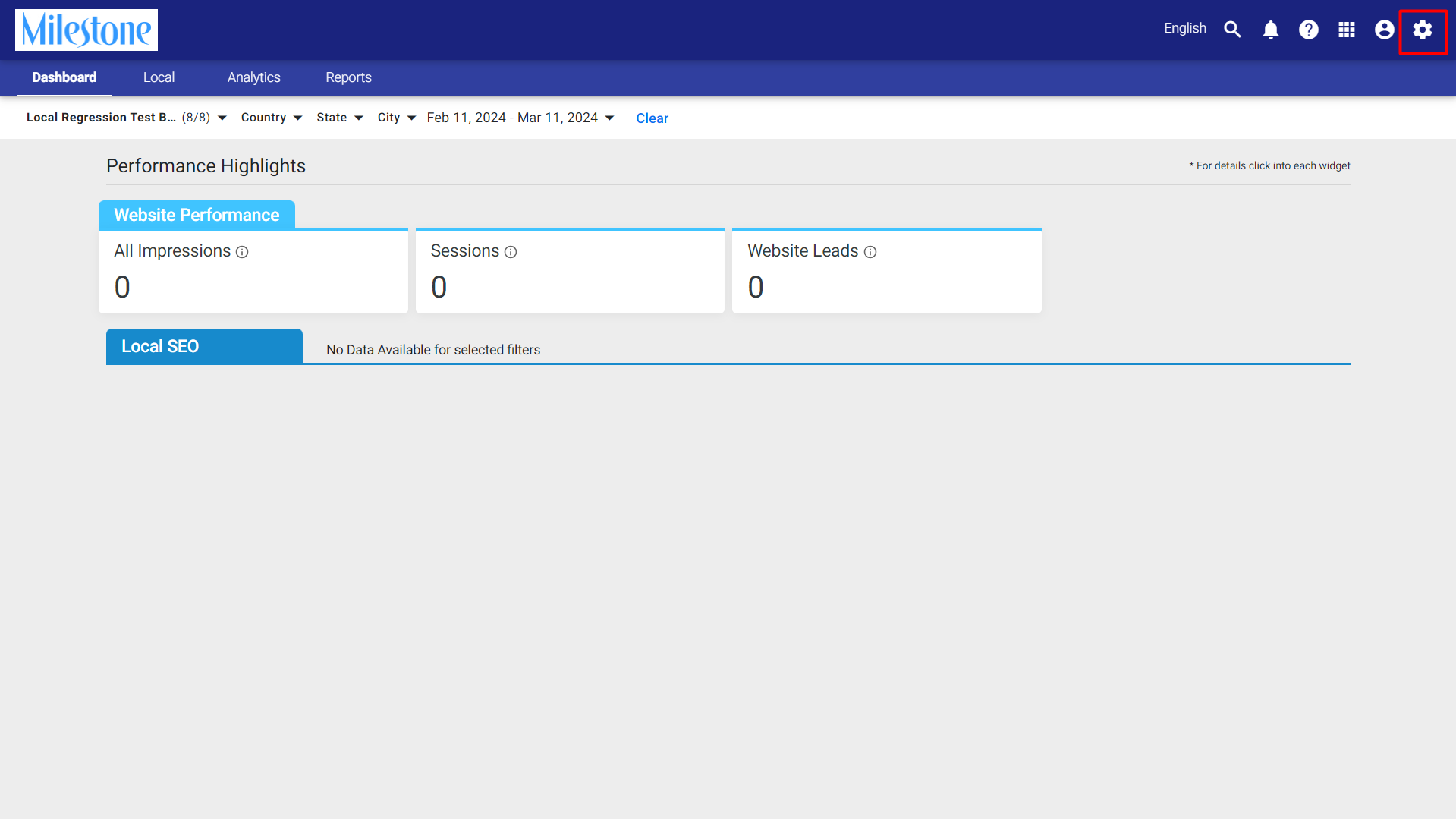
Step 1: Go to ‘Settings’ at the top right of the screen.
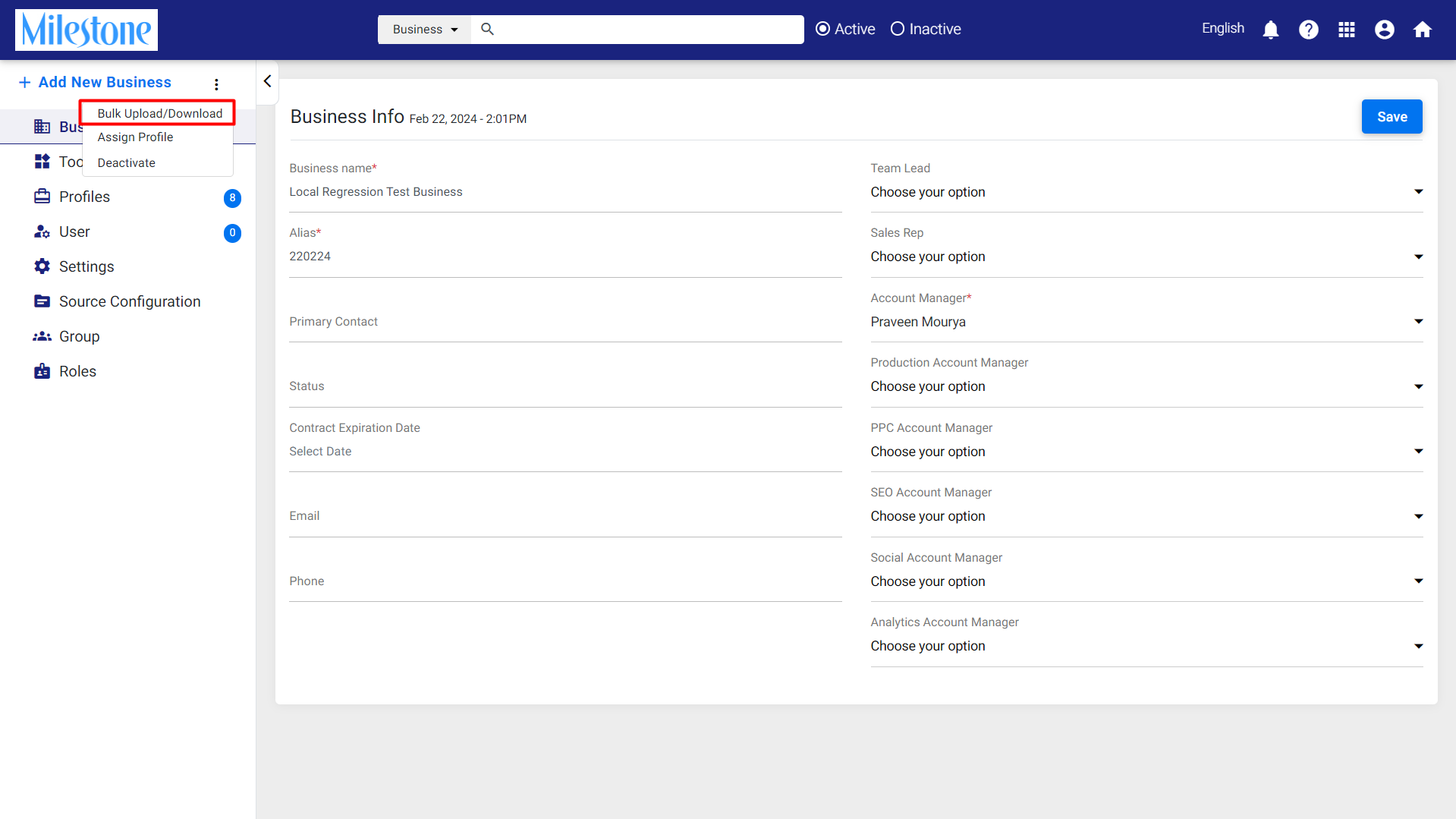
Step 2: Select ‘Bulk Upload / Download’ from the three-dot menu to the left.
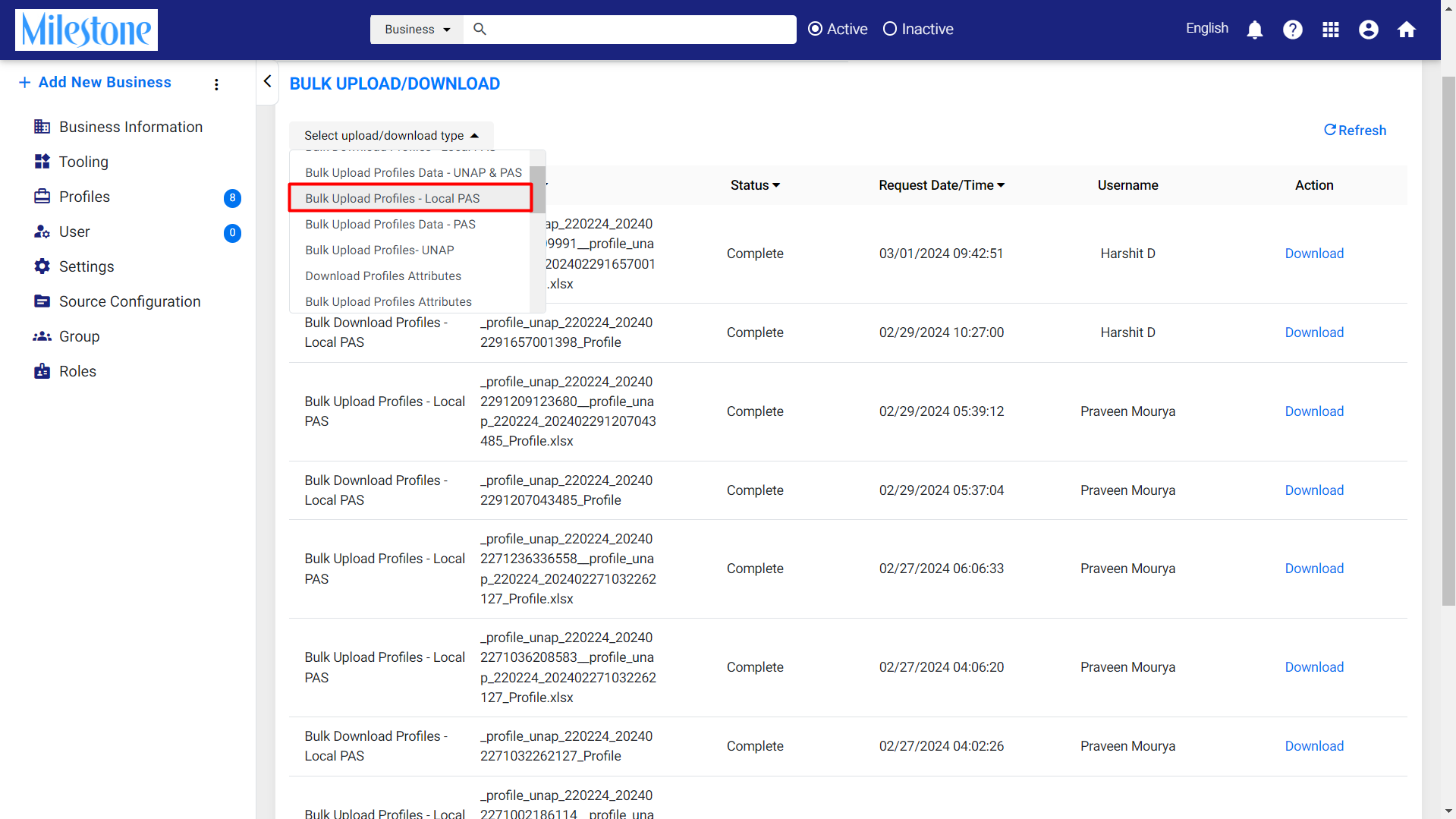
Step 3: Select ‘Bulk Upload Profiles – Local PAS’ from the dropdown menu to the top left.
Step 4: Click on ‘Choose File’ to upload the Local PAS sheet.
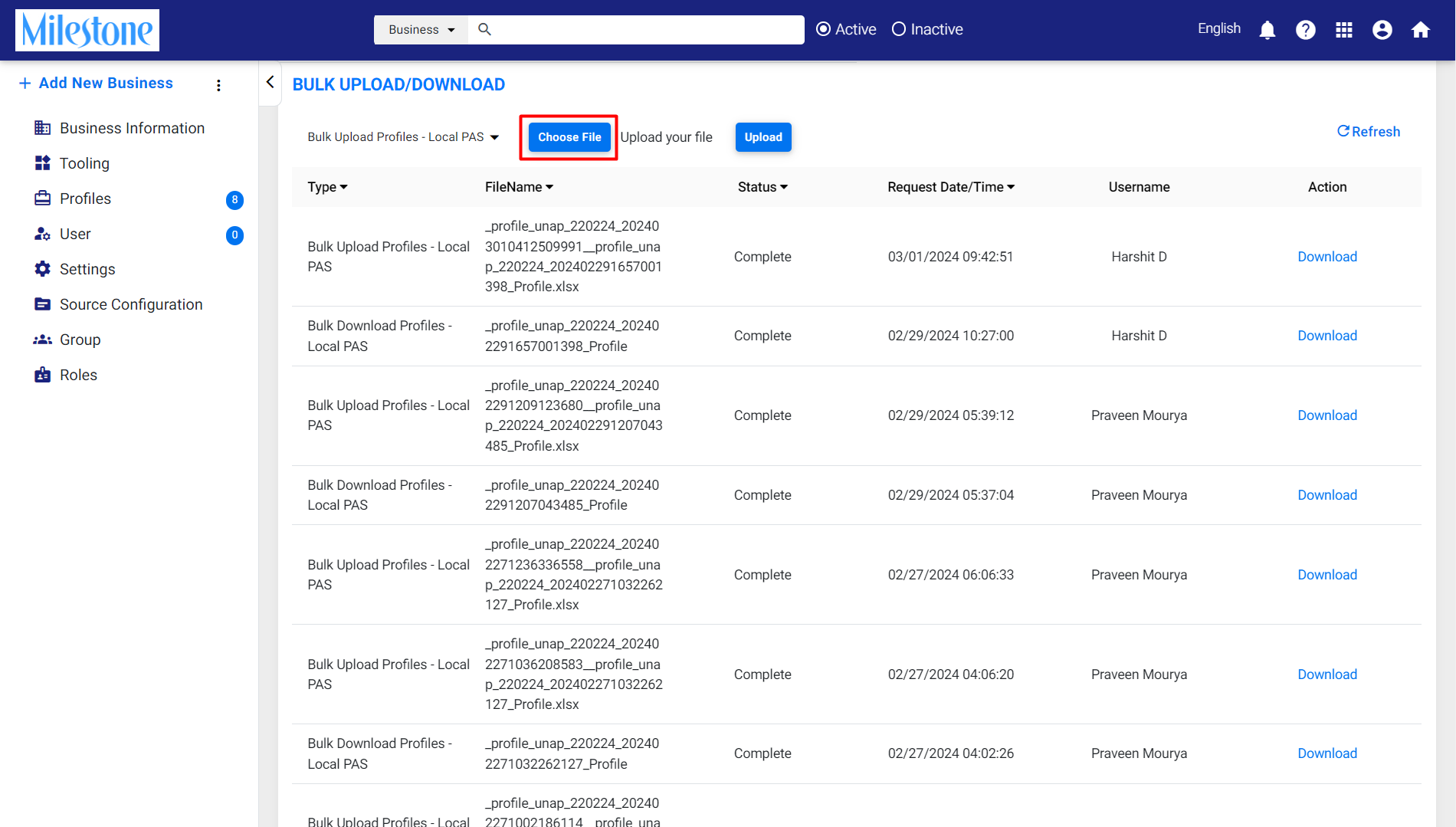
The Local PAS sheet does not contain longitude and latitude information for the profiles.
Step 5: Click on ‘Upload’ to upload the Local PAS sheet and update profile information across profiles.
Analytics
Performance Max
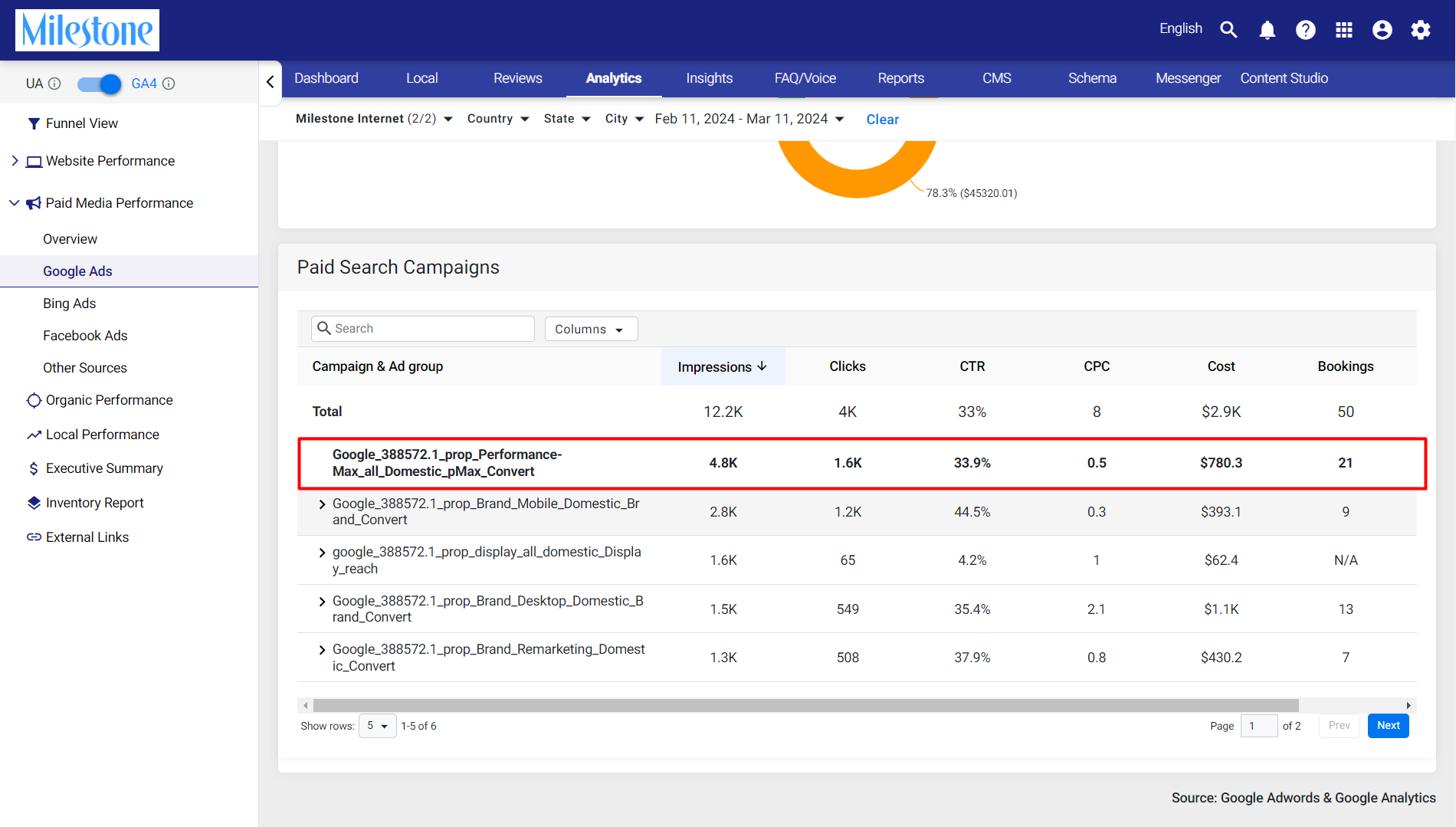
The Performance Max feature allows users to view data for their entire Google Ads campaign under a single inventory.
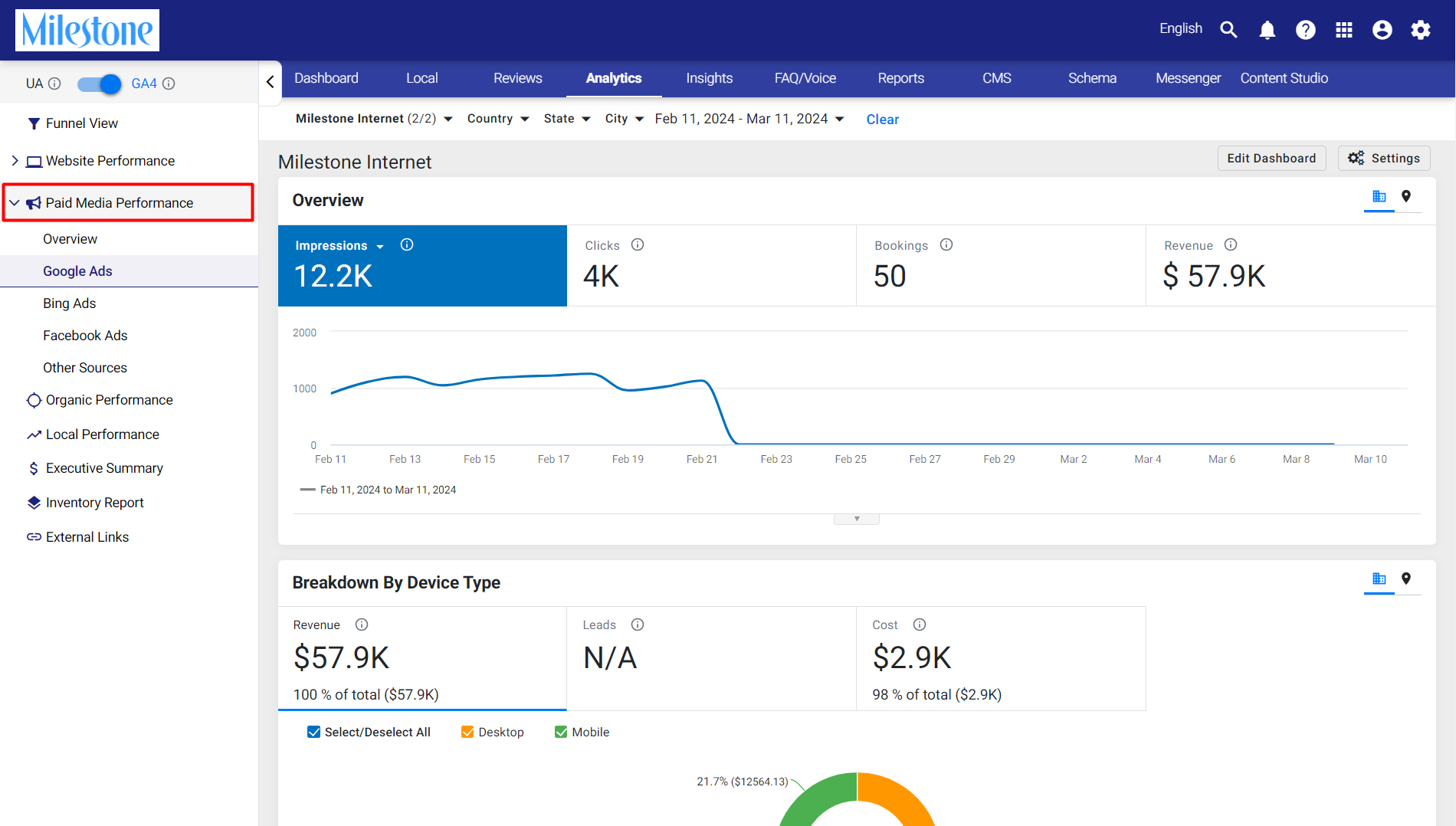
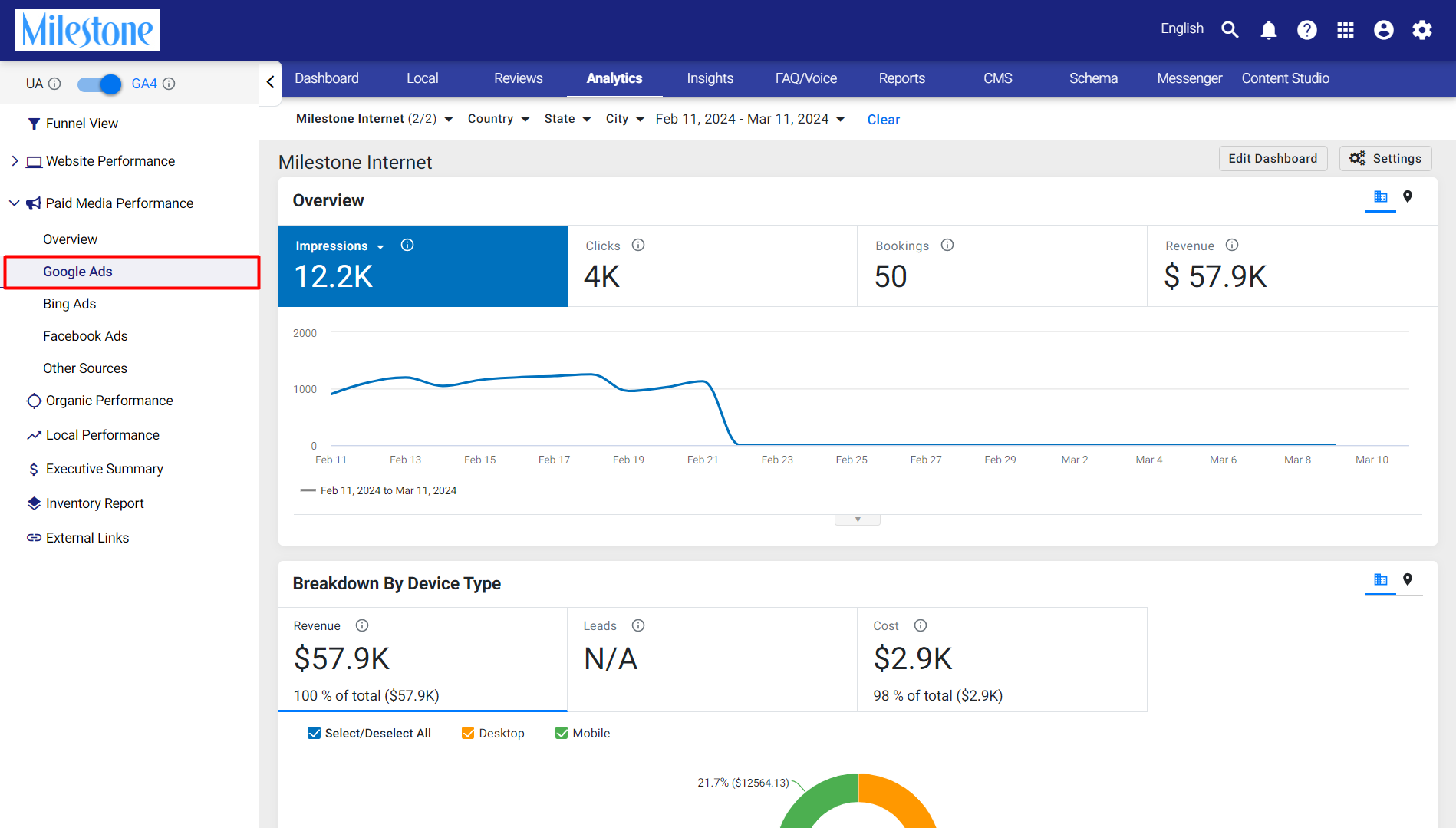
Analytics > Paid Media Performance > Google Ads
Step 1: Click on ‘Paid Media Performance’ in the left navigation panel of Milestone Analytics.
Step 2: Select ‘Google Ads’ under Paid Media Performance.
Under the Paid Search Campaigns data section, you can see the Performance Max campaign data.
Was this article helpful?
That’s Great!
Thank you for your feedback
Sorry! We couldn't be helpful
Thank you for your feedback
Feedback sent
We appreciate your effort and will try to fix the article